Sync Files between Two Computers without Cloud | 2 Free Ways
- Why sync files between computers without cloud?
- Two FREE ways to sync folders between computers without cloud
- Solution 1. Share files over the network with Windows built-in tool
- Share a folder and set full permission
- Activate Offline Files folder on target computer
- Sync network files to target computer
- Solution 2. Best way to sync files between two computers
- Conclusion
Why sync files between computers without cloud?
With the increasing number of people owning multiple devices, it's common to see individuals having both a desktop and a laptop, with the former being used at home and the latter for portability and use outside the home.
Users often use cloud storage services like Dropbox, Google Drive, or OneDrive to keep files synced across multiple devices, offering easy access. However, these services also have drawbacks.
- Many services offer a limited amount of free storage space, but require payment for additional storage needs.
- Users may experience syncing issues with cloud storage services, such as Dropbox or Google Drive, which can cause problems while syncing files and folders. This can lead to frustration and disruption.
- The cloud storage service does not automatically sync files or folders outside of the desktop folder, so users must manually add data to it.
- The cloud storage service only syncs changes made in the desktop folder, meaning that any changes made to files on the cloud storage itself are not synced back to the desktop folder.
You want to sync files between computers without using cloud services and prefer a safer way to sync data that's not vulnerable to snooping.
Two FREE ways to sync folders between computers without cloud
You can easily sync files between computers on a home network by creating shared folders, which can be accessed by any computer on the network with permission, allowing for full control over shared files and syncing folders between computers without using the cloud.
#1: Use Windows built-in sync tool - Sync Center. It creates a copy of files on a network drive using an offline folder, allowing you to access them at any time, even when disconnected or the computer is turned off.
#2: Use third-party file sync software - Qiling Disk Master Standard. With this tool, you can easily access files on a network share and sync files between computers over the network in just a few simple steps. It also offers a scheduled sync feature to automatically sync files at a specified time. If you're interested, you can refer to Solution 2 for more information.
To sync files between computers without using cloud services, we can explore alternative methods. This might involve using a USB drive or external hard drive to transfer files between devices, or setting up a local network to share files between computers.
- Solution 1. Share files over the network with Windows built-in tool
- Solution 2. Easier way to keep files in sync between computers
Solution 1. Share files over the network with Windows built-in tool
Windows offers a sharing feature that allows anyone in the same network to access shared folders with permission. Additionally, to sync files between computers without cloud, the Windows built-in tool Sync Center can be used.
Share a folder and set full permission
Step 1. Start the computer you want to share files with others, navigate to the folder, right-click it and choose Properties.
Step 2. Click the Sharing tab and click the Advanced Sharing... option.
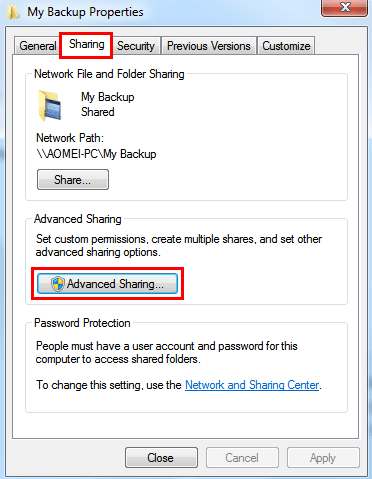
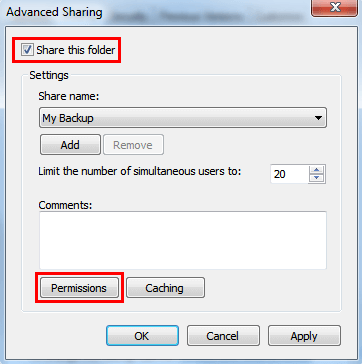
Step 3. Check the Share this folder option > Click Permissions to customize the permissions for a specific user or group.
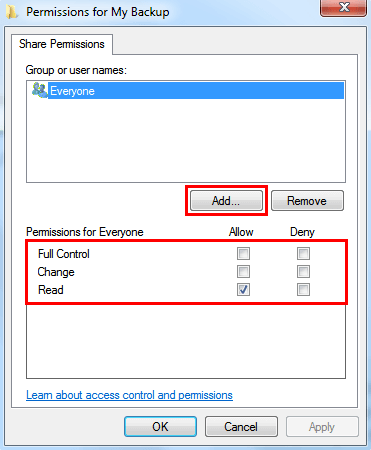
Step 4. To share files, click the "Add" button, type the name of the user you want to share with, and select the desired permissions (Read is checked by default). Then, click "OK" to confirm.
To access shared folders or files on other computers within the same network, you can use the "Network" option in the File Explorer on your Windows computer. This will display a list of available shared folders or files on other computers on the network, allowing you to browse and access them as needed.
Activate Offline Files folder on target computer
To sync files without cloud, you need to activate the Offline Files folder in Sync Center, which is where network files are saved, allowing you to sync files in this way.
1. On the target computer, input 'mobsync' in the Windows 10 search box and hit Enter.
2. To enable offline files, click on "Manage offline files" on the left side, then press "Enable offline files" and click "OK".
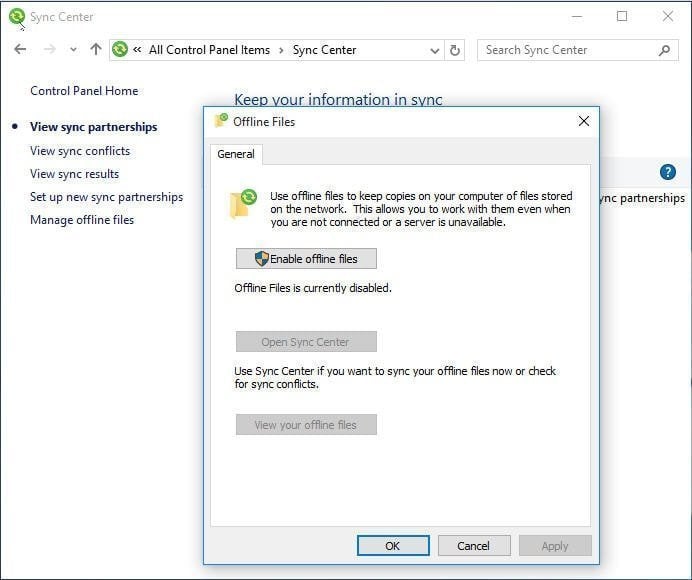
3. Restart your computer to make the settings take effect.
Sync network files to target computer
1. Enter the IP address of the computer with the shared folders, such as \\192.168.0.58, and then enter the credentials to access the shared folders.
2. Right-click the shared folder, and then choose Always available offline.
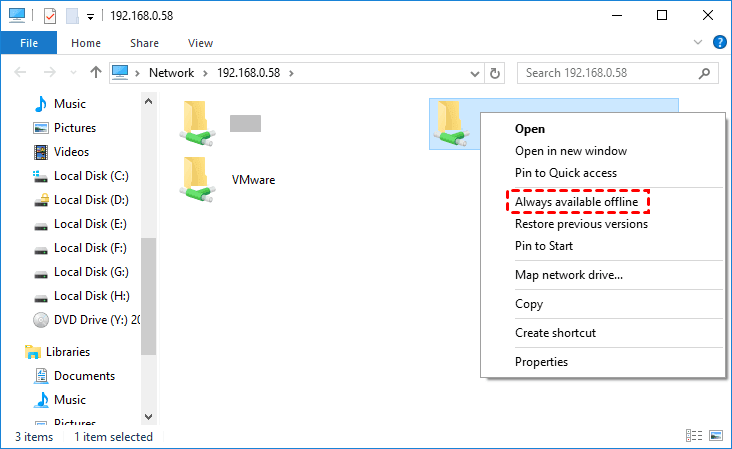
3. The app will prepare and make the files available offline, prompting "your files will be available offline" as it completes the process.
Selected shared folders will be synced to the Windows 10 computer, and vice versa, by creating a shared folder on the target computer and enabling the offline files folder on the source computer for sync.
Besides this traditional way, there's another method that can also help you sync files to your network. It can help you finish the job in an easier way.
Solution 2. Best way to sync files between two computers
Qiling Disk Master Standard is a free backup software for Windows that allows users to sync files between computers without using cloud services, as long as they have permission to access the desired folder.
- Sync folders to network or other storage devices, such as an internal hard drive, external hard drive, or a USB flash drive, with this feature.
- The tool allows you to set up automatic sync tasks, which will then sync network files on a daily, weekly, or monthly basis, enabling you to keep your files up-to-date.
- It allows you to choose whether to sync deletions from the source directory to the destination.
To sync files to the network, download, install, and launch Qiling Disk Master Standard on the target computer. For syncing files between Windows Servers, try Qiling Disk Master Server.
Step 1. Click the Sync option and then choose Basic Sync.

Step 2. Task: Add Shared Folders for Syncing

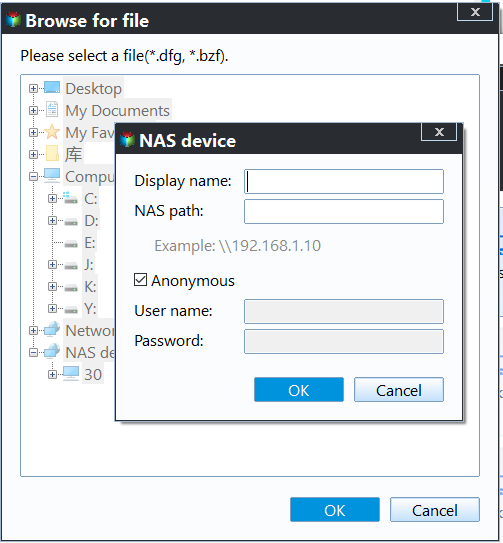
Tip: By clicking the "Filter settings", you can choose to include or exclude specific files or folders, which can save time and effort. This is similar to backing up files with a certain file extension.
Step 3. Click the second box and choose a local folder on the target computer to save the network files.

Step 4. To create a scheduled task, click on "Schedule Sync" and choose the frequency of syncing files, which can be daily, weekly, or monthly. This feature is available in the free version of Qiling Disk Master. In the advanced edition, additional features such as event triggers and USB plug-in are also available.

Notes:
- Besides scheduled sync, you can also sync files in real-time with the help of the Real-Time Sync feature in advanced editions.
- You can click "Options" to write a comment for the sync task and also enable email notification to receive the execution result.
Step 5. Confirm the folders you want to sync from and to, then click Proceed to sync files between two computers automatically.
Notes:
- You should not rename the source folder after syncing, as it will cause the synchronization task to fail.
- This software allows for syncing files between multiple computers without needing to be reinstalled on each device, as long as a portable version is created, and is available on the technician or technician plus edition.
Once the syncing is complete, you can access and use the shared folders and files on the source computers just like they were on the target computer. Similarly, you can create another sync task to sync files from the target computer to the source computer.
If you find the process too complicated, you can use the Two-Way Sync method to sync files between computers, ensuring changes on either computer are reflected on the other.
Conclusion
You can sync files between computers without using cloud storage by using a shared folder and either creating two sync tasks or using Qiling Disk Master, which offers an easier way to sync files between two computers by keeping changes on both sides. This method requires all the files you want to sync to be stored on the shared folder.
Qiling Disk Master Standard offers additional features beyond file syncing, including backing up large files over 2GB or 4GB with its file backup feature, creating a system image with its system backup feature, and copying data from one hard drive to another with its disk clone feature.
When you create a Qiling account, you gain the ability to backup files to the Qiling Cloud, which provides 1TB of free storage for 15 days after signing up.
Related Articles
- How to Transfer Files from Old PC to New PC on Windows 7/8/10
- How to Transfer Files Between Laptop and Desktop PC Regularly
- Freeware to Sync Files Between 2 Computers on the Same Network
- How to Transfer Data from microSD Card to Laptop Easily
It is important to learn how to transfer data from microSD card to laptop. Thus, you don't need to worry about data loss. - Prime USB Hidden Copier - Auto Copy Files to/from USB
This tutorial introduces a prime USB hidden copier for Windows, presents the usage of USB hidden copier and the procedure of using it. - Best User Profile Migration Tool for Windows 7/8/10
This guide explains Best User Profile Migration Tool for Windows 7/8/10 with clear steps, key checks, and practical tips.
Products
Articles & Tutorials
- Data Recovery
- Data Backup
- File Recovery
- File Backup
- File synchronize
- System Backup and Restore
- Disk and Partition Clone
- Technical articles
- Disk Master Help
- Windows Deleted File and Disk Recovery Tutorials
- Windows File and Data Recovery Tutorials
- More Windows Tutorials for Install, Security, Files, and PC Tips
- Windows Boot, Repair, and Recovery Environment Tutorials
- Windows Backup Tutorials
- Windows Restore Tutorials
- Windows Clone and Migration Tutorials
- Windows Server Backup, Recovery, and Management Tutorials
- Windows Disk, Partition, and Storage Management Tutorials