5 Best PC to PC File Transfer Software | FREE Download
- Overview of 5 Best File Transfer Software for PC
- Qiling Disk Master Standard: Best FREE PC to PC File Transfer Software
- OneDrive: Microsoft's PC File Transfer Software for Deep Dwellers
- PCmover Express: Best PC Data Transfer Software for User Data
- Windows Easy Transfer: Best Data Transfer Software for Older PC
- Google Drive: Google's Best PC File Transfer Software for Docs Sharing
- Comparison between 5 Best Data Transfer Software for PC
- Summing It Up
You can use the Windows Easy Transfer tool on your old PC to create a file package, then transfer it to your new PC and use the built-in Windows 10 Migration Tool to import the data, or you can use a third-party migration software like Qiling Disk Master or PCmover to transfer your files, settings and applications from your old PC to your new one. – Reddit
Transferring from Windows 7 to Windows 10 via Windows Easy Transfer can be a bit awkward. If you're looking for an alternative to Windows Easy Transfer, you may need to find other PC to PC file transfer software, as not every tool is best for all features. In some cases, it's necessary to look for a different solution.
Overview of 5 Best File Transfer Software for PC
| Transfer Software | Supported OS | Transfer Contents | Transfer Through | Price |
|---|---|---|---|---|
| Qiling Disk Master Standard | Windows 11, 10, 8.1/8, 7, Vista, and XP | Files/folders | External hard drive, USB flash drive, network, and cloud drive | Free |
| OneDrive | Windows 11, 10, 8.1/8, 7, Vista, and XP | Files/folders | OneDrive Cloud | 5GB free storage |
| PCmover | Windows 11, 10, 8.1/8, 7, Vista, and XP | Files/folders, settings | Network, Laplink USB cable, and Laplink Ethernet cable | $29.95 per PC |
| Windows Easy Transfer | Windows 7, Vista, and XP | Files/folders, user accounts, email, Internet favorites | The process of transferring files from an old Windows XP computer to a new Windows 7 computer can be done using various methods, including connecting the old computer to the new one with an external hard drive or a USB flash drive, using a network connection, or utilizing an Easy Transfer cable. These methods allow for the transfer of files, settings, and other data from the old computer to the new one, making the transition smoother and more efficient. | Free |
| Google Drive | Windows 11, 10, 8.1/8, 7, Vista, and XP | Files/folders | Google Drive Cloud | 15GB free storage |
Qiling Disk Master Standard: Best FREE PC to PC File Transfer Software
To make file transfers simpler, it's highly recommended to use Qiling Disk Master Standard, a free file synchronization software for Windows that's both professional and free, compatible with Windows 11, 10, 8.1, 8, 7, Vista, and XP (32-bit and 64-bit).
- Syncing files to multiple locations
You can sync files to a variety of locations, including a local disk, external hard drives (HDD and SSD), USB flash drives, network shares, and NAS. Additionally, you can sync files to cloud drives such as Google Drive, OneDrive, Dropbox, Box, SugarSync, Cloudme, and more. You can even combine some of these options to create a customized syncing setup.3-2-1 backup strategy. - Automatic sync
Sync files automatically to keep changes, not only current but also further, thereby minimizing data loss in a disaster. You have 5 options to choose from, including daily, weekly, monthly, event triggers, and USB plug-in, which allows you to plug in a USB drive to automatically sync files. This feature ensures that all your data is backed up and up-to-date, giving you peace of mind in case of a disaster or unexpected data loss.automatically copy files when a USB drive is connected.
To transfer files and programs from Windows 7 to Windows 10, start by syncing your data. This involves using the built-in Windows 7 "Backup and Restore" feature to create a backup of your files, or using a third-party backup software to create a backup of your entire system. Next, use the Windows 10 "Settings" app to set up the "Sync your settings" feature, which will synchronize your desktop, documents, pictures, and other settings across devices.
- Ensure the two PCs stay on the same LAN or WIFI.
- Create a network share folder on your destination computer (Windows 10).
To transfer files from PC to PC for free, follow these steps: first, ensure both PCs are connected to the same Wi-Fi network; next, enable file sharing on both PCs by going to "Control Panel" > "Network and Sharing Center" > "Change advanced sharing settings" and selecting "Turn on file and printer sharing"; then, on the PC you want to transfer files from, open File Explorer, navigate to the folder containing the files you want to transfer, and select them; after that, click on "Share" and select "Share with" > "Specific people" > "Add" and enter the username and password of the PC you want to transfer files to; finally, on the receiving PC, go to File Explorer, navigate to "Network" and find the shared folder; you can then access and transfer the files as needed.
1. To transfer files from one PC to another, you can download and install Qiling Disk Master Standard on your Windows 7 PC. If you're using a Windows Server operating system (2003, 2008, 2012, 2016, 2019, 2022, including R2, or SBS 2003, 2008, and 2011), you can use Qiling Disk Master Server instead, which offers more features.
2. In the home interface, select the Backup tab and choose File Sync.

Other ways to sync files in Windows 10:
File Sync: Robocopy will sync files immediately to the destination after the files or folder changes, keeping all files or folders up to date in real-time.
File Sync helps prevent unwanted changes in the destination folder during a sync task by ensuring that any changes made to the source files are reflected in the destination files, maintaining consistency and integrity throughout the syncing process.
Unlike previous sync solutions, this one syncs changes between source and destination only when changes are made in either of them, eliminating unnecessary syncs.
3. To transfer files on Windows 7, press the "+" button next to "Folder" to select the files you want to transfer. You can also change the "Task Name" to something unique if you have multiple tasks.

4. To add a share or NAS device, select the inverted triangle icon at the second bar, then choose "Add Share or NAS Devices". Next, input the network path of your Windows 10 PC and add a folder on it as the destination path.
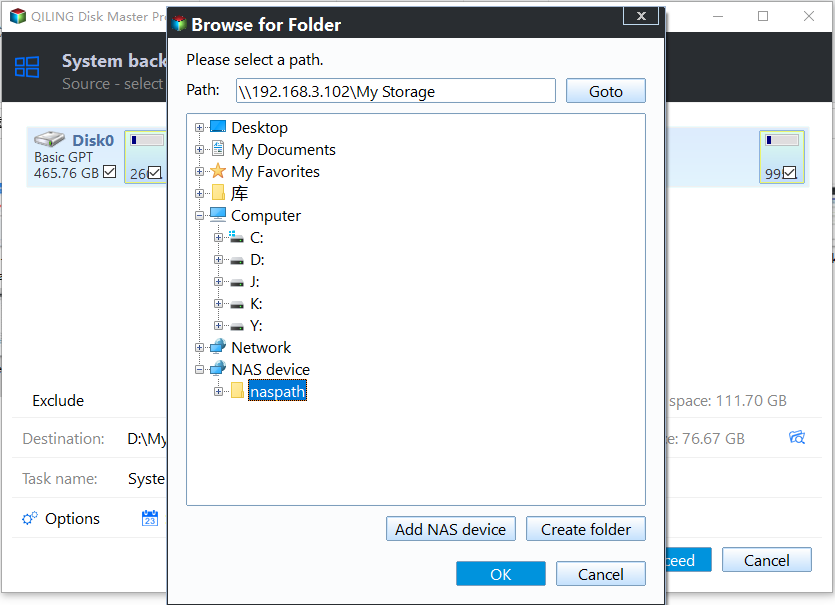
5. To transfer files to a new computer (Windows 10), click Proceed to use the best file transfer software for a PC.
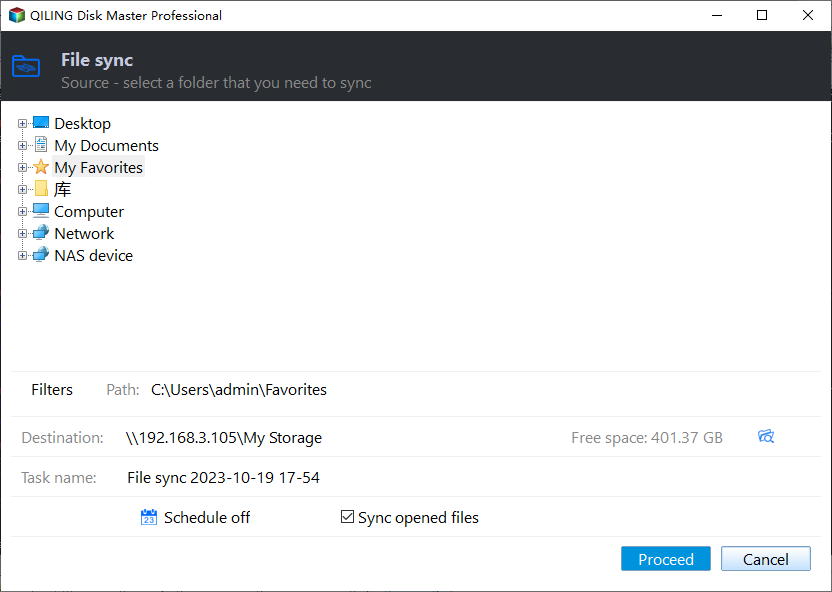
More options for sync task:
★ Options: This option allows you to add a comment to the sync task, and also enables email or SMS notifications to be sent when the task is completed.
★ Schedule Sync: It allows for automatic file syncing on a schedule, such as daily, weekly, or monthly, as well as through event triggers or USB plug-in, with the latter options available in advanced editions.
Transferring files from Windows 7 to Windows 10 is a relatively easy process. After a while, these files will be successfully transferred to the new operating system. It's a straightforward process that can be completed without much hassle.
OneDrive: Microsoft's PC File Transfer Software for Deep Dwellers
You can also try using a cloud drive like OneDrive, Dropbox, Google Drive, or Box to transfer your files. Since Microsoft recommends using OneDrive, we'll show you how to transfer files from one PC to another using OneDrive.
You can upgrade to a larger capacity if there is not enough space, and if you have a Microsoft 365 account, you can get 1TB of OneDrive storage.
Sign in with your Microsoft OneDrive account, then follow the steps below.
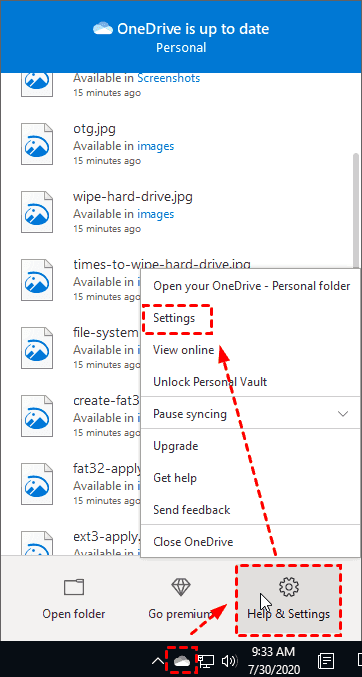
1. Click the OneDrive icon from the system tray, and choose Help & Settings > Settings.
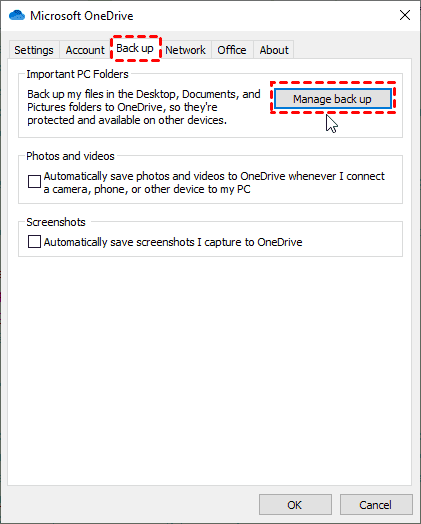
2. At the Backup tab, click the Manage Backup button.
3. Choose the folder you want to backup, then click the Proceed button to transfer files to OneDrive.
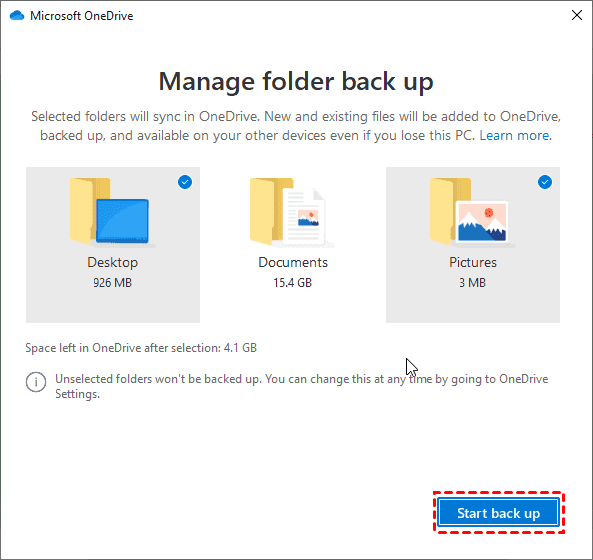
The Important PC Folders feature in OneDrive can only be used to backup files from the Desktop, Documents, and Pictures folders to OneDrive.
To backup additional important folders, drag and drop them into the OneDrive folder on your computer, and they'll automatically sync to OneDrive. Then, sign in to the same OneDrive account on your new PC to sync all files and folders.
PCmover Express: Best PC Data Transfer Software for User Data
PCmover Express is a free software that transfers files, data, settings, and user profiles from an old PC to a new PC, compatible with Windows 11, 10, 8.1, 8, 7, Vista, and XP.
Before transferring, please:
- Install and run PCmover Express on both PCs.
- Close all running programs.
- Disable Power saving options, and scheduled Windows tasks.
1. Run PCmover Express on the old computer, and click TRANSFER BETWEEN PCs on the main window.

2. To set up PCmover Express on the new computer, first download and install the software from the provided link. Then, follow the on-screen instructions to create a user account and set up a password.
- Run PCmover Express on the new computer, and click on the main window on TRANSFER BETWEEN PCs.
- Please enter your email address, serial number, and user name, then click the Next button.
- Hit Next in the next window.
- The program will search for other PCs on the same local area network (LAN) and identify them.
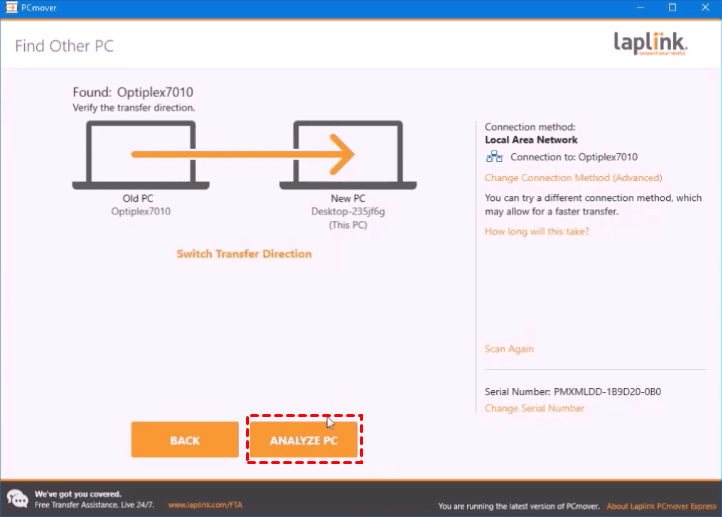
3. After connecting the two PCs, click ANALYZE PC on the new computer.
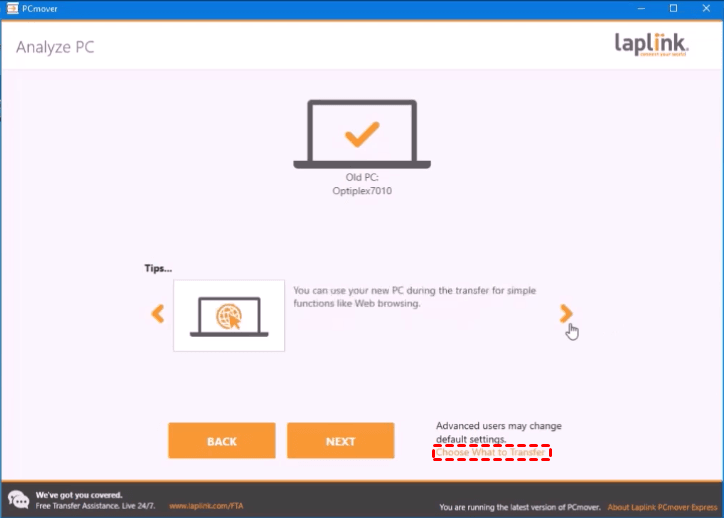
4. Click Choose What to Transfer beside the Next button.
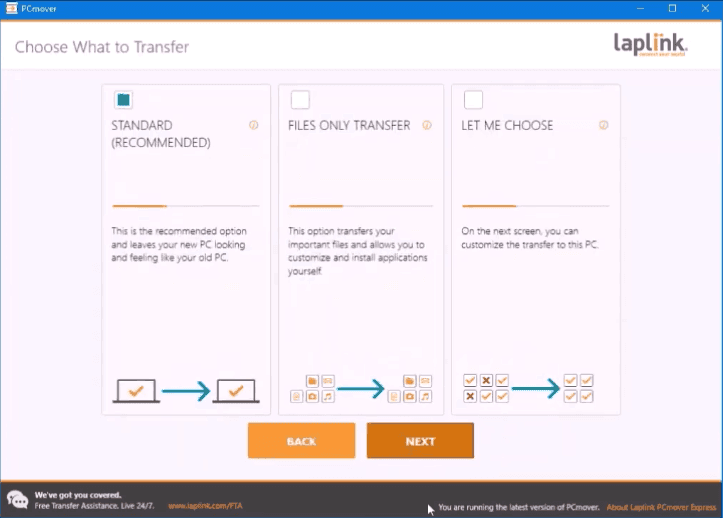
5. Please choose the STANDARD (RECOMMENDED) transfer method and click Next.
6. To transfer files from an old computer to a new computer, press the "Start TRANSFER" button.
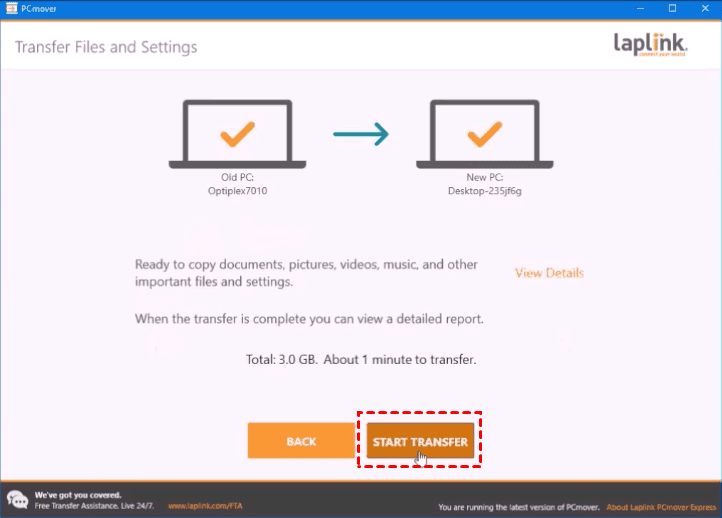
If you have the Laplink USB or Ethernet cable, plug in your computers to transfer files without the internet.
Windows Easy Transfer: Best Data Transfer Software for Older PC
Fortunately, there is a proven solution that we found, see details below:
Windows Easy Transfer is a file transfer software that allows users to move their accounts, email, documents, music, videos, pictures, programs, and internet favorites from an old version of Windows to a new one. The software supports migration from Windows XP, Vista, and 7, enabling users to transfer files and programs from these operating systems to a newer version of Windows.
- Windows XP to Windows 7.
- Windows Vista to Windows 7.
Microsoft claimed that Windows Easy Transfer is not included in Windows 10, but it's still possible to transfer files and settings from an old Windows installation to a new one using other methods.you could try the proven solution provided in this Windows Easy Transfer alternative essay to transfer files from Windows 7 to Windows 10.
It's the PC-File transfer software that doesn't require the internet is convenient, especially when using an easy transfer cable to share files between devices.
Google Drive: Google's Best PC File Transfer Software for Docs Sharing
Google Drive is a great tool for sharing files, comparable to Dropbox, and is especially useful for sharing Google Docs, Sheets, and Slides. It allows for quick sharing via email or link and automatically syncs files from your computer.
Similar to Dropbox, Google Drive is accessible from nearly any mobile or desktop platform, offering 15GB of free storage through Drive and other Google services like Gmail, which can be upgraded if more storage space is required.
1. Install and open Google Drive for desktop on your computer A.
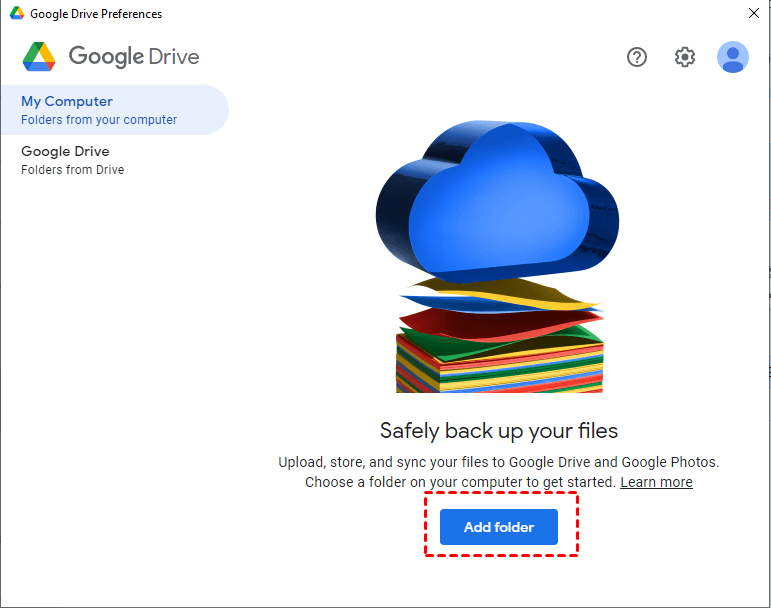
2. Navigate to Preferences > My Computer > Folder to sync desired folders from computer A to Google Drive.
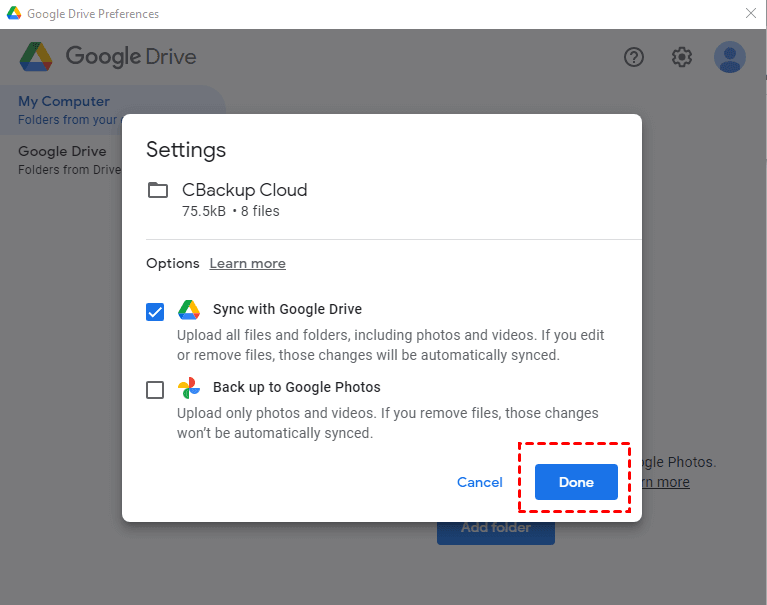
3. Click "Sync with Google Drive" and then "Done" to automatically sync the selected folder to your Google Drive account.
4. Install Google Drive for desktop on computer B using the same Google account as computer A, so that both computers can access and sync the same files.
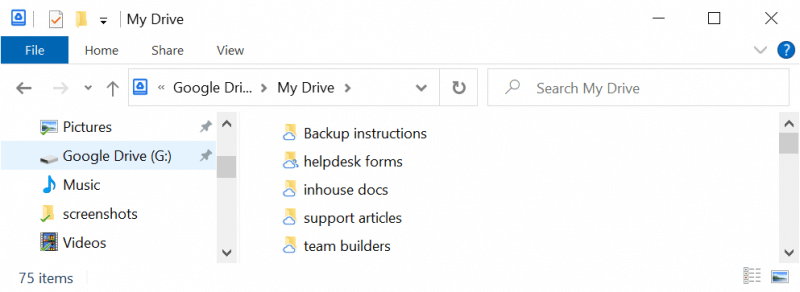
5. You can access your Google Drive files on computer B by using the Google Drive disk in the File Explorer, where synced files are stored in the My Drive folder.
Comparison between 5 Best Data Transfer Software for PC
| Software | Advantages | Disadvantages |
|---|---|---|
| Qiling Disk Master Standard |
✔️Easy-to-use interface. |
❌Not suitable for transferring settings or user accounts. |
| OneDrive | ✔️Seamless integration with Windows ✔️Automatic sync, easy access from various devices ✔️Free storage available. |
❌Limited free storage |
| PCmover |
✔️Transfers both files and settings |
❌Paid software ❌Relatively high cost compared to free alternatives ❌Requires additional cables for transfer. |
| Windows Easy Transfer | ✔️Built-in Windows utility, ✔️Supports various types of data transfer ✔️Free to use ✔️Relatively straightforward process |
❌Limited to older Windows versions ❌Not support all types of data transfer ❌Lacks advanced features available in third-party software. |
| Google Drive | ✔️Seamless integration with Google services ✔️Easy file sharing, and automatic sync across devices ✔️Available on multiple platforms. |
❌Limited free storage |
Summing It Up
There are various file transfer software options available for PCs, allowing users to choose the one that best suits their specific needs.
- If you want to use Windows built-in tools, you can choose OneDrive or Windows Easy Transfer, but note that Windows Easy Transfer is only compatible with Windows XP, Vista, and 7.
- If you want to transfer your files, settings, and user profiles from one PC to another, PCmover is a suitable option, though it requires a payment.
- Qiling Disk Master Standard is a tool that enables automatic file transfer between various locations, such as syncing files from one folder to another, one disk to another, or even from one PC to another.
In Qiling Disk Master Professional, additional sync features are available, including File sync, automatic data protection, and backup and restore capabilities for files larger than 4GB.
This software offers a special backup type called Cloud Backup, which allows users to backup folders to Qiling Cloud, a cloud drive with 1TB of free storage, and provides 15 days of free access after registration.
Related Articles
- 7 Ways to Easily Transfer Files from Old PC to New PC
This article will show you 5 methods to transfer files from old PC to new PC in Windows 7/8/10. Scroll down to learn more. - How to Transfer Files from PC to PC with an Ethernet Cable
Read this detailed post to learn a step-by-step tutorial to know how to transfer files from PC to PC with or without Ethernet. It is OK if you have a spare LAN cable or not, you can try one of the provided ways or use a free file sync software. - How to Transfer Files from PC to SD Card (3 Ways Included)
Learn how to Transfer Files from PC to SD Card (3 Ways Included) with clear steps, key checks, and practical tips. - How to Sync Google Drive with PC in Windows [2 Ways]
Learn how to sync Google Drive with PC to keep files safe and up-to-date. Use two auto methods and a manual way to sync files and folders with Google Drive effortlessly. Check out this detailed guide. - Copy User Profile in Windows 7 to Another Computer |3 Solutions
If you don't know how to copy user profile from Windows 7 to another computer, like Windows 7/8/10/11 etc, please read this article patiently to learn 3 helpful methods. - How to Backup File Versions in Windows 7 with File History Similar
Previous Versions is a useful tool built in Windows 7 that works like Windows 7 version of File History - create an snapshot of files or view and restore earlier versions of files.
Products
Articles & Tutorials
- Data Recovery
- Data Backup
- File Recovery
- File Backup
- File synchronize
- System Backup and Restore
- Disk and Partition Clone
- Technical articles
- Disk Master Help
- Windows Deleted File and Disk Recovery Tutorials
- Windows File and Data Recovery Tutorials
- More Windows Tutorials for Install, Security, Files, and PC Tips
- Windows Boot, Repair, and Recovery Environment Tutorials
- Windows Backup Tutorials
- Windows Restore Tutorials
- Windows Clone and Migration Tutorials
- Windows Server Backup, Recovery, and Management Tutorials
- Windows Disk, Partition, and Storage Management Tutorials