Reimage Windows 10-the Always-Work Way to Repair Windows 10
What can re-image Windows 10 do?
Reimage Windows 10 is the process of completely removing everything on the hard drive and reinstalling Windows 10 from scratch, which is often referred to as a clean reinstall.
If your computer is not running well, you can use Reimage Windows 10 to fix issues, such as damaged, corrupted, or infected operating systems, by reimagining it to a previous, healthy state.
To avoid losing valuable data during the reimage process, create an offline backup of your hard drive and selectively restore your data afterwards. This will ensure your important files are safe.
Backup your data before reimaging Windows 10
To avoid losing important data and reinstalling everything, it's recommended to backup your data before performing a Windows 10 reimage. This will ensure that your valuable data is safe and can be easily restored after the process is complete.
To ensure a smooth and fast backup process, consider using Qiling Disk Master Standard, a free Windows backup software that allows you to backup data to a secondary drive, external hard drive, or flash drive.
To remove a ransomware virus, create a backup while the virus is not running, using Qiling Disk Master to create a bootable media and boot from it to create an offline backup.
To backup your data, you can follow these steps:
1. Download and install Qiling Disk Master Standard on a working computer. If your computer is infected with a virus, you can install the software on a separate working computer and use it to create a bootable disk.
2. At the main interface, click Backup and select Disk Backup to backup the entire hard drive, or choose File Backup, Partition Backup or System Backup according to your situation.

3. At the next screen, click on 'Disks' to select the system disk as the source disk to be backed up, then click to specify another disk to receive the backup image.

4. Click Proceed to begin the backup process.

What's impressive about Qiling Disk Master is its incredibly fast backup speed, which is a significant improvement over traditional methods that can take several minutes to backup large amounts of data, with actual speed depending on the user's hardware.
Note✍: Besides backing up your PC data, Qiling Disk Master Technician can protect an unlimited number of computers within your company.
Steps to reimage Windows 10 to repair software issues
Windows 10 has a built-in Reset this PC tool allows you to completely remove everything and reinstall Windows, effectively reimaging Windows 10 without the need for a CD or USB drive.
If you can boot Windows 10 successfully
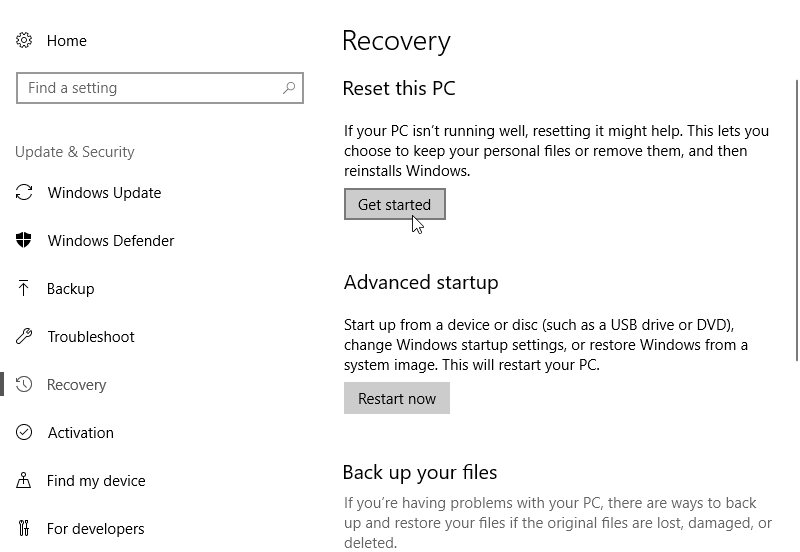
1. Click Start and navigate to Settings -> Update&Security -> Recovery.
2. To reset Windows 10, click the "Get Started" button under "Reset this PC" to launch the Windows 10 Reset process.
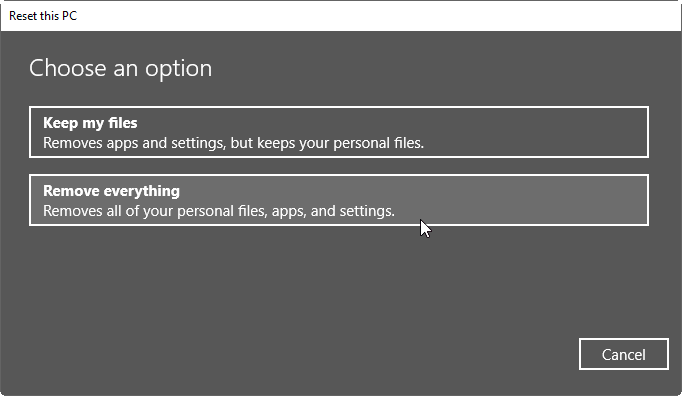
3. In a pop-up window, choose the second option Remove everything.
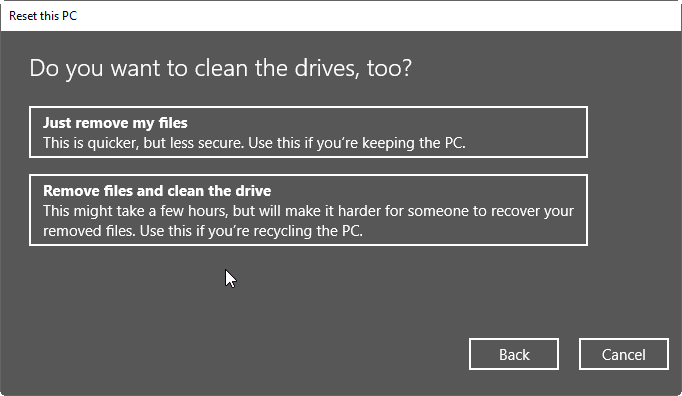
4. To delete Windows 10, you can select "Just remove my files" or "Remove files and clean the drive". If you have multiple hard drives, you may also be asked to choose which drive to clean. This will erase all data on the selected drive.
5. To start the process, click Next and your computer will reboot several times, requiring you to wait for completion.
If you cannot boot into Windows 10
If you're unable to boot into Windows or Safe Mode, you can use a Windows 10 installation disc or USB drive, or create one using the Windows media creation tool.
To reimagine Windows 10, insert the installation disc, restart your computer, and follow the on-screen instructions to boot from the disc. You will be prompted to select your language, time and currency format, and keyboard layout.
1. Connect the installation media and change the boot order to allow your computer to boot from the removable device.
2. After Windows Setup is loaded, select the language and other preferences, then click the "Install now" button to proceed.
3. When you get the "Where do you want to install Windows" screen, you can delete all drives or some of the drives, or press Shift + F10 to bring up a command prompt and use Diskpart commands to clean the hard drive.
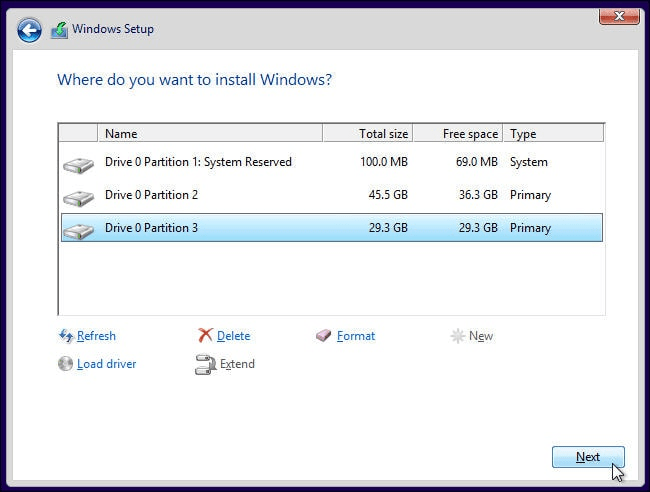
4.When that is done, select the unallocated space and click "Next" to start reinstalling Windows 10. After installing the boot loader, you can create a few more new partitions before installing Windows 10. This allows for additional customization and flexibility in your partition layout.
Reimaging a Windows 10 PC is a straightforward process. After completing the reimage, you can mount the backup you created beforehand as a virtual drive. This allows you to access and copy any needed data from your previous Windows installation to your current hard drive.
Related Articles
- How to Reimage a PC? (with Screenshots)
Reimage a PC with guided recovery options while protecting important files before repair. - 5 Methods to Reimage Dell Computer in Windows 10/8/7
If you fail to repair Windows operating system, it may be the time to factory reset it. Read the 5 methods to reimage Dell computer and find the most suitable one for your situation. - How to Set SSD as Boot Drive in Windows 11, 10, 8, 7?
Learn how to Set SSD as Boot Drive in Windows 11, 10, 8, 7 with clear steps, key checks, and practical tips. - 5 Easy Ways to Fix SFC SCANNOW Stuck
To reimage Windows 10, you can use Qiling Disk Master to create a system image and deploy it to multiple computers. It supports network deployment, dissimilar hardware restore, and automatic image creation for IT professionals and businesses. - How to Free Backup Windows 7/8/10 Data to Synology NAS?
Learn how to Free Backup Windows 7/8/10 Data to Synology NAS with clear steps, key checks, and practical tips. - How Do I Map a Network Drive in Windows 11/10/8/7?
This tutorial presents how to map a network drive in Windows 11/10/8/7 easily. A mapped network drive can be used like a local drive for file sharing or backup.
Products
Articles & Tutorials
- Data Recovery
- Data Backup
- File Recovery
- File Backup
- File synchronize
- System Backup and Restore
- Disk and Partition Clone
- Technical articles
- Disk Master Help
- Windows Deleted File and Disk Recovery Tutorials
- Windows File and Data Recovery Tutorials
- More Windows Tutorials for Install, Security, Files, and PC Tips
- Windows Boot, Repair, and Recovery Environment Tutorials
- Windows Backup Tutorials
- Windows Restore Tutorials
- Windows Clone and Migration Tutorials
- Windows Server Backup, Recovery, and Management Tutorials
- Windows Disk, Partition, and Storage Management Tutorials