How to Backup C Drive on Windows 11 | 2 Ways
Is there any need to backup C drive?
The C drive is the central hub of your computer, holding vital information that keeps your system running smoothly. It contains the operating system, system files, and personal data, making it a crucial component that, if damaged or lost, can cause serious issues, including abnormal computer booting and significant data loss.
Having a backup of the C drive is crucial, as it enables a quick recovery of the PC to its normal state in the event of accidents, minimizing downtime and safeguarding vital data from being lost. This allows users to efficiently revert to a stable system state, ensuring a smoother computing experience.
What are the benefits of backing up C drive?
It's beneficial to make a backup for C drive:
♧Make sure enough space on C drive: Storing too much data on your C drive can cause it to crash. This is due to various applications' caches and browsing history taking up space. However, you can free up space on your C drive after backing it up by safely cleaning up unnecessary files.
♧Change or upgrade the system or help sync your files on multiple devices: Once you've backed up your C drive, you can restore it on your new computer, allowing you to work smoothly on multiple devices simultaneously.
♧Prevent data loss: If your device is attacked by viruses or malware, or you want to sell or donate your computer, backing up your C drive will help keep your data private.
To avoid data loss, it's crucial to back up your C drive to an external hard drive, another location on your computer, or a network location. This ensures that your important files and programs are safely stored in case of a system failure or other issues.
How to backup C drive on Windows 11
Backing up C drive efficiently can be achieved through two primary methods. These methods enable users to create a secure copy of their C drive, safeguarding important files and data. By utilizing these methods, individuals can ensure the integrity and accessibility of their data, even in the event of a system failure or other catastrophic event.
Backup C drive with Backup and Restore
Backup and Restore is a built-in Windows tool that can create a system image of your C drive and save it to another hard drive, external drive, DVD, or network location. If Windows fails or data is lost, you can use the image to restore the system. Follow the steps below to create the backup.
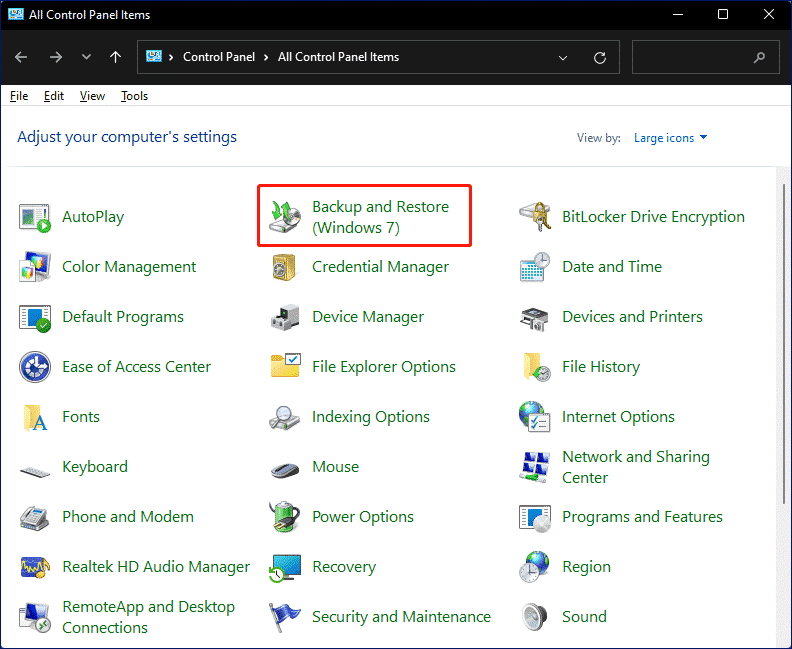
Step 1. Open the Control panel, find and select Backup and Restore (Windows 7).
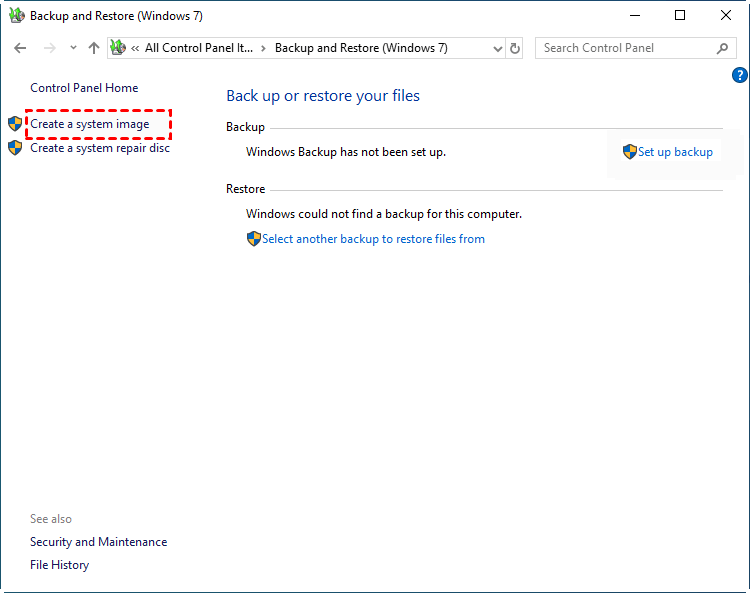
Step 2. In the Backup and Restore (Windows 7) window, click the Create a system image option to continue.
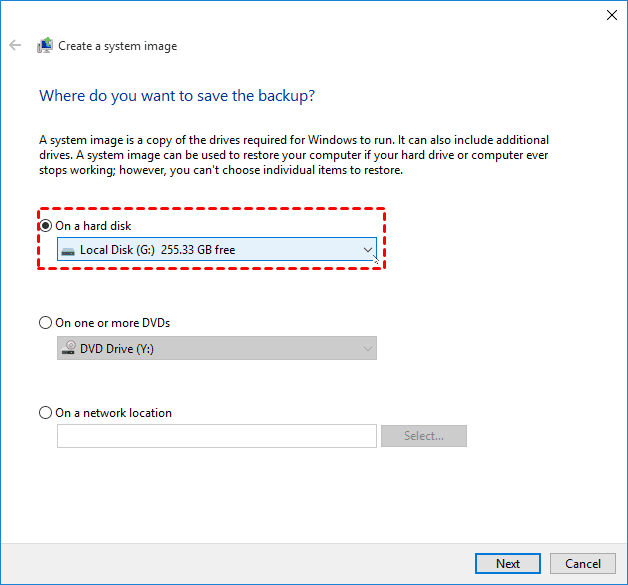
Step 3. To backup, select the option to create a system image, then select where you want to save your backup and click Next to continue, allowing you to save it to an external hard drive or network.
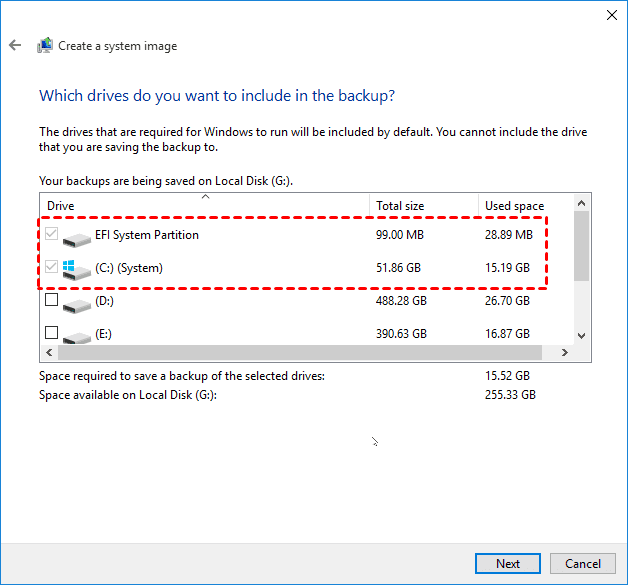
Step 4. The C drive, EFI system partition, Recovery partition will be chosen by default, click Next button.
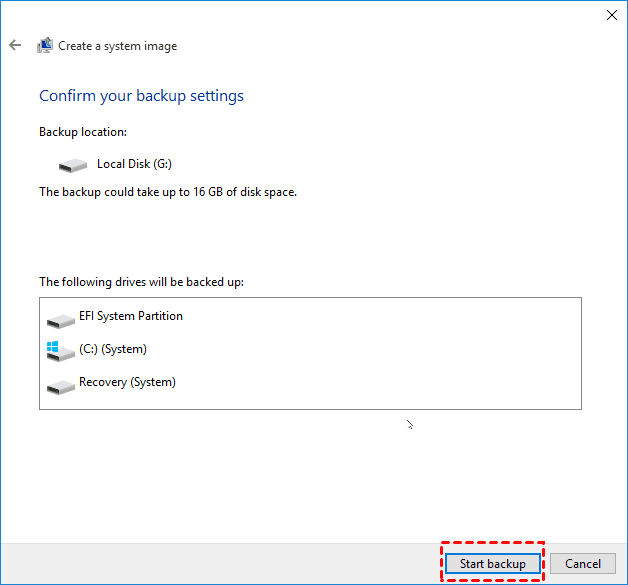
Step 5. Click on the Proceed button when all the settings are done.
An easy and reliable way----Qiling Disk Master
It's time-Backing up the C drive can be a tedious and time-consuming process using traditional methods. However, there is a simple and reliable solution: using third-party software. Qiling Disk Master Standard is a highly recommended option, praised by millions for its reliability and performance. As a free backup and cloning software, it is compatible with various PC systems, including Windows XP, Vista, 7, 8, 8.1, and 11 (both 32-bit and 64-bit).
♦The software supports not only disk backup, but also partition and system backup, providing a comprehensive backup solution.
♦This backup software allows you to save your backup to various storage locations, such as USB drives, hard disk drives, solid state drives, and more.
♦The system enables users to schedule customized backups, allowing for daily, weekly, or monthly backups, as well as event-triggered or USB plug-in backups, specifically for the C drive.
♦The backup scheme not only allows for a full backup of the entire disk, but also enables incremental and differential backups, which only save changes since the last backup. This approach can help save space in the backup location by automatically cleaning up older backups, making it an efficient way to manage backups. (This feature is available in the professional edition.)
Now download Qiling Disk Master and launch it.
✍Caution: To backup your C drive to an external hard drive, ensure the external drive is properly connected and can be detected by your computer.
Step 1. Select Backup and then choose System Backup.

Step 2. System backups, including partitions, are automatically displayed. Next, select a destination path to backup the system to.

Step 3. Click Proceed to create a C drive backup in Windows 11.

✍You can click the "Schedule Backup" option at the bottom to set automatic backups of your C drive in Windows 11 to an external hard drive or other desired locations.
Wrapping things up
To backup C drive Windows 11, you can use the built-in utility Backup and Restore or a third-party software like Qiling Disk Master, which is also applicable to Windows 10 and other systems. This software not only serves as an excellent backup tool but also as an external hard drive cloning software, allowing you to free up disk space if needed, making it a great solution for managing storage space, including freeing up disk space Windows 7.
Related Articles
- Windows 11: Backup Files to External Hard Drive in 3 Easy Ways
You can easily learn 3 methods to backup files to external hard drive in Windows 11. They are built-in tool "File History", "Backup and Restore" and a free backup software "Qiling Disk Master". - Best Way for Backing Up Windows 11 to External Hard Drive (2 Ways)
You can learn three methods of backing up Windows 11 to an external hard drive, including built-in tool and third-party tools. - How to Backup and Restore Files in Windows 11
You will learn the difference of Windows 11 Backup and Restore and Windows 10 and how to use it to backup files as well as its best alternative way. - How to Write Zeros to Seagate Hard Drive Easily | 2 Ways
This page presents when writing zeros to Seagate hard drive is needed and how to zero fill Seagate in two easy ways. Both a full format and reliable Qiling Disk Master can help you. - System Restore Not Working Windows 10 – How to Fix
This guide explains System Restore Not Working Windows 10 – How to Fix with clear steps, key checks, and practical tips. - Perform System State Backup in Windows 10 [2 Free Ways]
You will learn 2 free ways to create system state backup in Windows 10, namely using Backup and Restore (Windows 7) and third-party tool. The second one is automatic and feature-rich.
Products
Articles & Tutorials
- Data Recovery
- Data Backup
- File Recovery
- File Backup
- File synchronize
- System Backup and Restore
- Disk and Partition Clone
- Technical articles
- Disk Master Help
- Windows Deleted File and Disk Recovery Tutorials
- Windows File and Data Recovery Tutorials
- More Windows Tutorials for Install, Security, Files, and PC Tips
- Windows Boot, Repair, and Recovery Environment Tutorials
- Windows Backup Tutorials
- Windows Restore Tutorials
- Windows Clone and Migration Tutorials
- Windows Server Backup, Recovery, and Management Tutorials
- Windows Disk, Partition, and Storage Management Tutorials