Best Tool for SSD Speed Test Windows 10
Preface
The computer is a device containing two major functioning components: hardware and software. Hardware typically includes the CPU, RAM, motherboard, HDD or SSD, and other essential parts.
SSD (Solid-State Drive) and HDD (Hard Disk Drive) are two distinct types of storage devices used to store operating systems, files, and important documents. They differ significantly in terms of their data reading and writing speeds. A speed test, specifically designed for Windows 10, can help determine which one is more suitable for your computer usage. Understanding the concept of speed is essential before conducting such a test.
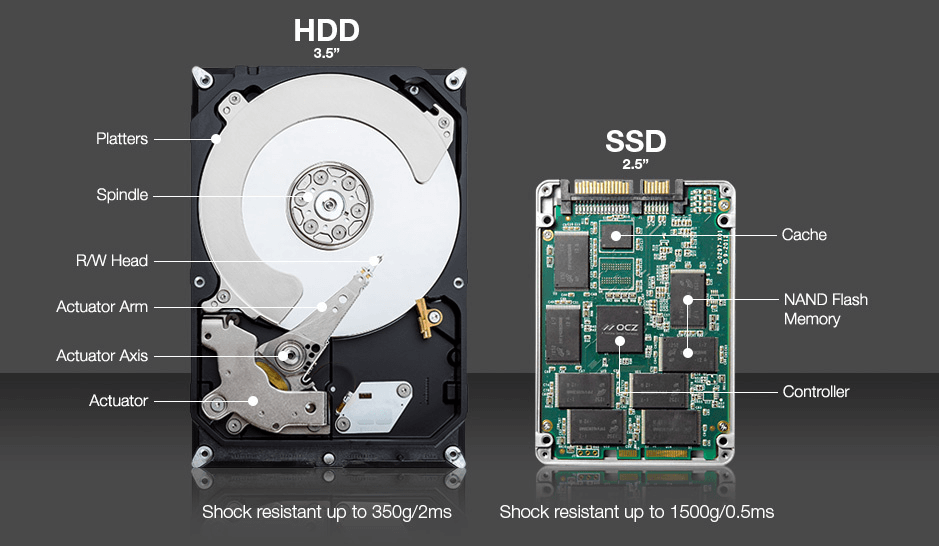
Something you need to know about SSD speed
| 🔑What is read/write speed? | The read and write speeds of storage devices refer to the speed of recording and extracting data. Solid-state drives (SSDs) are becoming increasingly popular due to their higher read and write speeds, which enables faster task and program operation, making them a preferred choice for many users. |
| 💡What is a good speed for SSD? | A standard SSD with a 500MB/s sequential read and write speed is generally sufficient for most tasks, making it a good benchmark for a good read-write speed. |
| 🚩What if SSD speed is slow? | As your SSD speed decreases over time, especially when multitasking or running resource-intensive programs, your computer may start to lag or perform slower than usual. Regularly testing your SSD speed can help you identify when it's time to take action, such as cleaning up disk space, updating drivers, or even replacing the drive altogether.optimize the hard drive. |
How to test SSD speed Windows 10?
If you're experiencing slow performance in Windows 10, a low SSD speed might be the culprit. To identify the issue, you can test your SSD speed in Windows 10. Fortunately, there are two simple methods to help you do so and even boost your SSD speed.
Method 1. Use Task Manager
To check the speed of your SSD, you can use the Task Manager, a Windows built-in tool. Simply open Task Manager, and you'll be able to see the speed of your SSD, making it easy to get the information you need.
Step 1. Open Task Manager.
Right-To open the Task Manager, click on the Task Bar, which is usually located at the bottom of your screen, and select "Task Manager" from the extended menu that appears.
Step 2. Go to "Performance".
In the pop-You will see different tabs on the top of the Windows screen, click on the "Performance" tab.
Step 3. Select the to-be-tested SSD.
To test the read and write speeds of an SSD drive, select it from the left column, and the results will be displayed.
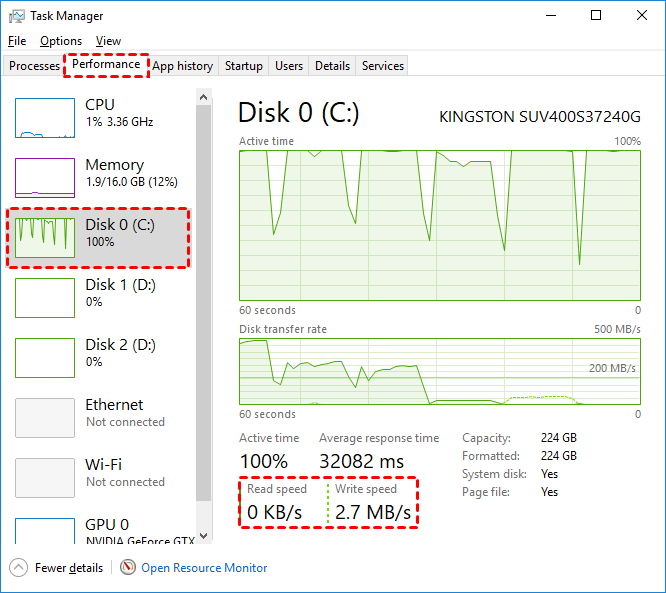
Note: The speed of the computer can be determined by checking the system resources, but the data may be dynamic and change with background programs, making it difficult to determine the specific state.
Method 2. Use a third-party tool to test SSD speed
To get an accurate and precise measurement of your SSD's read and write speed in Windows 10, a professional third-party tool like Qiling Disk Master Professional is highly recommended. The Task Manager only provides a general and rough estimate of your SSD's performance, so using a dedicated tool like Qiling Disk Master Professional will give you a more detailed and accurate understanding of your SSD's capabilities.
The software has two modes: Simple Mode, which is similar to Task Manager, and Pro Mode, which provides a more thorough and comprehensive test of your hard drive. This will help you understand the detailed state of your disks. You can download the demo version to try it out.
Step 1. Install and open Qiling Disk Master Professional.
To run a surface test on the SSD partition, click on it and select "Disk management" followed by "Surface Test".
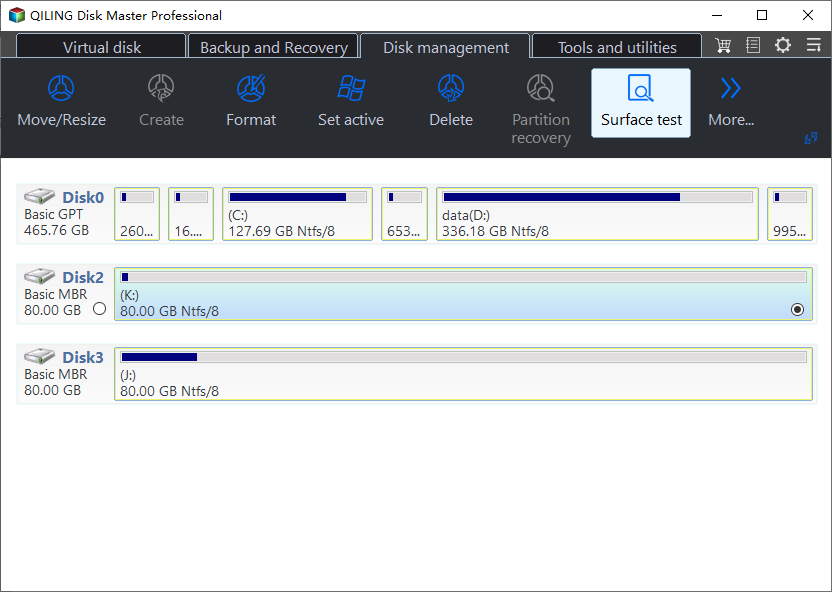
Step 2. Set test condition.
In "Pro Mode", you can customize settings based on your specific needs, such as partition, average/maximum speed, size, test number, and duration. Once you've set everything, you can proceed with the SSD speed test, which may take some time.
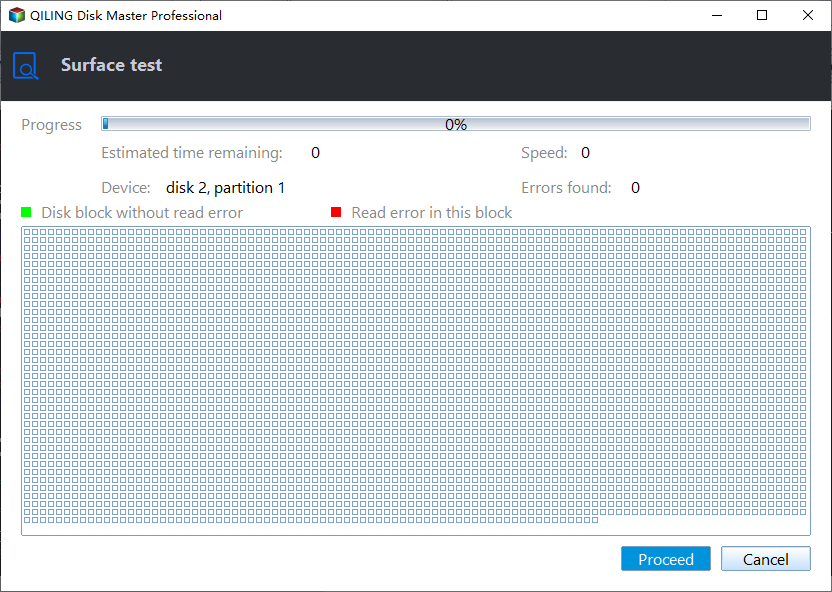
Step 3. Check the result.
When the test stops, you can see the result directly and export it as a screenshot or text. If stopped at duration, finished tests will be shown and exported normally.
What to do if you have a slow drive?
After running the SSD speed test in Windows 10, you will get detailed results about your SSD's performance. If the speed is slower than expected, you can try various methods to optimize it, such as upgrading to a larger SSD, adding free space to the C drive, or making 4K alignment, among other solutions.
How to speed up SSD in Windows 11/10/8/7?
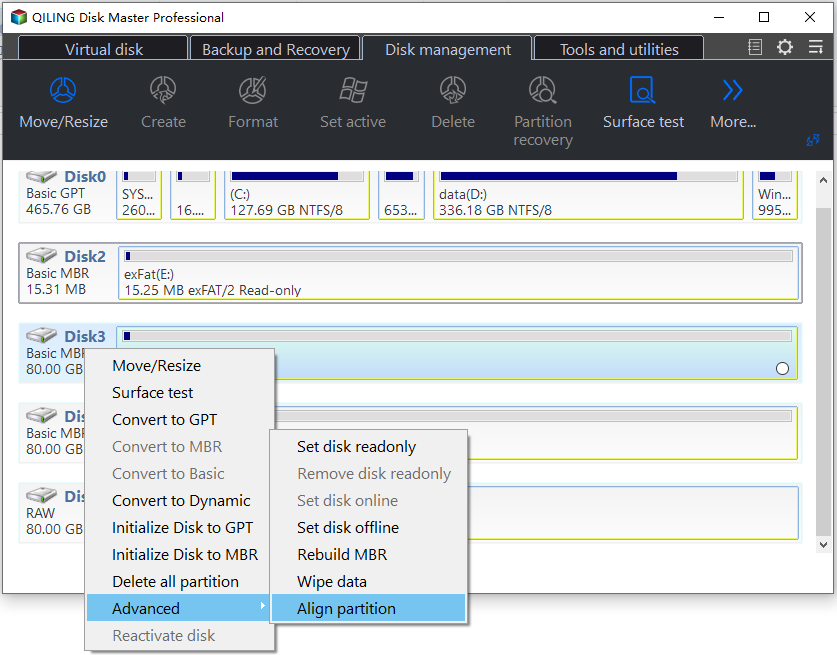
Partition alignment can be easily achieved using Qiling Disk Master Professional. To do this, follow these steps: .
Step 1. Open and run Qiling software.
Choose the SSD and right-Click on one of the partitions. Select "Advanced" and then click "Partition Alignment" from the menu.
Step 2. Set partition alignment.
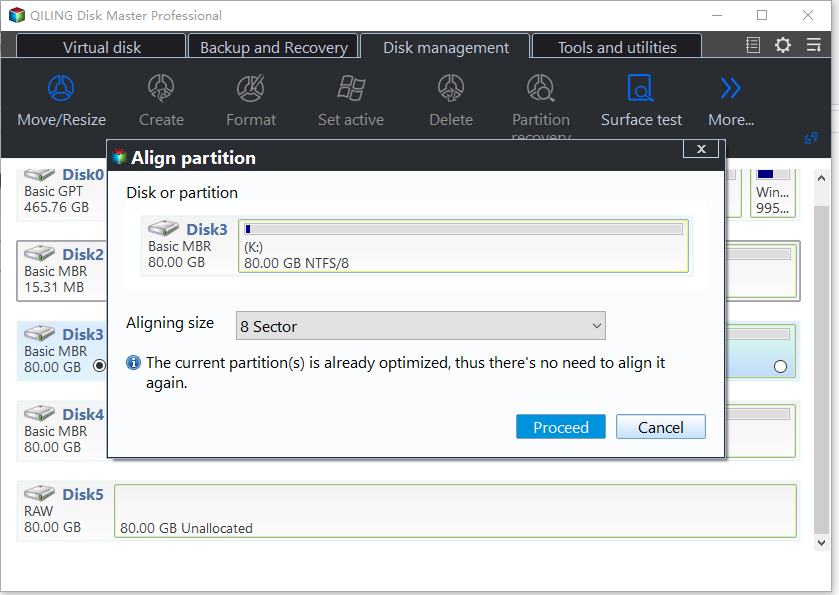
In the pop-out window, you can set partition alignment to 4K (4096 Sector).
Step 3. Commit the operation.
After clicking "Proceed" to commit the operation, you will be taken back to the main console.
Conclusion
You've learned two ways to test SSD speed on Windows 11/10/8/7, and due to the need for better performance, Qiling Disk Master Professional is recommended for both testing and optimizing SSD speed. This tool can also help solve various disk and partition issues, such as SSD won't format, Windows won't install on SSD, and SSD not showing up in Windows.
Related Articles
- How to Quickly Format an SSD in Windows 7/8/10/11 for Free (3 Ways)?
Three effective methods enable you to quickly format an SSD disk to NTFS/FAT32/exFAT in Windows 10/8/7 for free. Format SSD from BIOS, secure erase SSD, clean SSD drive, etc. are involved. - How to Securely Erase SSD Drive in Windows 7?
Before selling your SSD, you need to erase SSD drive securely to wipe data in Windows 10/8/7 so that your data on it won't be retrieved with despiteful purpose. - How to Upgrade HDD to SSD without Reinstalling Windows
You can upgrade your HDD to SSD without reinstalling Windows by using Qiling Disk Master to clone the OS partition or entire HDD to the SSD. - How to Upgrade to SSD in Windows 11/10/8/7 [without Reinstalling]
Upgrading to an SSD without reinstalling your operating system can be achieved through two effective methods provided by a professional SSD upgrade tool. - How to Create Windows Server 2019 Windows To Go
If you want to create a Windows Server 2019 Windows To Go but don't know how to do it, this article will provide a professional tool to help you create a Windows Server 2019 bootable USB. - Full Guide: Clone C Drive Server 2022 and Boot from Destination Disk Successfully
This guide explains Full Guide: Clone C Drive Server 2022 and Boot from Destination Disk Successfully with clear steps, key checks, and practical tips.
Products
Articles & Tutorials
- Data Recovery
- Data Backup
- File Recovery
- File Backup
- File synchronize
- System Backup and Restore
- Disk and Partition Clone
- Technical articles
- Disk Master Help
- Windows Deleted File and Disk Recovery Tutorials
- Windows File and Data Recovery Tutorials
- More Windows Tutorials for Install, Security, Files, and PC Tips
- Windows Boot, Repair, and Recovery Environment Tutorials
- Windows Backup Tutorials
- Windows Restore Tutorials
- Windows Clone and Migration Tutorials
- Windows Server Backup, Recovery, and Management Tutorials
- Windows Disk, Partition, and Storage Management Tutorials