Clone Dynamic Disk to HDD or SSD in Windows 7 (No Data Loss)
Quick Navigation:
- User case: Can I clone a dynamic disk?
- What is a Windows dynamic disk?
- Why clone dynamic disk to basic disk?
- Best way to clone dynamic disk to SSD
- How to clone dynamic disk to SSD without losing data
- Can't install Windows 7 on dynamic disk
- Conclusion
User case: Can I clone a dynamic disk?
You're trying to upgrade the primary drive on your Asus G73JW laptop by cloning the Crucial MX500 SSD, but the drive you want to clone is grayed out when using Acronis True Image. Can you try checking if the drive is properly connected or if it's in the correct bay? Also, ensure that the cloning software is compatible with your laptop's operating system. If the issue persists, you might want to consider using a different cloning software or seeking further assistance from Asus or Crucial support.
You contacted Crucial's online chat support, who informed you that Acronis software can't clone dynamic disks. They suggested using Macrium or Clonezilla, but the free version of Macrium Reflect also can't clone dynamic disks, and the paid version is too expensive. You're now unsure about how to proceed.
Disk cloning, a concept that's not new, still raises questions, especially when it comes to dynamic disks. The peculiar nature of dynamic disks is the main reason for this confusion, as they differ from traditional disks.
What is a Windows dynamic disk?
Dynamic and basic disks are two types of disk configurations for Windows, both of which can store data and support either MBR or GPT partition styles. However, they have some key differences.
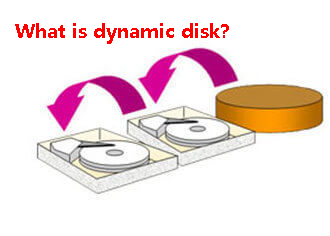
- Different volume types: The dynamic disk contains 5 types of volumes, including simple, spanned, striped (RAID-0), mirrored (RAID-1), and RAID-5 volumes, whereas the basic disk is limited to 4 primary partitions or 3 primary plus 1 extended partition.
- High fault tolerance: The dynamic disk allows for expansion across multiple disks, creating fault-tolerant volumes, whereas the basic disk can only be expanded consecutively on a single disk.
- Greater flexibility for volume management: The dynamic disk uses a database to track dynamic volumes on one or more dynamic disks, with each disk keeping a copy, whereas basic disks use a partition table for tracking. This allows for easier data recovery if using dynamic disks.
Why clone dynamic disk to basic disk?
In Windows 7, 8, 10, and 11, cloning dynamic disks is similar to cloning basic disks in terms of reasons.
In the most common situation, your dynamic disk is out of space, prompting the need to clone the disk to a larger one that can fully contain your system and all data.
If your dynamic disk is not performing well, you may want to clone it to an SSD (Solid-State Drive) for improved performance. This can help speed up your computer's startup time, reduce program loading times, and overall enhance your computing experience.
You may also want to add an extra layer of data and system security, which can be achieved by cloning your disk, allowing you to directly use the cloned disk to boot your computer in case of issues.
Best way to clone dynamic disk to SSD
As a matter of fact, it's a little tricky to clone dynamic disk, and usually, many users try the following two ways.
Way 1: Use dynamic disk converter - Disk ManagementUsers may attempt to convert a dynamic disk to a basic disk using a built-in converter, then clone the basic disk to another basic disk. However, this process can result in significant data loss as the built-in partition manager requires deleting all partitions and data before conversion, making this method undesirable if alternative options are available.
Way 2: Use professional disk cloning software. Others may use professional disk cloning software, such as Qiling Disk Master Professional, to clone a dynamic disk without the need to convert it to a basic disk first. This approach offers several advantages.
- All-in-one cloning solutions: The software supports three cloning features: "Disk Clone", "System Clone", and "Partition Clone". It allows you to clone both basic and dynamic disks, with the dynamic disk clone only supported in "System Clone" and "Partition Clone" features.
- Clone all kinds of HDDs and SSDs: This software can clone hard drives from various brands (Samsung, WD, HP, Seagate, etc.) and supports different interfaces (SATA, NVMe, M.2, PCIe).
- Cloning MBR or GPT disk: This software can clone a system from one disk to another, regardless of whether they are MBR (Master Boot Record) or GPT (GUID Partition Table) disks, and can also convert between these two types of disk formats.
How to clone dynamic disk to SSD without losing data
With disk cloning software - Qiling Disk Master Professional allows for direct cloning of dynamic disks to basic disks (HDD or SSD) using its System Clone and Partition Clone features. It's essential to follow a specific cloning order: first, clone the dynamic system using System Clone to ensure secure boot, and then clone other data volumes on the dynamic disk using Partition Clone.
Download Qiling Disk Master Professional and install it on your computer. It has a 30-day free trial and you can enjoy a 24-hour flash sale (up to 60% off) as a new user, or a 10% off discount if you're not.
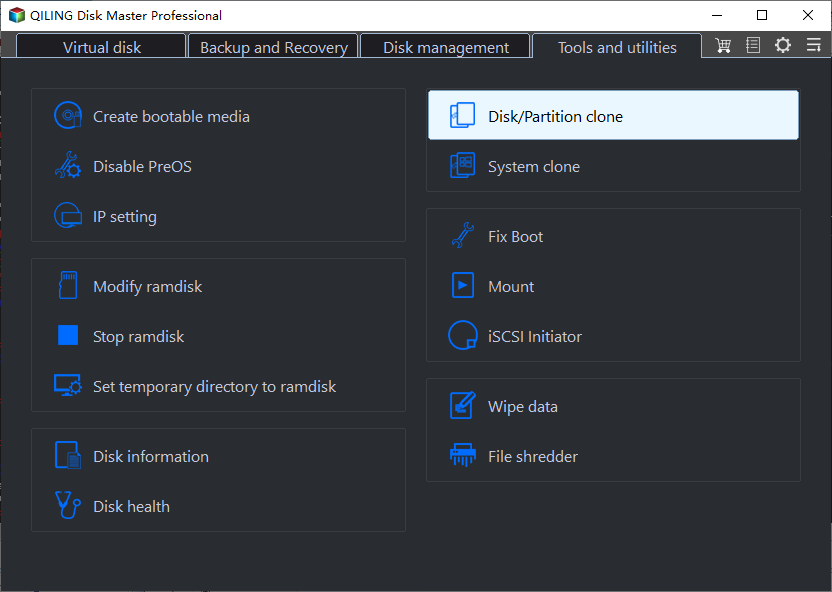
Step 1. Connect the SSD to your computer, ensure it's detected, and launch Qiling Disk Master Professional. Select "System Clone" to clone the dynamic system.
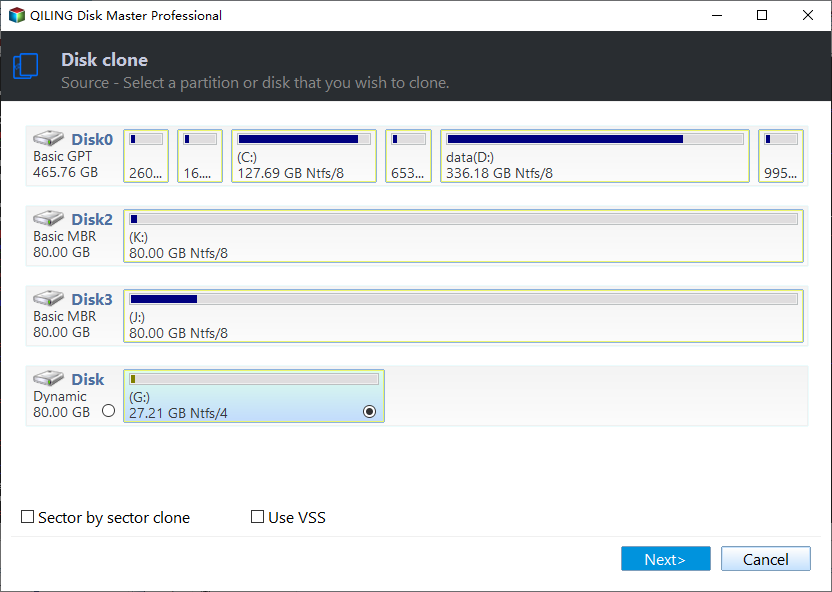
Step 2. To prepare the SSD for cloning, select it as the destination disk. The software will automatically identify the system partition and any necessary boot-related partitions.
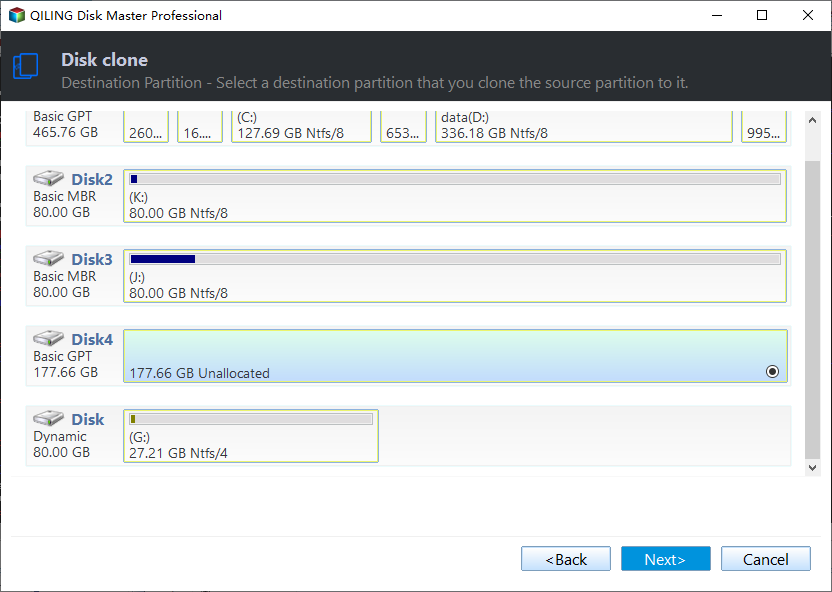
Step 3. To accelerate the writing and reading speed of the SSD disk, tick "SSD Alignment" and then click "Proceed" to clone the dynamic system to the SSD.
Notes:
◔ To make the most of your disk space, if your target disk is larger, you can automatically add unallocated space to your system partition, eliminating the need to worry about low disk space issues.
◔ You can use the sector by sector clone feature to clone all sectors, whether used or not, which is especially useful for system-reserved partition missing.
To ensure the cloned drive is bootable, follow these steps:
Shut down your computer, swap the hard drive in the drive bay, and restart. Press a specific key (usually F2 or ESC) on the boot screen to access BIOS.
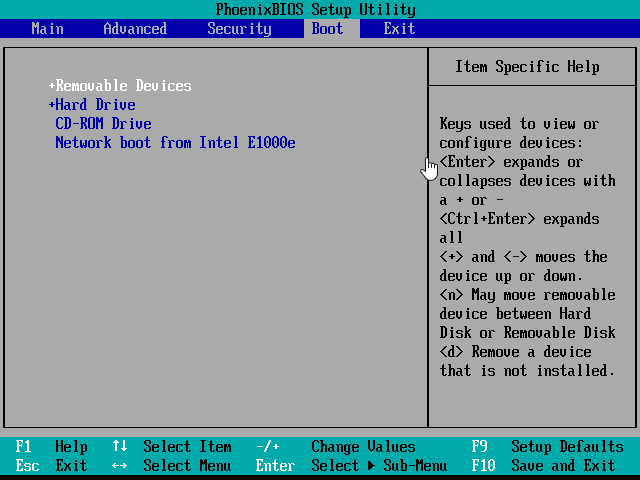
If your computer boots successfully from the cloned drive, you can then proceed to copy dynamic data volume to a basic disk.
To clone all data partitions, select "Partition Clone" instead, choose each data partition one by one, and select the new SSD. Click "Proceed" to clone each partition individually, repeating the process until all partitions are cloned.
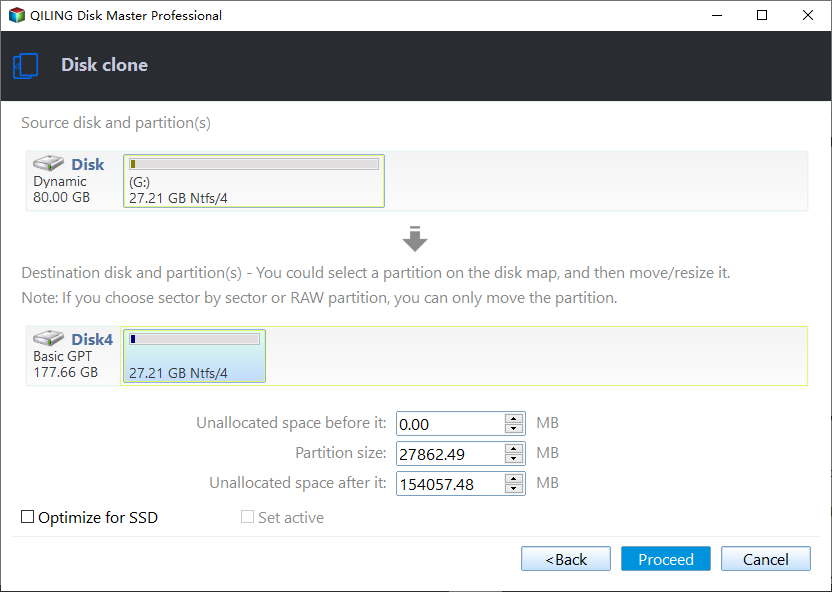
Now, you can successfully clone a dynamic disk in Windows 7, and also clone a hard drive in Windows 10, whether it's a dynamic or basic disk.
Can't install Windows 7 on dynamic disk
Some users choose to install a fresh version of Windows on a dynamic disk, but may receive an error message saying "Windows cannot be installed to this hard disk space. The partition contains one or more dynamic volumes that are not supported for installation". If you're experiencing this issue, here's what you need to know.
Dynamic disks are only available on Windows 7 Enterprise/Professional/Ultimate, which means they are not supported on Windows 7 Home Basic/Premium/Starter.
Dynamic disks do not support all home versions of Windows released before Windows 2020, including MS-DOS and Windows 95/98/Me/NT.
To fresh install Windows, you can do so on a dynamic volume, but only if the volume, which is either the system or boot partition, was previously converted from a basic partition and still retains an entry in the partition table.
You can only install Windows 7 on the current system or boot volume of a dynamic disk, but not on a dynamic disk itself. If your computer is a dual-boot system, you still can't install Windows 7 on a dynamic disk. It's recommended to convert the dynamic disk to a basic disk before installing Windows 7.
Conclusion
Converting a dynamic disk to a basic disk can result in data loss, making it crucial to clone the dynamic disk using professional software like Qiling Disk Master, which can transfer data to a new HDD or SSD, regardless of the disk type.
Qiling Disk Master is a backup and restore software that protects data and systems with features like system backup, disk backup, partition backup, file backup, USB plug-in, schedule automatic backup, incremental/differential backup, bootable media creation, and selective file restore.
Related Articles
- How to Clone Dynamic Disk in Windows 10 with Ease
- Easiest Way to Clone Hard Drive to SSD without Reinstalling
- How to Clone/Copy Dynamic Volumes to Basic Disk in Windows
- How to Clone Dynamic Disk in Windows 11 (2 Ways)
- How to Clone Windows 10 to Smaller SSD And Boot Successfully
Learn the key steps, checks, and practical tips for this related guide. - How to Clone Windows System to SSD in Windows 10/8/7 without Boot Issue?
Cloning Windows system to SSD drive can help speed up Windows computer. This post will show you how to clone Windows system partition or disk to SSD in Windows 11/10/8/7 and how to boot from the destination disk.
Products
Articles & Tutorials
- Data Recovery
- Data Backup
- File Recovery
- File Backup
- File synchronize
- System Backup and Restore
- Disk and Partition Clone
- Technical articles
- Disk Master Help
- Windows Deleted File and Disk Recovery Tutorials
- Windows File and Data Recovery Tutorials
- More Windows Tutorials for Install, Security, Files, and PC Tips
- Windows Boot, Repair, and Recovery Environment Tutorials
- Windows Backup Tutorials
- Windows Restore Tutorials
- Windows Clone and Migration Tutorials
- Windows Server Backup, Recovery, and Management Tutorials
- Windows Disk, Partition, and Storage Management Tutorials