How to Clone Dynamic Disk in Windows 10 Without Converting to Basic
Quick Navigation:
- About basic disk and dynamic disk
- The case: cloning dynamic disk in Windows 10 failed
- A prime program for cloning dynamic disk on Windows PC
- Step-by-step guide to clone a dynamic disk in Windows 10
- Summary
About basic disk and dynamic disk
In Windows operating systems, there are two types of disks: basic disks and dynamic disks. Basic disks have been around since MS-DOS days, while dynamic disks were introduced in Windows 2000. A basic disk is a traditional disk that can be partitioned and formatted like a physical hard drive, while a dynamic disk is a virtual disk that can be divided into multiple volumes, allowing for more efficient use of disk space.
◉ Basic disks In Windows, the most common storage type is the hard disk, which contains primary and extended partitions. Extended partitions can be divided into logical drives, which are formatted with a file system, usually NTFS.
◉ Dynamic disks A dynamic disk in Windows allows for the creation of volumes that can span multiple physical disks, providing flexibility in storage allocation. This setup enables the creation of noncontiguous volumes, meaning they don't have to be stored on adjacent sectors of a single disk. In dynamic disk configurations, there are five types of volumes: simple, spanned, striped, mirrored, and RAID-5 volumes, each offering unique benefits for data storage and redundancy.
The case: cloning dynamic disk in Windows 10 failed
"Not sure how or why my current system SSD is dynamic, but the fact is that it is keeping me from cloning to a different SSD in preparation to migrate to a different box."
Acronis True Image 2016 is unable to clone dynamic disks and convert them to simple volumes, and the user has not found a satisfactory solution yet. They are seeking help from others to find a way to resolve this issue.
To clone a dynamic disk to an SSD safely, you can consider converting the dynamic disk to a basic disk first, but this may result in data loss. An alternative approach is to clone the dynamic disk directly to the SSD, but this method may fail sometimes. A safer option is to clone the dynamic disk to a third-party tool that supports dynamic disk cloning, which can help avoid data loss and ensure a successful clone.
A prime program for cloning dynamic disk on Windows PC
To copy a dynamic disk without converting it, you'll need to use a specialized tool like Qiling Disk Master Professional.
- This software supports all Windows PC operating systems, including Windows 11, 10, 8.1, 8, 7, Vista, and XP.
- Ait provides the functionality of disk, partition, and system cloning, supporting both basic and dynamic disks, and allows you to move an operating system to a new drive.
- Cloning a dynamic disk to an SSD allows you to optimize the performance of the destination SSD by aligning partitions.
- The cloning process will run in the background, allowing you to use the computer normally while it runs.
To clone a dynamic disk in Windows 10, you can use Qiling Disk Master. This tool allows you to clone dynamic disks, which can be a complex process, but Qiling Disk Master simplifies it.
Step-by-step guide to clone a dynamic disk in Windows 10
Before cloning a dynamic disk, make sure to backup any important files on the target disk/partition, as the cloning process will overwrite its contents. To clone a dynamic disk in Windows 10 (or 7/8/11), you can use Partition Clone in Qiling Disk Master, following the same steps for each operating system.
Step 1. Install and run Qiling Disk Master. Click "Clone" on the left pane and select "Partition Clone" to clone a dynamic disk without OS, or select "System Clone" to clone a dynamic disk with OS installed.
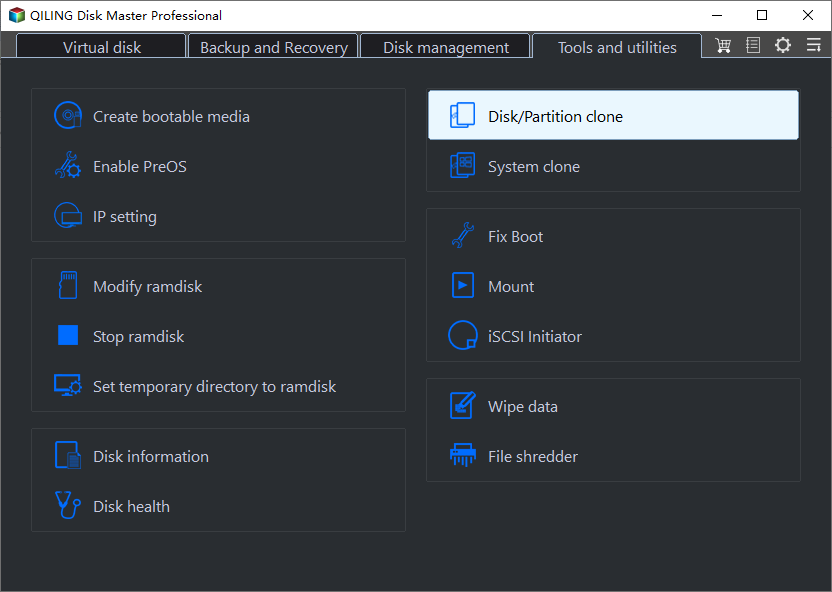
Step 2. To set up a new Windows installation on a dynamic disk, select the volume on the dynamic disk as the source partition and click "Next".
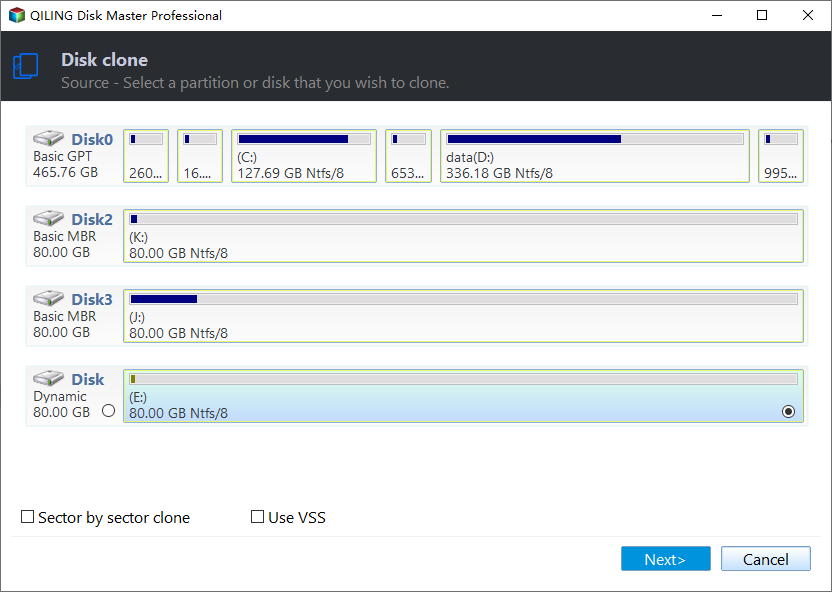
Step 3. Select the destination partition to store the cloned data and click "Next".
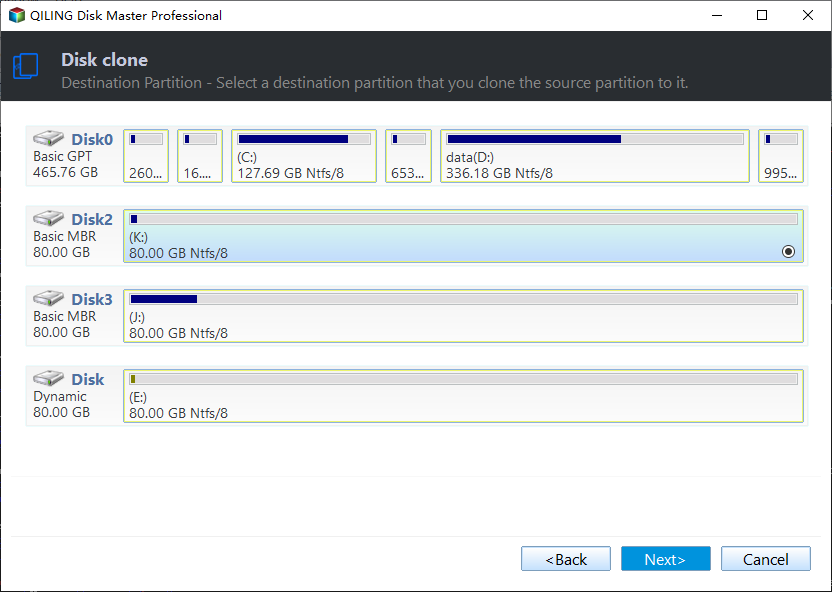
Step 4. In the Operation Summary page, you can resize the destination partition by dragging the border of the partition, and also change its partition type and drive letter.
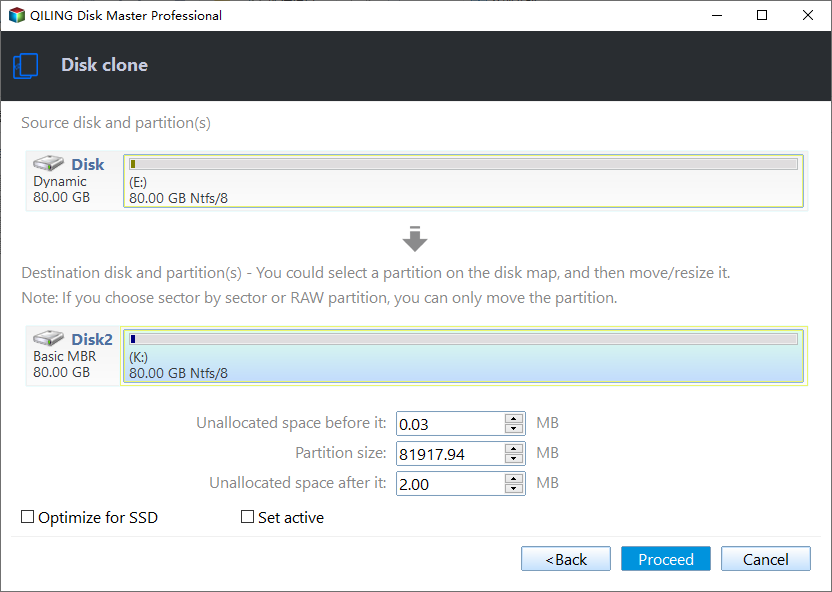
Step 5. Confirm the operation and click "Proceed" to begin cloning the volume on the dynamic disk.
>> SSD Alignment: If the destination disk is an SSD, enable this function to improve the reading and writing speed of the SSD.
>> Sector By Sector Clone enables cloning every sector on the source volume, including used and unused sectors, as long as the destination partition has sufficient capacity, matching the source volume's size.
Notes:
Qiling Disk Master currently has a limitation where it can only clone dynamic volumes on MBR disks, and the cloning process fails if attempting to clone dynamic volumes on GPT disks.
If you have a dynamic disk with multiple volumes and want to clone them all, you should choose different destination partitions to avoid overwriting any of them. *
Summary
With specialized dynamic disk cloning software, you can easily clone dynamic disks in Windows 10/8/7. This software also offers backup and restore features, making it a useful alternative to System Restore or other disk management tools.
Related Articles
- Fix "Windows detected a hard disk problem" in Win 10/7/8
This article illustrates the possible reasons and corresponding solutions to the Windows detected a hard dsik problem in Windows 11, 10, 8, and 7. Let's get started below. - Best Free Alternative to XXClone for Windows 10/8/7
You will find the best alternative to XXClone and XXClone Pro alternative, just see the details to clone hard drive to SSD without losing data in Windows 10, 8, 7. - Create Image of SSD Drive with Free SSD Image Software
Be aware of how to create an image of SSD can prevent data loss when your SSD fails. Qiling Disk Master can be the best tool for your manipulation. - Network Path Not Found or PXE Error, How to Solve it?
This guide explains Network Path Not Found or PXE Error, How to Solve it with clear steps, key checks, and practical tips. - Clone Hard Drive to Larger Drive Safely and Easily
With Qiling Disk Master Professional, you can easily clone hard drive to larger drive in Windows 11, 10, 8, 7 and you don't need to reinstall Windows operating system and other applications from scratch. - How to Clone Hard Drive to SanDisk SSD in Windows 10/11
This post introduces the best SanDisk cloing software that can help you clone hard drive to SanDisk SSD in Windows 11, 10, 8, 7 efficiently.
Products
Articles & Tutorials
- Data Recovery
- Data Backup
- File Recovery
- File Backup
- File synchronize
- System Backup and Restore
- Disk and Partition Clone
- Technical articles
- Disk Master Help
- Windows Deleted File and Disk Recovery Tutorials
- Windows File and Data Recovery Tutorials
- More Windows Tutorials for Install, Security, Files, and PC Tips
- Windows Boot, Repair, and Recovery Environment Tutorials
- Windows Backup Tutorials
- Windows Restore Tutorials
- Windows Clone and Migration Tutorials
- Windows Server Backup, Recovery, and Management Tutorials
- Windows Disk, Partition, and Storage Management Tutorials