How to Convert Dynamic Disk to Basic without Data Loss in Windows
Why convert dynamic disk to basic?
Dynamic disks provide advanced storage features such as spanned, striped, mirrored, and RAID-5 volumes, but they are not always the best choice for every computer. Basic disks are easier to manage and are more widely supported by Windows and other operating systems.
Tip: Before converting, learn the differences between dynamic and basic disks so you can choose the right disk type for your system.
Users usually convert a dynamic disk to a basic disk to improve compatibility, simplify disk management, reinstall an operating system, or fix limitations caused by software and hardware that do not support dynamic disks. After you confirm the reason for conversion, choose a method that matches your data-safety needs.
✦ Compatibility: Dynamic disks are mainly used by Windows operating systems, whereas basic disks are more widely recognized and compatible with various operating systems. To use a hard drive with an OS other than Windows, like macOS or Linux, it needs to be converted to a basic disk for seamless compatibility.
✦ Software and Hardware Limitations: Some applications, recovery tools, and devices do not work well with dynamic disks. Converting to a basic disk can improve access and compatibility.
✦ Reinstalling Operating System: When installing an operating system that doesn't support dynamic disks, you need to convert the disk to a basic disk so the new OS can be installed and work properly on the converted basic disk.
✦ Simplified Management: Dynamic disks can be complex to manage, but converting to a basic disk simplifies disk management and provides a straightforward structure.
✦ Improved Performance: Converting to a basic disk can be beneficial for users who don't need the advanced features of dynamic disks, as it eliminates the overhead associated with dynamic disk management and may improve overall system performance.
Before converting a dynamic disk to a basic disk, back up important files first. Windows built-in tools require deleting all volumes on the target disk, while dedicated dynamic disk converter software can help complete the conversion without deleting volumes.
How to convert dynamic disk to basic free
Here, you will learn how to convert a dynamic disk to a basic disk for free using either Disk Management or Command Prompt. Both methods require deleting all volumes on the target disk, so use them only after backing up your data.
▶ Option 1. Convert dynamic disk into basic by Disk Management
Converting a dynamic disk to a basic disk on Windows 10 or 11 is a one-way process, and it's not as straightforward as converting a basic disk to a dynamic one. You can only make this conversion when there are no partitions on the target disk, meaning you'll need to delete all partitions before proceeding. This limitation makes it more difficult to convert dynamic disks to basic ones compared to the reverse process.
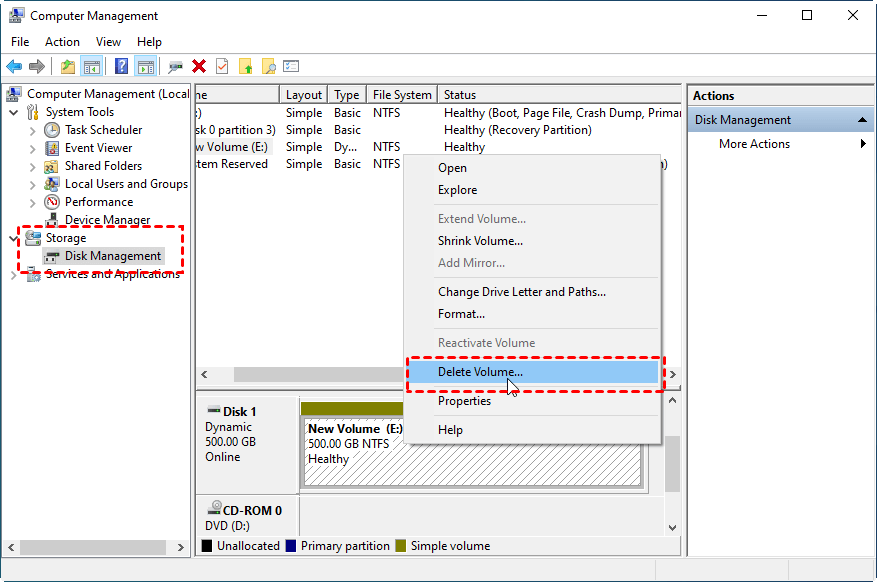
Step 1. To delete dynamic volumes in Disk Management, open Disk Management, right-click each dynamic volume and select "Delete Volume", repeating this process until all volumes are deleted.
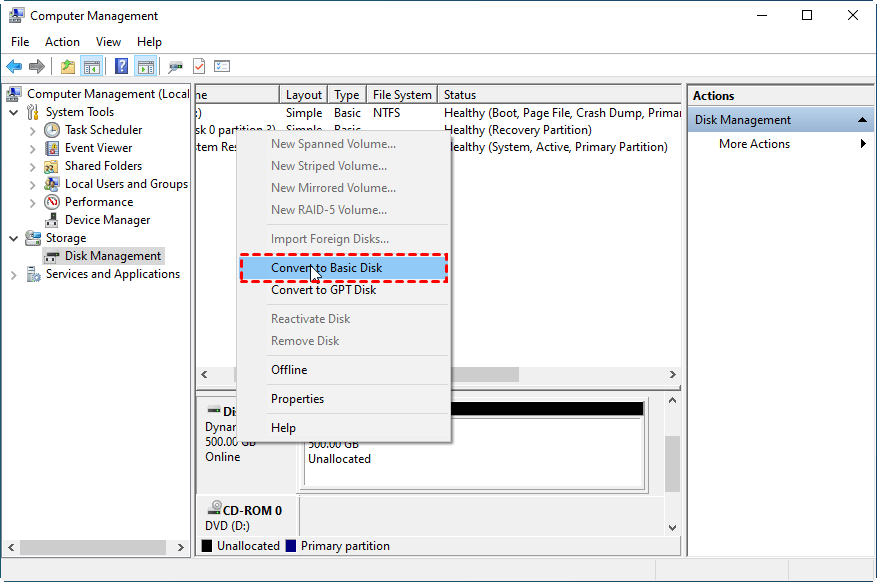
Step 2. Convert the dynamic disk to a basic disk by right-clicking on it and selecting "Convert to Basic Disk".
▶ Option 2. Convert dynamic disk to basic using CMD
You can also convert a dynamic disk to a basic disk using the DiskPart.exe command in CMD, but this method requires deleting all volumes on the dynamic disk and is more suitable for users with a computer background.
Step 1. To run the Command Prompt as an administrator, right-click the "Command Prompt" icon at the search menu and select "Run as administrator".
Step 2. Type the commands and press Enter after typing each command.
● diskpart
● list disk
● select disk n (replace n with the number of the dynamic disk)
● list volume
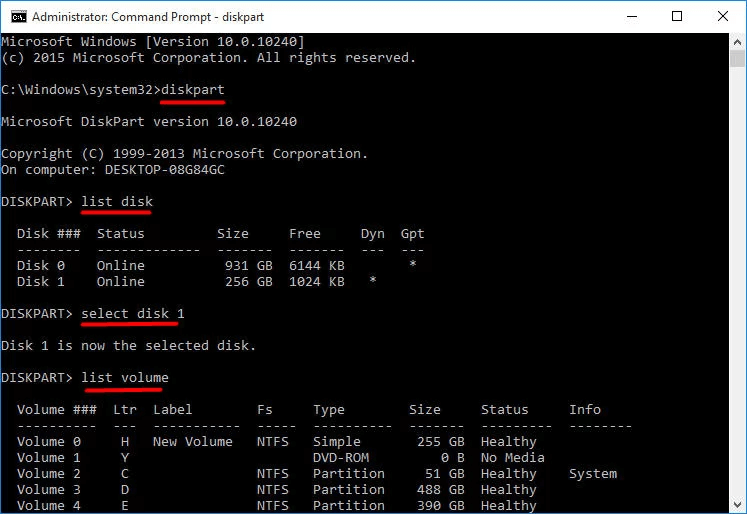
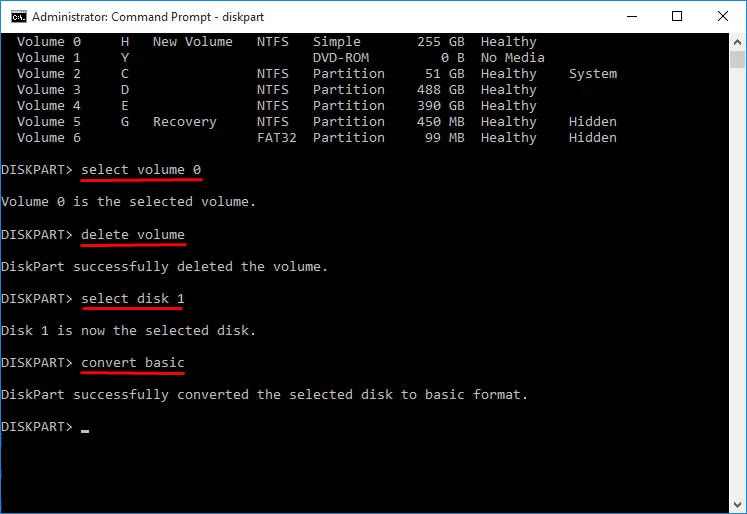
● select volume m
● delete volume (repeat these two commands to delete all volumes)
● select disk n
● convert basic
Convert dynamic disk to basic without losing data
Converting a dynamic disk to a basic disk with Disk Management or CMD requires deleting volumes. If the disk contains the Windows system volume, Windows will not allow you to delete it while the system is running. To keep data and avoid deleting volumes, use a dynamic disk converter such as Qiling Disk Master Server.
Qiling Disk Master Server is a reliable dynamic disk and volume management tool for Windows 11/10/8.1/8/7/Vista/XP/2000 and Windows Server 2022/2019/2016/2012(R2)/2008(R2)/2003. Its Dynamic Disk Converter helps convert dynamic disk to basic without data loss.
The software comes with a dynamic disk manager, allowing users to easily manage dynamic disks and volumes.
Step 1. To convert a dynamic disk to a basic disk, install and launch Qiling Disk Master Server, then click "More" in the top toolbar and select "Dynamic Disk Converter".
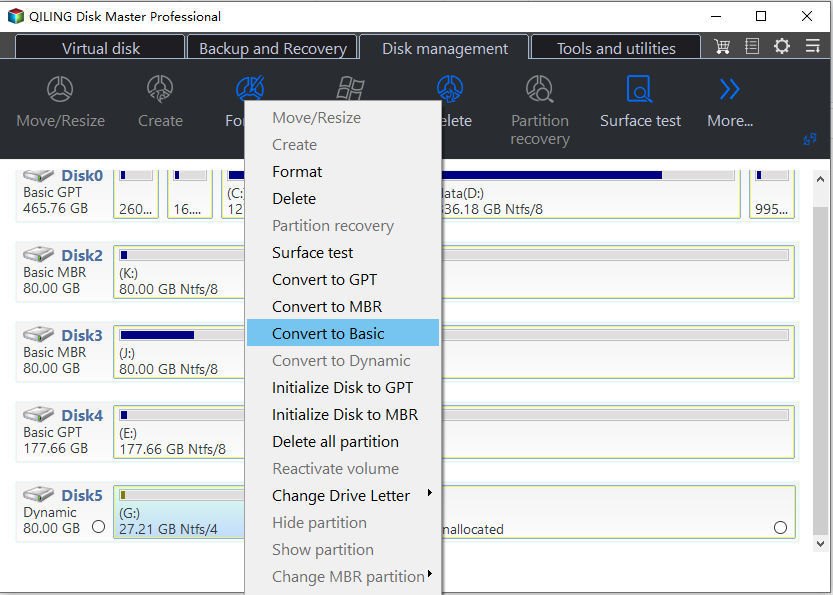
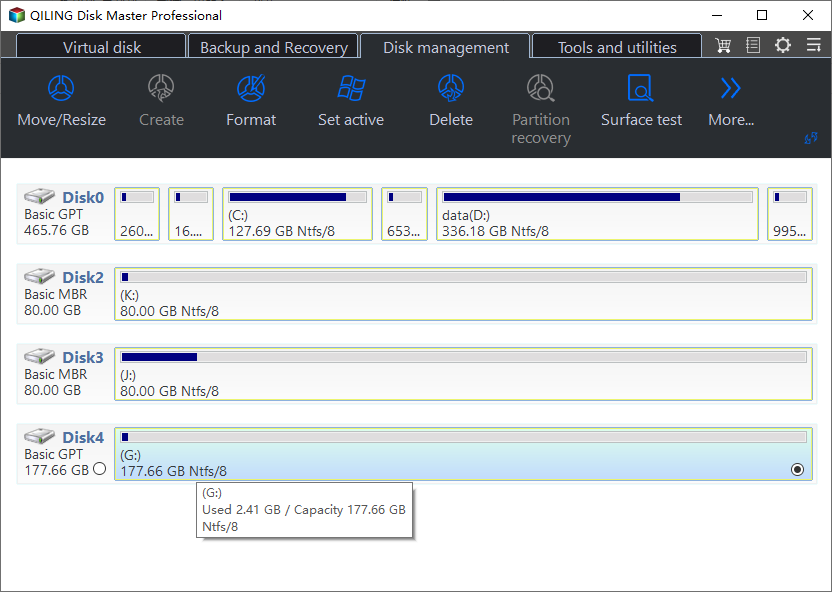
Step 2. Select the target dynamic disk, choose the conversion method, and click "OK" to confirm the operation.
Sum up
Windows Disk Management and DiskPart can convert dynamic disk to basic only after all volumes are deleted. If you want to convert a dynamic disk to basic without losing data, Qiling Disk Master is the recommended choice.
Related Articles
- Best NTI Echo Cloning Software Alternative - Qiling Disk Master
This guide explains Best NTI Echo Cloning Software Alternative - Qiling Disk Master with clear steps, key checks, and practical tips. - Full Guide to Transcend Elite Backup Software in Windows 11/10/8/7
This tutorial tells what Transcend Elite backup software is and how to use it step by step. A free alternative is offered in case Transcend Elite backup failed. - What Does a Disk Defrag do and Why Do I Need it?
This guide explains What Does a Disk Defrag do and Why Do I Need it with clear steps, key checks, and practical tips. - The Best Windows Server 2012 (R2) Disk Cleanup Tool
This article describes how to enable disk cleanup in Windows Server 2012 (R2) as well as the best Windows Server 2012 (R2) disk cleanup tool. Please read on. - Easily Create Windows Server 2012 Incremental Backup | 2 Ways
You will learn 3 backup types and find the 2 ways to make Windows Server 2012 incremental backup, try the best way to do incremental backups in Windows Server 2012 (R2), 2016, 2019. - Windows Server 2019 Legacy Boot: Install & Change Boot Mode
This article provides a guide on how to enable Windows Server 2019 legacy boot and switch from Legacy to UEFI mode, as well as a simple method to create a bootable Server 2019 media.
Products
Articles & Tutorials
- Data Recovery
- Data Backup
- File Recovery
- File Backup
- File synchronize
- System Backup and Restore
- Disk and Partition Clone
- Technical articles
- Disk Master Help
- Windows Deleted File and Disk Recovery Tutorials
- Windows File and Data Recovery Tutorials
- More Windows Tutorials for Install, Security, Files, and PC Tips
- Windows Boot, Repair, and Recovery Environment Tutorials
- Windows Backup Tutorials
- Windows Restore Tutorials
- Windows Clone and Migration Tutorials
- Windows Server Backup, Recovery, and Management Tutorials
- Windows Disk, Partition, and Storage Management Tutorials