XCopy Does Not Copy All Files in Windows 7/8/10 (Solved)
The case: XCopy does not copy all files
Some users may copy files using the command prompt, and XCopy is one of the command-line utilities that offers more functionality. However, sometimes XCopy may not copy all files and folders, as in the case described below.
You're using XCopy to copy files from an old hard drive to an external drive, but the source and destination directories aren't matching up after copying. To resolve this, you can try using the /s option with XCopy to copy the entire directory structure, or use the /-y option to copy all files without prompting for confirmation. If you're still facing issues, ensure you're using the correct source and destination paths and that there are no file system errors on either drive. Consider also checking for any file name conflicts or permissions issues that might be causing the problem. If none of these solutions work, you might want to consider using a more modern file copying utility that's designed for today's file systems and can handle more complex scenarios.
XCopy does not copy all files, but there are possible reasons and fixes for this issue. Additionally, this article will introduce an easier way to backup files.
Possible reasons and fixes to XCopy does not copy all files
If XCopy is not copying all files, it's likely due to issues with file permissions, the source or destination path being too long, or the file being locked by another process. Check the file permissions and ensure the source and destination paths are within the allowed length. Also, try to close any programs that may be locking the file, and then retry the XCopy command.
1. Make sure your command line is correct
A letter or symbol error can cause command-line error, so you should make sure your command-line is correct at first. See here for the full use of the command:
xcopy "[source]" "[destination]" [options]
The command to download a file using `curl` is `curl -O "https://example.com/file.txt"`.
"c:\Program Files\whatever"
2. Lacking permissions to read the contents of the files
If you're using Xcopy without administrator privileges, you may encounter permission issues when trying to read the contents of certain files, leading to a failed copy operation. To resolve this, you can try running Xcopy with administrator privileges or using an alternative method.
- Save XML file to TXT files and copy them by XCopy If you can open the file via Notepad or in Internet Explorer directly from the shared network folder, then the file type is likely to be a text file (.txt) or an HTML file (.htm or .
- When you using XCopy, using administrator privileges to open files.
Free alternative to XCopy-Qiling Disk Master
If you're having trouble copying a large number of files using the command line, consider using a reliable third-party software like Qiling Disk Master Standard instead.
This software is used for Windows operating systems, including Vista, XP, 7, 8, and 10. It allows users to back up files to various storage devices, such as external hard drives, USB flash drives, SD cards, CDs, DVDs, NAS devices, network shares, and cloud drives, including Qiling Cloud for users with a Qiling account.
And it allows you to set schedule backup like Daily/Weekly/Monthly and it backs up only changed files with incremental backup By default, this saves you both backup time and disk space.
The software provides a clear interface and user-friendly design, allowing users to copy files quickly and easily. For server users, the Qiling Disk Master Server is recommended.
How to copy files or folders with Qiling Disk Master
Step 1. Open Qiling Disk Master, click Backup and File Backup subsequently.

Step 2. To initiate a backup, click on either the "Files" or "Folders" tab, depending on whether you want to backup specific files or entire folders.

Step 3. To select the destination path to copy files to, click on the drop-down list and choose the desired path, which can include options like an external hard drive, cloud drive, shared folder, or NAS.

Step 4. Click Schedule Backup to set automatic backup Daily/Weekly/Monthly and click OK. This will enable Incremental Backup if you set a scheduled task. Then click Proceed to execute the operation.

The software is convenient as it doesn't require manual system backups, and it can minimize backup image size using incremental backup, compression, sector backup, and automatic splitting. However, the disk space may eventually fill up due to accumulated backups, requiring manual or automatic deletion of old backups.
To avoid invalid backups, enable Backup Scheme and set it to automatically delete backup files based on quantity, time, or daily/weekly/monthly intervals, and upgrade to the latest version for 5% off.
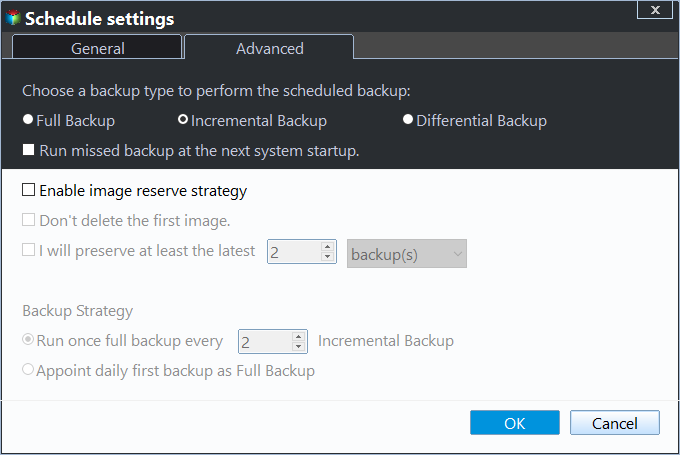
You can also choose to use differential backup as the backup method for the scheduled task, which can completely compensate for the problem with incremental backups. This approach has its own advantages and disadvantages, which are detailed in the article "Incremental or Differential Backup".
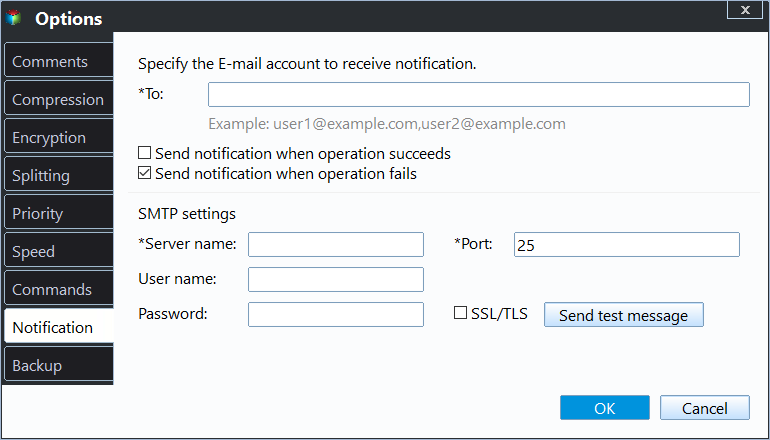
In addition to the existing features, you can also enable email notifications to confirm the completion of backup tasks, and also have options to comment, split, compress the backup image, and select a backup mode, among others.
Verdict
If you're experiencing issues with XCopy not copying all files, you can try the suggested fixes or use a third-party backup software like Qiling Disk Master Standard, which can easily back up a large number of files.
To ensure your data is protected, set a schedule backup to transfer data regularly, saving you time and safeguarding your important information. This feature also supports backing up only changed files with Incremental Backup by default.
If your target disk is a USB drive, try the USB Plug in feature. After the first backup is completed, you can remove the USB drive. Each time you reinsert the USB drive, the program will automatically run the task. Additionally, you can use Differential Backup and Backup Scheme in the advanced edition, which can be compared on the edition comparison page.
Related Articles
- The Best Xcopy Alternative in Windows 10/7/XP
- XCopy Copy Only Newer Files and Save Your Disk Space
- How to Exclude Files/Folders with Xcopy
- The Best Windows Server 2012 (R2) Disk Cleanup Tool
This article describes how to enable disk cleanup in Windows Server 2012 (R2) as well as the best Windows Server 2012 (R2) disk cleanup tool. Please read on. - Easily Securely Erase SSD Windows 10 without Affecting Performance
In this guide, you will learn how to securely erase an SSD in Windows without damaging its performance and lifespan. - How to Run SFC /Scannow in Windows 10, 11 (Stepwise Guide)
This tutorial provides a comprehensive guide on how to run the sfc /scannow command in Windows 10/11, as well as a suggestion to back up Windows in case the command fails.
Products
Articles & Tutorials
- Data Recovery
- Data Backup
- File Recovery
- File Backup
- File synchronize
- System Backup and Restore
- Disk and Partition Clone
- Technical articles
- Disk Master Help
- Windows Deleted File and Disk Recovery Tutorials
- Windows File and Data Recovery Tutorials
- More Windows Tutorials for Install, Security, Files, and PC Tips
- Windows Boot, Repair, and Recovery Environment Tutorials
- Windows Backup Tutorials
- Windows Restore Tutorials
- Windows Clone and Migration Tutorials
- Windows Server Backup, Recovery, and Management Tutorials
- Windows Disk, Partition, and Storage Management Tutorials