Windows 7 Stuck on Welcome Screen (Fixed with 5 Ways)
- Scenario: Windows 7 stuck on Welcome screen
- How to fix Windows 7 stuck on Welcome screen
- Solution 1. Disconnect from the internet
- Solution 2. Restart Windows Update service
- Solution 3. Run system checks
- Solution 4. Perform Startup Repair
- Solution 5: Clean boot troubleshooting
- Extra tips for Windows 7 stuck on Welcome screen fix
- Verdict
Scenario: Windows 7 stuck on Welcome screen
"I boot my computer, and get to the Windows Welcome screen after I enter my password, the spinning loading thing rotates forever. This stuck screen happens every once in a while. I have to manually shut down and start back up multiple times before I can successfully login again. Can anyone tell me what wrong it is and how to fix Windows 7 stuck on Welcome screen?"
How to fix Windows 7 stuck on Welcome screen
Some users have complained about Windows 7 getting stuck on the Welcome screen, but this issue can also occur in other operating systems. This problem can be frustrating, as it can leave users waiting for hours or even days to log in.
You may encounter Windows 7 getting stuck on the Welcome screen due to various reasons, such as being connected to a network, after logging in, or after an update. To resolve this issue, there are 5 ways to consider.
▪ Solution 1. Disconnect from the internet
▪ Solution 2. Restart Windows Update service
▪ Solution 3. Run system checks
▪ Solution 4. Perform Startup Repair
▪ Solution 5. Clean boot troubleshooting
Solution 1. Disconnect from the internet
When Windows 7 gets stuck on the Welcome screen after connecting to a network, try disconnecting from the internet before attempting to log in.
Solution 2. Restart Windows Update service
If you're experiencing issues with Windows 7 getting stuck on the Welcome screen after an update, you can try restarting the Windows Update service. This may resolve the issue and allow you to progress past the Welcome screen. To do this, follow the steps below.
Step 1. Press Win + R to bring out Run dialogue. Type cmd in the Run dialogue and press Enter.
Step 2. In the Command Prompt window, type the following commands and press Enter after each to stop Windows Update service and then restart it:
- net stop wuauserv
- cd %systemroot%
- ren SoftwareDistribution SD.old
- net start wuauserv
Step 3. To resolve the issue of being stuck on the Welcome screen, type exit and press Enter in the Command Prompt. Then, reboot your PC or laptop and verify if the problem has been resolved.
Tips: If you're still having trouble with the Welcome screen on Windows 7, try renaming a few system files and then restarting your computer to see if that resolves the issue.
Solution 3. Run system checks
To fix Windows 7 stuck on Welcome screen, you can follow the instructions below to check and repair corrupted system files. This may resolve the issue if it's caused by corrupt system files on your computer.
Step 1. Open Command Prompt as you do in Solution 2.
Step 2. Type the following commands in Command Prompt and press Enter after each of them:
- sfc /scannow
- chkdsk c: /f /r
- bootrec /fixmbr
- bootrec /fixboot
- bootrec /scans
- bootrec /rebuildbcd
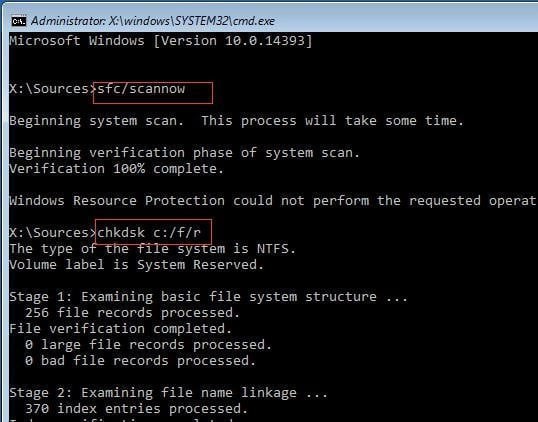
Step 3. Type exit and press Enter to close Command Prompt and restart your computer.
Solution 4. Perform Startup Repair
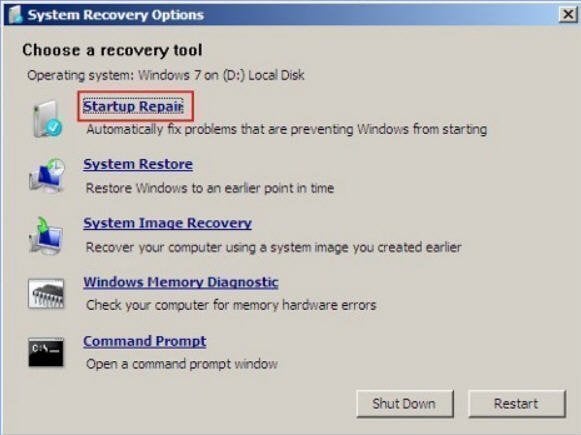
The Startup Repair tool can repair Windows by replacing damaged or missing operating system files. To access it, boot to System Recovery Options and select Startup Repair, then follow the on-screen instructions to complete the repair.
Solution 5: Clean boot troubleshooting
This issue can be caused by a non-Microsoft application or a driver, and can be resolved by performing a clean boot to identify the root cause after successfully booting in Safe Mode.
Step 1. To access the System Configuration Utility, click Start, type msconfig in the search box, and press Enter. If prompted for an administrator password or confirmation, enter the password and click Continue.
Step 2. On the General tab, click Selective Startup.
Step 3. Under Selective Startup, click to clear the Load Startup items check box.
Step 4. To disable all Microsoft services, click the "Services" tab, select the "Hide All Microsoft Services" checkbox, and then click "Disable All". Finally, click "OK" to confirm.
Step 5. Click Restart when prompted. After the computer starts, check whether the problem is resolved.
Tips: If your Windows 7 computer is stuck even in Safe Mode, you'll need to create an installation media, such as a USB drive or CD/DVD, to boot and troubleshoot your computer.
Extra tips for Windows 7 stuck on Welcome screen fix
After fixing the issue of Windows 7 getting stuck on the Welcome screen, consider taking preventative measures to avoid similar issues in the future. One of the most effective and cost-free solutions is to create an image backup of your system. This backup can be a lifesaver in case of system issues, allowing you to restore your computer to a previous good state with minimal effort. By making an image backup, you'll be able to troubleshoot and resolve various system problems with ease, making it a worthwhile investment of time.
To have a better backup experience, it is recommended to use Qiling Disk Master Standard, which is totally free.
- With its clean take control of your data with our user-friendly interface! You can easily backup your entire system, disks, partitions, or even individual files with just a few clicks.
- To keep your backup up to date, you can schedule a regular backup.
- Thanks to incremental backup, the scheduled backup will only backup the changed data and it will not occupy much space.
This freeware runs smoothly on Windows 11/10/8.1/8/7/Vista/XP and can be downloaded by clicking the button below.
To backup your system via Qiling Disk Master, simply click the "Backup" button, select "System Backup", choose a destination path to save the backup, and then click "Proceed".

Tips: The advanced version of Qiling Disk Master offers more powerful features, including the ability to restore a system to a dissimilar hardware, backup dynamic disk volumes, and automatically delete old backups.
Verdict
To fix Windows 7 stuck on Welcome screen, follow the steps mentioned above. Additionally, it's a good idea to recover your computer from possible system issues by backing up your system with Qiling Disk Master, which can also be used to backup disks, partitions, or specific files. This can help prevent data loss and ensure your computer is easily recoverable in case of system crashes or other issues.
To protect unlimited computers within your company, you can use Qiling Disk Master Technician, which allows you to deploy or restore system image files on server-side computers to multiple client-side computers over a network using its built-in Qiling Image Deploy tool.
Related Articles
- 5 Quick Fixes to Startup Repair in Windows 7 Not Working
This guide explains 5 Quick Fixes to Startup Repair in Windows 7 Not Working with clear steps, key checks, and practical tips. - Fixed: Startup Repair Loop in Windows 7 [4 Solutions]
This guide explains Fixed: Startup Repair Loop in Windows 7 with clear steps, key checks, and practical tips. - Windows 10 Upgrade Keeps Restarting (Fixed with 3 Ways)
This guide explains Windows 10 Upgrade Keeps Restarting (Fixed with 3 Ways) with clear steps, key checks, and practical tips. - Windows Server 2012 R2 Restore OS and Files from Backup
This guide explains Windows Server 2012 R2 Restore OS and Files from Backup with clear steps, key checks, and practical tips. - How to Backup Valheim Saves in 2023
This guide explains How to Backup Valheim Saves in 2023 and provides practical steps, tips, or recovery options to help you complete the task safely. - How to Image a Hard Drive Windows 10 in 2 Different Ways
This guide explains How to Image a Hard Drive Windows 10 in 2 Different Ways and provides practical steps, tips, or recovery options to help you complete the task safely.
Products
Articles & Tutorials
- Data Recovery
- Data Backup
- File Recovery
- File Backup
- File synchronize
- System Backup and Restore
- Disk and Partition Clone
- Technical articles
- Disk Master Help
- Windows Deleted File and Disk Recovery Tutorials
- Windows File and Data Recovery Tutorials
- More Windows Tutorials for Install, Security, Files, and PC Tips
- Windows Boot, Repair, and Recovery Environment Tutorials
- Windows Backup Tutorials
- Windows Restore Tutorials
- Windows Clone and Migration Tutorials
- Windows Server Backup, Recovery, and Management Tutorials
- Windows Disk, Partition, and Storage Management Tutorials