How to Recover Files from External Hard Drive without Formatting
- Scenario
- Why external hard drive keeps asking to format it?
- Can you recover files from external hard drive without formatting?
- How to recover files from external hard drive without formatting
- Recover corrupted external hard disk using chkdsk
- Recover files from corrupted hard drive free with data recovery software
- Bonus tip
- Verdict
Scenario
"I use a WD external hard drive on Windows 7. It has four partitions, and all of them worked well before. Now all partitions are inaccessible, and Windows says, "You need to format this partition first to use it." I saved many files on the drive, including Excel files, Word documents, photos, and videos. I want to know how to recover files from the external hard drive without formatting it."
Why external hard drive keeps asking to format it?
When your computer asks you to format an external hard drive, the drive may have file system or connection problems. Common causes include:
1. The external hard drive was unplugged without using "Eject" or "Safely Remove Hardware".
2. Some system files were accidentally deleted, making the external hard drive unreadable.
3. A virus infection can cause files and folders to be hidden, turn into shortcuts, or even make a drive inaccessible.
4. The external hard drive has bad sectors.
5. File table corruption could make the external hard drive inaccessible.
6. Other unknown reasons.
Can you recover files from external hard drive without formatting?
Yes, you can recover files from an external hard drive without formatting it. Stop using the drive as soon as you notice the problem to avoid overwriting data. Then connect it to a computer and use recovery software to scan the drive and restore the files you need.
Even if you cannot open the external hard drive, file recovery software may still detect the data and help recover it.
How to recover files from external hard drive without formatting
You can try two methods to recover data from a corrupted external hard drive. First, use CHKDSK in Command Prompt to repair file system errors. If that does not work or the drive still cannot be opened, use data recovery software to scan and recover files.
Recover corrupted external hard disk using chkdsk
If the external drive is corrupted but still detected by Windows, CHKDSK may repair file system errors and make the drive accessible again. Start with these steps.
Step 1. Type cmd in the search box, right-click it, and select Run as administrator.
Step 2. Type the following command in Command Prompt and press Enter.
chkdsk F: /f/x/r
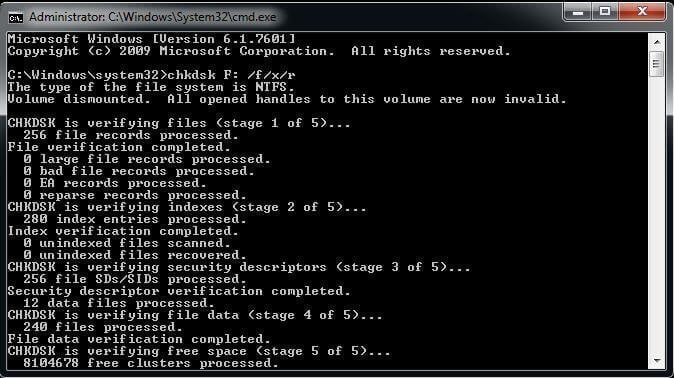
/f fixes detected file system errors on the external hard drive.
/x forces the drive to dismount before the scan starts.
/r locates bad sectors and recovers readable information from them.
Step 3. Wait until the process finishes.
Recover files from corrupted hard drive free with data recovery software
There are many free data recovery tools online. To save time, you can try Puran File Recovery to scan the external hard drive and restore recoverable files.
Step 1. Download Puran File Recovery and open it.
Step 2. Select the drive in the top pane.

Step 3. Click Scan and wait for the result.
Step 4. Select files you want to restore, click the 'Recover' button, and choose the desired recovery option.
Notes:
- Just Recover will restore the file to any location you choose.
- Recover with Folder Structure keeps the original folder path. For example, files from "F:\files\photos" will be restored under a "files\photos" folder on the computer.
- Recover with Custom Size helps restore files of a specified size, which can be useful when trying to retrieve complete files.
Bonus tip
Recovery can reduce data loss, but it is not a replacement for backup. To protect important files, create regular backups and store them in a safe location.
You can use the free backup and restore software Qiling Disk Master to back up files and folders. It supports backing up specific file types, large files, changed files, and more.
You can also set daily, weekly, monthly, or event-triggered backups. After a full backup, differential or incremental backups can save time and space, and old backups can be deleted automatically to free disk space.
Follow these steps to create a file backup.
Step 1. Download Qiling Disk Master, install and launch it.
Step 2. On the main page, click Backup and then choose File Backup.

Step 3. Select files or folders from a specified path by clicking on the "Files" or "Folders" tab and then browsing to the desired location.

Step 4. Select a destination path to save the backup files.

Step 5. Configure the backup settings as needed.

Step 6. Click Proceed and wait for the final result.
This software can also help protect files on crashed hard drives, unstable computers, and other storage devices.
Verdict
When an external hard drive asks to be formatted, avoid formatting it before recovering important files. Try CHKDSK for file system errors, or use data recovery software if the drive remains inaccessible.
To keep your files safe in the future, create an exact copy and save it to another secure location. That way, you can restore the files whenever needed.
Related Articles
- 7 Ways to Fix a Corrupted Flash Drive without Formatting
- Recover Files from Accidentally Formatted External Hard Drive
- 2 Quick Methods to Recover Files from a Crashed Hard Drive
- How to Backup Synology to Windows Server
Learn why and how to back up Synology to Windows Server, and choose useful software for Synology backup tasks. - Synology Sync Folders to External USB Drive with 4 Steps
Learn how to sync Synology folders to external drives with two practical methods, including NAS sync software. - How to Transfer Data from microSD Card to Laptop Easily
Learn how to transfer data from a microSD card to a laptop so you can keep files accessible and reduce the risk of data loss.
Products
Articles & Tutorials
- Data Recovery
- Data Backup
- File Recovery
- File Backup
- File synchronize
- System Backup and Restore
- Disk and Partition Clone
- Technical articles
- Disk Master Help
- Windows Deleted File and Disk Recovery Tutorials
- Windows File and Data Recovery Tutorials
- More Windows Tutorials for Install, Security, Files, and PC Tips
- Windows Boot, Repair, and Recovery Environment Tutorials
- Windows Backup Tutorials
- Windows Restore Tutorials
- Windows Clone and Migration Tutorials
- Windows Server Backup, Recovery, and Management Tutorials
- Windows Disk, Partition, and Storage Management Tutorials