Perform Toshiba Satellite Factory Reset Easily (with Restore Point)
Content of this article:
- The Case: Trying to Revive an Old Toshiba Satellite Laptop
- How to Use Toshiba Restore Point for System Recovery
- How to Perform Toshiba Satellite Factory Reset
- Toshiba Factory Reset 0 Not Working
- Safer Way to Rescue Toshiba Satellite in Windows 10 or 11
- The End
The Case: Trying to Revive an Old Toshiba Satellite Laptop
"I have a Toshiba Satellite laptop, it is running Windows 7 and I'm trying to factory reset it with Toshiba restore point, but it says "No restore points have been created on your computer's system". I also tried to perform Toshiba system recovery through backup or restore your files -> recover system settings on your computer -> advanced recovery methods, but there is no Return your computer to factory condition option. How do I restore my Toshiba Satellite? Please help."
In Windows 7, 8, and 8.1, system restore points are enabled by default, but this feature is not enabled in Windows 10 or 11. If you don't manually enable system restore points, Toshiba won't create a restore point, which is necessary for factory reset or system recovery. However, if system restore points aren't enabled, you can still use the Toshiba recovery disk or partition.
How to Use Toshiba Restore Point for System Recovery
The Toshiba system restore point only includes recently installed programs, drivers, and settings, and won't affect personal data. It's a good option if your computer is slow or unresponsive, as it can restore it to a previous working state without deleting personal files.
If you still can access Windows desktop:
1. Type create a restore point and select it.
2. Click the System Restore button in the System Restore section.
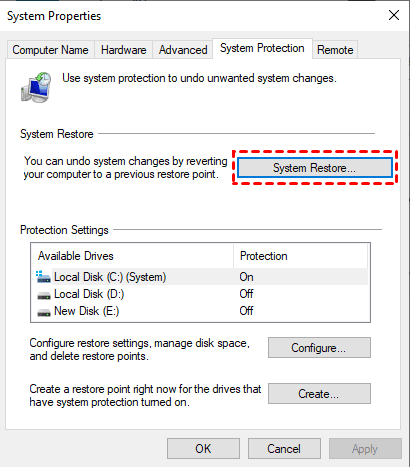
3. Tick Recommended restore and click Next.
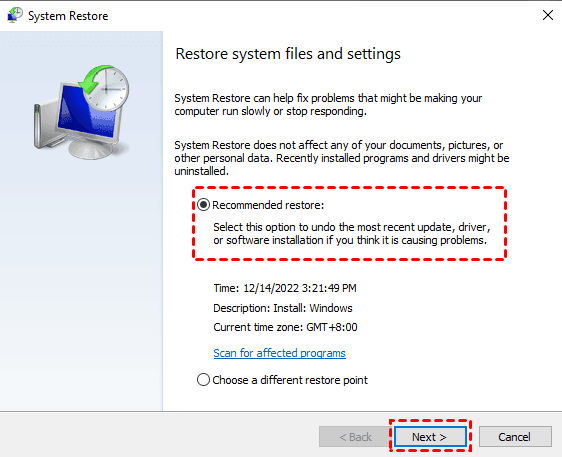
If the restore point in the "Recommended restore" option is damaged or you want to restore to a different point, select "Choose a different restore point" and choose the desired restore point in the next window.
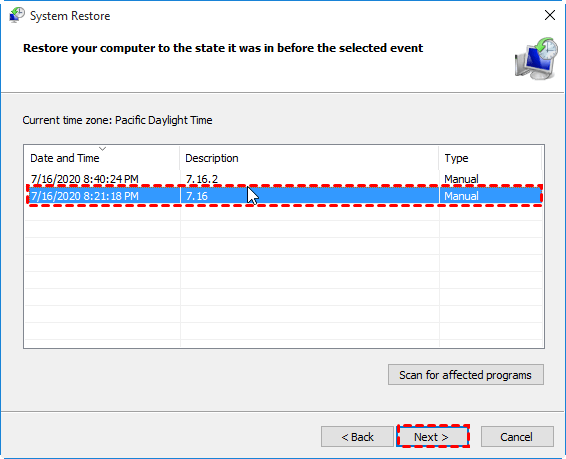
4. Confirm your restore point and click Finish to start system recovery with Toshiba restore point.
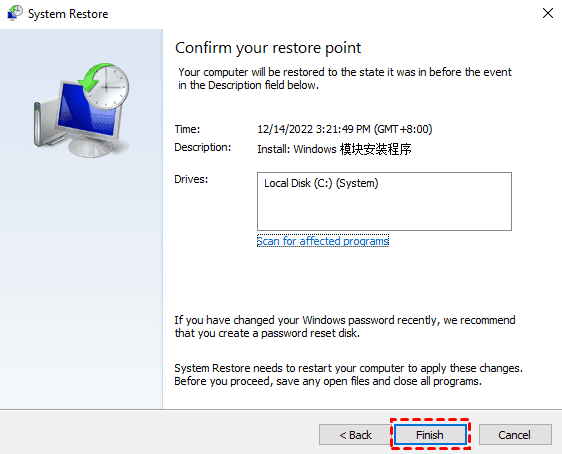
If your computer fails to boot:
1. Insert your installation disc into your computer, and then boot from it. You will be prompted to select your preferences, and then click the "Next" button.
2. Click Repair your computer.
3. To open System Restore in Windows, follow these steps: In Windows 7, click on the Start button, then select Control Panel, and then System and Security. In Windows 8, click on the Start button, then select Control Panel, and then System and Security. In Windows 10, click on the Start button, then select Settings, then Update & Security, then Recovery, and then Open System Restore.
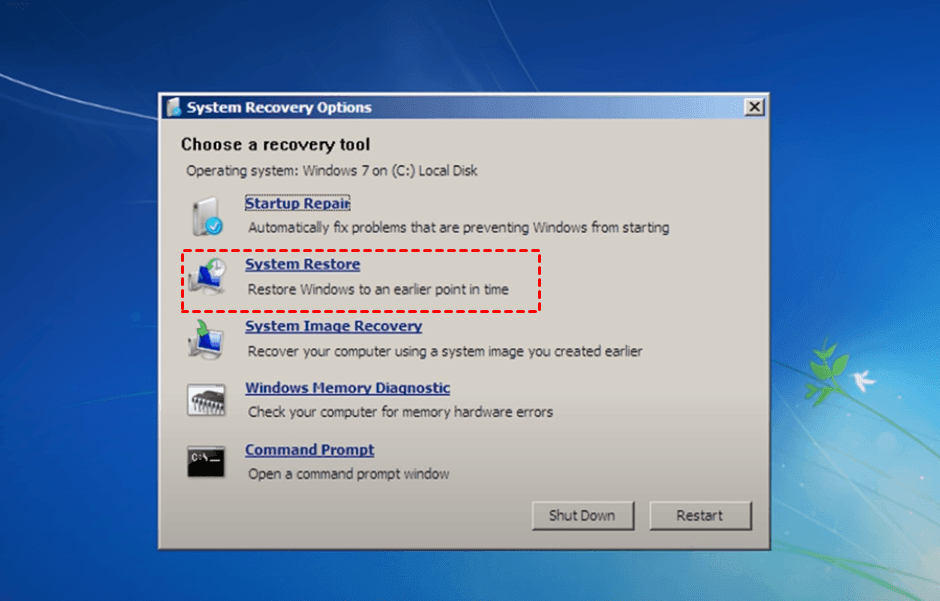
- In Windows 7, if you encounter a problem, you'll be taken to the System Recovery Options window, where you can select System Restore.
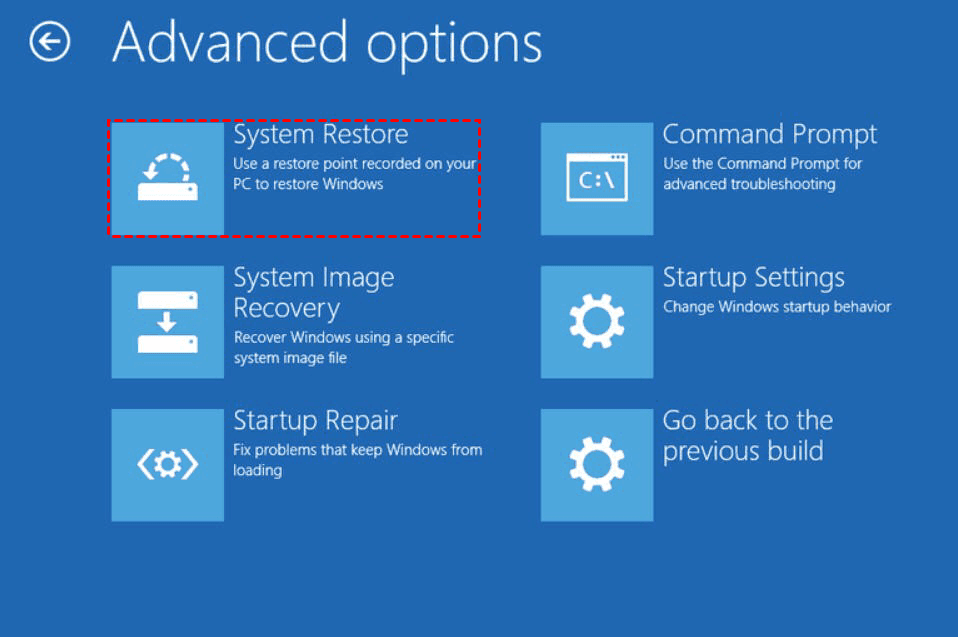
- In Windows 8/10/11, click Troubleshoot, then Advanced, and finally System Restore.
4. To perform a Toshiba satellite factory reset, wait until the System Restore tool loads, select the Toshiba restore point you want, and follow on-screen instructions.
How to Perform Toshiba Satellite Factory Reset
Before performing a Toshiba factory reset, it's crucial to back up all important files and data stored on the internal storage drive, as the system recovery process will erase everything except for the factory system files, settings, and programs.
Preparations for Toshiba Satellite factory reset:
- Shut down the Toshiba Satellite computer.
- Remove all external devices such as a mouse, keyboard, monitor, and USB flash drive.
- Plug in the AC Adapter to the computer.
To factory reset a Toshiba laptop, you can follow the steps for your operating system: in Windows, go to Settings > Update & Security > Recovery > Reset this PC, then select the option to keep your files or remove everything; in macOS, go to Apple menu > Restart, then immediately hold down the Command + R keys to enter Recovery Mode, then select Disk Utility and follow the prompts to erase the startup disk; in Chrome OS, go to Settings > About Chrome OS > Powerwash, then confirm the reset. Once you've selected the method, follow the on-screen instructions to complete the factory reset.
Toshiba Satellite Factory Reset Windows 7
If you have a Toshiba recovery disk:
1. Insert the recovery disk into Toshiba Satellite. Turn on the machine and press the F12 key repeatedly when you see the Toshiba logo.
2. Select the USB flash drive on the boot menu screen and click Yes to confirm your data will be erased if prompted.
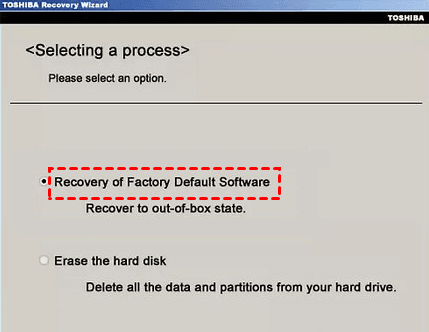
3. Choose Recovery of Factory Default Software and click Next.
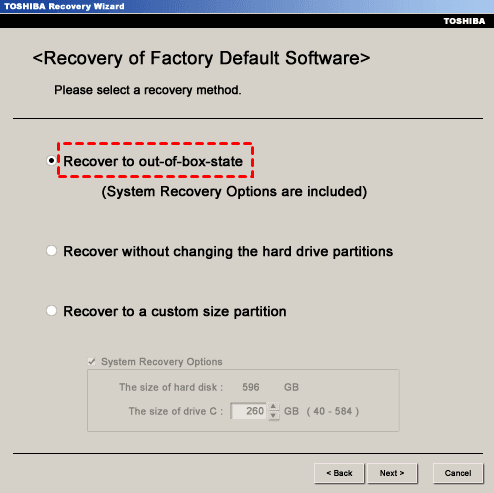
4. Select one of the recovery options in the following and click Next.
- Recover to out-of-box state (System Recovery Options are included): This is selected by default. It will delete everything on Toshiba Satellite.
- Recover without changing the hard drive partitions: The command will completely erase all data on the C: drive, but it will not affect other partitions, leaving them untouched.
- Recover to a custom size partition: This tool allows you to specify a custom size for the partition to store the factory image, but be aware that it can also delete all other partitions on a Toshiba Satellite.
If you don't have recovery disk:
1. You can start Toshiba Satellite and access the Toshiba recovery wizard in two ways:
- Use the F0 key if the F key is white and on the top location. Press and hold the 0 key while starting your computer, then release it when you see the recovery warning screen and click Yes to proceed.
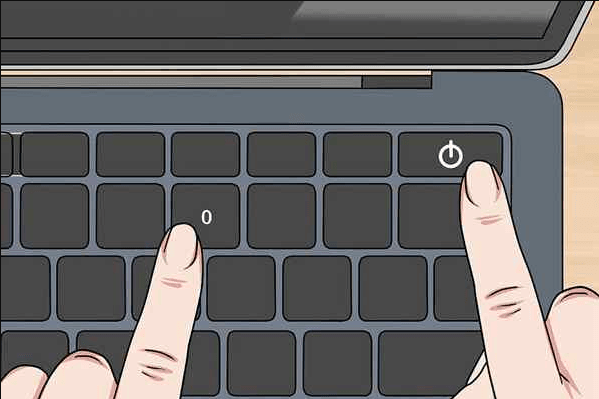
- Use the F12 key if the F key is in gray and on the bottom. To access the TOSHIBA Recovery Wizard, turn on your machine and press F12 to enter the boot menu. From there, select the "Repair your computer" option, and then choose the TOSHIBA Recovery Wizard.
2. Select the Recovery of Factory Default Software option.
3. Here you will see all the recovery options, select "Recover to out-of-box state" or the other two options, and start the Toshiba system recovery process.
Toshiba Satellite Factory Reset Windows 8
If you could boot Windows successfully (use charm bar):
1. To restart your Windows 10 PC, press the Windows key and the letter C at the same time to open the charm bar, then select Settings, followed by PC Settings, General, and finally Restart now under Advanced startup.
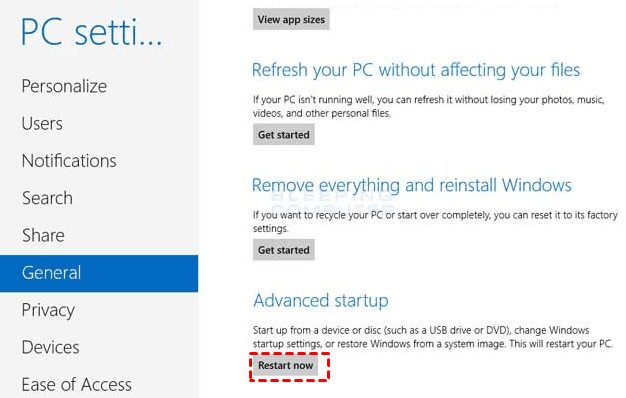
2. To fix issues with your PC, try refreshing or resetting it, or click Advanced options and select System Restore.
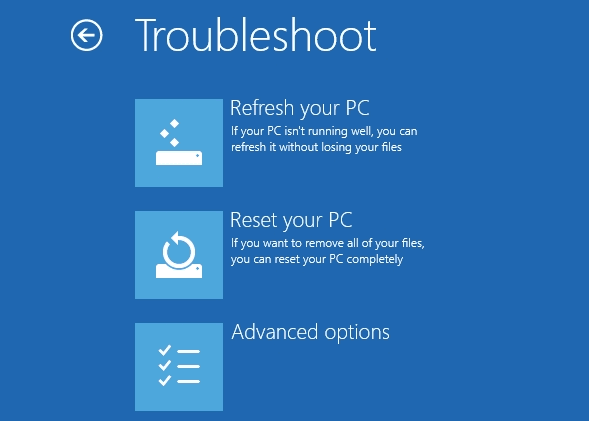
3. Follow the on-screen instructions and factory reset Toshiba Satellite.
If your system fails to boot (use HDD recovery):
1. To access the boot menu on your Toshiba Satellite, restart the laptop and immediately press the F12 key. This will allow you to select the boot device and potentially resolve any issues you're experiencing.
2. To recover your Toshiba Satellite, choose HDD Recovery by the arrow keys and press Enter. Then, click Yes to confirm and continue with the recovery process.
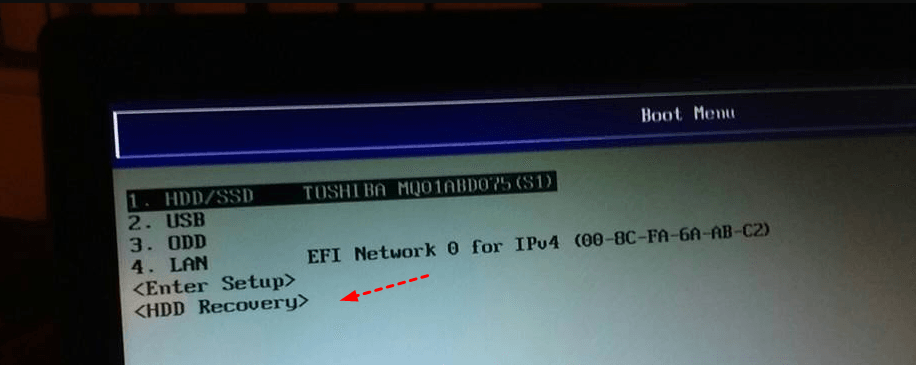
3. The Toshiba system recovery menu offers the options to Refresh your PC, Reset your PC, Advanced options, and System Restore. Selecting Refresh your PC or Reset your PC will initiate a system recovery process, while choosing Advanced options and then System Restore will allow you to restore your system to a previous state.
Toshiba Satellite Factory Reset Windows 10 or 11
If you could boot Windows successfully:
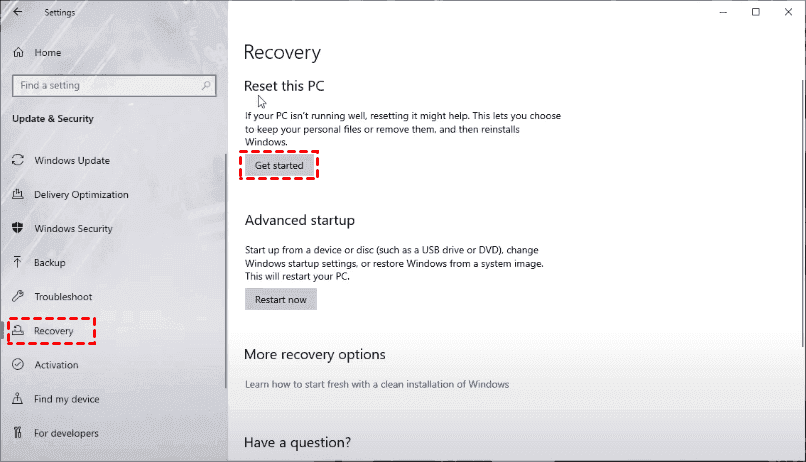
1. Click Start and choose Settings.
2. Select Update & security.
3. Click Recovery, and tap Get Started at Reset this PC.
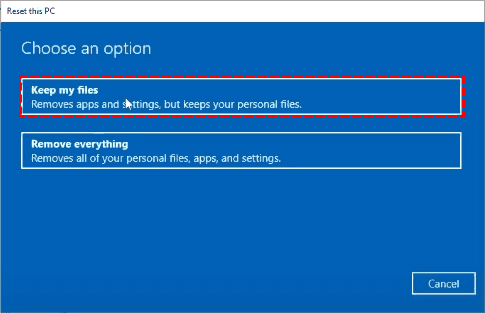
4. Choose Keep My Files.
5. To reset your Toshiba laptop, navigate to the Start menu, then select the "Settings" icon. In the Settings window, click on "Update & Security," followed by "Recovery".
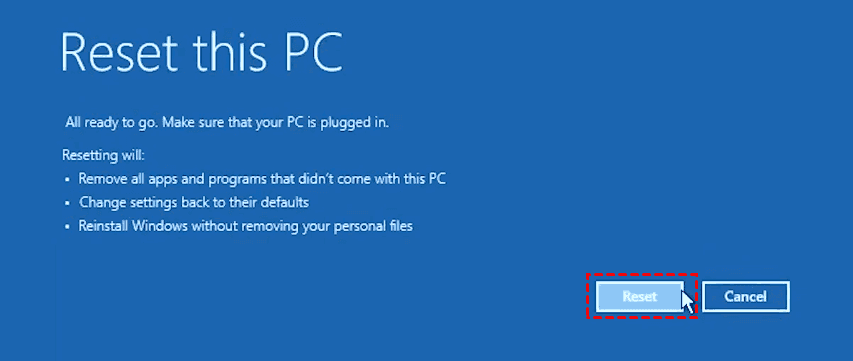
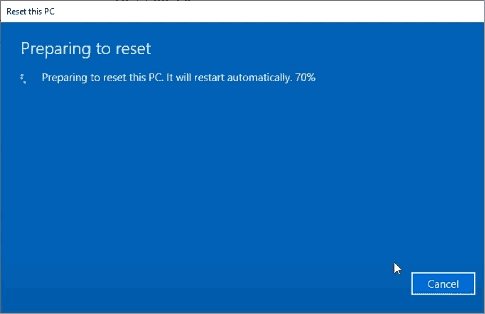
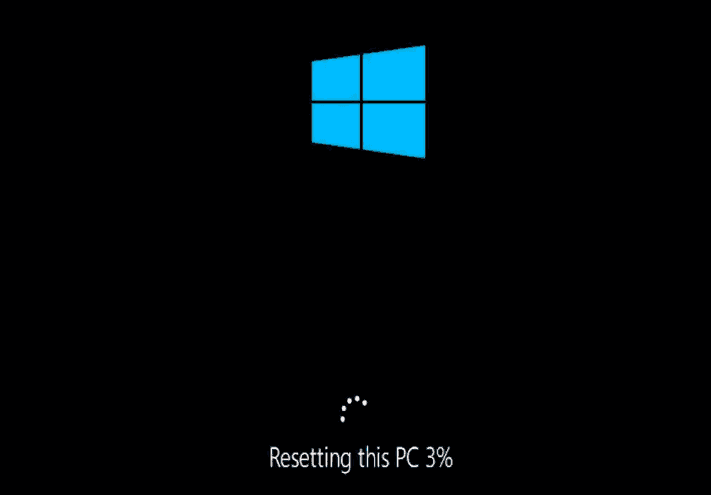
The factory reset will restore your PC to its original settings, effectively wiping all data, and will automatically restart your computer.
If your system fails to boot:
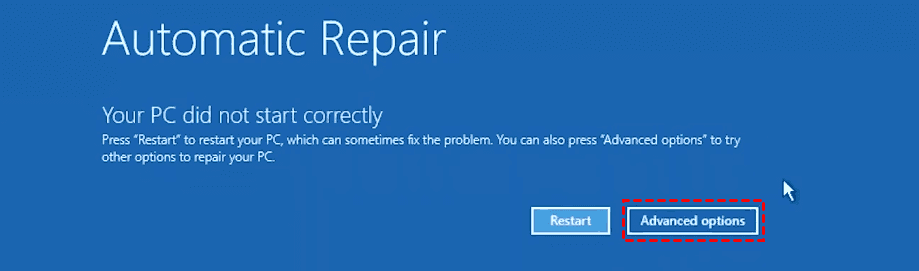
1. Press the 0 (zero) or F12 Toshiba recovery key to open the Automatic Repair window, then choose Advanced options.
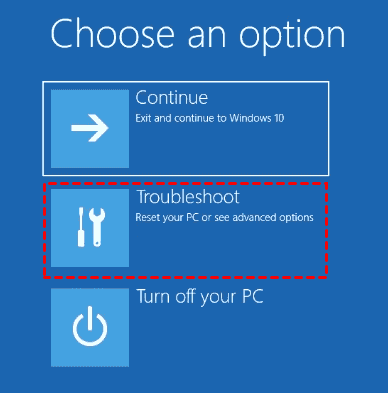
2. Choose Troubleshoot in Choose an option window.
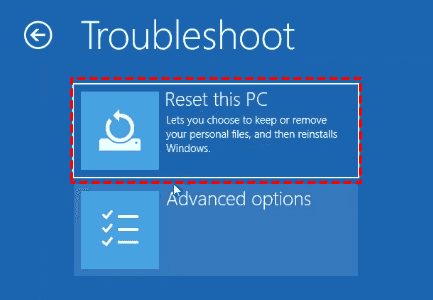
3. Select Reset this PC.
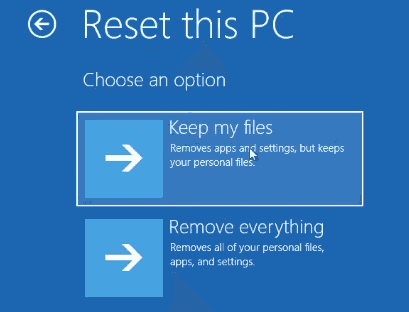
4. Choose Keep My files.
5. Choose an account and enter the password, click Continue.
6. To reset your Toshiba Satellite laptop to its factory settings, press the Reset button, which will utilize the Toshiba restore point to restore the laptop to its original settings.
Toshiba Factory Reset 0 Not Working
Many users reported that pressing 0 on Toshiba laptops during boot-up to access the recovery environment did not work, even if the hidden recovery partition was present.
The 0 key not working for factory reset might be due to the recovery partition being locked by the manufacturer or the recovery environment being missing, requiring IT expert assistance to resolve.
If you're still having trouble fixing the issue, don't worry, there's another way to create a Toshiba factory recovery partition and perform a system recovery that will restore the operating system, installed programs, and personal data.
Safer Way to Rescue Toshiba Satellite in Windows 10 or 11
You can create a user backup on the system partition, including the operating system, installed programs, and personal data, similar to a restore point or factory image. This way, everything remains on the Toshiba Satellite, giving the impression that nothing has changed.
The best one-Qiling Disk Master Professional is a key recovery software that allows you to create a system image with simple steps in Windows PCs and Servers, including Windows XP, Vista, 7, 8, 8.1, 10, and Windows Server 2003/2008 (R2)/2012 (R2)/2016/2016, SBS 2003/2008/2011, WHS 2011. This software provides a range of advantages, including the ability to create a system image with simple steps, making it a useful tool for system recovery and backup.
- Schedule backup system: Qiling Disk Master supports daily, weekly, or monthly backup frequencies, allowing users to select the frequency that best suits their needs, ensuring changes on the system partition are accounted for.
- Compress backup image to a smaller size: This program supports three compression levels: none, normal, or high, with the normal level being the recommended choice.
- Encrypt backup image: This tool allows you to set a password for your backup image, which once encrypted, ensures that only authorized users with the password can access your data.
To create a system backup for your Toshiba Satellite, download the Toshiba Recovery Media Creator software from the official Toshiba website. This software will guide you through the process of creating a system backup on a USB drive or CD/DVD.
Create Toshiba User Backup:
1. To recover your system, install Qiling Disk Master Professional, a top-rated one-key recovery software. Launch the program and select "OneKey System Backup" from the main console.
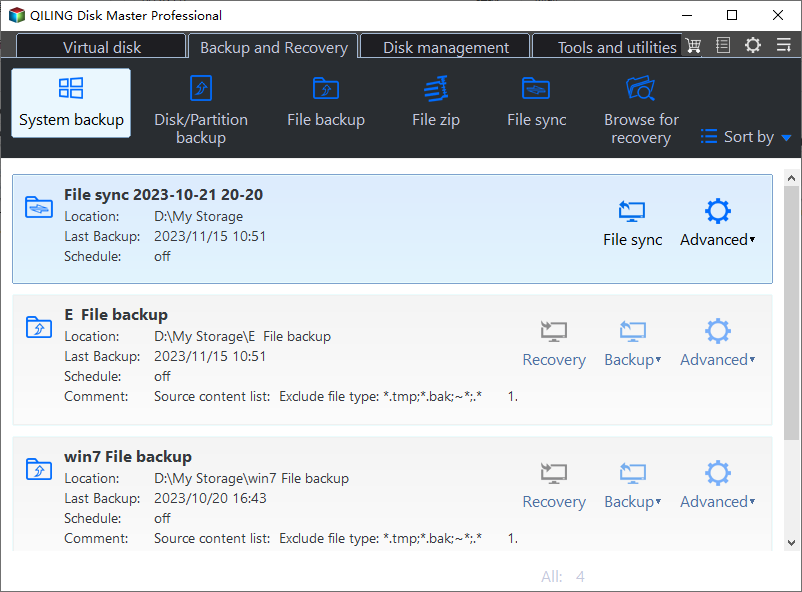
2. Choose the "Backup system to Qiling Disk Master Partition (Recommended)" option and click "Next".
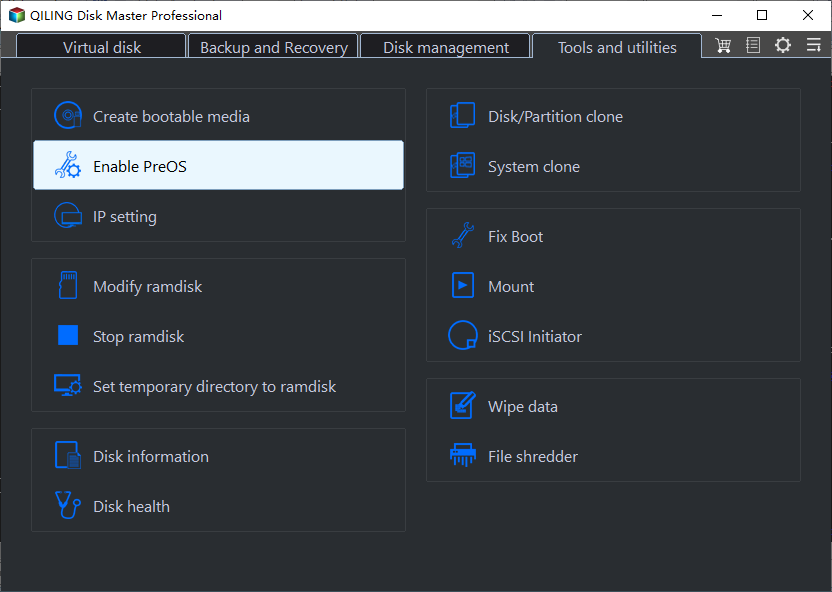
★ Tips:
❀ You can backup your system to other locations, such as an internal hard drive, external hard drive, or USB flash drive.
❀ In the Backup Options, you can encrypt and compress the backup image file, and also set up a Scheduler to run the backup at regular intervals.
3. Select a partition to create the Toshiba recovery partition behind and click Proceed to start this process. This will include the operating system, programs, settings, user profiles, etc. in the partition.

Wait for a moment, it will create a Toshiba factory recovery partition (with the system backup, suffix with .fvd) automatically, and shows like this.
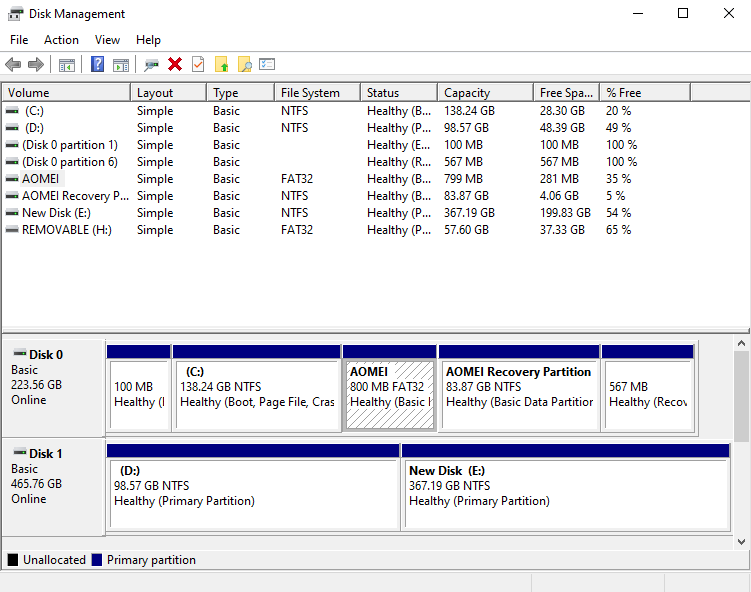
The recovery partition is not the same on MBR and GPT disks. On MBR disks, the recovery partition is typically located at the end of the disk, while on GPT disks, it is usually located within the first 2 TB of the disk.
- The GPT disk contains two partitions: Qiling (boot partition) and Qiling Recovery Partition (with a system image file suffix of .fvd). These partitions are hidden by default.
- In a Master Boot Record (MBR) disk, there will only be one Qiling Recovery Partition.
Set Toshiba Recovery Key as F11 or A key:
To set the F11 or A key as the shortcut to restore Toshiba to factory settings, click the Settings icon at the toolbar.
To perform Toshiba system recovery, you can press the F11 or A key during system startup, which will take you to the Qiling Recovery environment. From there, you can perform a Toshiba system recovery without losing any data. This method is detailed in Way 3 of the Lenovo desktop factory reset guide.
The End
If your Toshiba computer is running slowly or not responding, you can use the restore point feature to recover your system. Additionally, if your system partition or disk is damaged, you can choose to factory reset your Toshiba Satellite to get it back to its original state.
To avoid data loss after system recovery, it's suggested to create a user backup including OS, programs, drivers, personal data, etc. Qiling Disk Master is a good choice to protect unlimited PC or servers, try its Technician or Customization edition.
If you want to create, manage, and monitor backups for all clients, try Qiling Centralized Disk Master.
Related Articles
- System Recovery Options Command Prompt - Troubleshoot Your Computer
This article is written for users who want to troubleshoot their computer via system recovery options command prompt. Scroll down to learn detailed steps. - How to Use Asus Recovery Key to Restore System When It Fails
When system fails to boot up in Windows 10/8/7 Asus computer, users can easily restore it back to factory default settings from Asus recovery hidden partition making use of Asus system recovery key. Solution to Asus recovery key not working is also included. - When and How to Restore Windows 10/8/7 from Recovery Partition
When Windows system fails to boot, you can restore Windows from recovery partition. Here is a guide to walk you through every step of the way. - Easiest Way to Create Bootable Hidden Recovery Partition for Windows 7
This guide explains Easiest Way to Create Bootable Hidden Recovery Partition for Windows 7 with clear steps, key checks, and practical tips. - How to Do System Restore in Safe Mode Windows 7
This article covers everything related to system restore in safe mode including a step by step guide. Swip to learn more. - How to Clone Hard Drive for Disk Upgrade, Data Transfer, SSD Migration
Cloning a disk can quickly transfer data, programs, and the system to a new hard drive, making it a good choice for upgrading disks, migrating SSDs, or transferring data.
Products
Articles & Tutorials
- Data Recovery
- Data Backup
- File Recovery
- File Backup
- File synchronize
- System Backup and Restore
- Disk and Partition Clone
- Technical articles
- Disk Master Help
- Windows Deleted File and Disk Recovery Tutorials
- Windows File and Data Recovery Tutorials
- More Windows Tutorials for Install, Security, Files, and PC Tips
- Windows Boot, Repair, and Recovery Environment Tutorials
- Windows Backup Tutorials
- Windows Restore Tutorials
- Windows Clone and Migration Tutorials
- Windows Server Backup, Recovery, and Management Tutorials
- Windows Disk, Partition, and Storage Management Tutorials