Workaround | Samsung Laptop Recovery Not Working in Windows
The issue: Samsung laptop recovery not working
Samsung laptops come with a Recovery Partition that contains system settings, configurations, drivers, operating systems, and more, allowing you to factory reset the laptop in case of system failure, virus infection, or other issues. However, if the Samsung laptop recovery is not working, you may need to seek alternative solutions, as evidenced by various forum examples.
To factory reset your Samsung laptop, try pressing the F4 key repeatedly during boot-up until the Recovery Solution console appears. If that doesn't work, you can also try pressing the F2 key to enter the BIOS settings, then navigate to the "Boot" or "Advanced" tab and look for an option to boot from the new hard drive. If you're still unable to access the Recovery Solution, you may need to create a bootable USB drive with a Linux distribution, such as Ubuntu, and use it to wipe the drive and reinstall the original operating system. Alternatively, you can also try contacting Samsung support for further assistance.
To apply the recovery drive to reset your Samsung laptop, insert the external USB drive containing the recovery partition into the laptop, restart it, and press the F4 key to enter the recovery mode. Follow the on-screen instructions to complete the recovery process, which will restore your laptop to its original factory settings. This will erase all existing data on the laptop, so make sure to back up any important files before proceeding. If you're prompted to enter a password or PIN, use the one you created during the recovery partition creation process. If you encounter any issues, refer to your laptop's user manual or contact Samsung support for assistance.
Familiar situations include deleted or damaged recovery partitions, resulting in F4 key and ESC key not working. In such cases, the Samsung laptop factory reset is not working, leaving no alternative but to try other methods to restore the system.
Samsung laptop recovery not working: how to restore your system
If you're experiencing issues with your Samsung laptop's recovery, you can try the following three methods, which don't involve using the hot keys F4 or ESC. These methods can help you recover your system, even if you're having trouble.
- If your system is still working, try System Restore to restore your computer to a previous good state.
- If your computer won't boot, try a clean install of Windows on your Samsung laptop using the installation disc. This will erase all data on the device, so be sure to back up any important files before proceeding.
System Restore Samsung laptop instead of Factory Reset
If your Samsung laptop can't boot, there are three approaches to access system restoring. Choose the one that suits your situation: you can try booting from the recovery drive, use a USB drive with the Samsung recovery tool, or enter the BIOS settings and select the recovery option.
- Restart your laptop 3 or 4 times To fix the problem, wait for the Preparing Automatic Repair screen to load, then click Advanced options and select Troubleshoot.
- Create Windows bootable media. You can also download the Windows ISO file to create a bootable device, and then perform System Restore or Refresh.
- Use Windows installation disc. Insert the installation disc and press a key when prompted. Select the language, time, and other preferences at the first screen, then click "Repair your computer". From there, select the operating system you'd like to repair, followed by "Troubleshoot" and then "Advanced options", finally choosing "System Restore".
At the System Restore window, click Next and select a working restore point. Follow the wizard to complete the process, and consider clicking Scan for affected programs to preview which programs will be affected.
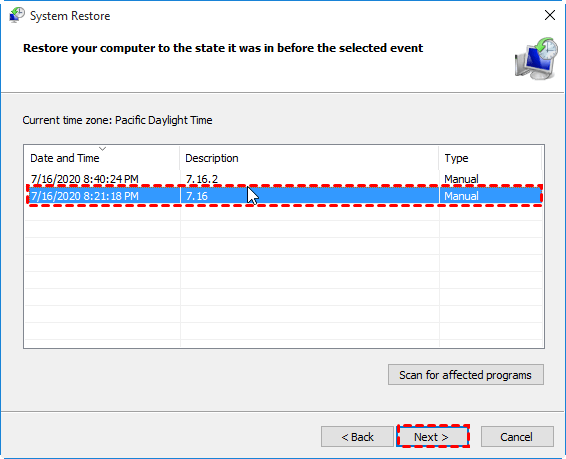
Tips:
- System restore point is needed during this method.
- After restoring, your Samsung laptop will be restored to the state it was in when you created the system restore point.
- If your Samsung laptop is able to boot up, you can go Start > Settings >Update & security > Recovery > Get started to begin the restoring process.
Factory reset Samsung laptop with installation disc
1. Insert the installation disc and boot from it. Then, go to the Troubleshoot window and select Reset your PC.
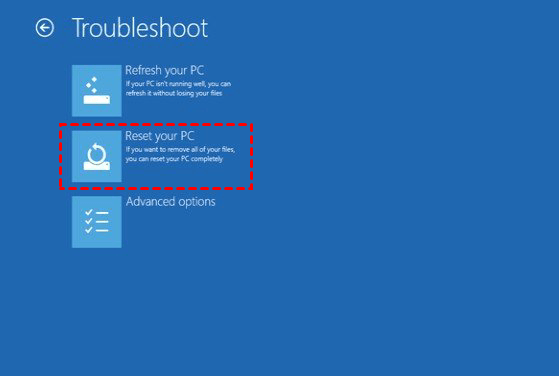
2. In the Reset your PC, you are asked to remove just files or full drive. Select Just Remove my files and click Reset to remove just files.
Protect Samsung laptop with always-on software
While Samsung laptops offer various system restore options like Samsung Recovery, System Restore, and Reset your PC, these methods can lead to data loss. Options like Samsung Recovery and Reset your PC will uninstall installed programs and delete stored data, making it essential to consider data security when troubleshooting.
If you created a system image before, you can use it to recover your Samsung phone. If not, you can use Qiling Disk Master Professional, a one-key recovery software that is more stable, safe, compatible and feature-rich than Samsung Recovery.
It creates a system image backup and stores it in a hidden recovery partition to avoid mistaken deletion, allowing for scheduled backups and quick recovery options.
1. To back up your system, download and run Qiling Disk Master Professional, then click on the "OneKey System Backup" option on the left side.

2. To back up your Samsung laptop, go to Settings > Cloud and accounts > Backup and reset, then select the type of backup you want to create, such as System and Windows protection or Personal files and settings. You can also choose to back up to the Qiling recovery partition or another location, such as an external hard drive or cloud storage. Select the files and settings you want to back up, then click Next.
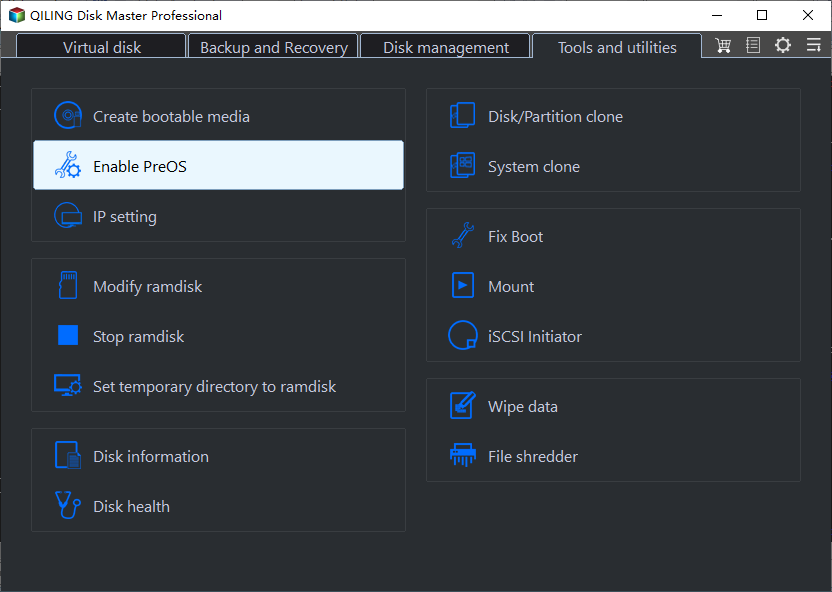
- ★Tips:
- Backup Options: To set the backup task, you can choose between a normal and high compress level for the backup image, and also enable a password to secure access.
- Scheduler: You can schedule regular backups to ensure you always have the latest data and installed items on your computer, whether daily, weekly, or monthly.
3. Click Proceed to backup your Samsung laptop

To restore your Samsung laptop, select the OneKey System Recovery option and choose how you want to restore the system. Confirm the operation and click Proceed to complete the process. This will allow you to easily restore your laptop with all of your data intact.

Conclusion
When you're having trouble with Samsung laptop recovery, it's a good idea to try Microsoft's alternative methods. However, be aware that you will likely lose data during the restore process. To avoid this, it's recommended to create a system image backup beforehand, which can then be used to recover your data in case of an issue.
For advanced users and enterprise administrators, the Qiling Disk Master Technician edition is recommended, as it can be installed on unlimited computers and servers, providing billable technical service to clients.
Related Articles
- How to Run Samsung Laptop Recovery from Boot Efficiently
Learn how to Run Samsung Laptop Recovery from Boot Efficiently with clear steps, key checks, and practical tips. - Step-by-Step Guide to Samsung Laptop Windows 7 Recovery
This guide explains Step-by-Step Guide to Samsung Laptop Windows 7 Recovery with clear steps, key checks, and practical tips. - Samsung Recovery Solution and Free Alternative in Windows 10
This guide explains Samsung Recovery Solution and Free Alternative in Windows 10 with clear steps, key checks, and practical tips. - Automatically Backup Data to Network Drive for Free
This guide explains Automatically Backup Data to Network Drive for Free with clear steps, key checks, and practical tips. - Deploy Windows 10 with Best Windows 10 Deployment Tool
Discover the best Windows 10 deployment tool and learn how to effortlessly deploy Windows 10 to multiple computers with our recommended software, making the process a breeze. - Top 10 Best Desktop Imaging Software [2022 Reviews]
This guide explains Top 10 Best Desktop Imaging Software with clear steps, key checks, and practical tips.
Products
Articles & Tutorials
- Data Recovery
- Data Backup
- File Recovery
- File Backup
- File synchronize
- System Backup and Restore
- Disk and Partition Clone
- Technical articles
- Disk Master Help
- Windows Deleted File and Disk Recovery Tutorials
- Windows File and Data Recovery Tutorials
- More Windows Tutorials for Install, Security, Files, and PC Tips
- Windows Boot, Repair, and Recovery Environment Tutorials
- Windows Backup Tutorials
- Windows Restore Tutorials
- Windows Clone and Migration Tutorials
- Windows Server Backup, Recovery, and Management Tutorials
- Windows Disk, Partition, and Storage Management Tutorials