Samsung Recovery Solution and Free Alternative in Windows 10
Overview of Samsung Recovery Solution in Windows 10
Samsung Recovery Solution is an application provided by Samsung that helps users backup their computer and restore it to a working state when problems occur. The software has been upgraded from Samsung Recovery Solution 3 to 5, and in Windows 10, it is called Samsung Recovery. It offers various features, including backup and restore functionality, to ensure users can recover their system in case of issues.
- Backup the current system or user data.
- Restore the computer to the backed up state or factory default settings.
- To replace the current drive, you can create a factory state disk or a disk copy of the current drive. This process involves creating a duplicate of the current drive, which can then be used as a replacement.
Now you know what Samsung Recovery Solution in Windows 10 is used for. Since many users choose to factory reset their Samsung laptop when they encounter stubborn malware or serious system errors, I'll show you how to perform factory reset via Samsung Recovery in detail below.
- How to factory reset a Samsung laptop in Windows 10 step by step
- Alternative way to perform Samsung laptop recovery
How to factory reset a Samsung laptop in Windows 10 step by step
To restore your Samsung laptop to factory default settings in Windows 10, follow these steps:
1. To start the Samsung Recovery process, simply boot your computer, click the Start button, and select Samsung Recovery.
Tips: If your computer fails to boot, press the F4 key several times before the Samsung logo appears, which will automatically bring you to Samsung Recovery.
2. To reset your computer, select "Computer factory reset" from the initial menu screen.
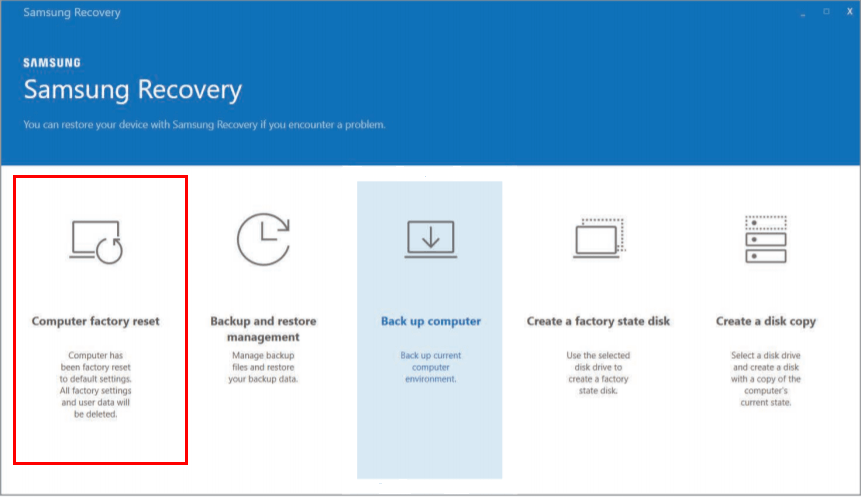
3. Click Start factory reset. Follow the on-screen instructions to complete the recovery to its initial status.

Notes:
- Before performing a factory reset on a computer, all files and installed applications will be deleted. To avoid losing important data, it is recommended to back up your files using the "Back up Computer" function or the "Back up user data" function (available in F4 mode) before proceeding with the factory reset.
- For computers running Windows 7, you can learn Samsung Windows 7 recovery from here.
Alternative way to perform Samsung laptop recovery
While recovering a Samsung laptop via Samsung Recovery Solution is relatively straightforward, some users may find that their laptop is not equipped with this tool, depending on the model. Additionally, some users have reported issues with Samsung laptop recovery not working, which can be frustrating. In such cases, installing another backup and recovery utility on the Samsung laptop may be necessary.
Qiling Disk Master Standard is a top-notch free Samsung recovery tool that supports Windows 11, 10, 8.1, 8, 7, Vista, and XP.
- It allows you to backup system and user data, as well as specific disks or partitions, making it a versatile backup solution.
- Running scheduled backups for your computer ensures that newly added or modified data are backed up, providing a safeguard against potential data loss.
- This software enables you to restore your computer to a previous state without reinstalling the operating system, and also allows you to recover a damaged disk or retrieve permanently deleted files.
Just download this freeware to have a try.
After performing a system backup with Qiling Disk Master, you can run system restore if your computer is experiencing serious issues. To do this, follow the steps below.
Step 1. Launch Qiling Disk Master. Click "Restore" and then "Select Task".

Step 2. Select the system backup task from the list and click "Next".

Step 3. Select "Restore this system backup" and click "Next".

Step 4. Confirm the operations on the "Operation Summary" page and click the "Proceed" button.

Tips:
- To resolve boot failure, create bootable media with Qiling Disk Master to boot your computer.
- To restore the system image to another computer, check the "Universal Restore" option in Step 4, ensuring the system is bootable after recovery. Upgrading to a higher edition may also be necessary to use this feature.
Verdict
To doubly secure your Samsung laptop, you can turn to Qiling Disk Master, which offers all-around backup solutions with advanced options, including backup and restore functions, as well as a clone feature that can help you deal with issues like Samsung Data Migration on non-Samsung SSD and Macrium Reflect clone failed. This tool can provide a quick guide to Samsung Recovery Solution in Windows 10, making it a reliable option for your data security needs.
Related Articles
- How to Run Samsung Laptop Recovery from Boot Efficiently?
Learn how to Run Samsung Laptop Recovery from Boot Efficiently with clear steps, key checks, and practical tips. - Cloning System Recovery Partition to Samsung SSD
Cloning OS and recovery partition to Samsung SSD together can help you troubleshoot or factory reset your computer. You can make it by a trust and reliable disk cloning software Qiling Disk Master Professional. - Factory Reset using System Recovery Options Command Prompt
This article is written for users who want to troubleshoot their computer via system recovery options command prompt. Scroll down to learn detailed steps. - Windows 10 Backup 0 Bytes? Get Clear Ideas Here!
Set up windows 10 Backup 0 Bytes with practical backup or sync options, storage checks, and safer ways to protect files. - How to Make a Byte-for-Byte Copy of a Drive?
If you want to know how to make a byte-for-byte copy of a drive, you may check the information in this answer. - Best Microsoft Cloning Software for Windows 11/10/8/7
This guide explains Best Microsoft Cloning Software for Windows 11/10/8/7 with clear steps, key checks, and practical tips.
Products
Articles & Tutorials
- Data Recovery
- Data Backup
- File Recovery
- File Backup
- File synchronize
- System Backup and Restore
- Disk and Partition Clone
- Technical articles
- Disk Master Help
- Windows Deleted File and Disk Recovery Tutorials
- Windows File and Data Recovery Tutorials
- More Windows Tutorials for Install, Security, Files, and PC Tips
- Windows Boot, Repair, and Recovery Environment Tutorials
- Windows Backup Tutorials
- Windows Restore Tutorials
- Windows Clone and Migration Tutorials
- Windows Server Backup, Recovery, and Management Tutorials
- Windows Disk, Partition, and Storage Management Tutorials