Clone OS and Recovery Partition to Samsung SSD Easily
💡 Quick Navigation:
- How Do I Clone OS and Recovery Partition to Samsung SSD?
- Best Samsung SSD Cloning Software in Windows 11/10/8/7
- Step-by-Step Guide: Clone OS and Recovery Partition to Samsung SSD
- Over to You
How Do I Clone OS and Recovery Partition to Samsung SSD?
You can use Qiling Disk Master to clone both the OS and recovery partition from your HDD to your Samsung 850 EVO SSD, as they support cloning operating systems and partitions. These tools are free to use, making them a suitable option for your needs.
Many users want to keep their recovery partition while upgrading their hard drive, so they can factory reset their computer in case of a disaster. However, Samsung Data Migration, a built-in tool for copying data to a Samsung SSD, may not include the recovery partition and sometimes cloned recovery partitions don't work.
To clone an OS and recovery partition simultaneously, use a reliable disk cloning software like Qiling Disk Master Professional. You can either use the "Disk Clone" feature to clone the entire disk, including the recovery partition, or the "System Clone" feature to clone only the OS and recovery partition.
Then, get more about this software and start to clone recovery partition to Samsung SSD with it.
Best Samsung SSD Cloning Software in Windows 11/10/8/7
Qiling Disk Master Professional is the best SSD cloning software for Windows, allowing for easy and quick Samsung SSD migration. It can also clone HP and Dell recovery partitions to SSD, making it a versatile tool. The software's clear interface and user-friendly design make it accessible to all users, even those with no prior experience.
Here are some advantages of it you may be interested in.
💙 Multiple cloning solutions
It supports "Disk Clone", "System Clone", and "Partition Clone", and the previous two options can help you clone OS along with recovery partition.
💙 Strong compatibility
It supports all types of SSDs, including PCIe, NVMe, and SATA, and various brands such as Samsung, HP, SanDisk, WD, and Intel. It can also clone a hard drive of any size, even from a larger HDD to a smaller SSD.
💙 Various problem-solving features
This software optimizes SSD performance, clones disks using 4K partition alignment technology, and fixes cloned hard drive size issues by editing partitions.
To download and install this software on your PC, click the button below. Note that the clone feature can only be demonstrated in the trial version, and to execute the operation, you will need to upgrade to the full version.
Step-by-Step Guide: Clone OS and Recovery Partition to Samsung SSD
To clone an HDD to an SSD, including the recovery partition, using Qiling Disk Master Professional, some preparations are necessary beforehand.
◆ To install a Samsung SSD on your computer, you'll need to physically connect it. If your computer is a laptop, you'll require a USB-to-SATA cable to clone the drive, allowing you to transfer your data from the original drive to the new SSD. If your computer is a desktop, you can directly connect the SSD to the motherboard.
◆ If the target disk is not initialized, open Windows Disk Management, select the target disk, and choose Initialize Disk. In the Initialize Disk window, select the disk's partition style (e.
◆ Check the disk space on both disks to ensure the target disk has enough space to hold all the data from the source disk, or the cloning process will fail.
◆ Before running the command, make sure to back up any important data on the target disk, as it will be completely overwritten.
To recover a Samsung SSD clone partition, follow these steps: 1. Ensure the original drive is connected and powered on. 2. Boot from the original drive or use a bootable media to access the original drive.
Step 1. Launch Qiling Disk Master. Then, you can see its concise interface and click "Clone" -> "Disk Clone" subsequently.

To clone only the system partition and recovery partition, you can use the "System Clone" feature, which allows for a selective clone of these specific partitions.
Step 2. Select the old drive of your computer as the source disk and the Samsung SSD as the destination disk, even if they have different partition styles. You can clone from MBR to GPT or vice versa without any issues.
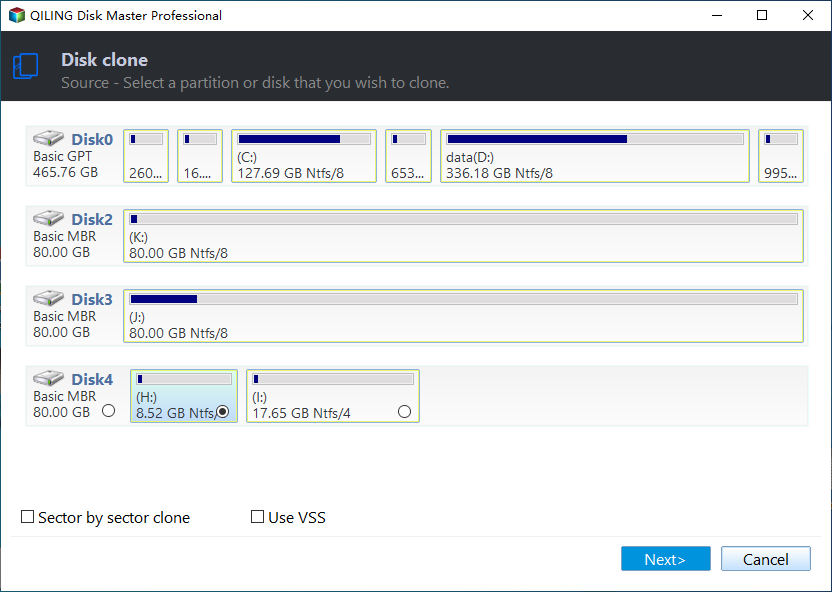
Step 3. To accelerate the reading and writing speed of the Samsung SSD, tick "SSD Alignment" and then click "Proceed" to clone all partitions, including the recovery partition, to the SSD.

Notes:
◆ The "Sector By Sector Clone" feature clones every byte of the source disk, taking more time and disk space than the default "Intelligent Clone".
◆ This feature allows users to optimize disk space on the target disk by either adding unallocated space to all partitions or manually adjusting partition sizes.
◆ The Standard edition only supports PC systems, and for cloning hard drives in Windows Server 2012 or other server systems, Qiling Disk Master Server can be used instead.
Over to You
With Qiling Disk Master, you can easily clone a Samsung SSD, including recovery partition, using either the "Disk Clone" option for a full hard drive clone or the "System Clone" option for just OS and recovery partition. This software also allows you to clone HP or Dell recovery partitions to an SSD.
Qiling Disk Master is a free backup software that offers complete backup solutions to protect your system and data continuously. It allows you to create a backup of your boot disk in Windows 10, and then restore the backup image to a new hard drive or SSD in case of a computer crash or hard disk damage. With its user-friendly interface and various features, it can do you a big favor, so please download it to have a try right now.
Related Articles
- Tutorials: Clone Hard Drive to Samsung SSD (Secure Boot) in Windows
- Top Two Ways to Clone Samsung SSD to another SSD without Reinstalling
- Free Samsung M.2 SSD Migration Software for Windows 10/8/7
- How-to|Samsung Data Migration Multiple Partitions Clone
- Clone Hard Drive in Windows Server 2003/2008/2012 without Reinstalling
We will introduce you to one server cloning software that is able to clone hard drive in Windows Server 2003, 2008, 2012, 2016, 2019, 2022, etc. Scroll down to get it now if you are looking for such software! - Clone Windows Server 2011 Hard Drive to HDD/SSD Effortlessly
Learn how to Clone Windows Server 2011 Hard Drive to HDD/SSD Effortlessly with clear steps, key checks, and practical tips.
Products
Articles & Tutorials
- Data Recovery
- Data Backup
- File Recovery
- File Backup
- File synchronize
- System Backup and Restore
- Disk and Partition Clone
- Technical articles
- Disk Master Help
- Windows Deleted File and Disk Recovery Tutorials
- Windows File and Data Recovery Tutorials
- More Windows Tutorials for Install, Security, Files, and PC Tips
- Windows Boot, Repair, and Recovery Environment Tutorials
- Windows Backup Tutorials
- Windows Restore Tutorials
- Windows Clone and Migration Tutorials
- Windows Server Backup, Recovery, and Management Tutorials
- Windows Disk, Partition, and Storage Management Tutorials