Clone Windows Server 2011 Hard Drive to HDD/SSD Effortlessly
- What is server cloning?
- Why clone hard drive in Windows Server 2011?
- Best server cloning software - Qiling Disk Master Server
- Step by step guide: clone hard drive in Windows Server 2011 to HDD/SSD
- It's your turn
What is server cloning?
Server cloning creates an exact copy of a server's original hard drive, including the operating system, boot-related partitions, system drivers and settings, installed programs, and personal data. This method is straightforward and easy to use, allowing you to replace the original hard drive with the cloned one in the event of a disaster, eliminating the need for image restoration.
Why clone hard drive in Windows Server 2011?
Windows Small Business Server 2011 and Windows Home Server 2011 users often store important data such as company information, customer details, or work profiles, and personal family photos, music, and videos. To safeguard these data, cloning the Windows Server 2011 hard drive is a recommended option.
As your computer's storage space fills up, you may experience slower performance, longer loading times for programs, web pages, and games, and other issues. To address this, cloning your Windows Server 2011 hard drive to a larger hard drive disk (HDD) or solid-state drive (SSD) can help free up space and improve overall performance.
A duplicate copy of a Windows Server 2011 hard drive can facilitate a quick recovery in case of a disaster, such as a system crash, hard disk failure, registry error, or virus attack, by providing a backup to restore from.
Best server cloning software - Qiling Disk Master Server
Windows Server 2011 lacks a built-in cloning software, but there are alternatives available online, such as Qiling Disk Master Server, which offers disk, system, and partition cloning features, making it suitable for cloning Windows Server 2011.
This software offers customizable cloning options, including the ability to clone all sectors of a hard drive, whether used or not, through the "Sector by sector clone" feature. Additionally, it utilizes 4k technology to optimize performance on SSD disks through its "SSD Alignment" feature. Furthermore, the "Edit Partitions" feature allows users to either add unused space to all partitions or manually adjust partition sizes to maximize disk space usage.
This tool supports all Windows-based operating systems, including Windows Server 2003/2008(R2)/2012(R2)/2016(R2)/2019/2022 and Windows XP/Vista/7/8/8.1/10/11.
Step by step guide: clone hard drive in Windows Server 2011 to HDD/SSD
Make preparations to clone Windows Server 2011:
- Prepare a target disk, either HDD or SSD. If the disk isn't initialized, please initialize it in the disk management.
- If the destination disk is a dynamic disk, you should convert it to a basic disk first.
- Download the best server cloning software To get started, download and install Qiling Disk Master Server on your computer. Once installed, activate the software using the provided license key. This will enable you to use the Qiling Disk Master Server for your needs.
Before cloning a hard drive for Windows Server 2011, there are a few things to consider. Firstly, ensure that the destination drive has sufficient space to accommodate the cloned data.
- Please backup important files on the destination disk before proceeding, as all data will be overwritten.
- You can clone a large hard drive (HDD) to a smaller solid state drive (SSD) as long as there is enough space on the SSD to hold everything that's on the original HDD.
- You can clone a Master Boot Record (MBR) disk to a GUID Partition Table (GPT) disk, or vice versa, without converting the partition style, as long as the target disk is blank.
To clone a hard drive in Windows Server 2011, follow these steps. First, download and install a reliable cloning software such as Qiling Disk Master Server. Next, connect the new hard drive to your computer and ensure it's properly recognized by the system.
Step 1. Launch Qiling Disk Master Server and you will see its deep-blue interface. Click on "Tools and utilities" then "Disk Clone" and select "System Clone" to clone the C drive only.

Step 2. Select the current hard drive in Windows Server 2011 as source disk, and click Next.
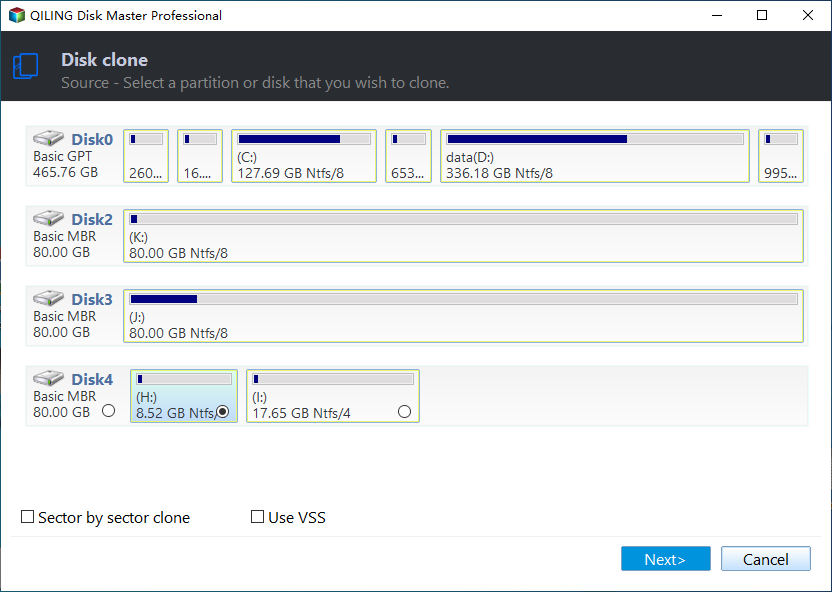
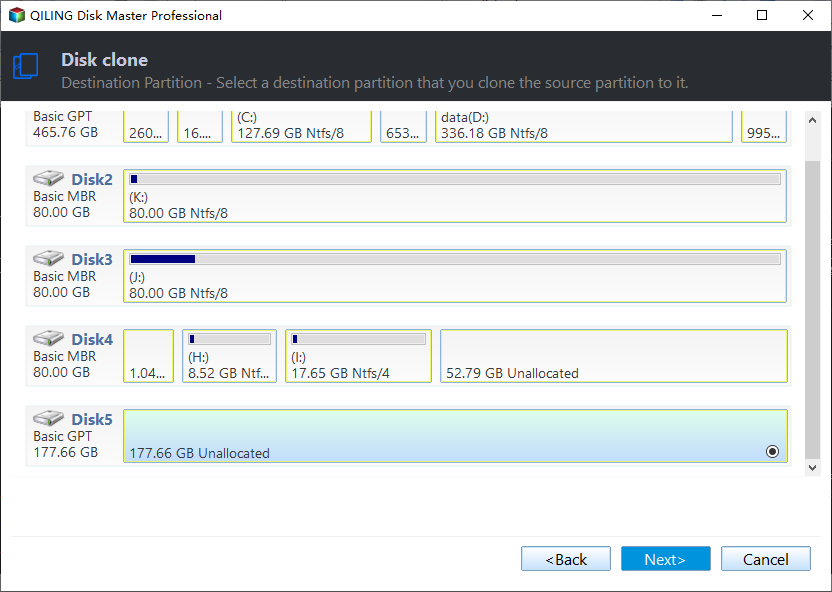
Step 3. Select the new HDD or SSD as destination disk, and click Next.
Step 4. To accelerate the reading and writing speed of a SSD disk, click on "SSD Alignment" and then click "Proceed" to clone the Windows Server 2011 hard drive.
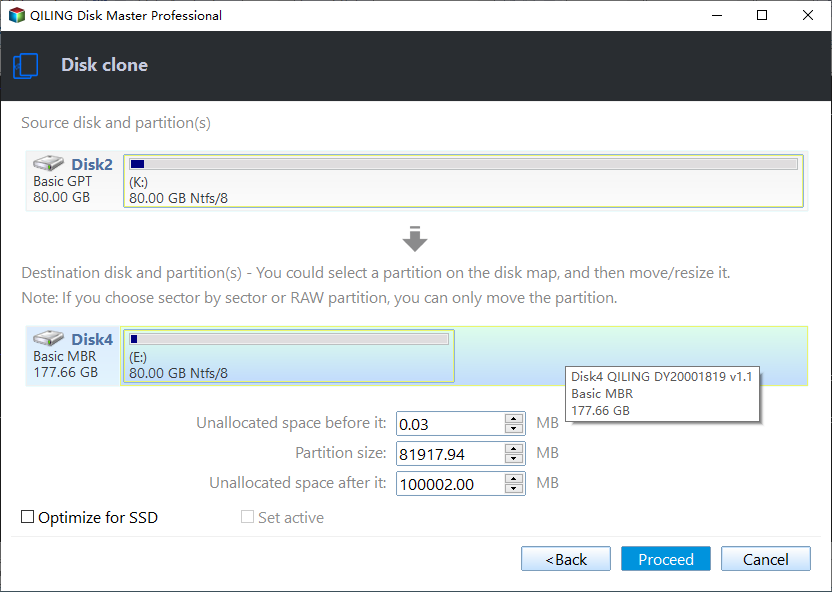
The two options at the lower location, "Sector by sector clone" and "Edit Partitions", are suitable for cloning a hard drive, but there are also two other options available.cloning disk to larger diskYou can't clone all sectors and resize the partition size of the destination disk at the same time, as it requires making a choice between the two options. You need to decide whether to clone all sectors or resize the partition size of the destination disk.
In most cases, it's not necessary to clone all sectors, so using "Edit Partitions" as the first choice is recommended if possible.
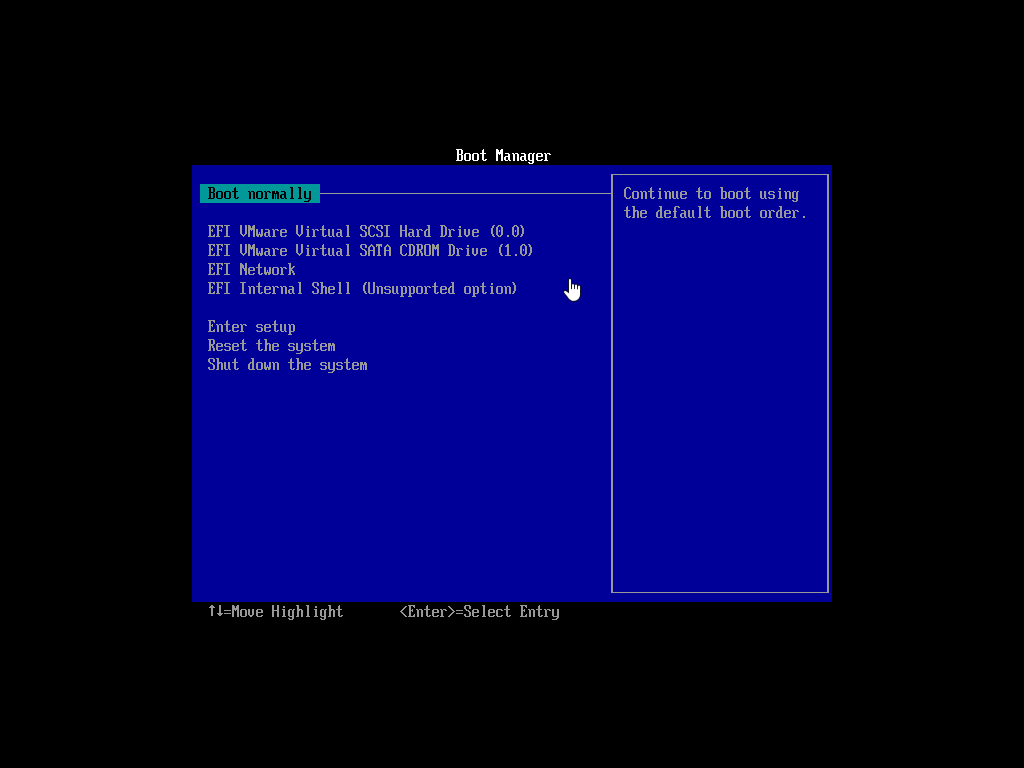
Step 5. Things are half done, but it's not over yet. You still need to check if the cloned hard drive can boot successfully. To do this, swap the cloned hard drive with the original one and let your server computer try to boot from it automatically. If it doesn't work, you may need to change the boot order and reboot again.
It's your turn
Cloning a hard drive in Windows Server 2011 to a new HDD or SSD is a straightforward process with the help of server cloning software like Qiling Disk Master Server. Its user-friendly interface and clean design make it easy to understand, and its powerful features, such as sector-by-sector cloning, partition editing, and SSD alignment, resolve potential cloning problems for users.
To clone a Windows 2011 hard drive without any issues, you can download Qiling Disk Master Server and try it out. This software can also be used to clone HDD to SSD in Windows Server 2012, clone hard drives in Windows Server 2016, and even in Windows Server 2003. For IT professionals, Qiling Disk Master TechPlus is a great option to consider.
Related Articles
- Clone Windows Server 2011 to New Hard Drive with Two Methods
You will learn how to clone Windows Server 2011 system drive to new hard drive without reinstalling everything, two ways in total and apply to both WHS and SBS Edition. - How to Clone Windows Server 2008 (R2) Hard Drive (VMware & Server)
Professional software to clone Windows Server 2008 R2 hard drive will be introduced below, supporting VMware and Server disk clone. - Best Way to Clone Hard Disk Drive in Windows Server 2019
This guide explains Best Way to Clone Hard Disk Drive in Windows Server 2019 with clear steps, key checks, and practical tips. - Clone Hard Drive in Windows Server 2003/2008/2012 without Reinstalling
Learn how to Clone Hard Drive in Windows Server 2003/2008/2012 without Reinstalling with clear steps, key checks, and practical tips. - How to Clone Hard Drive on Windows Server 2016/2012/2008
Learn how to Clone Hard Drive on Windows Server 2016/2012/2008 with clear steps, key checks, and practical tips. - How to Clone C Drive to SSD/HDD in Windows 10/8/7 Easily?
Learn how to Clone C Drive to SSD/HDD in Windows 10/8/7 Easily with clear steps, key checks, and practical tips.
Products
Articles & Tutorials
- Data Recovery
- Data Backup
- File Recovery
- File Backup
- File synchronize
- System Backup and Restore
- Disk and Partition Clone
- Technical articles
- Disk Master Help
- Windows Deleted File and Disk Recovery Tutorials
- Windows File and Data Recovery Tutorials
- More Windows Tutorials for Install, Security, Files, and PC Tips
- Windows Boot, Repair, and Recovery Environment Tutorials
- Windows Backup Tutorials
- Windows Restore Tutorials
- Windows Clone and Migration Tutorials
- Windows Server Backup, Recovery, and Management Tutorials
- Windows Disk, Partition, and Storage Management Tutorials