Best Way to Clone Windows Server 2008 (R2) Hard Drive
Need to clone Windows Server 2008 (R2) hard drive
Cloning Windows Server 2008 (R2) involves creating an exact copy of the operating system on another storage device, such as a hard drive or solid-state drive, in a relatively short period. This process can be useful in various situations, including creating a backup, upgrading hardware, or transferring the operating system to a new device. Cloning can be achieved using various methods, including using built-in tools like Windows Backup and Restore or third-party software like Qiling Disk Master.
- Clone system to larger drive for more capacity: With the rapid growth of data, spare space is becoming increasingly scarce, making it essential to upgrade to a larger disk to accommodate the expanding storage needs.
- Clone system to SSD for performance improvement: Cloning Windows Server 2008 to an SSD is a good choice if you need to migrate the OS or replace a hard drive, as SSDs perform better at the same cost compared to traditional hard drives.
- Clone Windows Server as a backup plan: This virtual hard drive can be used as a backup copy, achieving the same effect as backing up Windows Server 2008, as it includes everything on the server. It's a more convenient option, allowing for a direct boot of the computer if it crashes.
Some users want to clone Windows Server 2008 R2 in VMware to deploy the same configurations and layout on another hard drive.
Best server cloning software to migrate OS - Qiling Disk Master Server
Microsoft Windows lacks a cloning feature, so third-party software is needed to clone Windows Server 2008 (R2) to a new HDD or SSD. Qiling Disk Master Server is a suitable option that also applies to Windows Server 2012 (R2), 2016, 2019, 2022, and all PC operating systems. This software offers two helpful cloning methods and an additional feature to improve SSD disk performance through "SSD Alignment".
- System Clone: Qiling Disk Master clones the entire system, including operating system, system files, user configuration, installed programs, and personal data, on the system partition(s). This feature allows for seamless cloning between MBR and GPT disks without requiring manual partition style conversion, making it ideal for migrating the OS from an MBR HDD to a GPT SSD.
- Disk Clone: The software clones all partitions, including C, D, E drives, etc., requiring more time and disk space for the cloning process.
The software features a user-friendly interface, making it easy to use even for those without expertise. Users can download the software to try it out, and for unlimited PCs and servers, Qiling Disk Master Technician Plus is recommended.
In the free trial version, the Clone feature can only be demonstrated, but to successfully clone Windows Server 2008 or 2008 R2 and boot from it, you need to upgrade to the full version, which offers a $100 discount.
How to clone Windows Server 2008 (R2) step by step
Here you will start to clone Server 2008 (R2) with the following steps. To clone Server 2008 (R2), you will need to create a bootable media, install the cloning software, select the source and target disks, and start the cloning process. The entire process should take around 30 minutes to an hour, depending on the size of the system. Once the cloning is complete, you can boot your server from the target drive and verify that everything is working properly.
To perform Windows Server 2008 R2 cloning in VMware, simply copy the installation package of Qiling Disk Master and install it in the virtual machine operating system, then proceed with the remaining steps as usual.
Step 1. To clone a Windows Server 2008 (R2) hard drive, install and run Qiling Disk Master Server software. Select Clone, then System Clone or Disk Clone depending on the desired cloning method.

Step 2. The default selection is the C drive and system reserved partition, which is related to boot. To change this, simply choose a different destination partition and click Next.

Step 3. To clone Windows Server 2008 (R2), check the operation summary and click "Proceed". If cloning to an SSD, tick the SSD Alignment option to improve read/write speed and extend SSD lifespan.

After clicking Next >>, you may be warned that all data on the destination partition will be erased. To proceed, click OK, but first, make sure to back up any important files if you haven't already.
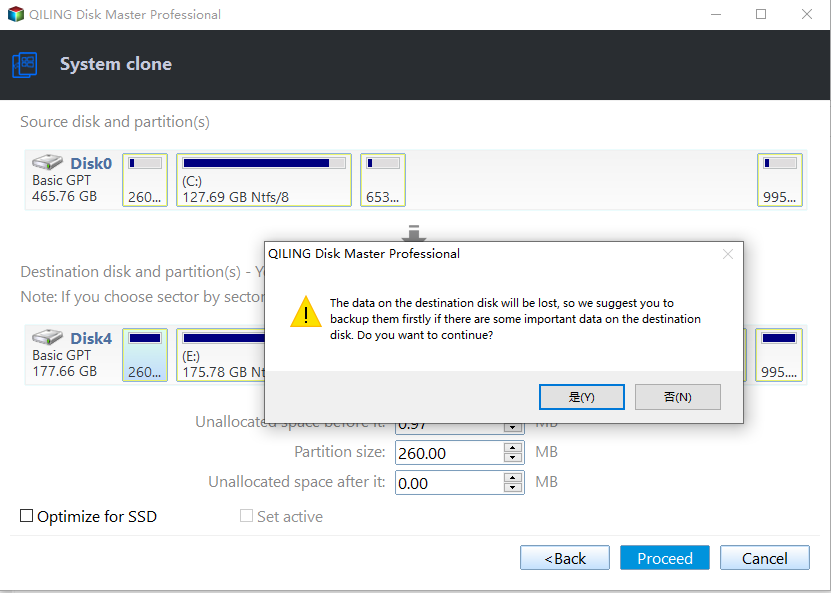
- This software clones only used sectors by default, using Intelligent Clone, which allows for easy migration of the OS to a smaller SSD or cloning a larger drive to a smaller drive.
- To keep every partition as it is on the source drive, you can use the sector by sector clone feature, which requires the target partition to be larger than or equal to the source partition.
- To avoid leaving unallocated space after cloning to a larger drive, tick "Make full use of disk space" at the bottom left corner.
Step 4. After the cloning process is complete, you can change the boot order to the destination disk in the BIOS settings, or remove the old hard drive that contains the previous boot drive to test if you can boot from the destination disk. This will confirm that the cloning was successful and the system is now booting from the new disk.

Tips:
- You can't use a dynamic disk as a destination hard drive unless you convert it to a basic disk beforehand.
- If you're experiencing issues booting from the target disk after cloning, check the boot order, disk partition style (MBR or GPT), and boot mode (BIOS or UEFI). If these settings are correct, you may need to refer to the "cloned drive won't boot" guide for further troubleshooting.
- To clone Windows Server 2008 (2008 R2) without booting into Windows, you need to create a bootable media using Qiling Disk Master and boot from it.
Conclusion
You can easily clone Windows Server 2008 (R2) using Qiling Disk Master Server, a reliable server cloning software. The software offers two ways for system migration, allowing you to choose the method based on your backup needs and available disk space. Additionally, it provides useful features such as SSD Alignment and disk space optimization, making the cloning process efficient and saving you time and energy.
Besides system cloning, this software is also a great backup and restore tool, offering features like incremental and differential backup, allowing for easy deletion of old backups and freeing up disk space, and Universal Restore, which enables moving Windows Server to a new hardware with ease.
Related Articles
- How to Migrate Windows Server 2008 (R2) to New Hardware
Moving Windows Server 2008 or 2008 R2 to new machine with dissimilar hardware can be as easy as pie if we find the best solution. Get a powerful server backup and restore tool to help you from this page. - How to Clone Hard Drive on Windows Server 2016/2012/2008?
Learn how to Clone Hard Drive on Windows Server 2016/2012/2008 with clear steps, key checks, and practical tips. - Best Server Cloning Software to Clone Hard Drive (Easy and Fast)
Read the following article to learn how to clone Windows Server hard drive efficiently and securely with the best Server cloning software. - Easily Migrate Windows 10 from One PC to Another in 2022
If you're looking for a suitable Windows 10 migration software, you've come to the right place. Read this post, you will get the most effective method. - Free Download Disk Cloning Software for Windows 10 & 11
This guide explains Free Download Disk Cloning Software for Windows 10 & 11 with clear steps, key checks, and practical tips. - How to Install a Second Hard Drive Windows 10 | Detailed Tutorial
This tutorial will guide you through the process of installing a second hard drive on a Windows 10 desktop and laptop, covering different interfaces, and ensure successful recognition. It will also provide a simple method to migrate Windows 10 to the second hard drive.
Products
Articles & Tutorials
- Data Recovery
- Data Backup
- File Recovery
- File Backup
- File synchronize
- System Backup and Restore
- Disk and Partition Clone
- Technical articles
- Disk Master Help
- Windows Deleted File and Disk Recovery Tutorials
- Windows File and Data Recovery Tutorials
- More Windows Tutorials for Install, Security, Files, and PC Tips
- Windows Boot, Repair, and Recovery Environment Tutorials
- Windows Backup Tutorials
- Windows Restore Tutorials
- Windows Clone and Migration Tutorials
- Windows Server Backup, Recovery, and Management Tutorials
- Windows Disk, Partition, and Storage Management Tutorials