Free Download Disk Cloning Software for Windows 10 & 11
Why do you need disk cloning software for Windows 10?
Disk cloning in Windows 10 allows you to make an exact copy of your entire disk, including the operating system and all your files, for various reasons such as backing up your data, upgrading to a new disk, or transferring your system to a different computer.
◥ Upgrade disk without reinstallation
Bothered by slow boot speed or low disk spaceUpgrading a traditional HDD to a faster SSD or replacing a small SSD with a larger one can be done by cloning the hard drive to avoid reinstallation of the OS and apps.
◥ Clone disk for backup
Cloning your hard drive creates a duplicate of all your data, allowing you to quickly replace a failed drive and resume operations without losing data. This can protect your valuable information and minimize downtime. By having a cloned disk ready, you can ensure business continuity and avoid potential data loss. Cloning is a simple and effective way to safeguard your data and prevent losses.
◥ Time-saving in disaster recovery situations
In the event of a major system failure or natural disaster, having cloned disks allows for faster recovery times, saving time that would be spent reinstalling the operating system and restoring data from backups. This enables a quicker return to a functional state.
Cloning a disk to another one can be done without using the built-in system backup image feature, which can be complicated for some users. Since Windows doesn't have a built-in tool for disk cloning, it's necessary to use disk clone software to complete the process easily and safely on Windows 10 or 11.
Free download disk cloning software for Windows 11, 10, 8, 7
There are many cloning software options available for Windows operating systems, including Windows 11, 10, 8, 7, and the newest Windows 11. One highly recommended tool is Qiling Disk Master Standard, which stands out due to its notable features.
✎ Bootable clone
Qiling Disk Master can clone all partitions, including hidden boot-related ones, ensuring the cloned disk can boot afterwards, which is crucial for OS disk cloning. Missing system-related partitions during cloning can result in an unbootable target disk.
✎ Flexible copy options
Qiling Disk Master can meet various disk size copy demands, including cloning a larger HDD to a smaller SSD. It also features Clone Disk Quickly, Sector-By-Sector Clone, and Migrate OS to SSD, which allows for cloning a hard drive with bad sectors, cloning only Windows 10 system-related partitions, and migrating the OS to an SSD, respectively.
✎ Simple operation
It has a concise and user-The program features a user-friendly graphic interface and step-by-step wizards, making it easy to use even for beginners. You can preview the results of your operations, and if you're not satisfied, you can cancel them easily with the Undo button.
This disk clone software allows you to clone a hard drive to an SSD, and it can even align SSD partitions to improve performance. It can be downloaded and installed on Windows 10 or other systems, making it easy to use.
The Best Windows Disk Partition Manager and PC Optimizer
- ★Tips:
- After cloning your Windows 10 hard drive to an SSD, you'll need to either remove the old drive or enter your BIOS settings to change the boot drive to the cloned SSD in order to successfully boot your OS.
Tutorial ▏How to use this disk cloning software on Windows 10
With this cloning software for Windows 10, you can easily replace a hard drive or upgrade to an SSD without reinstalling, all within a few steps. The software allows you to clone a disk by following a simple process, making it a convenient option for those looking to upgrade their computer's storage without the hassle of reinstalling the operating system.
1. Before cloning the destination disk, make sure to back up any important files on it to prevent data loss in case something goes wrong during the cloning process.
2. Please install the second hard drive on Windows 10 If there is no extra slot for the target disk, you need to prepare a USB adaptor.
3. If the disk is brand new, initialize it and set the partition style to match the old disk, whether it's MBR or GPT.
Step 1. Install and launch Qiling Disk Master, then click "Tools" in the main interface and select "Clone Disk" to proceed with the cloning process.

Step 2. Select the hard disk that you need to clone as the source disk and click "Next".

Step 3. Select the destination disk to store the data on the source disk, and then click "Next".

Step 4. After selecting the clone mode, you can check the source and destination disk in the next window or change to "Sector to Sector clone".
Click the "Optimize for SSD" button to adjust the partition size on the destination disk, or tick "4k alignment" to improve the reading and writing speed of an SSD drive.

Step 5. To clone the hard drive, select the source drive and destination drive, and then click the "Proceed" button to initiate the cloning process.

✦ Boot Windows from the new disk after cloning
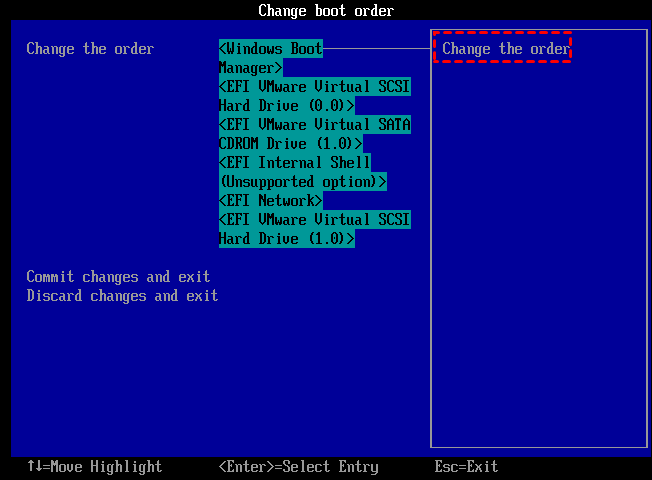
To keep both the old and new hard drives after cloning Windows 10 to the new drive, restart your PC and change the boot order to start from the new drive. This allows you to keep both drives and access Windows 10 from the new drive.
Step 1. restart the computer and enter the "BIOS" setup.
Step 2. Use the arrow keys to go to the BOOT tab, the system devices appear in priority order.
Step 3. To give the new hard drive priority in the boot order, you can move it to the first position in the boot order list, making it the first drive to boot from. This way, the system will automatically boot from the new hard drive instead of the old one.
FAQs about disk cloning software
✍ Is there any disk cloning software for Windows 10?
Qiling Disk Master is a good choice for users, offering flexible cloning methods that cater to different needs. It can even clone a hard drive from a bootable USB, providing an alternative when direct cloning from a physical device is not possible.
✍ How do I clone a disk with disk cloning software?
To clone a disk, you'll need to complete three main steps. First, connect the hard drive to your PC and ensure it's detected by the system. Next, use disk cloning software to initiate the cloning process. Finally, once the cloning is complete, boot your Windows system from the new hard drive.
✍ What is the best disk cloning software?
While there are many disk cloning software options available, most have limitations under certain conditions. In contrast, Qiling Disk Master stands out as the best option, offering a reliable and efficient solution for your disk cloning needs.
Wrap things up
Qiling Disk Master is a fantastic free disk cloning software for Windows 10, featuring functions like extending the C drive without data loss, converting NTFS into FAT32 without formatting, and testing disk speed, with a Server Edition available for Windows Server operating systems.
Related Articles
- An Easy but Effective Way to Clone NVMe to NVMe SSD (Step-by-Step Guide)
Clone an NVMe SSD to another NVMe SSD step by step and verify boot settings after migration. - [Stepwise] How to Clone Disk Windows 11 for free
You may need to clone disk Windows 11 for various reasons. Read this post to get a step-by-step tutorial on how to perform Windows 11 clone disk with a free hard drive cloning tool. - Five Effective Ways to Improve Windows 11 Performance
To improve Windows 11 performance, there are several effective solutions that can be implemented. First, disabling unnecessary startup programs can help reduce system load and free up resources. - [Solved]: Laptop Slow After Windows 11 Update
Fix a slow laptop after a Windows 11 update by checking startup items, drivers, disk space, and performance settings. - Easily Clone Larger Drive to Smaller Drive Right Now
To clone larger drive to smaller drive (HDD to SSD, HDD to HDD, SSD to HDD or SSD to HDD) in Windows 11, 10, 8.1, 8 or 7, Qiling Disk Master can be helpful! - Clone mSATA SSD to mSATA SSD Safely in 5 Steps
In this article, you will learn the best way to clone mSATA SSD to mSATA SSD, and some useful tips to ensure successful cloning.
Products
Articles & Tutorials
- Data Recovery
- Data Backup
- File Recovery
- File Backup
- File synchronize
- System Backup and Restore
- Disk and Partition Clone
- Technical articles
- Disk Master Help
- Windows Deleted File and Disk Recovery Tutorials
- Windows File and Data Recovery Tutorials
- More Windows Tutorials for Install, Security, Files, and PC Tips
- Windows Boot, Repair, and Recovery Environment Tutorials
- Windows Backup Tutorials
- Windows Restore Tutorials
- Windows Clone and Migration Tutorials
- Windows Server Backup, Recovery, and Management Tutorials
- Windows Disk, Partition, and Storage Management Tutorials