Top 2 Ways to Clone Samsung SSD to Another SSD in Windows
About Samsung SSD
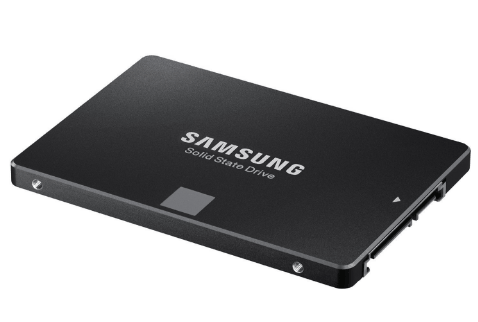
Samsung Solid-Samsung SSDs are widely used in desktops, laptops, and RAID systems. The company has produced high-performance SSDs such as the 850 EVO, 870 EVO, T3/T5/T7, 980 PRO Series, PM Series, and CM871, among others. These SSDs are popular for their performance and reliability.
|
Product |
Form Factor |
Interface Type |
Capacity |
Price |
|
Samsung 870 EVO |
2.5 Inches |
SATA III |
1 TB |
$89.99 |
|
Samsung 870 QVO |
2.5 Inches |
SATA III |
1 TB |
$86.00 |
|
Samsung 970 EVO Plus |
M.2 |
PCIe 3.0 |
1 TB |
$99.99 |
|
Samsung 980 PRO |
M.2 |
PCIe 4.0 |
1 TB |
$129.99 |
Why Clone Samsung SSD to Another SSD?
Samsung SSDs offer improved reading and writing speed while ensuring data security, thanks to their higher quiver resistance capability. Many users want to clone their existing HDD to a Samsung SSD for better performance, while others who already use a Samsung SSD want to migrate its contents to another SSD, driven by two primary reasons.
1. Upgrade SSD Disk Capacity. Some users may have initially purchased a Samsung SSD with a small capacity due to budget constraints or other reasons. Now, they want to expand their storage space by cloning their existing Samsung SSD to a larger one. For example, they might want to clone a 1TB Samsung 850 EVO M.2 SATA SSD to a 2.5 Samsung 850 PRO SATA III SSD. This is a situation where cloning a Samsung SSD to a larger SSD is necessary.
2. Change SSD Brand Totally. After purchasing a Samsung SSD, some users may want to replace it with a different brand of SSD due to various reasons such as faster speed, lower price, or larger capacity. They may want to clone the Samsung SSD to another brand like Toshiba, for instance, to meet their demands.
How Do I Clone My Samsung SSD to a New SSD?
To clone a Samsung SSD in Windows, you have different options depending on the target SSD brand. If the target is also a Samsung SSD, you can use Samsung's dedicated cloning tool, Samsung Data Migration (SDM). However, if the target is a different brand, you'll need to use a third-party SSD cloning software.
Clone Samsung SSD 850 EVO to SSD via SDM
Samsung Data Migration (SDM) is a tool that comes with some Samsung SSDs, allowing users to transfer all existing files and programs from a current HDD or SSD to a new Samsung drive. Not all Samsung SSDs come with SDM, but for those that do, it can be used to make the transition to a new drive seamless.
To clone Samsung SSD 850 EVO to SSD:
Step 1. To install a Samsung SSD, shut down your PC, connect the SSD to the motherboard's SATA controller using a SATA cable, and secure it with a SATA power connector. Alternatively, you can use an external USB adapter for a more convenient installation process.
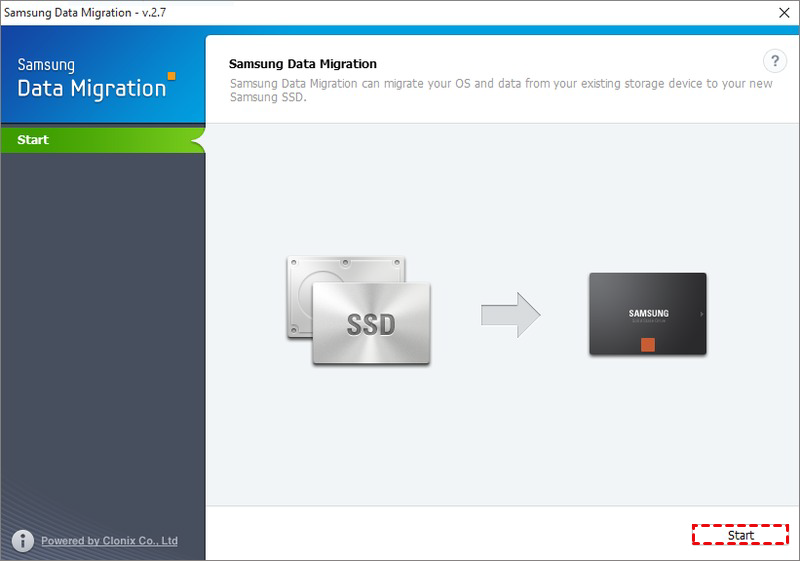
Step 2. You turn off your PC, install and run Samsung Data Migration, and click the 'Start' button in the lower right corner.
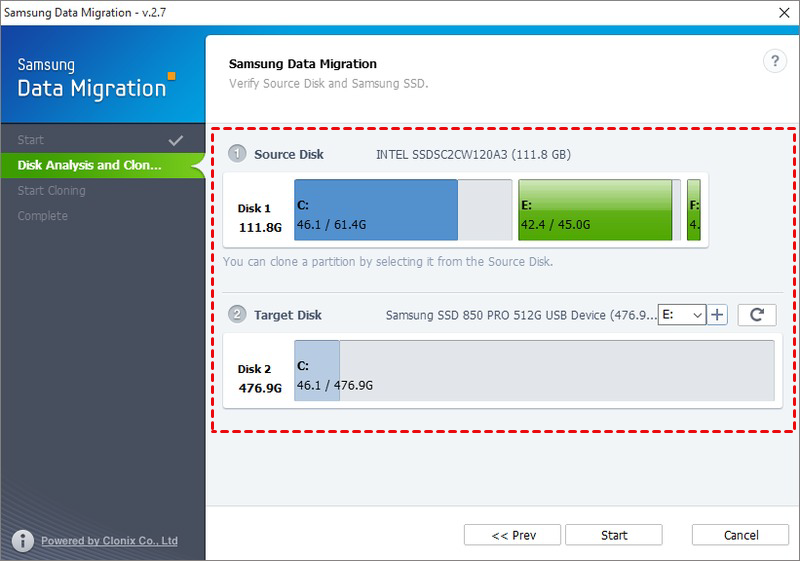
Step 3. To verify the source disk, select the Samsung SSD 850 EVO and another Samsung SSD, and if the target disk shown is incorrect, click the Refresh button to select the correct disk.
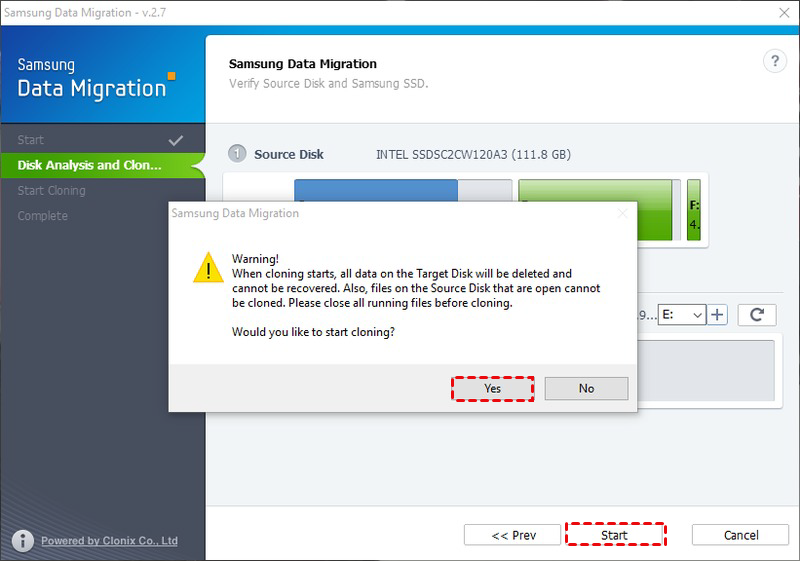
Step 4. To initiate the process, click "Start" and confirm the warning message with "Yes". Be cautious, as this step may result in data loss if the incorrect disk is selected, so it's essential to create a file backup for your important data beforehand.
Step 5. Wait for the cloning process to complete before using the computer or editing any files on the system, as any open files may not be cloned properly.
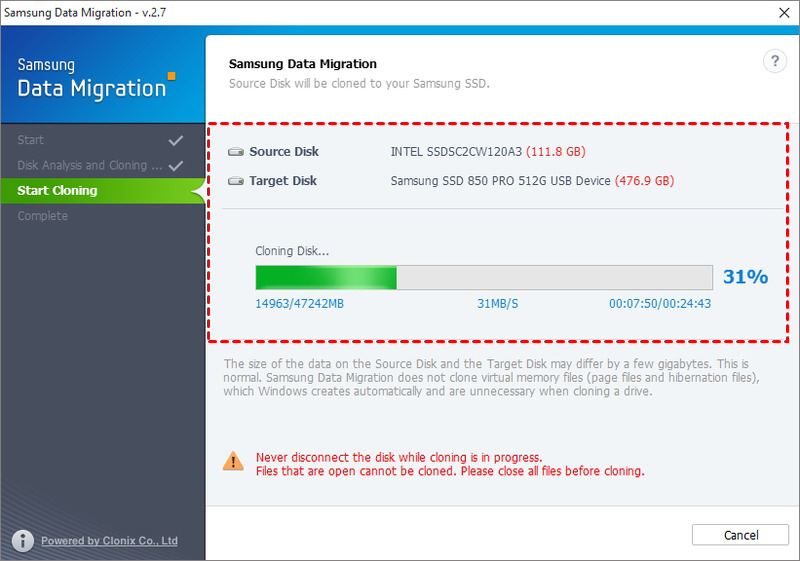
Step 6. Click quit to exit this software.
Step 7. Turn off the computer, replace the original Samsung SSD with the new one and boot up from the new one. If it doesn't boot successfully, change the boot order in BIOS.
If you're experiencing issues with the Samsung Data Migration cloning process, such as the target SSD not being a Samsung brand or receiving an error message like "Cloning failed. Target disk has been disconnected" even though the disk is still connected, this tool can provide extra help in ensuring a successful cloning process.
Clone Samsung SSD with Best Samsung Cloning Software🏆
Qiling Disk Master Professional is a stable cloning software that has helped thousands of PC users worldwide with disk cloning.
- A software that allows you to clone a hard drive, system, or partition, making it easy to transfer an operating system without reinstalling it, and supports various Windows versions, including Windows 11, 10, 8, and 7.
- This cloning software works the same whether you're cloning to a Samsung SSD or other branded SSDs. To get the best performance from the cloned SSD, it's suggested to clone your boot drive to an NVMe SSD.
- In Qiling Disk Master, cloning a larger drive to a smaller drive is also possible, but it can only clone the used part of a Samsung SSD, not the entire drive.
To clone a Samsung SSD, you'll need to use a cloning software or a Samsung-specific tool. First, download and install the cloning software, such as Qiling Disk Master.
Step 1. Connect the new SSD to your PC via USB cable or disk enclosure, then install and start Qiling Disk Master. Proceed by going to Clone > Disk Clone.

Step 2. Select Samsung SSD as the source disk.

Step 3. Select the new SSD as the destination disk.

Step 4. Configure personal settings in the bottom left corner, then click Proceed to start the Samsung SSD data migration when you are ready.
- Edit Partitions: adjust the partition size on the destination disk.
- SSD Alignment: To improve the reading and writing speed of the target SSD and prolong its lifespan, be sure to check this option.
- Sector by sector clone: If you want to keep the old partition layout on the new SSD, use this option.

If you click "Edit Partitions", there will be four options available:
👉 Convert the destination disk from MBR (GPT) to GPT (MBR): It can help to make the destination disk have the same partition style as the source disk.
👉 Copy without resizing partitions: It will not resize the partition size.
👉 Add unused space to all partitions: The command will redistribute the unallocated space to each partition of the target disk, taking into account the disk's size.
👉 Manually adjust partition size: This tool allows you to extend unallocated space to any partition on the destination disk as desired.
The first option can solve the cloned drive not bootable issue caused by different partition styles, and the last two options can fix the cloned drive not showing full capacity issue effectively.
Step 5. To determine if the new SSD works, replace the old Samsung SSD with the new one and check if everything functions properly. If both SSDs are kept installed, remember to adjust the boot order in the BIOS settings to prioritize booting from the new SSD.
✍ Tips:
- If you want to clone only the system from a Samsung SSD to a new SSD, the System Clone feature is useful.
- This software is used to clone an M.2 SSD, allowing users to migrate Windows 10 to an M.2 SSD or clone one M.2 SSD to another.
- Qiling Disk Master Professional supports various Windows versions, including Windows 11/10/8.1/8/7/XP/Vista, while Qiling Disk Master Server supports server-based computers like Server 2008 (R2), 2012 (R2), and 2016.
FAQs about Samsung SSD Clone
1. Do I need to format a new Samsung SSD before cloning?
Formatting is not necessary in most cases when cloning an SSD, as the cloning software will automatically copy the file system and overwrite the target disk. However, if a brand new disk is being used and Windows doesn't recognize it, initialization may be required before proceeding with the cloning process.
2. Does Samsung Data Migration clone everything?
Samsung Data Migration copies everything on the source disk you choose, including the operating system, application software, user data, and so on.
3. Why is my SSD not recognized after cloning?
If you find your new SSD is not recognized as a boot device, there are four possible causes:
- The cloned SSD is not set as the boot disk.
- BIOS boot mode is incompatible with the SSD.
- The disk cloning process was corrupted or interrupted.
- The SSD needs specific drivers, etc.
Summary
Cloning a Samsung SSD to another SSD in Windows can be done with Samsung Data Migration (SDM) if the source and target drives are both Samsung SSDs. However, if SDM fails or you're replacing a Samsung SSD with another brand, Qiling Disk Master can be a suitable alternative for cloning to another SSD.
This tool allows you to clone various types of storage devices, including hard drives to WD SSDs, NVMe SSDs, and PCIe SSDs. As long as the disk is recognized by the system, you can use the clone function, making it a versatile tool for cloning purposes, such as cloning a USB bootable drive.
Qiling Disk Master offers a clone feature, as well as backup and recovery functions, allowing you to restore your system to dissimilar hardware with impressive performance.
Related Articles
- How Do You Start Samsung SSD Data Migration without Cable?
- (Fixed) Samsung Data Migration: Please Connect a Samsung SSD
- Samsung SSD Data Migration Software for Windows 10 [Bootable]
- Best Free Clone Software for Windows 8/8.1/10/11
Learn the key steps, checks, and practical tips for this related guide. - How to Transfer Windows 8/8.1 Installation from HDD to SSD?
Learn how to Transfer Windows 8/8.1 Installation from HDD to SSD with clear steps, key checks, and practical tips. - Fixed: C Drive Is Getting Full Automatically in Windows Server 2012 R2
This article provides you with 2 solutions to fix C drive is getting full automatically in Windows Server 2012 R2.
Products
Articles & Tutorials
- Data Recovery
- Data Backup
- File Recovery
- File Backup
- File synchronize
- System Backup and Restore
- Disk and Partition Clone
- Technical articles
- Disk Master Help
- Windows Deleted File and Disk Recovery Tutorials
- Windows File and Data Recovery Tutorials
- More Windows Tutorials for Install, Security, Files, and PC Tips
- Windows Boot, Repair, and Recovery Environment Tutorials
- Windows Backup Tutorials
- Windows Restore Tutorials
- Windows Clone and Migration Tutorials
- Windows Server Backup, Recovery, and Management Tutorials
- Windows Disk, Partition, and Storage Management Tutorials