How Do You Start Samsung SSD Data Migration without Cable?
Quick Navigation:
- Help! Samsung SSD didn’t come with cable
- How to clone HDD to Samsung SSD without SATA-to-USB cable | 2 cases
- Clone to Samsung SSD without cable via Samsung Data Migration
- Solve Samsung SSD no USB cable issue with professional clone software
- How to cone HDD to Samsung SSD directly without cable | with extra slot
- How to perform Samsung SSD data migration without cable | with only one slot
- Summary
Help! Samsung SSD didn’t come with cable
You can use a cloning software, such as Qiling Disk Master, to clone your current hard drive to the Samsung SSD without needing a USB cable. These software tools can create a bit-for-bit copy of your existing hard drive, including the operating system, applications, and system settings, and transfer it to the SSD. This way, you can avoid reinstalling everything and save time. Just make sure to back up your data first, then use the software to clone your hard drive to the SSD.
SATA-You can clone a hard drive to a Samsung SSD without a USB cable by using a direct cloning method, such as using a cloning software that can clone the hard drive directly to the SSD without the need for a cable. This method can be helpful if you don't have a USB cable or if you want to clone the hard drive to an external SSD that doesn't have a USB connection. Some popular cloning software that can do this include Qiling Disk Master. These software can clone the entire hard drive or just the operating system and data, depending on your needs.
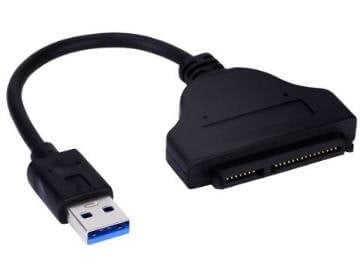
How to clone HDD to Samsung SSD without SATA-to-USB cable | 2 cases
As a matter of fact, there are 2 scenarios for cloning HDD to SSD without cable.
🖥If your computer has more than one slotYou can install the Samsung SSD as secondary storage on a desktop running Windows, or in some advanced laptops with two hard drive bays, allowing for direct cloning.
💻If your computer has only one slot: You can't directly clone a Samsung SSD without a cable, so you can create a system or disk image of the source drive, create a bootable media to start the target drive in WinRE, and then perform a full system recovery to achieve data migration.
In the following, I will show you how to perform Samsung SSD data migration in these cases.
Clone to Samsung SSD without cable via Samsung Data Migration
If your computer has an extra slot, you can try using Samsung Data Migration (SDM) to transfer data from your old hard drive to your new Samsung SSD. This method is a convenient option, especially if your computer has an extra slot and you're looking for a hassle-free transfer process.
1. To install the Samsung SSD, shut down your PC and open the computer case or laptop back cover. If you're unsure about the process, it's recommended to Google detailed steps with screenshots for guidance. Once you've accessed the internal components, properly install the Samsung SSD, following the manufacturer's instructions for a secure and efficient setup.
2. After installing the software, turn on your PC and ensure the SSD is detected by Windows. If it's not, refer to the guide on how to troubleshoot a Samsung SSD not detected in Windows 10. Once the SSD is recognized, install and run the Samsung Magician software (SDM) to manage and optimize your SSD's performance.
3. Click Start at the first interface.
4. Verify the source disk and the destination disk at this page. Clone only one partition to Samsung SSD is also available in this step. Click Start then.
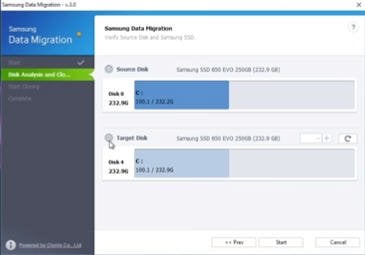
5. Warning: all data on the destination disk or partition will be lost. Confirm the warning and click Yes to start the cloning process, which will erase all data on the destination disk or partition and begin the cloning process. Wait for the process to complete.
6. When the message "The data on the Source Disk has been successfully cloned to your Samsung SSD" appears, click "Quit" and shut down your PC. You can then change the boot priority to the cloned SSD in the BIOS or remove the source disk to test the booting.
The most effective way to clone a hard drive to a Samsung SSD without a USB cable is to use a cloning software that can carry out the task successfully. However, some users may encounter issues such as getting stuck at 99% or 100% during the cloning process, or not having a data migration tool available for their Samsung SSD, in which case using a different data migration utility may be a better option.
Solve Samsung SSD no USB cable issue with professional clone software
Qiling Disk Master is a powerful disk clone software that supports various Windows versions and allows cloning entire disks, operating systems, or specific partitions to Samsung SSDs, even cloning large drives to smaller ones.
- If your computer has more than one drive bay, You can use the system clone or disk clone feature to migrate your HDD to a Samsung SSD, and it works with other branded HDDs and SSDs as well.
- If your computer has only one drive bay, You can consider turning to the system backup & restore way. Qiling Disk Master can also help you do this effectively.
Try this powerful alternative to Samsung Data Migration now.
How to cone HDD to Samsung SSD directly without cable | with extra slot
1. To install a Samsung SSD, download and install the Qiling Disk Master software, which is used for cloning disks, and then launch it to begin the process.
Clone features in the free trial can only be demonstrated, not used for actual work, due to licensing restrictions.upgrade for full functionality.
2. At the main interface, select Disk Clone under Clone tab.

✍Note: Qiling Disk Master allows you to clone data disks and system disks of all brands and partition styles, including MBR to MBR, MBR to GPT, GPT to GPT, and GPT to MBR, directly. However, it's essential to ensure the target disk's partition style is compatible with your boot mode, whether it's MBR for legacy BIOS or GPT for UEFI.
3. Select the HDD as the source disk.

4. Select the Samsung SSD as the destination disk.

5. To prepare for the operation, check the box next to "SSD Alignment" since the target disk is a Samsung SSD. Additionally, review and configure any other settings as necessary. Once you've completed these steps, click the "Proceed" button.

6. If you're looking to upgrade your computer's storage, you have two options: replace your existing hard drive with a Samsung SSD, or simply change the boot order in your BIOS settings. The first option involves cloning your existing hard drive's contents onto the new SSD, which can be a bit more involved but provides a seamless transition.
📑Tips:
- Edit Partitions: you can adjust partition size before cloning.
- Sector By Sector Clone: Qiling Disk Master clones the source disk, but it requires the destination disk to be equal to or larger than the source disk. By default, it only clones the used part of the source disk.
If you can't install the Samsung SSD directly into the machine, you can clone the HDD to the Samsung SSD on the laptop with only a disk bay by using a USB-to-SATA adapter or a USB enclosure to connect the Samsung SSD to the laptop, then follow the cloning process. Alternatively, you can remove the laptop's HDD, connect it to a desktop with a SATA cable, and then clone the HDD to the Samsung SSD on the desktop. This way, you can successfully transfer all data without reinstalling.
How to perform Samsung SSD data migration without cable | with only one slot
If you don't have a cable or an extra slot on the motherboard, you can use system backup and restore as an alternative to cloning. This method allows you to save your current system configuration and restore it to a new drive or computer. It's a viable option when cloning isn't possible.
Qiling Disk Master is a backup utility that offers various features, including System Backup, Disk Backup, and Partition/Volume Backup. It also supports incremental, differential, and full backup options. For this task, only a full backup is required. To proceed, please prepare in advance.
- A USB flash drive is used to create bootable media that allows a laptop to boot when it has an empty Samsung SSD installed.
- To store a backup image, you can use a shared folder, external hard drive, USB flash drive, or cloud drive. The key is to ensure you have access to the backup image when booting your PC with a WINPE bootable media. This allows you to restore your system even if it's not booting normally.
A great advantage of this method is that you can achieve backup & restore operations with the completely free Qiling Disk Master Standard. To proceed, download the freeware.
Data migration is a process of transferring data from one system to another, often with changes in data structure or format. It's a crucial step in system integration, especially when merging data from different sources or upgrading to a new system.
1. Connect the storage device that previously stored the disk image to your computer, and then install and launch Qiling Disk Master.
2. At the main interface, click on Backup and then select Disk Backup.

3. Here you can edit the Task Name for distinguishing purposes. Then click Add Disk to select the disk you want to back up, typically the disk containing your operating system.
Choose a location to save the disk backup, and optionally password encrypt or compress the backup image.

4. Click Proceed after the configuration.

5. Connect the USB drive to your computer, then in Qiling Disk Master, go to Tools and click on Create Bootable Media.

6. To create a WinPE, select the WinPE option, which will detect if your computer has Windows AIK installed. If it's not installed, download and install it. Then, follow the wizard to complete the WinPE creation process.
7. Remove any external storage devices and USB flash drives, shut down your laptop, and if desired, remove the battery. Then, replace the internal hard drive with a Samsung SSD.
8. Insert a bootable USB flash drive into your computer and turn it on. Connect any external storage devices containing disk backups. Once the computer is logged in, you'll see the Qiling Disk Master interface.
9. Click on Restore -> "Select Task" or "Select Image File".

11. Confirm the operation and click Proceed.
Tips: If you backup a computer and restore the image to a different PC, refer to "Dissimilar Hardware Restore" in Qiling Disk Master Professional.
Summary
Samsung SSD data migration without cable can be achieved through various methods, depending on individual needs. For instance, using software tools or cloud services to transfer data wirelessly, or utilizing the built-in features of Samsung SSDs, such as the Magician software, to migrate data. Additionally, users can also consider using Qiling Disk Master, which supports backing up Windows to a USB flash drive, as an alternative method. This flexibility allows users to choose the most convenient option for their specific situation.
Related Articles
- How to Clone HDD to Samsung SSD without Reinstalling?
- Best Way to Clone Samsung SSD to another SSD without Reinstalling
- Best Samsung SSD Data Migration Software for Windows 10
- How Do You Replace Hard Drive with Samsung EVO 850 SSD in Windows?
- How to Clone Hard Drive in Windows Server 2019 Easily
Learn the key steps, checks, and practical tips for this related guide. - How to Clone Windows Server 2008 (R2) Hard Drive (VMware & Server)
Professional software to clone Windows Server 2008 R2 hard drive will be introduced below, supporting VMware and Server disk clone.
Products
Articles & Tutorials
- Data Recovery
- Data Backup
- File Recovery
- File Backup
- File synchronize
- System Backup and Restore
- Disk and Partition Clone
- Technical articles
- Disk Master Help
- Windows Deleted File and Disk Recovery Tutorials
- Windows File and Data Recovery Tutorials
- More Windows Tutorials for Install, Security, Files, and PC Tips
- Windows Boot, Repair, and Recovery Environment Tutorials
- Windows Backup Tutorials
- Windows Restore Tutorials
- Windows Clone and Migration Tutorials
- Windows Server Backup, Recovery, and Management Tutorials
- Windows Disk, Partition, and Storage Management Tutorials