Enable Image File Compression to Save Disk Space
Why compress an image file?
The more files that need to be backed up, the larger the image file storage space will be. Regular data backup may also require compression to reduce storage space, such as compressing a 20GB C drive to a 5GB image file.
Best free image file compression software for Windows
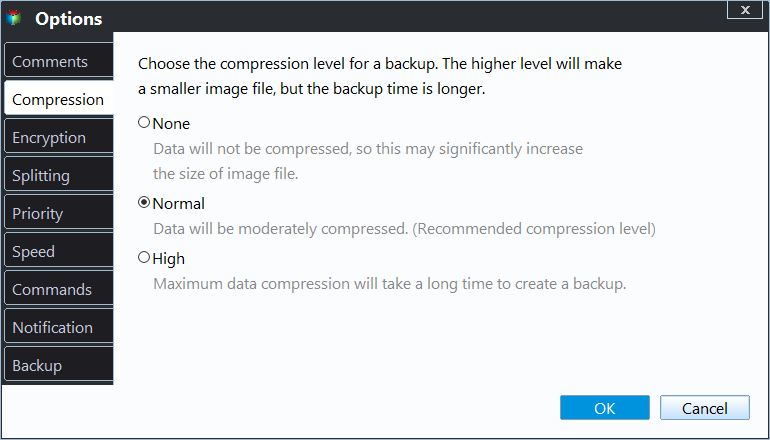
Qiling Disk Master offers a compression feature for image files, with three levels of compression: None, Normal, and High. The default compression level is set to Normal, allowing users to adjust the level according to their needs during the backup process.
- None: The software backs up images quickly, but uses more storage space, as it doesn't compress the files.
- Normal: It's the recommended compression level, offering a normal extent of compression that balances backup and restore speed with image file storage space, requiring neither too much time nor too much space.
- High: The new compression algorithm will significantly reduce the size of image files, but at the cost of longer compression times during backup and longer decompression times during restore.
Qiling Backup provides four backup options: System Backup, Disk Backup, Partition Backup, and File Backup, catering to various user needs. You can choose the appropriate backup type based on your preferences. Download and install it on your PC to get started.
How to compress a disk image file efficiently
Here come the operating steps.
1. Select a backup type to enter the setting page. Here I choose "Disk Backup" to create a disk image of my computer hard drive.

2. Select the source disk and destination path, which can include a local disk, external hard drive, USB thumb drive, network location, etc.

3. To compress a disk image, click on "Options", then select "Advanced" from the pop-up menu. Three compression levels will be displayed: None, Normal, and High. Choose a level and click "OK" to save the settings.
4. Click "Proceed" when you are ready.

The ideal compression rate depends on the type of files being backed up, with better compression rates achievable for text-based files like .txt, .doc, and .xls, but not for image or video files like .jpg, .mp3, and .avi.
Related Articles
- Top 6 Ways to Fix Windows 7 Offline Files Not Working Problem
This guide explains Top 6 Ways to Fix Windows 7 Offline Files Not Working Problem with clear steps, key checks, and practical tips. - How to Create and Use Windows 7 Repair Disk with ISO
Learn how to Create and Use Windows 7 Repair Disk with ISO with clear steps, key checks, and practical tips. - How to Wipe a Hard Drive in Windows 7 Without CD (2 Ways)
This tutorial provides two ways to wipe a hard drive in Windows 7 without CD. Whether you want to reserve Windows 7 or remove everything, you can find the way from this page. - How to Use Windows Server Migration Tools
Learn how to Use Windows Server Migration Tools with clear steps, key checks, and practical tips. - Solved: Boot Device Not Found HP
Sometimes, some users report that hard drive not detected or boot device not found HP laptop/desktop. This article will show you five workable ways to solve it quickly and safely. - How to Boot Windows 7 from External Hard Drive Successfully?
There are chances that you need to boot Windows 7 from external hard drive. This article demonstrates how to create bootable media and boot Windows 7 from the drive.
Products
Articles & Tutorials
- Data Recovery
- Data Backup
- File Recovery
- File Backup
- File synchronize
- System Backup and Restore
- Disk and Partition Clone
- Technical articles
- Disk Master Help
- Windows Deleted File and Disk Recovery Tutorials
- Windows File and Data Recovery Tutorials
- More Windows Tutorials for Install, Security, Files, and PC Tips
- Windows Boot, Repair, and Recovery Environment Tutorials
- Windows Backup Tutorials
- Windows Restore Tutorials
- Windows Clone and Migration Tutorials
- Windows Server Backup, Recovery, and Management Tutorials
- Windows Disk, Partition, and Storage Management Tutorials