How to Wipe a Hard Drive in Windows 7 Without CD (2 Ways)
The issue
Windows 7 wipe hard drive without CD
You're trying to reset your old PC to factory settings, but it's asking for a Windows installation disc. This is likely because the PC is no longer recognized as a valid Windows installation. To resolve this, you can try booting from a USB drive with a Windows installation media, or using a third-party tool like a reset disk or a software like Qiling Disk Backup.
You can try using a Windows ISO file to install Windows without a physical disc. You can create a bootable USB drive or CD/DVD from the ISO file. You can download the ISO file from Microsoft's official website. If you don't have a valid product key, you won't be able to activate Windows.
- Question from Tomshardware.com
If you're selling, recycling, or giving away your old PC, you may want to erase the hard drive in Windows 7 first. While you can typically factory reset a Windows 7 PC with an installation CD, you can also wipe the hard drive without one, offering alternative solutions for those without a CD.
How to wipe a hard drive in Windows 7 without deleting OS
If you have an OEM computer, there is usually a hidden system recovery partition that allows you to perform a factory reset, such as on an ASUS laptop using the ASUS system recovery partition.
If you've built a PC or there's no system recovery partition available, you can wipe a hard drive without deleting Windows 7 by following these steps. First, ensure you have a Windows 7 installation disc or a USB drive with the installation files.
Notes:
● This method is only applicable if a system image backup has been created before. It restores both the layout and data in the system image, making it suitable for wiping the hard drive and reusing the PC.
1. Turn on the computer. Press and hold the F8 key.
2. At the Advanced Boot Options screen, choose Repair Your Computer.
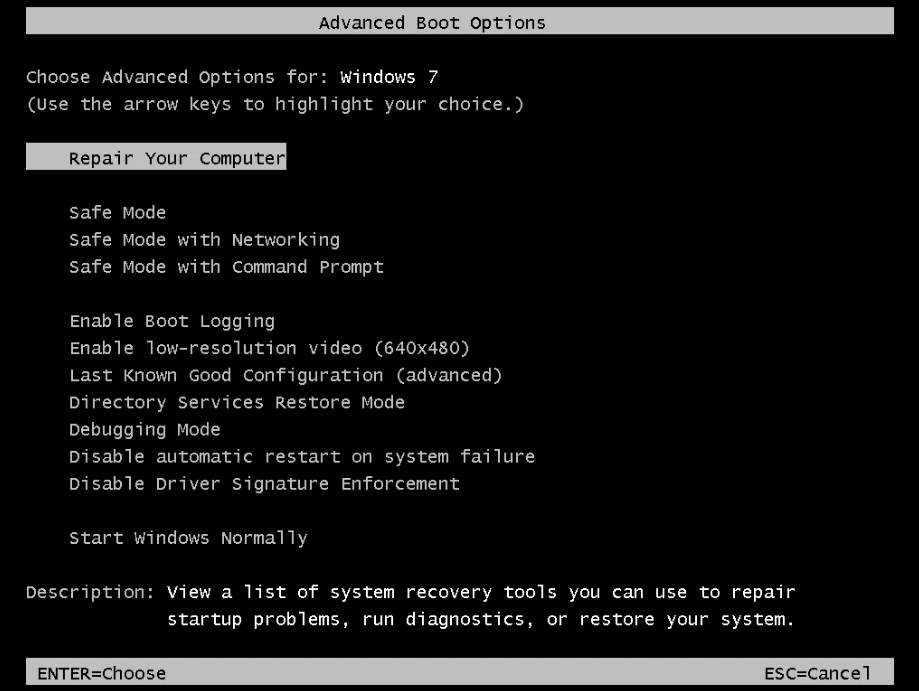
3. Choose a keyboard layout and click Next.
4. At the System Recovery Options window, choose System Image Recovery.
5. It will immediately locate the most recent system image connected to your system. Click Next to continue or click Select a system image to manually select another system image.
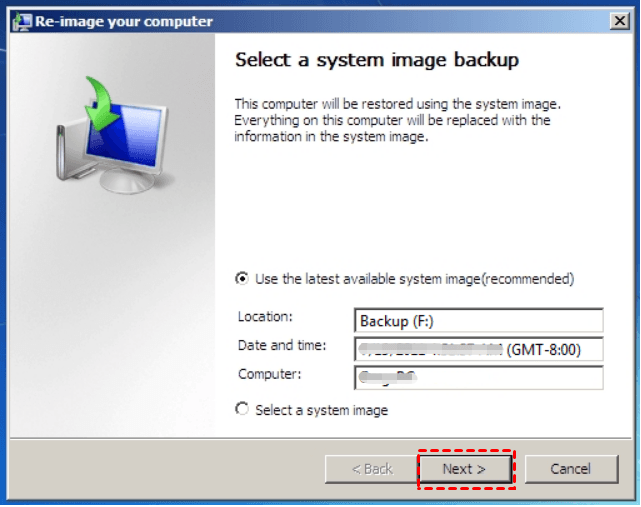
Tip: If you get a "Windows cannot find a system image on this computer" warning message, attach the backup hard disk with the system image stored to your computer and click Retry.
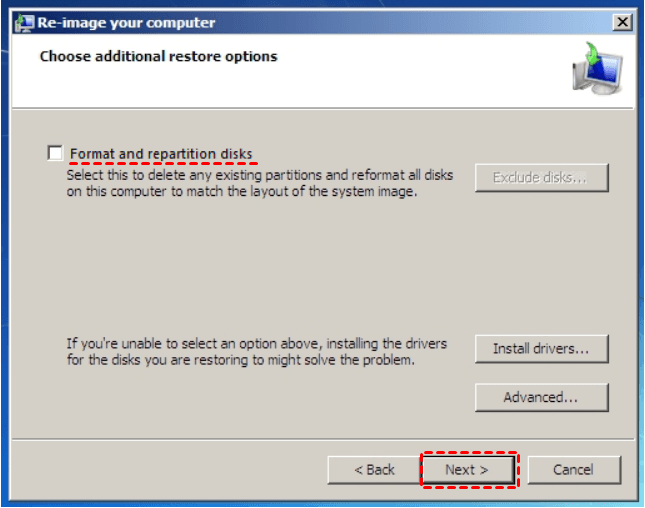
6. Check Format and Repartition Disks and click Next.
7. To confirm the information and complete the restore operation, click Finish and then click Yes when asked if you're sure you want to continue. This process may take a few hours depending on the size of your hard disk.
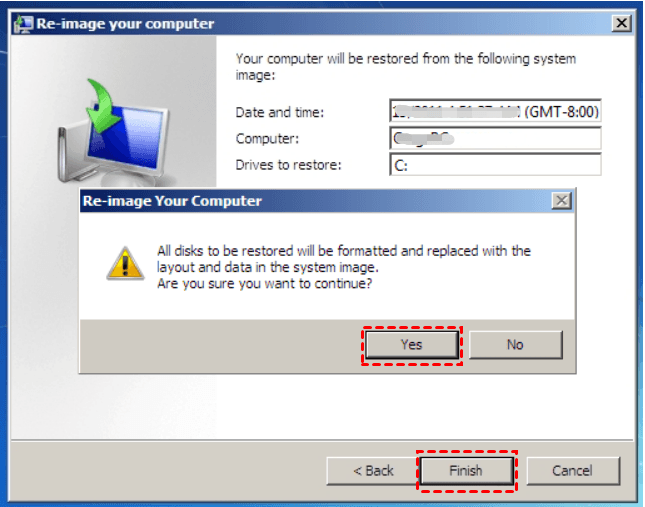
Now you know how to erase a hard drive in Windows 7 without deleting OS. If you want to remove everything on the old hard drive for sale, read on to get an efficient way.
Easier way to erase a hard drive in Windows 7 (everything removed)
To prepare your old PC's hard drive for sale, recycling, or gifting, use a reliable disk wipe tool, specifically Qiling Disk Master Professional, which is compatible with Windows 11/10/8.1/8/7/Vista/XP.
- You can wipe an entire disk, a selected partition, or unallocated space, rendering the data irretrievable after the wiping process.
- You can wipe a USB drive, hard disk drive, and SD card, with support for various branded disks, including Samsung, SanDisk, and WD.
- You can create a bootable disk wipe USB to wipe a hard drive without loading Windows.
To wipe a hard drive in Windows 7 without a CD, you can use the built-in Disk Cleanup tool and then delete all files and folders, or use the Command Prompt to format the drive. To do this, go to the Start menu, type "Disk Cleanup" in the search bar, and follow the prompts to delete temporary files and free up space.
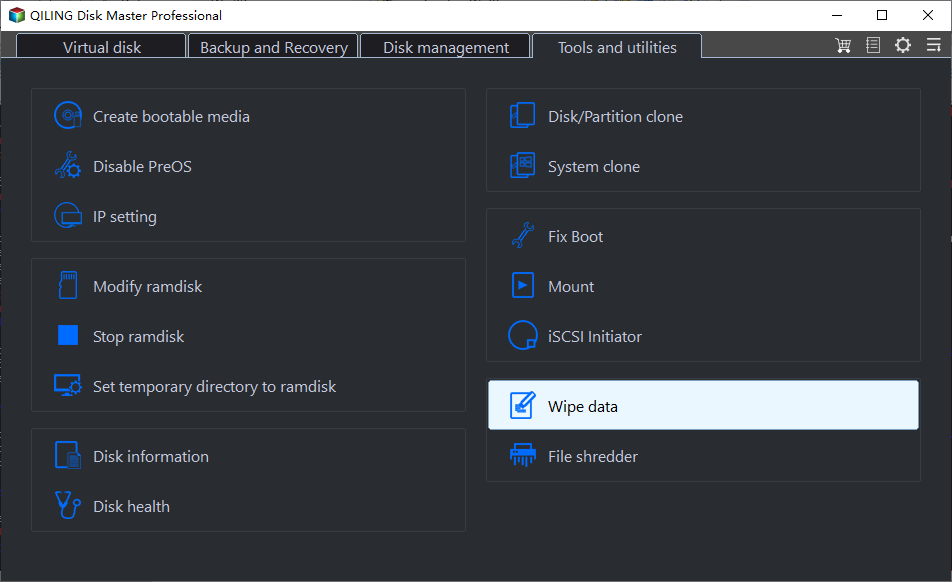
Step 1. Download and install Qiling Disk Master, run the app, click on Tools and select Disk Wipe.
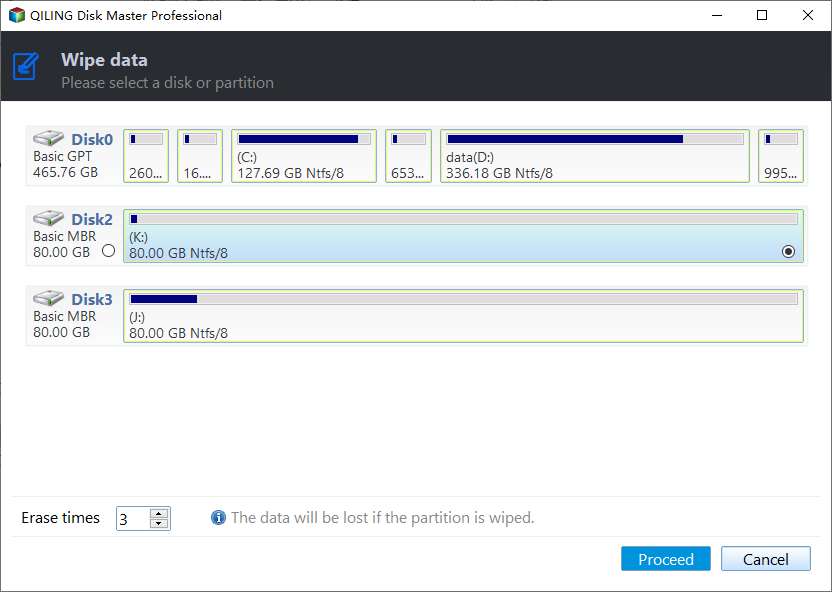
Step 2. Select the system disk to be wiped, then confirm the operation needs to be executed in reboot mode by clicking OK.
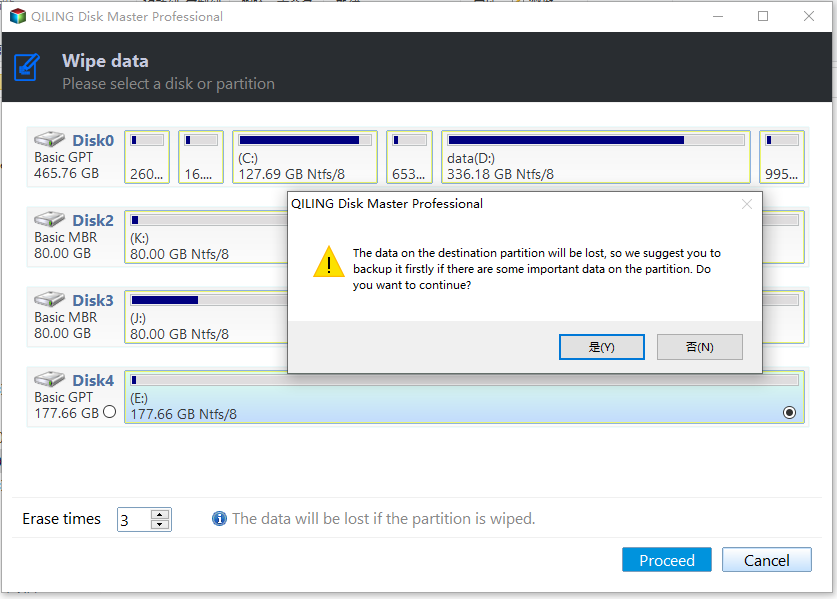
Step 3. On the Wiping Method page, choose "Fill sectors with Zero" to wipe all data on the disk and click "Proceed".
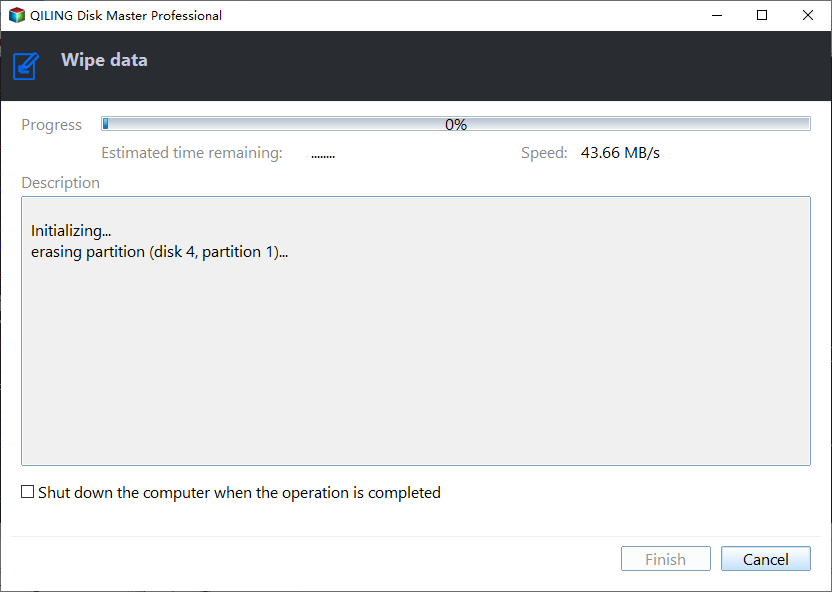
Tip: For higher security levels, you may use fill sectors with random data, DoD 5220.22-M, or Gutmann.
To sum up
To wipe a hard drive in Windows 7 without a CD, you can run system image recovery if you want to keep the OS, or use Qiling Disk Master to zero fill the hard drive if you want to remove everything. Additionally, Qiling Disk Master is a professional hard drive transfer software that allows you to transfer data from an HDD to an SSD, making it a useful tool for upgrading your storage.
Related Articles
- Wipe a disk in Windows 7
Choose an HDD or SSD erasure method before reusing or disposing of the drive. - How to Reinstall Windows 7 without CD or USB with Ease?
- 3 Ways to Transfer Windows 7/8/10 to New Hard Drive without CD [FREE]
- Reinstall Windows 7 without Losing Files or Anything
- Move Windows Server 2008 (R2) to New Machine with Different Hardware
Moving Windows Server 2008 or 2008 R2 to new machine with dissimilar hardware can be as easy as pie if we find the best solution. Get a powerful server backup and restore tool to help you from this page. - How to: Clone GPT Disk to MBR in Windows (within Six Steps)
Learn to clone GPT disk to MBR disk successfully and then you can replace or upgrade your hard drive without reinstalling operating system and applications. - [Stepwise] How to Clone Disk Windows 11 for free
You may need to clone disk Windows 11 for various reasons. Read this post to get a step-by-step tutorial on how to perform Windows 11 clone disk with a free hard drive cloning tool.
Products
Articles & Tutorials
- Data Recovery
- Data Backup
- File Recovery
- File Backup
- File synchronize
- System Backup and Restore
- Disk and Partition Clone
- Technical articles
- Disk Master Help
- Windows Deleted File and Disk Recovery Tutorials
- Windows File and Data Recovery Tutorials
- More Windows Tutorials for Install, Security, Files, and PC Tips
- Windows Boot, Repair, and Recovery Environment Tutorials
- Windows Backup Tutorials
- Windows Restore Tutorials
- Windows Clone and Migration Tutorials
- Windows Server Backup, Recovery, and Management Tutorials
- Windows Disk, Partition, and Storage Management Tutorials