Best Samsung Data Migration Software for Windows 7/8/10/11
Overview: Samsung Data Migration Needs in Windows Systems
Samsung SSDs, including the 470 Series, 750 Series, 830 Series, 840 Series, 850 Series, 950 Series, and 960 Series, have gained popularity among users. To upgrade their existing storage, users often want to replace an old hard drive (HDD) or a smaller solid-state drive (SSD) with a Samsung SSD, which can provide better performance. As a result, there is a need for software that can facilitate Samsung data migration in Windows operating systems, including Windows 7, 8, 10, and 11.
★ The advantages of hard drive data migration
Data migration streamlines the process of moving data from one system to another, reducing the risk of errors and increasing efficiency compared to manual copy & paste. It allows for the transfer of large amounts of data, formatting consistency, and the ability to handle complex data relationships, making it a superior method for data transfer.
- Keep your personal data. After using a hard disk for a long time, it likely contains a large number of files that need to be preserved. Migrating data to a new Samsung SSD provides a safer and more convenient way to transfer and save important data.
- Save the trouble of reinstallation. When copying and pasting files in File Explorer doesn't apply to system-related files, and you don't want to reinstall Windows on a new Samsung SSD, Samsung data migration is a viable option to transfer Windows to another drive without starting from scratch.
★ How to perform Samsung SSD data migration
Since Windows 7, the Backup and Restore utility allows for creating a system image, enabling a bare metal restore to recover the system and all included data. However, restoring a system image to another hard drive can be a complex, slow, and error-prone process, making it not recommended for data migration. In contrast, using disk clone software, such as Samsung data migration, can be a more efficient and reliable way to transfer data.
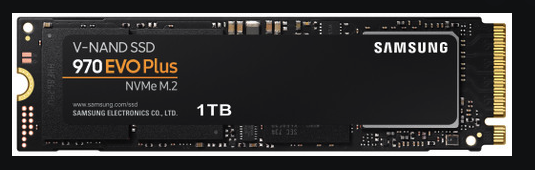
Quick Review and Download for Samsung Data Migration Software
Samsung provides software to clone an old hard drive or solid state drive to one of their SSDs.
Samsung Data Migration software allows you to transfer all data, including the operating system, from an existing storage device to a new Samsung SSD without reinstalling, and supports Windows 7/8/10/11, including various Samsung SSD products.
If Qiling Disk Master fails to transfer data, or you need a data migration software that supports other branded HDDs and SSDs, consider alternatives like Qiling Disk Master. These tools can help transfer data from one drive to another, regardless of the brand, and may offer additional features like backup and recovery capabilities.
Best alternative to Samsung Data Migration
Easily migrate OS and data from one drive (HDD/SSD) to another, regardless of the brand, disk capacity, partition style, etc.
How to use Samsung SSD migration software
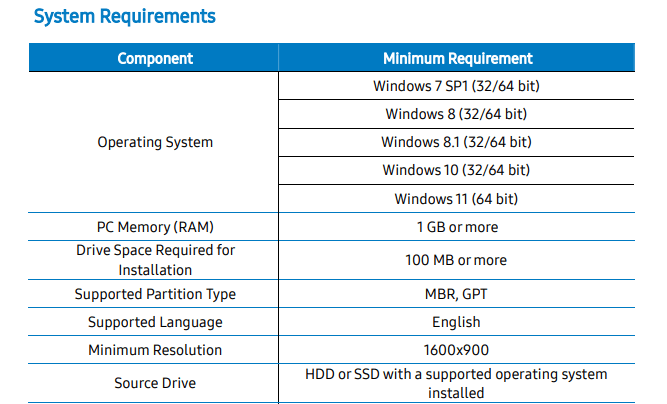
If your components meet the requirements, you can download the Samsung Data Migration software for Windows 7/8/10/11 to transfer your HDD or SSD to a Samsung SSD.
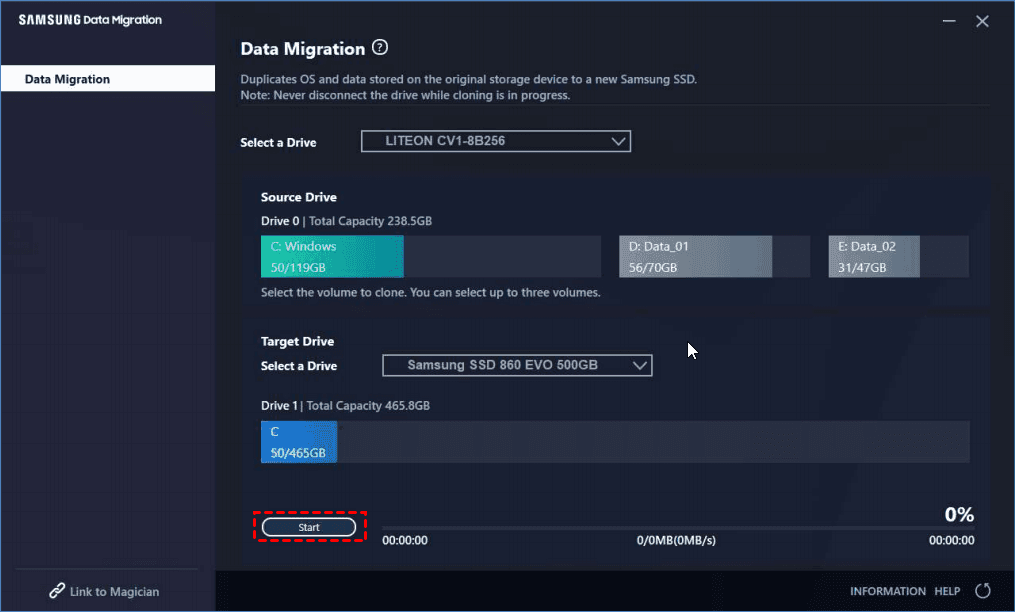
The data migration tool is easy to use, with a concise main interface that guides you through the process. After installation, you can follow a straightforward series of steps to complete the migration.
To migrate your disk, connect a new Samsung SSD to your PC using a SATA-to-USB cable adapter, then launch the Samsung Data Migration (SDM) tool. Select the source drive and target drive separately, and choose up to 3 volumes to clone.
📢Notes:
- When using this software to clone the content of the source hard drive, all data on the target SSD will be deleted and unrecoverable. Therefore, if there's any important data on it, make a backup beforehand.
- It's recommended to close all active programs and allocate sufficient memory before starting to clone.
Limitations of Samsung SSD Data Migration software
Many users are seeking alternatives to Samsung Data Migration software because they find it inconvenient to move Windows to a Samsung SSD using this tool, despite its supposed convenience.
⛔The User Manual warns that Samsung Electronics takes no responsibility for any data loss on the Target Drive, emphasizing that the SDM tool is solely for data migration, not backup or restoration.
⛔Many users experience failed cloning or stuck at 99% during the practical use of Samsung Data Migration, or are unable to install the software due to various reasons.
⛔If the source disk has been converted to a dynamic disk, the software may not function properly.
⛔When a source disk has multiple volumes, the Single Disk Migration (SDM) tool will only clone the system volume and two additional volumes.
SDM is specifically designed for Samsung SSDs and cannot be used to upgrade to other manufacturers' products, such as HDD or SSD from other brands.
Best Data Migration Tool for Samsung SSD and Other SSDs
Considering the limitations of SDM, you might want to explore alternative hard drive migration software with a higher success rate, wider application range, and more features. Qiling Disk Master Professional, a Windows backup and clone software, could be a viable option.
✔ This tool supports data migration from any Samsung device to any other device, regardless of the operating system (Windows) and storage type (SSD or HDD), making it a versatile and user-friendly solution.
✔ The operation is as intuitive as Samsung Data Migration software, but with more flexible options.
✔ You can either use Disk Clone to the entire disk, System Clone to migrate only the OS, or Partition Clone to certain volumes.
✔ There is a built-in SSD Alignment feature that helps accelerate the reading and writing speed for the destination SSD and prolong its life-span.
✔ This data migration tool operates in intelligent mode by default, allowing it to only copy used sectors, making it ideal for cloning a larger drive to a smaller SSD.
Here's an example to clone HDD to Samsung SSD.
Preparations:
◆ Connect your Samsung SSD to your computer using a SATA-to-USB adapter if your laptop only has one drive bay, otherwise connect it directly.
◆ Download the effective data migration software and install it.
The clone features in the free trial can only be demonstrated, not actually used to create a clone.upgrade for full functionality.
◆ To prevent data loss, back up your hard drive before cloning it to the target SSD, as the target SSD will be overwritten during the cloning process.
Steps to clone hard drive to Samsung SSD securely:
1. Launch the data migration tool, go to Clone -> Disk Clone, which will clone the entire hard drive to another.
✍Note: Qiling Disk Master allows cloning data and system disks from any brand with various partition styles, including MBR to MBR, MBR to GPT, GPT to GPT, and GPT to MBR, as long as the target disk's partition style is compatible with the boot mode (MBR for Legacy BIOS and GPT for UEFI).

2. Choose the HDD or SSD you want to clone as the source. Click Next.

3. Select the Samsung SSD as the destination, and click next to proceed further.

4. In the Operation Summary, you can select the "SSD Alignment" option to optimize the destination SSD, and then click "Proceed" to execute the task and wait for it to complete.
Sector by Sector Clone: Qiling Disk Master will clone all sectors, requiring an equal or larger target disk, or it can copy only used sectors in default mode.

If you want to migrate Samsung SSD to another hard drive or clone data from other non-Samsung products, simply connect the devices and select the source and target disks accordingly.
✍The "Edit Partitions" feature allows users to modify partition sizes and convert disk types, providing a total of 4 options.
- Copy without resizing partitions: It will not resize the partition size.
- Add unused space to all partitions: To reallocate unused space to each partition of the target disk appropriately, start by ensuring the target disk is recognized by your system and that you have the necessary permissions to modify it. Then, use the `resize2fs` command to resize the filesystem, followed by the `e2fsck` command to check for errors.
- Manually adjust partition size: Extend unallocated space to any partition on the target disk.
- Convert the destination disk...: If you want the target disk to have the same partition style as the source disk, you can use a tool to convert the partition style of the target disk. This can be useful if the source and target disks are in different partition styles, such as MBR and GPT, and you want to ensure that the target disk is compatible with the source disk.
✍You can't clone a dynamic disk entirely using the Disk Clone feature, but you can clone dynamic volumes separately. This involves using System Clone to clone the dynamic system volume and Partition Clone for non-system data volumes.
Conclusion
Samsung Data Migration software is a straightforward tool for Windows users to transfer data from an existing HDD or SSD to a Samsung SSD, but its use is limited to Samsung products only.
If you need to migrate data, Qiling Disk Master is a useful tool with a range of features, allowing you to protect important files, transfer data from one HDD or SSD to another, create a bootable media to rescue a crashed computer, or schedule system backups to prevent Windows errors and glitches.
Related Articles
- Samsung Data Migration on Non Samsung SSD – How to Deal with It?
This guide explains Samsung Data Migration on Non Samsung SSD – How to Deal with It with clear steps, key checks, and practical tips. - Tutorials: Clone Hard Drive to Samsung SSD (Secure Boot) in Windows
This guide explains Tutorials: Clone Hard Drive to Samsung SSD (Secure Boot) in Windows with clear steps, key checks, and practical tips. - The Best HP SSD Data Migration Software
This article will show you how to perform HP SSD data migration on Windows and provide you a reliable data migration software. - Best Western Digital SSD Migration Tool to Clone OS or Disk
This guide explains Best Western Digital SSD Migration Tool to Clone OS or Disk with clear steps, key checks, and practical tips. - How to Migrate Windows 7 to SSD with Excellent Software
Qiling Disk Master can help to migrate Windows 7 to SSD through two means: backup the system drive to an image file, and then restore it to the SSD, or directly clone the system drive to the new SSD. - Two Ways to Migrate Windows 7 to SSD Without Reinstall Windows
You will learn how to migrate Windows 7 from HDD to SSD with built-in Backup and Restore or Qiling Disk Master Professional. It will greatly enhance your computer without reinstalling Windows.
Products
Articles & Tutorials
- Data Recovery
- Data Backup
- File Recovery
- File Backup
- File synchronize
- System Backup and Restore
- Disk and Partition Clone
- Technical articles
- Disk Master Help
- Windows Deleted File and Disk Recovery Tutorials
- Windows File and Data Recovery Tutorials
- More Windows Tutorials for Install, Security, Files, and PC Tips
- Windows Boot, Repair, and Recovery Environment Tutorials
- Windows Backup Tutorials
- Windows Restore Tutorials
- Windows Clone and Migration Tutorials
- Windows Server Backup, Recovery, and Management Tutorials
- Windows Disk, Partition, and Storage Management Tutorials