Migrate Windows 7 from HDD to SSD Without Reinstalling
- Why migrate Windows 7 to SSD?
- Method 1: Migrate Windows 7 from HDD to SSD effortlessly with Qiling Disk Master
- Method 2: Migrate OS to SSD in Windows 7 with Backup and Restore
- Part 1: Create system image backup with Backup and Restore
- Part 2: Create bootable media with Windows 7 USB/DVD Download Tool
- Part 3: Restore system image to SSD
- Conclusion
Why migrate Windows 7 to SSD?
As time passes, your computer may become increasingly sluggish, taking minutes to boot up and even longer to open programs and files. This frustrating experience can be improved by migrating Windows 7 from a traditional hard disk drive (HDD) to a solid-state drive (SSD), which can significantly enhance your computer's performance.
SSDs have surpassed HDDs in performance, and their affordability has made them a more viable option. This shift is largely due to the decreasing cost of SSDs, making them a more attractive choice for those seeking faster storage solutions.
- SSD are almost 10 times quicker than ordinary HDDs
- SSD has less dissipation and zero noise.
- SSD is not easy to wear out.
- SSDs are smaller in volume and lighter in weight, making them more portable and convenient for users to take away.
- SSD does not contain any moving part.
You may also want to migrate Windows 7 from a traditional HDD or SSD to a newer SSD to boost your computer's overall performance. Two common methods to achieve this are using the built-in "Backup and Restore" tool or professional disk cloning software to migrate the OS to the SSD or clone the HDD to the SSD in Windows 7.
The previous method of cloning a Windows 7 system to a new SSD was a bit complicated and free, but required backing up the system and then restoring the system image to the new SSD. However, this method still required creating a bootable USB or CD/DVD in case the computer failed, and the restore process could fail if the new SSD was smaller. In contrast, cloning the system directly in Windows 7 is a simpler and more reliable approach.
I'll introduce both ways in detail. The simpler method takes precedence.
- Method 1: Migrate Windows 7 from HDD to SSD effortlessly with Qiling Disk Master
- Method 2: Migrate OS to SSD in Windows 7 with Backup and Restore
Method 1: Migrate Windows 7 from HDD to SSD effortlessly with Qiling Disk Master
Qiling Disk Master Professional is a professional disk clone software that integrates three cloning methods: System Clone, Disk Clone, and Partition Clone. These methods allow you to migrate your OS to an SSD, resulting in improved writing and reading speeds. The software offers flexibility in choosing the best cloning method for your needs.
- System Clone: This tool clones the entire operating system and data on the system partition, regardless of whether the disk is MBR or GPT, allowing for the migration of an OS from an MBR HDD to a GPT SSD without data loss.
- Disk Clone not only clones the system partition but also other non-system partitions on the disk. If the destination SSD is larger, it can add unused space to all partitions or manually adjust the partition size to maximize disk space. Additionally, you can convert the destination disk from MBR to GPT or GPT to MBR if they are different.
Finally, thanks to the wizard-To ensure a smooth user experience, even for novices, the interface should be simple and easy to navigate. The steps should be clear and concise, making it easy for anyone to use. The selection of features and items to include should be based on the specific needs and size of the SSD disk, allowing users to choose what's most important to them.
Download and install Qiling Disk Master Professional or Server software to migrate data from old SSD to new one.
The Clone feature in the trial version can only be demonstrated, but to migrate Windows 7 to an SSD and boot from it, you need to upgrade to the pro version. Upgrading will also give you a 10% discount on the upgrade page.
Step 1. Connect your SSD to your computer and ensure it can be detected. In the main page of Qiling Disk Master, click "Clone" and then select "System Clone" to proceed.

Step 2. Select the connected SSD as the destination disk and click "Next", as the system partition and boot files are selected by default.
Before cloning Windows 7 to a new SSD, create a disk backup or backup important files to prevent data loss in case of unexpected failure or human error. This ensures that your system and data are safe.

Step 3. Confirm the source and destination partition, select the “SSD Alignment” option to optimize your SSD, then click “Proceed” to migrate OS to SSD in Windows 7.
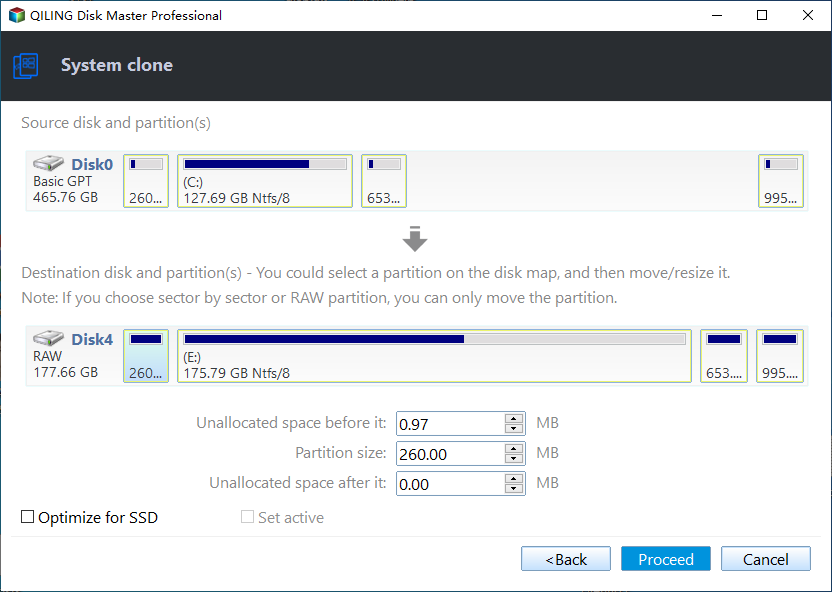
Notes ✎...
• Don't check "Sector by sector clone" If the used space on the target disk is smaller than the source disk, the cloning process will fail. This is because the target disk does not have enough free space to accommodate the data from the source disk, resulting in an insufficient space error.
• If your original hard drive is still working well, it's recommended to use a solid-state drive (SSD) as your operating system drive and a hard disk drive (HDD) for storage, allowing you to take advantage of the fast performance of SSDs and the large storage capacity of HDDs.
• If you have enough disk space, you can choose to clone your hard drive to a larger drive or clone your SSD to an HDD.
Wait for the cloning process to finish, then boot your computer from the cloned hard drive and verify that all your content is intact.
If your computer won't boot, you can enter the BIOS settings, change the SSD disk to the first boot option, save the changes, and then reboot. This should resolve the issue.

Method 2: Migrate OS to SSD in Windows 7 with Backup and Restore
Here you will use the built-in free backup and restore software to move Windows 7 to SSD, and the entire process is divided into 3 parts. Please follow the steps carefully.
Part 1: Create system image backup with Backup and Restore
Step 1. Insert an empty disk into your computer to store the backup image and make sure it can be detected.
Step 2. Go to Start > Control Panel > System and Security > Backup and Restore, then click "Create a system image".
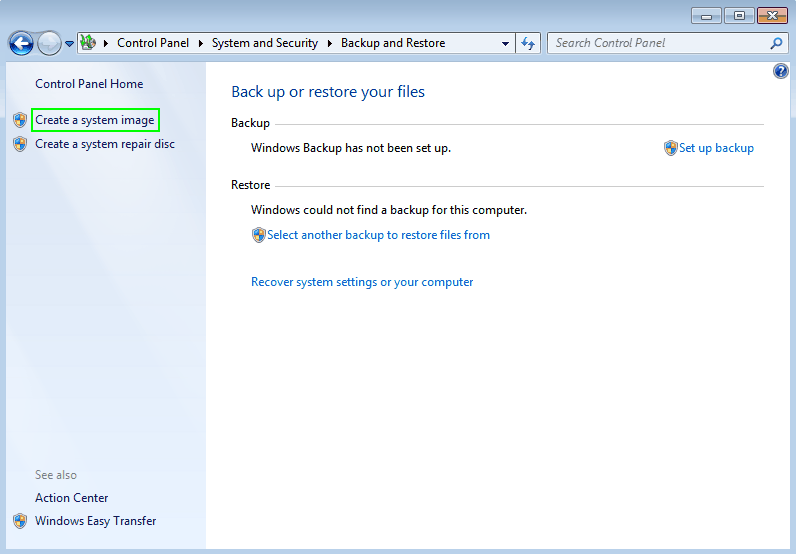
Step 3. Choose the hard drive you insert as destination path. Click Next to proceed.

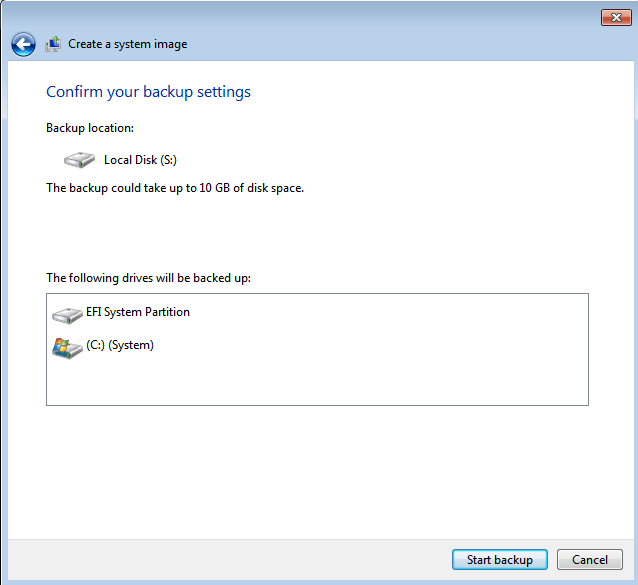
Step 4. The system drive and system reserved drive are included by default. You can add more drives to the image file or you can just ignore this part. Click Next to continue.
Step 5. Verify the backup location and size, then click Proceed. Once done, the system image backup will be saved on the SSD, allowing you to verify it from this drive.
Part 2: Create bootable media with Windows 7 USB/DVD Download Tool
To start the repair process, you'll need to create a repair disk or bootable media in Windows 7. A repair disk can only be created on a CD or DVD, while a bootable media with the Windows 7 USB/DVD Download Tool can be burned to a USB flash drive, providing an alternative boot option.
To upgrade your Windows 7 computer to an SSD, you'll need to purchase an SSD drive and a USB DVD drive or a CD/DVD drive. Create a bootable Windows 7 installation media on a USB drive or CD/DVD using the Media Creation Tool, and back up your files and data to an external drive or cloud storage.
Step 1. Download Windows 7 USB/DVD Download Tool and ISO files from Microsoft.
Step 2. Open this tool and click Browse to locate Windows 7 ISO files from your computer.
Step 3. Select USB device as the media type.
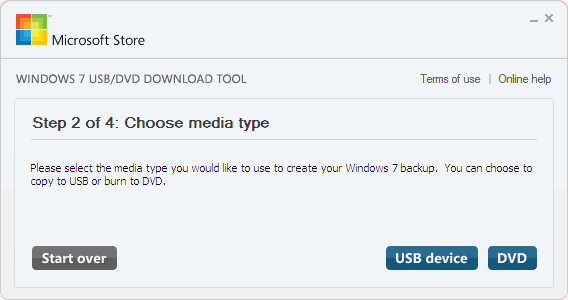
Step 4. Connect a USB drive with at least 4GB of space, select it from the menu, and click "Begin copying". Wait for the process to complete at 100%.
Part 3: Restore system image to SSD
To complete the process, connect the hard drive containing the system image, the new SSD, and the bootable USB drive to your computer. Set the boot priority to the USB drive and restart your computer by pressing F10. Then, follow the steps to transfer Windows 7 to the SSD.
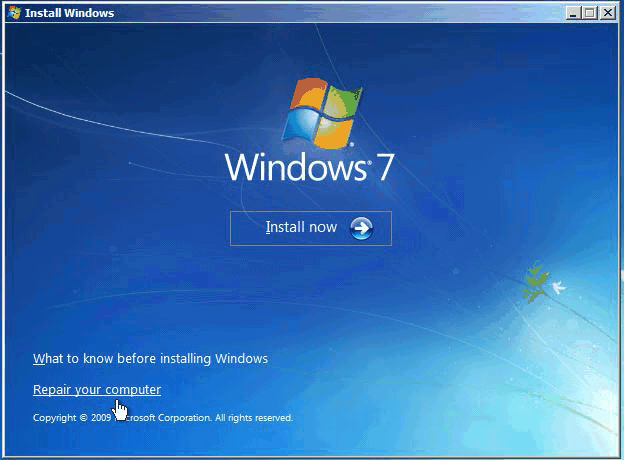
Step 1. When prompted, press any key to boot from the USB drive. Then, click "Next" until you see "Repair your computer" at the lower left.
Step 2. Click Repair your computer.
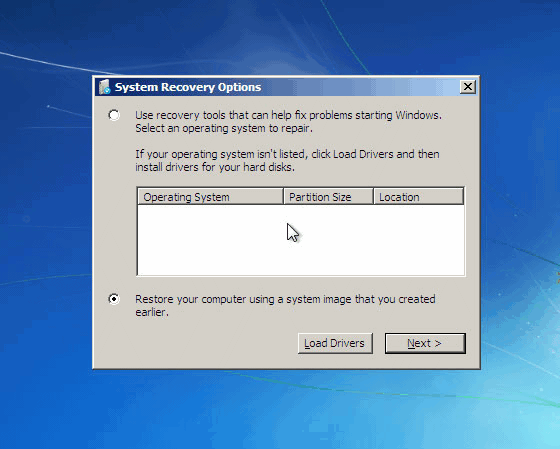
Step 3. Click "Restore your computer using a system image that you created earlier", then click Next.
Step 4. To complete the restore process, use the latest available system image and click Next, and then reboot the system to see if your boot drive is now an SSD.
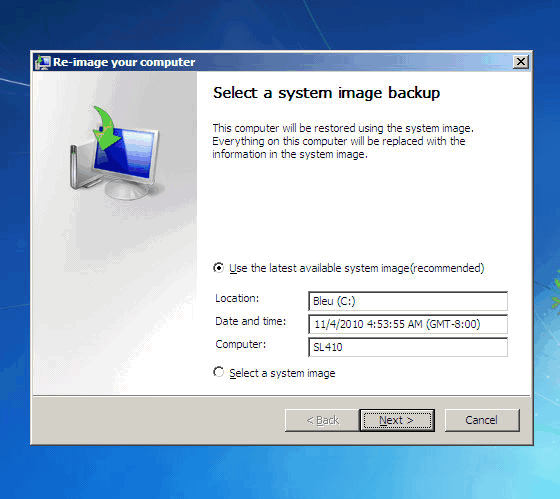
To successfully replace a hard drive with an SSD in Windows 7, you may encounter issues if your target disk is smaller, resulting in restoration failure. Some users have reported not having a available backup image in the re-image your computer window, making it difficult to complete the process.
If you need to clone a hard drive to a solid-state drive (SSD), it's recommended to use disk cloning software that can clone the entire drive, including unused sectors, to ensure a complete and accurate transfer. This approach allows you to clone a larger HDD to a smaller SSD, or even clone a smaller drive to a larger one, without worrying about data loss or corruption.
Conclusion
To migrate Windows 7 to SSD or Windows 11/10/8 to SSD, consider using a backup and restore utility, but be aware that the process can be complicated and may fail due to various reasons.
Using a reliable software like Qiling Disk Master Professional is recommended. It allows you to clone a system or entire disk and boot directly from the cloned hard drive without restoring an image first. Additionally, it serves as a backup and restore software, enabling you to create system image backups, incremental/differential backups, USB plugged in backups, and even deploy images to multiple computers simultaneously with its Technician version.
Related Articles
- Easily Transfer Windows 7 to New Hard Drive (with Free Methods)
This guide explains Easily Transfer Windows 7 to New Hard Drive (with Free Methods) with clear steps, key checks, and practical tips. - How to Clone SSD in Windows 7 Easily for Free
Learn how to Clone SSD in Windows 7 Easily for Free with clear steps, key checks, and practical tips. - Move Hard Drive to New Computer in Windows 7/8/10 without Reinstalling
Learn how to Move Hard Drive to New Computer in Windows 7/8/10 without Reinstalling with clear steps, key checks, and practical tips. - Replace Laptop HDD with SSD without Reinstalling (with Video)
You will learn the best practice to replace laptop HDD with SSD without reinstalling Windows 10 or 11, and one-stop wizard for hard drive replacement including video tutorials. - Fixed: Transcend SSD Scope Not Working for System Clone
This guide explains Fixed: Transcend SSD Scope Not Working for System Clone with clear steps, key checks, and practical tips. - Best Tool for Transferring C Drive to SSD in Windows 10/8/7
It is a wise choice to transfer C drive to SSD from HDD since SSD comes with better speed and performance. Here we will teach how to move C drive to a new SSD drive and make it bootable as well.
Products
Articles & Tutorials
- Data Recovery
- Data Backup
- File Recovery
- File Backup
- File synchronize
- System Backup and Restore
- Disk and Partition Clone
- Technical articles
- Disk Master Help
- Windows Deleted File and Disk Recovery Tutorials
- Windows File and Data Recovery Tutorials
- More Windows Tutorials for Install, Security, Files, and PC Tips
- Windows Boot, Repair, and Recovery Environment Tutorials
- Windows Backup Tutorials
- Windows Restore Tutorials
- Windows Clone and Migration Tutorials
- Windows Server Backup, Recovery, and Management Tutorials
- Windows Disk, Partition, and Storage Management Tutorials