Best Way to Backup Windows 7/8/10/11 to WD My Cloud
About WD My Cloud
WD My Cloud is a personal cloud storage device developed by Western Digital that allows users to save and access their personal files, including photos, videos, music, and documents, from anywhere using any device with an internet connection. It's a convenient way to keep everything in one place and access it from anywhere, making it a helpful tool for daily life.
The My Cloud device allows users to share files with family and friends, and even with public cloud drives like Google Drive or OneDrive. It comes in various capacities, including 3TB, 4TB, 6TB, and 8TB, making it suitable for personal data storage needs. It is also compatible with Windows 11/10/8/7 and Mac OS X operating systems.

Why backup Windows 7 computer to WD My Cloud
Backing up Windows 7 to WD My Cloud offers several benefits, as it utilizes the device's personal storage capabilities. Users can store files on the WD My Cloud, making it a suitable option for backing up their Windows 7 data. This approach allows individuals to enjoy a convenient and accessible way to safeguard their important files.
- You'll save a lot of disk space on your local drive and ensure every computer function runs normally by backing up your PC to an external hard drive, just like you would with a PC.
- To ensure you have the latest version of your backup, it's ideal to constantly backup your computer, OS, or files to a target storage. This, however, requires a significant amount of storage space. If you're looking to meet this demand, you can consider different versions of My Cloud to suit your needs.
- The My Cloud service allows users to access their important files from any device at any time, breaking the limitation of only being able to retrieve backups from the device where they were originally backed up.
Backing up your Windows 7 PC to a Network Attached Storage (NAS) device is crucial for several reasons. It helps protect your data from unexpected system crashes, hardware failures, or even natural disasters.
How to backup Windows 7 Files to WD My Cloud
The WD Smartware software can automatically and constantly back up data files from your computer to the My Cloud, including new created, added, and modified files. However, the software may not always work, and its support has ended, making it no longer covered under WD's software support lifecycle.
In situations where the built-in WD My Cloud backup software is not sufficient, it's a good idea to look into third-party backup software options. This can provide an added layer of protection and peace of mind for users.
Best WD My Cloud Backup Software - Qiling Disk Master
Qiling Disk Master Professional is a reliable WD My Cloud backup software designed for Windows OS-based machines, including Windows 11, 10, 8.1, 8, 7, XP, and Vista. It provides a range of features for these operating systems.
- Backup: Disk Backup, System Backup, Partition Backup, File Backup.
- Clone: As a great WD disk cloning software, it enables users to perform System Clone, Disk Clone, and Partition Clone tasks.
- Restore: Selective file restore, Universal Restore, etc.
- Sync: File Sync, File Sync, Two-Way Sync, and File Sync.
- And more...
To back up Windows 7 OS, you can use the built-in Windows Backup tool, which can be accessed by searching for "backup" in the Start menu. Alternatively, you can use an external hard drive or USB drive to back up your files and settings using the File History feature. You can also use third-party backup software like Qiling Disk Master, which offer more advanced features and customization options.
Steps of backing up Windows 7 to WD My Cloud
1. To access your WD My Cloud on a Windows 7 computer, connect the device to your PC, download the 30-day free trial of Qiling Disk Master, install and start the software.
2. Go to Backup and recovery > File Sync.

3. To select the Windows 7 files you want to sync, click the "Folder" option.

4. Click the box next to the destination, then select Share/NAS in the popping out Open window.
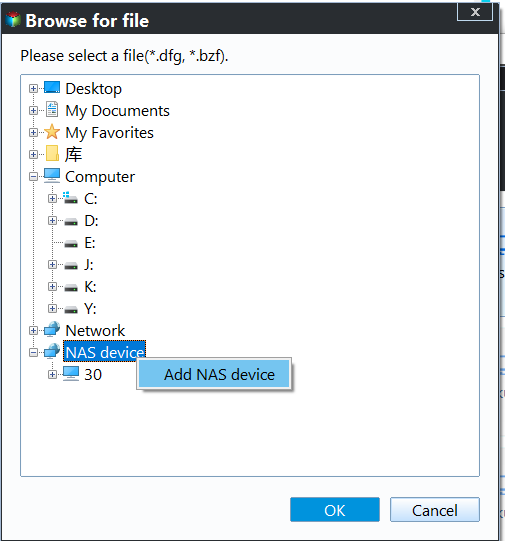
5. To add a network location on your WD My Cloud, click on "Add Network Location", enter the IP address of the device, along with your credentials, and then click "OK" to complete the process.
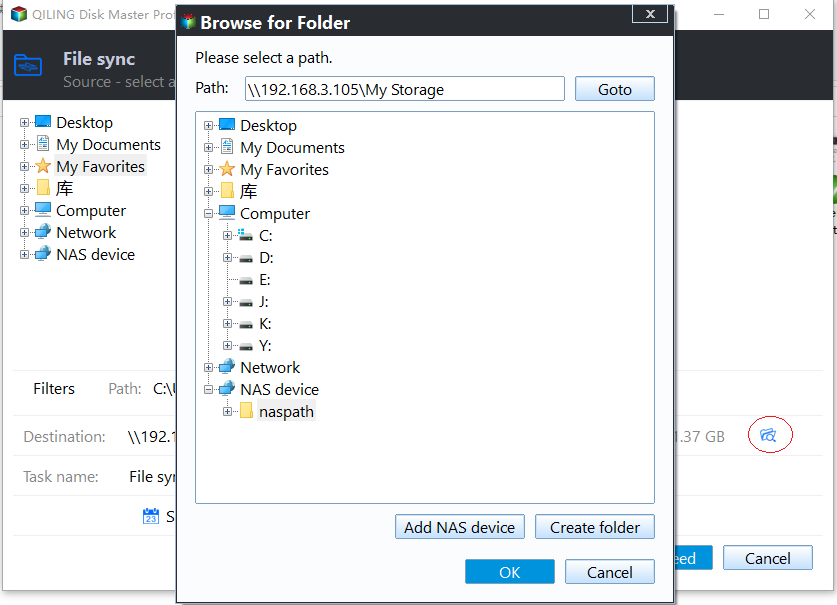
6. Click Proceed to backup Windows 7 to WD My Cloud easily.
✎Tips:
- You can set scheduled sync tasks in Daily, Weekly, Monthly, Event-trigger or USB plug in in Schedule.
- The steps to enable or disable the touchpad on Windows 8, 8.1, and 10, or previous Windows OS, involve a series of simple actions. Firstly, navigate to the Start menu and click on the Settings icon.
There are additional sync features, including real-time sync, which allows for changes or newly added files to be synced in real time since the last backup.
Verdict
Backing up a Windows 7 computer to a WD My Cloud device can be easily done with the help of Qiling Disk Master, requiring only a few clicks to complete the process.
With Qiling Disk Master, you can backup Windows 7 boot disk entirely with the Disk Backup feature, and also backup Windows 7 and restore on another computer with Universal Restore, creating Bootable Media in Tools beforehand for emergency situations.
To protect unlimited PCs and Servers from one central management console within the same LAN, use Qiling Centralized Disk Master for a unified solution.
Related Articles
- Backup WD My Cloud to Google Drive with the Best Freeware
Learn how to Backup WD My Cloud to Google Drive with the Best Freeware with clear steps, key checks, and practical tips. - Quick Fixes to WD Backup Not Working in Windows 10/8/7
This guide explains Quick Fixes to WD Backup Not Working in Windows 10/8/7 with clear steps, key checks, and practical tips. - Best Free Way to Backup WD My Cloud to Amazon Drive
You need to create multiple backups, not only backup WD My Cloud to Amazon Drive, but also to other clouds like OneDrive, Google Drive, Dropbox etc, so your data is always safe even if the Amazon Drive is deprecated. - Download the Best Free WD Elements Backup Software
You will find the best free WD Elements backup software - Qiling Disk Master and learn how to backup WD Elements hard drives automatically with simple steps. - Best Way to Backup QNAP/Synology NAS to PC - Qiling Disk Master
This tutorial will show you how to backup from Network-attached storage (NAS) like QNAP NAS and Synology NAS to PC step by step with the help of free backup software. - Backup PC to DropBox for Free in Windows 10/8/7 - Qiling Disk Master
Instead of purchasing storage devices for backup, you can actually free backup PC to Dropbox, a very popular cloud drive service.
Products
Articles & Tutorials
- Data Recovery
- Data Backup
- File Recovery
- File Backup
- File synchronize
- System Backup and Restore
- Disk and Partition Clone
- Technical articles
- Disk Master Help
- Windows Deleted File and Disk Recovery Tutorials
- Windows File and Data Recovery Tutorials
- More Windows Tutorials for Install, Security, Files, and PC Tips
- Windows Boot, Repair, and Recovery Environment Tutorials
- Windows Backup Tutorials
- Windows Restore Tutorials
- Windows Clone and Migration Tutorials
- Windows Server Backup, Recovery, and Management Tutorials
- Windows Disk, Partition, and Storage Management Tutorials