Easily Backup WD My Cloud to Google Drive | Best Freeware
Why backup WD My Cloud to Google Drive?
WD My Cloud is a line of personal NAS devices and multi-purpose servers designed by Western Digital. With WD My Cloud, you can backup your PC, as well as your smartphone and tablet photos and videos, creating a common place to share memories with friends and family, and backing up to other cloud drives.
You may need to backup your WD My Cloud to Google Drive for various reasons, such as ensuring your data is safe in case of hardware failure, accidental deletion, or natural disasters, protecting your files from ransomware attacks, and maintaining a centralized backup of your data across multiple devices and locations. This can also help you to access your files from anywhere, at any time, and collaborate with others on shared projects, while also providing an additional layer of security and peace of mind.
• Double secure your crucial photos, videos and files.
• You can access shared files from Google Drive from anywhere with an internet connection, not just within the same local area network (LAN).
To realize WD My Cloud Backup to Google Drive, you can use the Google Backup and Sync tool to connect your WD My Cloud to Google Drive, allowing you to automatically back up your files from the cloud storage to Google Drive. You can also use the WD SmartWare software to back up your files from the WD My Cloud to Google Drive. Additionally, you can use third-party cloud Backup services like Backblaze, CrashPlan, or Acronis, which support backing up files from WD My Cloud to Google Drive.
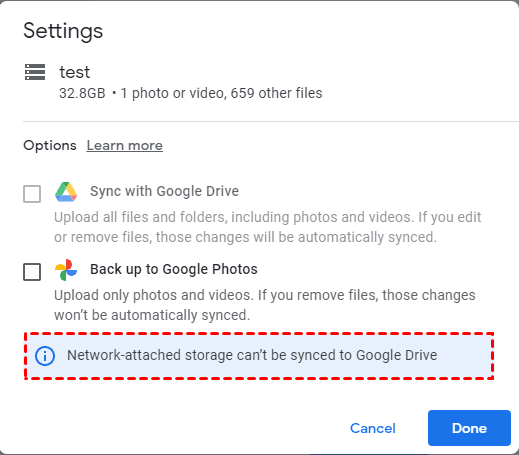
Error: Drive for desktop can’t sync NAS folder
Google Drive's desktop app allows users to sync files between their PC and Google Drive, but it has a limitation - it can't sync folders from network-attached storage (NAS) devices like WD My Cloud. However, there's a third-party sync tool that can help overcome this limitation, allowing users to sync folders from their NAS device to Google Drive.
Best freeware for WD My Cloud Backup
The MyCloud.com web app and My Cloud Home mobile app only support backup from Dropbox, Google Drive, OneDrive, and Adobe Creative Cloud to My Cloud, but not the reverse. To backup WD My Cloud to Google Drive, third-party software is required.
I highly recommend Qiling Disk Master Standard, the best free backup software, to you.
 Qiling Disk Master
- QNAP's Qsync app allows for the synchronization of files between a NAS and a cloud drive, providing a backup and sync feature to access backed up files without restoration.
- The software supports a wide range of NAS devices from various brands, including WD, Synology, QNAP, and Seagate, as well as popular cloud storage services such as Google Drive, OneDrive, Dropbox, and Cloudme.
- This software supports various versions of Windows, including Windows 10, 8.1, 8, 7, Vista, XP, and the latest Windows 11. Additionally, it also supports Windows Server users, who can consider using server backup software.
Learn how to use Qiling Disk Master for WD My Cloud Backup from the next part. The Qiling Disk Master is a tool that allows you to easily manage and backup your data on your WD My Cloud device.
How to backup WD My Cloud to Google Drive simply
To complete WD My Cloud Backup to Google Drive using Qiling Disk Master, download and install Drive for desktop, then set it up to connect to your Google account. Next, configure Qiling Disk Master to backup your WD My Cloud to Google Drive.
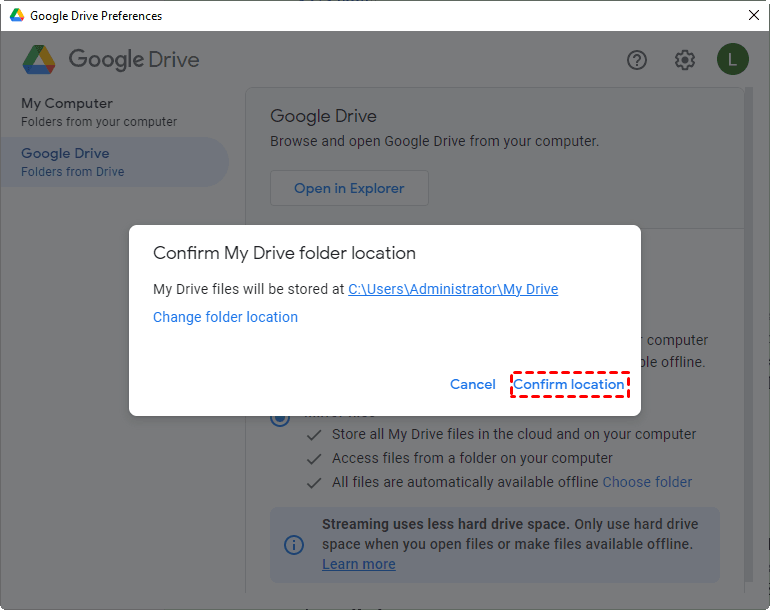
1. Click on the Drive for desktop icon in the taskbar, then hit the Settings button and choose Preferences.
2. Go to the Google Drive section, select "Mirror files", confirm your My Drive folder location, and if desired, change it.
To begin the file synchronization process, follow these instructions: First, ensure that both devices are connected to the same network or internet connection. Next, open the file synchronization software or app on both devices.
1. Install and run Qiling Disk Master, then click on "Backup and recovery" and select "File Sync" from the menu.

2. Name the task so that you can distinguish it from other sync tasks. Then, click "Folder".

3. In the pop-up window, click "Share/NAS".
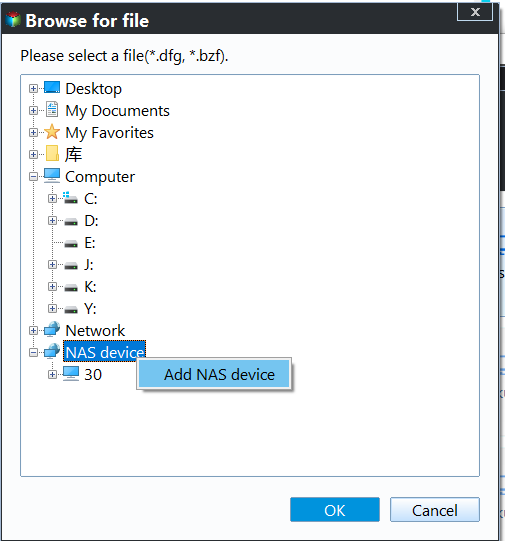
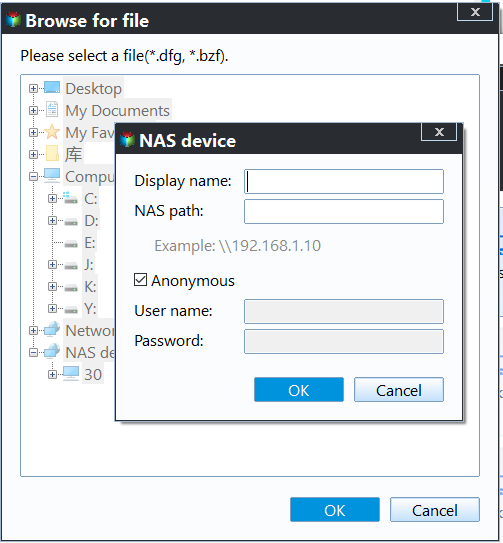
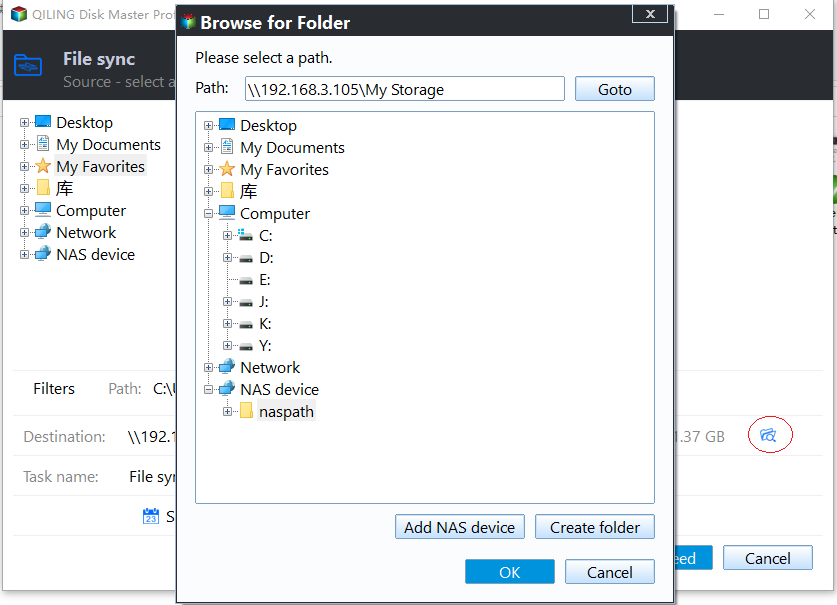
4. To add a My Cloud device as a share or NAS device, navigate to the Select Share/NAS Device window and click "Add Share or NAS Devices". Then, enter the NAS path of the My Cloud device and click "OK". If prompted, enter the username and password to authenticate.
5. After adding My Cloud, all the folders under it will be listed. Select one folder to sync and click "OK".
Tips: To sync more than one folder, you can click the "+" icon after adding the first folder.
6. Confirm the source folder and the destination path. Click "Proceed".
✎ Note:
There are other sync options offered in the lower-left corner of Qiling Disk Master, including a sync button and a sync schedule option, allowing users to manually trigger synchronization or set up automatic synchronization at specific times.
• Options: To add a comment and enable email notification for your sync task, you can simply write a brief description in the comment field, specifying the sync contents, and toggle the email notification option to receive updates when the task is completed. This allows you to track the progress and details of your sync task.
• Schedule Sync: The sync task can be set to run periodically, with five supported modes: Daily, Weekly, Monthly, Event triggers, and USB plug in.
Verdict
With Qiling Disk Master, you can easily backup your WD My Cloud data to cloud services like Google Drive, OneDrive, or Dropbox, or to an external drive for added protection.
Qiling Disk Master provides backup, restore, and sync features, and also offers a clone feature, making it a useful tool for migrating data to a new SSD. It can be used as a free SSD migration tool, offering a convenient and efficient way to transfer data.
Related Articles
- Automatically Sync OneDrive to External Hard Drive in Windows 10/8/7
This guide explains Automatically Sync OneDrive to External Hard Drive in Windows 10/8/7 with clear steps, key checks, and practical tips. - How to Backup Data on External Hard Drive to Dropbox?
You will learn the best way to backup external hard drive, it's to backup or sync external hard drive to Dropbox. I'll introduce you three free ways, select one per your needs. - Solved: External Hard Drive Freezes When Copying Files
This guide explains Solved: External Hard Drive Freezes When Copying Files with clear steps, key checks, and practical tips. - Best Free Folder Sync Software in Windows 7/8/10
Qiling Disk Master Standard is the best folder sync software for Windows 10, you can use it to perform folder sync on a regular basis or in real-time. Learn more about it below and the detailed steps! - Quick Start Guide to Robocopy in Windows 10
Windows Robocopy is a handy tool for transferring files. Learn the simple guide to using Robocopy in Windows 10. Additionally, you can download free software that makes file transfers even easier. - How to Use Rsync in Windows 10 | Tutorial and Alternative
It's not easy to use Rsync in Windows 10. You must install WSL, set up Linux distribution and then install GIT. To make things easier, you could use an Rsync alternative for file backup and sync.
Products
Articles & Tutorials
- Data Recovery
- Data Backup
- File Recovery
- File Backup
- File synchronize
- System Backup and Restore
- Disk and Partition Clone
- Technical articles
- Disk Master Help
- Windows Deleted File and Disk Recovery Tutorials
- Windows File and Data Recovery Tutorials
- More Windows Tutorials for Install, Security, Files, and PC Tips
- Windows Boot, Repair, and Recovery Environment Tutorials
- Windows Backup Tutorials
- Windows Restore Tutorials
- Windows Clone and Migration Tutorials
- Windows Server Backup, Recovery, and Management Tutorials
- Windows Disk, Partition, and Storage Management Tutorials