How Does Windows 7 Backup Boot Disk Successfully?
Quick Navigation:
- Backup Windows 7 with internal tool
- Issues with Windows 7 backup tool
- Backup Windows 7 boot disk with Qiling Disk Master
- The end
Backup Windows 7 with internal tool
Backing up your system or data is a crucial step that reveals its true value. Many users opt to backup Windows to an external hard drive, such as a USB flash drive or SSD, while others prefer to backup to an internal hard drive. If you're running Windows 7, you can follow these steps to backup your boot disk.
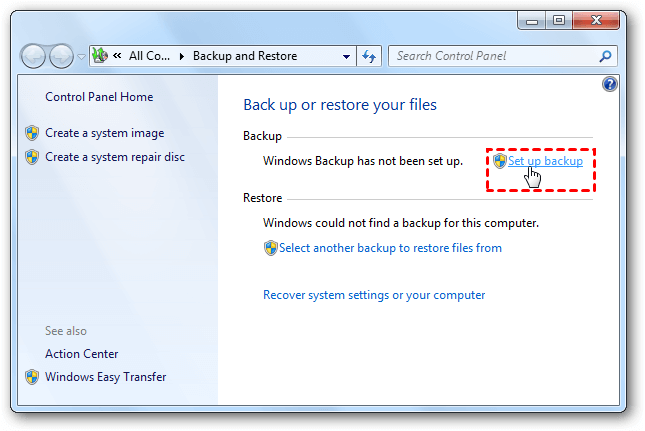
1. To access the Backup and Restore feature, click the Start button, then navigate to Control Panel, followed by System and Security, and finally Backup and Restore.
2. To set up a backup, click on "Set up backup" and follow the on-screen instructions to select the desired backup location and choose what data to include in the backup. Once you've completed the setup, initiate the first backup.
Issues with Windows 7 backup tool
Windows 7 backup to a boot disk often fails due to various reasons, including poor disk management habits like running defragmenter and checking disc, and timing issues when backing up to a USB flash drive.
Backing up to a hard drive instead of a flash drive may initially seem fast, but often hangs at 57 percent due to interference from security programs, anti-virus programs, or entire security suites installed on your PC. These programs run in the background and interact with your file system, causing them to interfere with legitimate operations like backing up your hard drive.
If the system can't be started, you'll need to boot into Win PE and restore Windows from the backup. You can create a Windows 7 recovery disk with the "Create a system repair disc" option, but only CD is supported. However, if there's no CD, you'll need to find alternative solutions.
Backup Windows 7 boot disk with Qiling Disk Master
When Windows 7 backup tool fails, Qiling Disk Master Standard, one of the best free backup software options, can come to the rescue.
- It allows creating a bootable disc on CD/DVD and USB, or just an ISO file that can be used later to create a bootable disc.
- The software provides various backup options, including system backup, disk/partition backup, and file backup, catering to different user needs.
- It supports all Windows PC operating systems, including Windows 11/10/8.1/8/7/Vista/XP, both 32-bit and 64-bit versions.
Download this program on your computer. Then, install and launch it to have a try.
Backup boot disk for Windows 7
If you want to backup your boot disk to an external hard drive, connect the external hard drive to your PC.
Step 1. Click Backup -> Disk Backup.

Step 2. Select the boot disk and choose a destination path.

Step 3. Click Proceed to execute the operation.

Note: Clicking on Options allows for customized configurations, and the Schedule feature enables automatic backup.
Bonus tip: Create bootable media for Windows 7
Connect the media you want to create boot files on with your computer.
Step 1. Click Tools -> Create Bootable Media.

Tips: If you want to create a WinPE bootable CD on Windows Vista/XP or Windows Server 2008/2003, you'll need to download the Windows AIK.
Step 2. Insert a blank CD/DVD or USB drive and follow the instructions to create a Windows 7 recovery disk. The process should take a few minutes to complete.

If your computer won't boot, you can enter the BIOS settings and set the boot sequence to start from the bootable media you've created, allowing you to recover your system.
The end
To successfully let Windows 7 backup and boot from a disk, you can rely on two tools: Windows 7 Backup and Restore, or Qiling Disk Master. If the system fails to boot, a Windows 7 recovery disk is needed to restore Windows from a previous backup in Windows PE mode.
Qiling Disk Master allows you to create bootable media on not only CD/DVD but also USB flash drives, and features System Clone, which enables you to migrate your operating system and applications to a faster SSD or larger hard disk drive without reinstalling Windows.
Related Articles
- How to Create Backup of Boot Disk in Windows 10?
You can choose to create backup boot disk in Windows 10 by backing up system and files respectively, but it's not the actual boot disk backup. Luckily, you can make it using a free backup software. - 4 Steps to Create Windows 7 Bootable Clone Disk
You will learn how to create Windows 7 bootable clone of hard drive and make it bootable with best disk cloning software - Qiling Disk Master. - Windows 7 Backup and Restore - How Does It Work? (2 Cases)
Backup is an efficient way to avoid data loss. If you want to figure out how Windows 7 backup works, read this article carefully. - Use Windows 7 Backup Command Line to Securely Back Up
This guide explains Use Windows 7 Backup Command Line to Securely Back Up with clear steps, key checks, and practical tips. - How to Use Batch Script to Backup SQL Server Databases?
Compared to other methods, a batch script is especially useful when you want to back up batches of databases regularly. This post shares batch scripts for backing up SQL Server databases, and an alternative with equal functionality. - Best HDD Cloning Software for Data Migration in Windows 11/10
This article introduces one of the best free HDD cloning software for Windows PCs to download. Cloning hard drive to SSD or new drive could be a pretty easy work with it.
Products
Articles & Tutorials
- Data Recovery
- Data Backup
- File Recovery
- File Backup
- File synchronize
- System Backup and Restore
- Disk and Partition Clone
- Technical articles
- Disk Master Help
- Windows Deleted File and Disk Recovery Tutorials
- Windows File and Data Recovery Tutorials
- More Windows Tutorials for Install, Security, Files, and PC Tips
- Windows Boot, Repair, and Recovery Environment Tutorials
- Windows Backup Tutorials
- Windows Restore Tutorials
- Windows Clone and Migration Tutorials
- Windows Server Backup, Recovery, and Management Tutorials
- Windows Disk, Partition, and Storage Management Tutorials