PC Synchronization: How to Sync PC to PC in Windows 11/10/8/7
What is PC sync?
PC sync can refer to different things depending on the context. In photography, it typically means Prontor-Compur connection, which synchronizes the camera shutter with the flash. However, in computer science, PC sync usually refers to synchronizing folders, photos, music, or other data between two or more computers or devices.
PC data synchronization is necessary in various situations, such as when you need to sync a PC. This may involve synchronizing data between a PC and other devices, or transferring data from an old PC to a new one, or even syncing data between multiple PCs. The process of syncing data can be facilitated by using cloud storage services, external hard drives, or specialized software designed for data synchronization.
- To share files between different devices, you can use various methods such as cloud storage, USB drives, or direct file transfer using a cable. You can also use file-sharing software or apps like Shareit, Xender, or Google Drive to transfer files between devices.
- To ensure data recovery, it's recommended to sync files to a cloud storage service, a network-attached storage (NAS) device, or a USB drive. This creates a backup of your data, allowing you to restore it in case of a device failure, data loss, or other issues.
To perform PC file sync, you can use specialized computer sync software that helps sync files between multiple devices or computers. This software enables you to synchronize files across different platforms, ensuring that your files are up-to-date and accessible from any device. Some popular options include Google Drive, Microsoft OneDrive, and Dropbox, which offer cloud-based syncing, while others like SyncToy and GoodSync provide local file syncing.
Free PC sync software for Windows 11/10/8/7
Qiling Disk Master Standard is a free file sync software for Windows that offers a range of sync features, making it a suitable option for users.
- File Sync: It allows syncing files between different folders, disks, or computers, and also enables syncing two external hard drives.
- NAS/cloud sync: The software supports a wide range of NAS devices and cloud drives, allowing you to sync computer files to Synology, WD My Cloud, QNAP, and other NAS devices, as well as sync local folders to cloud services like OneDrive, Google Drive, and Dropbox.
- Automatic sync: it allows you to set a daily/weekly/monthly sync task.
Want to have a try? Download it now and install it on your computer.
How to sync PC to PC with Qiling Disk Master
Before you start, there are some preparations you should do:
- Make sure the two computers are within the same LAN.
- Share a folder over the network on the source computer and set sharing options on both computers. Learn about file sharing over a network here.
Sync local folders to the shared folder on the source computer
Step 1. Run Qiling Disk Master, click Backup from the left panel, and select File Sync.

Step 2. Click on the "Folder" option to select the specific folder(s) you want to sync to another computer.

Step 3. Expand the drop-down menu of the second bar and select Add Share or NAS Devices.
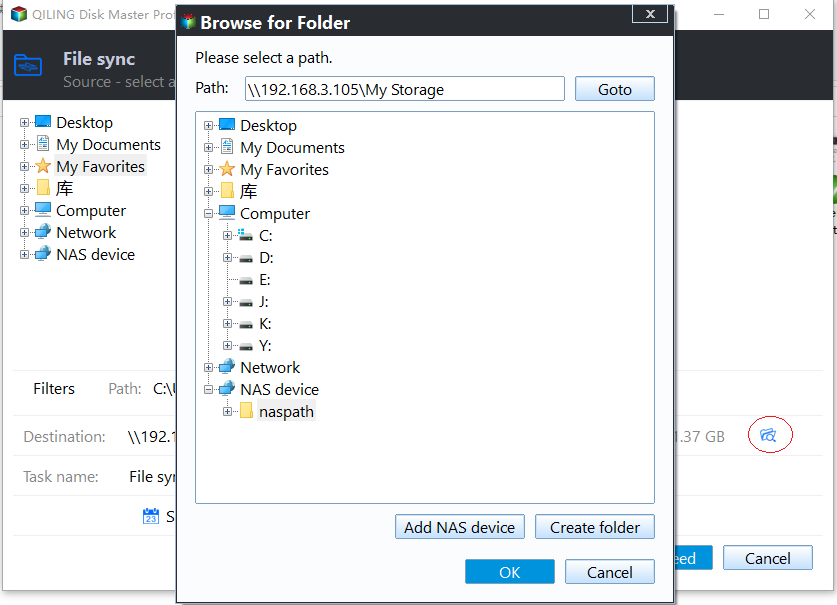
✐ Note: To sync a PC with a cloud drive, select "Select a cloud drive".
Step 4. In the pop-up window, enter the IP address of the source computer and click the blue button on the right. If necessary, enter the username and password.

Step 5. To synchronize the folder(s), choose the shared folder you created to store the folder(s) to be synchronized and click OK.
Step 6. Confirm the operation and click Proceed to begin.
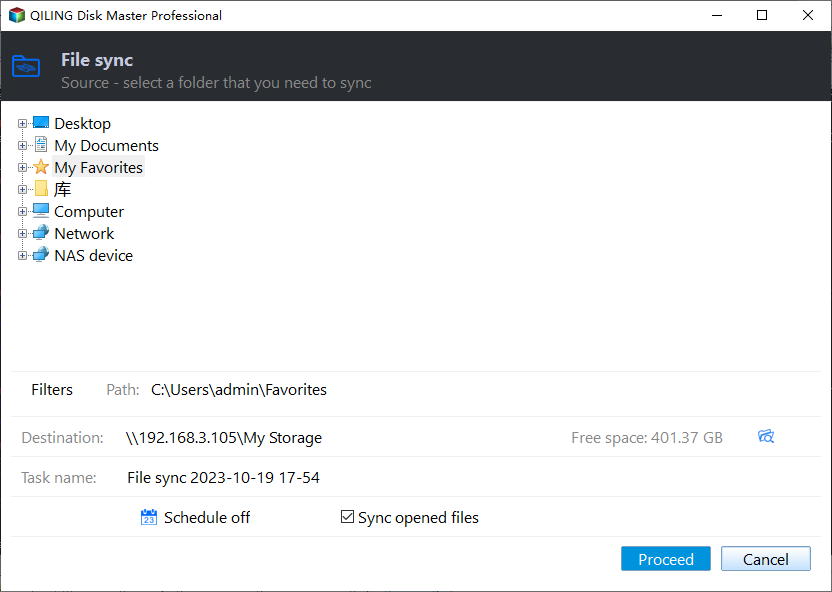
✍ Tips:
● Clicking Options allows you to add a note for the sync task and enable email notifications. Additionally, you can click Schedule Sync to set up automatic sync.
● Upgrading to Qiling Disk Master Professional allows for more advanced sync modes, including File Sync, File Sync, and File sync.
Access the shared folder on the destination computer
Here are three methods to access a shared folder on the destination computer after syncing:
Method 1. Go to "This PC" > "Network," find the source computer's name, and double-click it to access the shared folder.
Method 2. To access a shared folder on another computer, tap the Search button on the taskbar, type the IP address of the source computer in the search box, and press Enter. This will display the shared folder.
Method 3. To access a shared folder on another computer, first press the Windows key + R to open the Run dialog box. Next, type the IP address of the source computer followed by a backslash (\), and press Enter. This will allow you to access the shared folder on the other computer.
✐ Note: When the source computer is asleep or closed, shared items will be inaccessible. To ensure access, copy files to another location on the destination computer, allowing for retrieval at any time.
Verdict
Now that you know what PC sync is and how to sync PC folders to another PC using free PC sync software like Qiling Disk Master, you may also want to know that Qiling Disk Master is not only a great PC sync tool but also an excellent Windows backup software and SSD to SSD clone software. If you create a Qiling account, you'll get 1TB of free storage for 15 days, allowing you to backup files to Qiling Cloud. Give it a try and you won't regret it!
Related Articles
- How to Sync a Laptop and a Desktop in Windows 10? (2 Cases)
Set up sync a Laptop and a Desktop in Windows 10 (2 Cases) with practical backup or sync options, storage checks, and safer ways to protect files. - Freeware to Sync Files between Two Computers on the Same Network
File sync between two computers via network is very convenient for users who work on different computers installing Windows 11/10/8.1/8/7/Vista/XP. Free Qiling Disk Master can sync files with a few steps. - 3 Ways to Make Windows Sync Folders between Computers
This guide explains 3 Ways to Make Windows Sync Folders between Computers with clear steps, key checks, and practical tips. - Quick Fix: SD Card Copy Hangs While Copying Files to Computer
This guide explains Quick Fix: SD Card Copy Hangs While Copying Files to Computer with clear steps, key checks, and practical tips. - Fix Annoying Error: Your File History Drive Is Disconnected
Try the following 5 ways to fix "Your File History drive is disconnected" error, or try the best free alternative for File History - Qiling Disk Master to auto backup your files easily. - Fix a Corrupted Flash Drive without Formatting (2+5 Solutions)
You will learn how to fix a corrupted flash drive without formatting or data loss. Also, backing up files is necessary for data security.
Products
Articles & Tutorials
- Data Recovery
- Data Backup
- File Recovery
- File Backup
- File synchronize
- System Backup and Restore
- Disk and Partition Clone
- Technical articles
- Disk Master Help
- Windows Deleted File and Disk Recovery Tutorials
- Windows File and Data Recovery Tutorials
- More Windows Tutorials for Install, Security, Files, and PC Tips
- Windows Boot, Repair, and Recovery Environment Tutorials
- Windows Backup Tutorials
- Windows Restore Tutorials
- Windows Clone and Migration Tutorials
- Windows Server Backup, Recovery, and Management Tutorials
- Windows Disk, Partition, and Storage Management Tutorials