Top 5 Practices for NTBackup in Windows Server 2003
Quick navigation:
- NTBackup in Windows Server 2003 (R2)
- NTBackup System State Backup
- NTBackup Backup Files or Folders
- NTBackup Set Advanced Options
- NTBackup Set Backup Type
- Restore files from NTBackup Command
- Easy Alternative to Windows Server 2003 Backup Software - Qiling Disk Master
- Conclusion
NTBackup in Windows Server 2003 (R2)
NTBackup, included in Windows XP, is a snap-in free backup software for Windows Server 2003 (R2), allowing you to backup system state, files and folders to various media. It has been replaced by Windows Backup and Restore in Windows Vista and later, which uses the VHD file format. In Windows Server 2008 and later, NTBackup has been replaced by Windows Server Backup, which can be accessed through the wbadmin backup command or GUI interface.
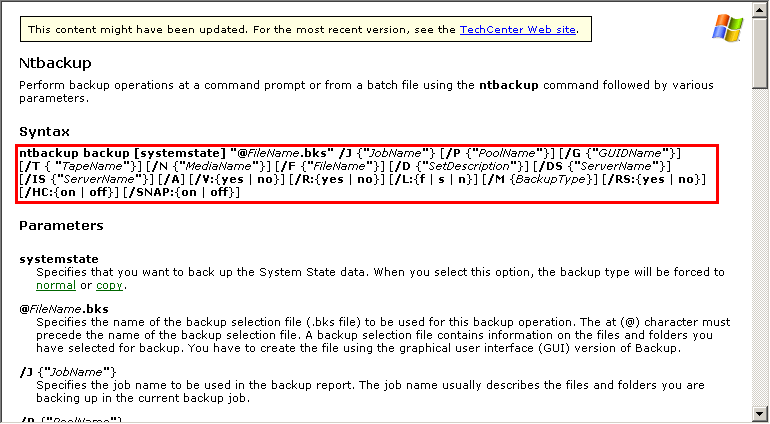
To use NTBackup in Windows Server 2003, go to Start -> All Programs -> Accessories -> Command Prompt. Then, type 'ntbackup /?' to view the syntax and learn how to use the command tool.
NTBackup System State Backup
NTBackup supports various backup options, including system state backup, scheduling, incremental or differential backup, and more. Specifically, we will outline the process for creating a system state backup on Windows Server 2003 (R2).
System state backup in Windows Server 2003 (R2) includes boot files, system files, registry, SYSVOL, Windows File Protection files, Certificate Services database, Active Directory database, Cluster database info, and IIS Metabase.
▆ To create a system state backup for Windows Server 2003, you can use the command "ntbackup" with the "/a" option followed by the "/f" option and the path to the backup file, like this: "ntbackup /a /f "C:\backup.bak" /d "System State Backup" /v:yes".
NTBackup backup systemstate
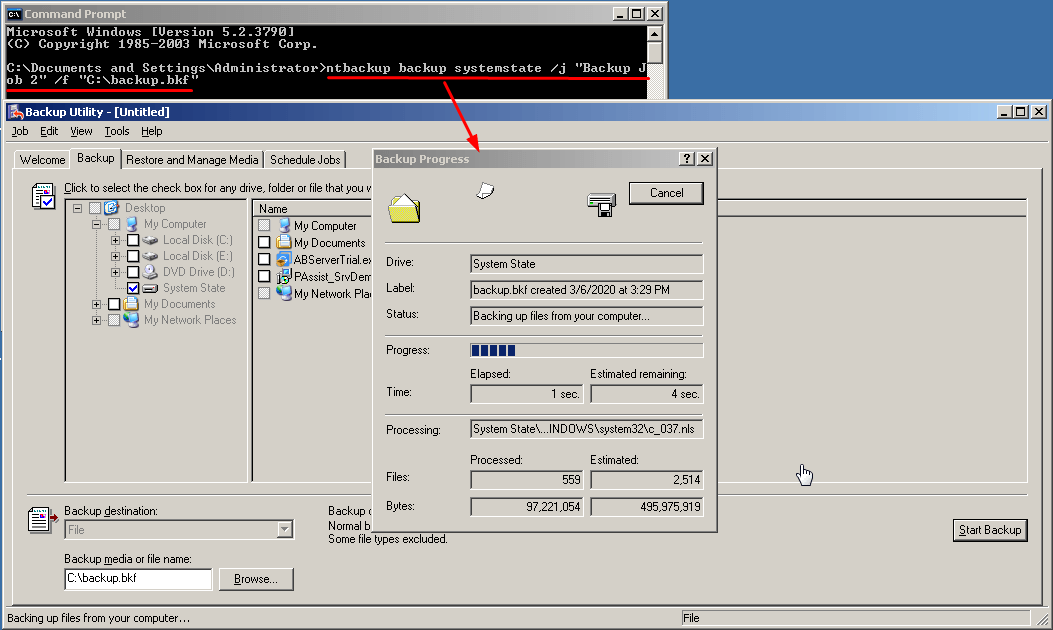
▆ Create a system state backup job named Backup Job 2 to the file C:\backup.bkf.
ntbackup backup systemstate /J "Backup Job 2" /F "C:\backup.bkf"
Notes:
- If you don't specify other backup options, NTbackup will use the default values for backup type, verification, logging, compression, and other settings.
- If the system state backup file fails to restore your system after a failure, it's highly recommended to back up all system and boot partitions, including the system state backup.
NTBackup Backup Files or Folders
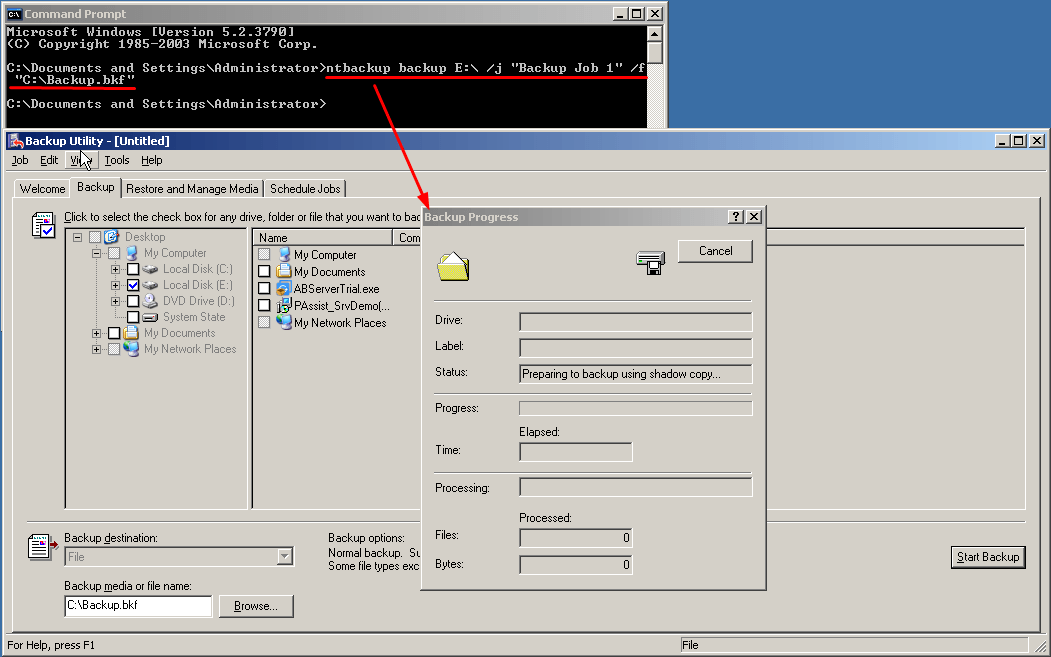
▢ To create a backup of your E drive to the D:\backup.bkf file, you can run the command:
ntbackup.exe backup E:\ /j "Backup Job 1" /f "C:\Backup.bkf"
NTBackup Set Advanced Options
▆ To set advanced options for your backup, try the following syntax:
ntbackup backup /V:{yes|no} /HC:{on|off} /SNAP:{on|off}
Notes:
- /V: verify the backup data after backing up.
- /HC: specify whether the hardware compression is used or not.
- The `SNAP` option is used to set whether the volume shadow copy is used or not. It can be set to either `YES` or `NO`.
▆ To create a backup job named "Backup Job 1" that backs up data on drive E:\ to the file C:\backup.bkf and disable the volume shadow copy, input: `Backup Job 1` `E:\` `C:\backup.bkf` `-vss`
ntbackup backup E:\ /J "Backup Job 1" /F "C:\backup.bkf" /SNAP:off

NTBackup Set Backup Type
▆ To set the backup type, use the syntax `backup type = <type>`, where `<type>` is one of the following: `daily`, `weekly`, or `monthly`. For example, `backup type = daily` will set the backup to run daily, while `backup type = weekly` will set it to run weekly, and `backup type = monthly` will set it to run monthly.
ntbackup backup /M {backuptype}
▆ Create a backup job named "Backup Job 1" to backup system state data to the file C:\Backup.bkf.
The command `ntbackup backup systemstate /M normal /J "Backup Job 1" /F "C:\backup.bkf"` is used to create a backup of the system state using the NTBackup utility. This command tells NTBackup to perform a normal backup of the system state, which includes the registry and other critical system files, and save it to a file named "backup".
Restore files from NTBackup Command
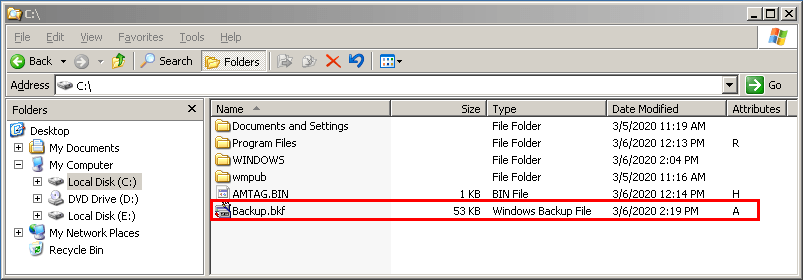
You cannot restore files from the command line using the NTBackup command. Instead, you can find the .bkf file in File Explorer to restore or open Backup Utility directly to restore.
1. Double-click the .bkf file to open Backup or Restore Wizard.
2. Click the "Next" button, then select "Restore files and settings" and click "Next" again.

3. To restore data from a .bkf file, click the + icon to expand it, select the desired .bkf file, and then navigate to its data section. From there, choose the files, folders, or drive you wish to restore and click Next.
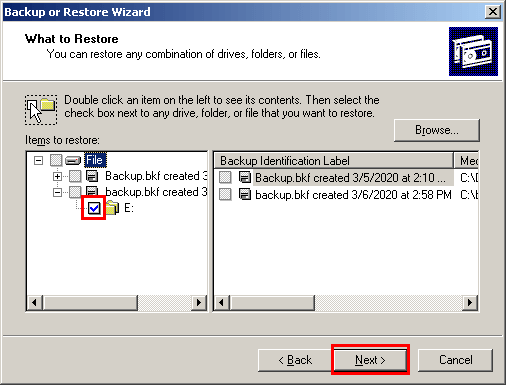
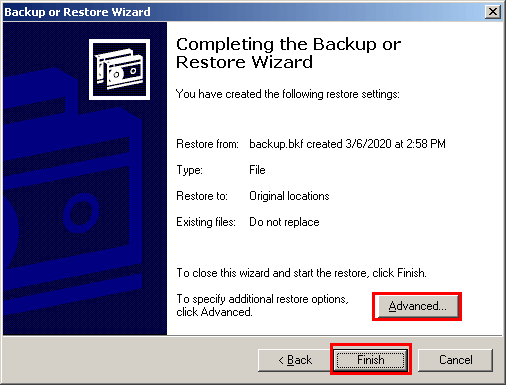
4. To restore data to its original location, select "Finish" to start the process. For other locations, click "Advanced" to specify the destination.
Tips:
- You can download the NTBackup Restore Utility from the Microsoft website to restore backups created by Windows XP and Windows Server 2003 to computers running Windows 7 and Windows Server 2008 (R2).
- To avoid errors when installing NTBackup Restore utility, ensure that Removable Storage Management is enabled beforehand. Disabling Removable Storage Management may result in an NTSMAPI.dll error.
Easy Alternative to Windows Server 2003 Backup Software - Qiling Disk Master
NTBackup can be overwhelming for non-technical users, but there is a simpler way to backup and restore data on a computer. Qiling Disk Master Server is a user-friendly Windows Server backup software that can backup operating systems, system files, partitions, program settings, and personal files with ease. It supports various Windows versions, including XP, Vista, 7, 8, 8.1, 10, 11, as well as Windows Server 2003, 2008, 2012, 2016, 2019, and 2022, including R2 versions. This software allows for automatic backup tasks, making data protection a breeze.
Qiling Disk Master Server owns all functions of NTBackup and provides more:
☃ More storage devices are supported to save the backup file, including USB flash drives, external hard drives, NAS, network shares, and cloud storage options.
☃ Qiling Disk Master provides a flexible way to modify backup images, allowing you to check, split, compress, encrypt, and add comments to them, as well as merge multiple backup images into one.
☃ To ensure data safety, keep multiple backup versions regardless of storage device. This can be achieved by setting a schedule for automatic backups, and also running incremental or differential backups. As a result, you will have multiple backups in time.
☃ Customize your backups with a hierarchical approach, choosing to retain them by daily, weekly, or monthly options. This flexibility also allows for more efficient management of disk space.
☃ You can restore a backup image created by Qiling Disk Master as long as it was created by that program, but you cannot restore backup files created by NTBackup except for the Backup Utility.
Backup Windows Server 2003 (R2) System State in 3 Steps
1. Click Backup -> System Backup on the main window.

2. The default selection for backup destination is the "Select a destination" option, which allows you to choose a location to back up the Windows Server 2003 (R2) OS, system files, and boot files, among other system components.

3. Tap Proceed to create a system backup.

Other Useful Backup Features in Qiling Disk Master
✍ To backup files:
To backup files, go to the Backup section, select File Backup, choose the files and folders you want to save, and then select a backup drive to store your data. Click Proceed to start the backup process.

✍ To set backup options:
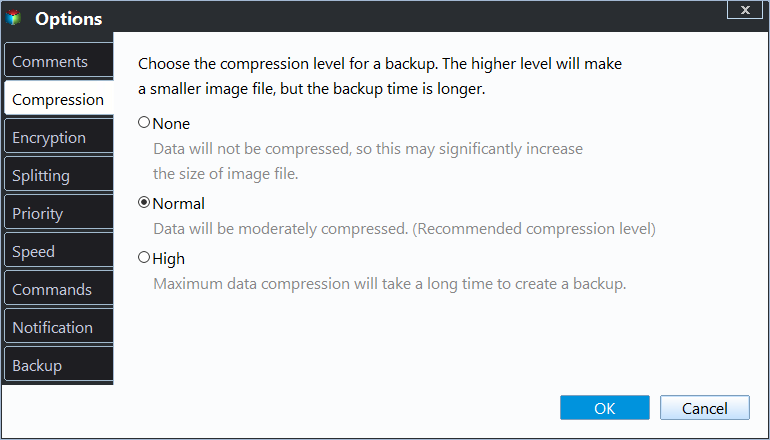
The user has clicked on the "Options" button at the final window and is presented with 4 tabs to choose from.
- General: You can comment on this task, set a password to encrypt the backup, and enable email notification.
- Backup Mode: You can set up intelligent sector backup or make an exact backup, and also utilize backup services like Microsoft VSS or Qiling Disk Master Service.
- Command: You can set pre-command and post-command.
- Advanced: You can set compression, splitting, operation priority and others.
✍ To set schedule backup:
To schedule a backup, click on the "Schedule Backup" option in the final window, and enable it. This will display 5 options for you to choose from.
- Daily: You can choose to run a backup once only or on a daily schedule, setting intervals from 00:00 to 23:59 to run every 1 hour.
- Weekly: You can schedule a specific day and time for the backup task to run, allowing for more control and flexibility in managing your data.
- Monthly: You can choose to run once on a specific day and time.
- Event triggers: The most popular option is system shutdown.
- USB plug in: It's a plug and pull backup method that automatically backs up a computer to a USB drive when it's connected.

✍ To set backup types and cleanup methods:
Click Backup Scheme, in the pop-up window, you will see two sections: Backup Method and Enable Automatic Backup Cleanup.
- Backup Method: The software offers three backup options: full backup, incremental backup, and differential backup. Incremental and differential backups are space-saving alternatives to the full backup, and more information on their differences can be found by clicking here.
- In the automatic backup cleanup settings, you have four options to choose from. By default, you can only see three of these options: By quantity, By time, and By daily/weekly/monthly. However, if you're in differential backup mode, you also have the option to clean up by space.

✍ To restore files:
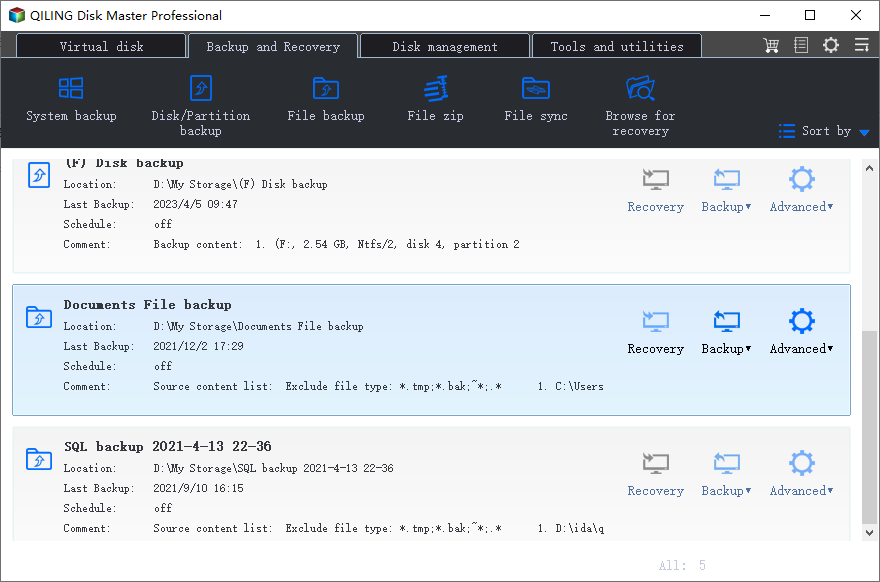
Click the Restore tab, select either Select Task or Select Image File, and then choose the file backup image and destination path to receive the backup image, and click Proceed.
Besides, creating bootable media can be used to boot a computer for system restoration in case of system failure. If no storage device is available, you can use the recovery environment feature or PXE boot tool, depending on the number of computers to be restored.

Conclusion
NTBackup is a great backup tool for professionals to backup Windows Server 2003 or Windows XP. For non-experts, Qiling Disk Master offers a user-friendly interface to backup system, disk, partition, or files, and can even be set to run automatically.
Qiling Disk Master is a helpful tool for managing disk space with features such as compression, scheduled backups, incremental or differential backups, and automatic backup cleanup, making it a valuable asset for IT technicians who can also opt for the Technician or TechPlus edition.
Related Articles
- How to Restore Windows Server 2003 System Image Backup (Secure Boot)
Learn how to restore Windows Server 2003, 2008, 2012 (R2) system image backup to previous state or on different hardware with the help of Qiling Disk Master Server. - How to Take System State Backup in Windows Server 2008 (R2)
You will learn 3 methods to take system state backup and recovery in Windows Server 2008 (R2), including using Windows Server backup utility, command line or third-party server backup software. - Quick Guide to Use Shadow Copy in Windows Server 2012
You will learn the Windows Server 2012 (R2) shadow copy best practices as well as more safer way to backup files. Anyway, check out these useful ways first. - Windows 10 vs Windows 11 File History: Backup Files Automatically
This article introduces you to Windows 10 vs Windows 11 File History and stepwise guide to backup files in Windows 11. An easier alternative is included. - Use EZ Gig IV Handy Alternative to Migrate OS to SSD
You can use a free alternative to EZ Gig IV to migrate your OS from a hard drive (HDD) to a smaller solid state drive (SSD) with easier operation. This page will guide you through using a different tool for OS migration. - Failed to Create a New Partition on the Selected Unused Space
Learn how to fix the error 0x8004240f: failed to create a new partition on the selected unused space when installing Windows 10/8/7.
Products
Articles & Tutorials
- Data Recovery
- Data Backup
- File Recovery
- File Backup
- File synchronize
- System Backup and Restore
- Disk and Partition Clone
- Technical articles
- Disk Master Help
- Windows Deleted File and Disk Recovery Tutorials
- Windows File and Data Recovery Tutorials
- More Windows Tutorials for Install, Security, Files, and PC Tips
- Windows Boot, Repair, and Recovery Environment Tutorials
- Windows Backup Tutorials
- Windows Restore Tutorials
- Windows Clone and Migration Tutorials
- Windows Server Backup, Recovery, and Management Tutorials
- Windows Disk, Partition, and Storage Management Tutorials