Take System State Backup and Restore in Server 2008 (R2) Easily
- Why Should We Backup System State for Windows 2008?
- Create System State Backup and Restore in Windows Server 2008 with Built-in Tool
- Create Windows Server 2008 System State Backup and Restore via Command Line
- Create Windows Server 2008 System State Backup and Restore with Qiling Disk Master
- Create System Backup Windows Server 2008 via Qiling Disk Master
- Restore System Backup Windows Server 2008 via Qiling Disk Master
- Conclusion
Why Should We Backup System State for Windows 2008?
The importance of data on a server machine cannot be overstated, whether it's Windows Server 2003 or Windows Server 2008. However, various situations can lead to data loss or system crashes, including hard disk damage, virus invasion, operating errors, or even natural disasters. Once the system crashed, the company would suffer significant financial losses.
To ensure normal business operations, it is crucial to back up the system state of your Windows Server 2008. This allows you to store the system state in a safe location, making it possible to restore the system immediately in case of damage or failure.
Don't worry about it too much, I'll show you three solutions below to create system state backup for Windows Server 2008 R2. You can first read and then choose the suitable one to follow. Or if you prefer the easiest way to make it, then Method 3 is the way to go. The tool can help you schedule multiple daily/weekly/monthly backup tasks with no effort.
Create System State Backup and Restore in Windows Server 2008 with Built-in Tool
Windows Server 2003's backup tool, NTbackup, is used for system state backups. However, with the evolution of Microsoft's operating systems, NTbackup has been upgraded and replaced by Windows Server Backup in Windows Server 2008 and 2008 R2. Notably, Windows Server 2008 does not have Windows Server Backup installed by default, and users must manually add the "Windows Server Backup" utility to utilize it.
- To add the Windows Server Backup feature, open the Server Manager, click on Features, then click on Add Features. This will open the Select Features interface, where you can select and install the Windows Server Backup feature.

- To take a system state backup in Windows Server 2008, go to Windows Server Backup, which can be accessed by clicking Start -> Administrative Tools -> Windows Server Backup. From there, you can create a one-time backup of the system state or schedule a regular backup.
- To create a system restore point in Windows Server 2008(R2), select either the Backup Once Wizard or Backup Schedule Wizard on the right side, then choose Different options and Full server to include system state, following the detailed steps outlined in the linked article.
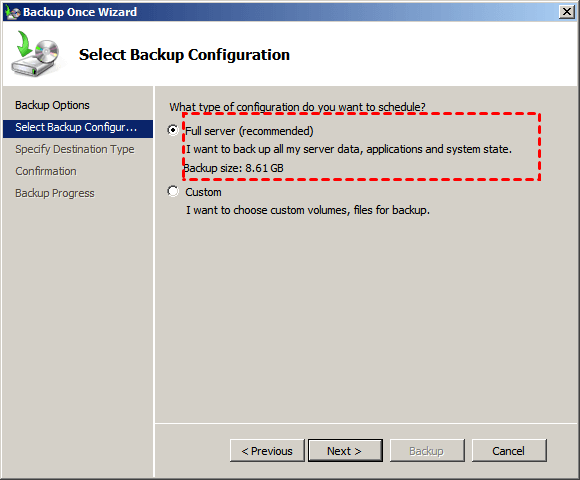
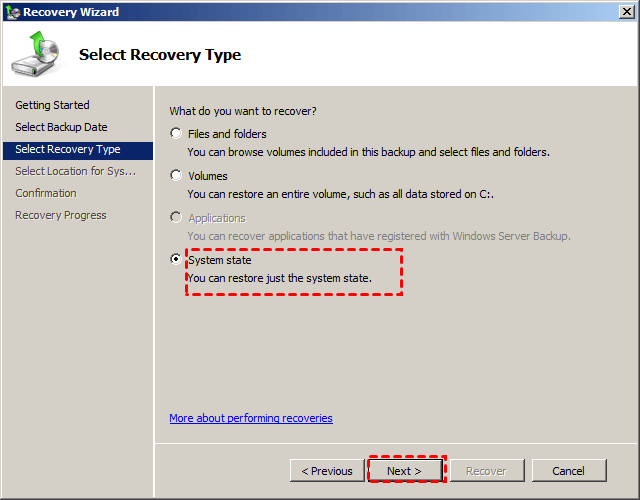
- After creating a system state backup, you can restore it when starting your computer but lost system files or registry. To do this, open Windows Server Backup, click "Recover" on the right side, and select "This server" if the backup is saved at a local disk. Then, choose the backup image that contains the system state and select it. For a step-by-step guide with pictures, you can refer to the article on restoring Windows Server 2008(R2) to a previous date.
Windows Server 2008 introduced a snapshot tool to enhance NTbackup, but it still has limitations, taking a long time to backup and restore, and lacking in other areas.
✧ It could not restore the backup created by NTbackup.exe.
✧ It needs a separate disk to run the scheduled backup.
✧ It can only backup local NTFS volume.
Windows server 2008 backup software is a must-have due to its security and reliability features. However, users may find it challenging to use, making it a popular software worldwide. Considering the security and price, we recommend using Qiling Disk Master Server, which is a reliable option for backing up Windows server 2008.
Create Windows Server 2008 System State Backup and Restore via Command Line
In addition to Windows Server Backup, Windows Server 2008 also features a command-line utility called Wbadmin that enables system state backups. This utility can be used to schedule backups via the -schedule switch, providing an alternative to Windows Server Backup for creating system state backups in Windows Server 2008.
Create Windows Server 2008 System State Backup
- To open the Command Prompt as an administrator in Windows, click the Start button and type "cmd" in the search box, then right-click on the Command Prompt result and select "Run as administrator".
- Enter to execute system state backup.
▶ wbadmin start systemstatebackup -backuptarget:X: -quiet
Tips✍:
¤ To save your backup, specify the drive letter of the partition you want to save it on (e.g. X:), making sure it's not the same as the source volume containing the files you're backing up. Otherwise, you'll get an error about the backup location being a critical volume or requiring too much space for the volume shadow process and backup.
¤ If you want to use the source volume as the target volume for storing backup images, you can add a registry key and set its value to 1, allowing system state backups in any volume to be enabled. To revert to the default behavior, set the value to 0. The registry key is located at HKEY_LOCAL_MACHINE\SYSTEM\CurrentControlSet\Services\wbengine\SystemStateBackup\.
¤ -quiet The command can be undone before proceeding, unless the -quiet parameter is specified, in which case a prompt will be displayed asking if you want to start the backup operation, requiring a 'Y' to be typed to confirm.
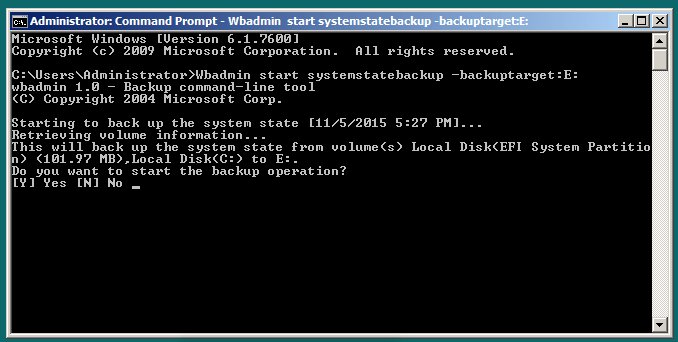
The system state backup of a server creates a backup of around 11 GB in size, stored in a directory named WindowsImageBackup.
Perform Windows Server 2008 System State Recovery
You may not want to do any recovery, but you should know how to recover just in case. Below are the steps.
- To access the Advanced Boot Options window, restart your server and press the F8 key repeatedly. This will allow you to access a menu with various boot options.
- To access the Advanced Boot Options window, restart your server and select the option to boot into the Advanced Boot Options window. From there, choose "Directory Services Restore Mode" and log in with the DSRM password created during Active Directory installation.
- In the DSRM safe mode, click Start, type cmd and select it.
- To get the backup version you have, type "wbadmin get versions" and press Enter.
- To restore a system state backup, type `wbadmin start systemstate recovery -version: version identifier` in the command prompt, replacing `version identifier` with the actual identifier obtained in the previous step.
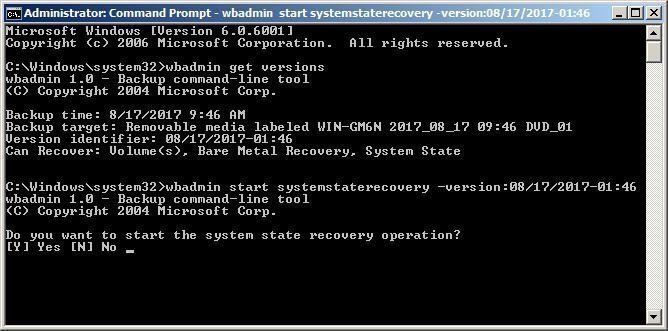
- If you're prompted to confirm the restore operation, simply press Enter after typing 'y' to initiate the process. This will allow the system to automatically complete the restore, giving you time to grab a couple of cups of coffee while it runs in the background.
Create Windows Server 2008 System State Backup and Restore with Qiling Disk Master
Qiling Disk Master Server is a professional server backup software designed for Windows operating systems, including Windows Server 2008 (R2), 2012 (R2), 2016, 2019, 2022, and Windows PC operating systems. It offers a range of backup options, including system state, file, disk, and partition backup, providing a comprehensive solution for data protection and recovery.
The utility supports creating multiple scheduled backups, including daily, weekly, and monthly backups, as well as event triggers, in contrast to the Windows Server Backup utility which can only create one daily scheduled backup.
The tool has a simple operating interface, allowing for easy backup of Windows Server 2008 with just a few steps. To create a system state backup in Windows 2008 R2, simply get the tool and follow the steps.
Create System Backup Windows Server 2008 via Qiling Disk Master
Step 1. To perform a system backup, click the "Backup" tab and select "System Backup". This option allows for a full system backup, as well as other types of backups such as disk, partition, file, and file sync.

Step 2. The interface allows you to select a destination to save a Windows Server 2008 system state backup, with a screenshot available to view.
✍Tip: You can choose to backup your system image to various locations, including local and external drives, as well as shared drives, NAS devices, and even networks.

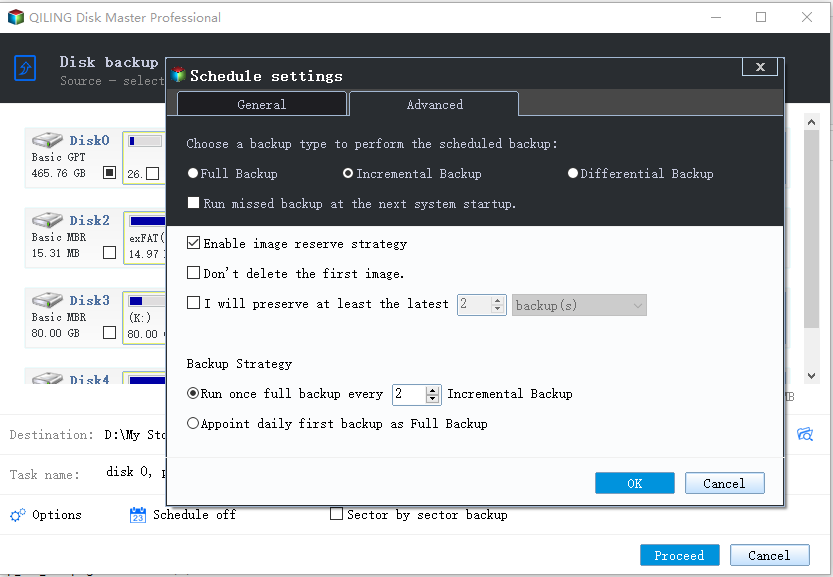
Step 3. (Optional) Configure backup schedule and scheme based on your needs.
▶ To set up a system backup task, click the "Schedule" option and choose a time frame for the task to run, such as daily, weekly, or monthly.

▶ In Scheme, set the backup method to Full Backup, Incremental Backup, or Differential Backup, and enable automatic backup cleanup by quality, time, or daily/weekly/monthly schedule to delete obsolete backups.
Note✍:
If you choose Incremental or Differential backup, Qiling Disk Master will only backup the changed and modified data since the latest backup.
Step 4. After setting up the backup settings, click Proceed to initiate the backup process. This may take a few minutes, depending on the size of your system partition. Once complete, click Finish to confirm the backup of your Server 2008 system state.

Restore System Backup Windows Server 2008 via Qiling Disk Master
When your computer encounters issues, you may want to restore system state backup in Windows Server 2008 or other operating systems. To do so, follow these steps, which remain the same across different operating systems, as a reference.
Step 1. Launch the software, click Restore and then Select Task to find the image file.

Step 2. To restore a backup image, select the desired backup image from the list and click Next. If the list is empty, click Select Image File to manually choose the backup image.

Step 3. Select to restore the entire system and click Next.

TipTo restore a system image to a new hard drive, select the option to restore the system to another location and choose a partition on the new disk.
Step 4. Confirm the operation summary and click Proceed.

TipIf you're restoring a system image to a computer with different hardware, it's recommended to select the "Universal Restore" option, which will install the necessary drivers for the computer to start.
Conclusion
To take a system state backup and restore in Windows 2008 R2, Qiling Disk Master Server is the optimal choice, offering more powerful functions than the Windows Server Backup utility or command line. This tool is fully compatible with all Windows operating systems, including 32-bit and 64-bit versions of server 2012/2016/2019/2022, making it a versatile option for system state backup and restore needs.
To protect unlimited PCs and servers within your company, you can choose Qiling Disk Master Technician Plus, which offers unlimited billable technical services and allows for portable version creation.
Related Articles
- Use Wbadmin Start Systemstatebackup to Backup Your Computer
Learn how to use Wbadmin start systemstatebackup command to backup system state of your computer from an elevated command prompt so that you can perform disaster recovery when system crashes. - Restore Windows Server 2008 R2 to Previous Date | 3 Ways
Learn how to Restore Windows Server 2008 R2 to Previous Date | 3 Ways with clear steps, key checks, and practical tips. - Get System State Backup of Windows 2012 R2 Domain Controller
You will learn how to create a system state backup and system backup of Windows Server 2012 R2 domain controller. The detailed steps are in each method. - Why do you need to back up the data?
Qiling disk master is a powerful, reliable and secure backup facility with numerous benefits, including system Backup, file backup, clone utilities and so on. - How to Backup Windows 11 to Synology NAS (3 Working Ways)👍
Backing up Windows 11 to a Synology NAS can be easily done in three convenient ways, making recovery and collaboration a breeze. - How to Backup Windows to Box - Safe & Quick Solutions
To create a backup to Box through Windows, users need to have a Box account, the Box Sync software installed on their computer, and a stable internet connection. They also need to have enough storage space on their Box account to store the backup files.
Products
Articles & Tutorials
- Data Recovery
- Data Backup
- File Recovery
- File Backup
- File synchronize
- System Backup and Restore
- Disk and Partition Clone
- Technical articles
- Disk Master Help
- Windows Deleted File and Disk Recovery Tutorials
- Windows File and Data Recovery Tutorials
- More Windows Tutorials for Install, Security, Files, and PC Tips
- Windows Boot, Repair, and Recovery Environment Tutorials
- Windows Backup Tutorials
- Windows Restore Tutorials
- Windows Clone and Migration Tutorials
- Windows Server Backup, Recovery, and Management Tutorials
- Windows Disk, Partition, and Storage Management Tutorials