Best Windows Server Backup Alternative - Qiling Disk Master
About Windows Server Backup
Windows Server Backup (WSB) is a free backup software for various Windows Server versions, allowing you to backup full servers, selected volumes, system state, specific files or folders, or create bare metal backups.
Windows Server Backup (WSB) has replaced NTBackup and offers significant improvements in backup capabilities, adopting block-level backup instead of file-level backup. This allows for more efficient and effective backups. Additionally, WSB provides a command-line version called Wbadmin, which enables IT professionals to easily manage backups.
Windows Server Backup has some limitations, including limited support for virtual machines, limited bare-metal recovery capabilities, and limited support for SQL Server and Exchange databases. Additionally, it may not work with some third-party backup software.
- Windows Server Backup does not support individual file backup, instead you have to backup the entire volume. If you select individual files and folders, the backup will be empty.
- Windows Server Backup only supports one scheduled backup job and by default creates a full backup when backing up to a NAS.
- Windows Server Backup only backup volumes formatted with NTFS.
- Windows Server Backup may fail to create backups due to insufficient disk space, as it doesn't shrink shadow copy storage to 1/8 of the target volume size.
- Windows Server Backup not doing incremental backup sometimes, such as, your last backup is not detected, may be due to the backup configuration not being set to incremental mode or the last backup not being properly completed. This can cause the backup process to start from scratch each time, resulting in a full backup instead of an incremental one.
Windows Server Backup is a good server backup software for creating a single backup, but it may not work for multiple backups or backing up files only. In such cases, using a Windows Server Backup alternative may be a better option.
Best Server Backup Software Alternative - Qiling Disk Master Server
Qiling Disk Master Server is the best professional server backup software, making it easier to handle server backup and recovery with its top-notch services.
- All Windows Servers and PCs supported. Windows Server 2003, 2008, 2012, 2016, 2019, 2022 (including R2) and Windows 11, 10, 8.1, 8, 7, Vista, XP operating systems are supported, covering all 32-bit and 64-bit versions.
- Flexible way to backup Windows Server: This software allows for comprehensive backups of entire hard disks, systems, data partitions, or individual files and folders, and also enables the creation of multiple automatic schedules with a "set and forget" feature, even to network shares or NAS.
- Manage backup disk professionally. The software's Backup Scheme feature allows users to save or free up hard disk storage space using incremental and differential backup methods or automatic cleanup methods.
- Other small shining features. This Windows Server backup software supports various storage options, including internal or external drives, USB, network shares or NAS, cloud drives, and file systems like FAT16, FAT32, NTFS, ReFS, Ext2, Ext3, ExFAT.
If you're looking for the best server backup software alternative, I recommend downloading Qiling Disk Master Server's free trial for 30 days to try it out. You can experience the clone features, although they can only be demonstrated in the free trial version. Upgrading will give you access to more features.
How to Backup Server 2019 with Qiling Disk Master Server
Qiling Disk Master is the best alternative to Windows Server Backup, allowing you to easily backup your system, disk, partition, or files and folders. For example, to set up a backup schedule on Windows Server 2019, you can follow these steps.
1. To perform an alternative to Windows server backup, use Qiling Disk Master Server, select the "Disk Backup" option at the "Backup" tab.

Tip: In Windows Server 2019, you can also create system backup, partition backup, file backup, and cloud backup.
2. To choose a disk in Windows Server 2019, click the "+" Disks button and select the desired disk. You can also rename the "Task Name" if necessary.

3. To save the image backup for Windows Server 2019, select a local drive or network location where you want to store the backup file. This location should have sufficient free space to accommodate the size of the image backup.

4. Click Schedule Backup and enable it, then select a backup frequency such as Daily, Weekly, Monthly, or Event triggers, or USB plug in.

Tips:
- If your backup destination is a local drive, choose a schedule based on how often the data changes or specific events. However, if using a USB drive, the simplest method in Windows Server 2019 is to utilize the USB plug-in feature.
- If your destination is a network drive or NAS, choose Daily, Weekly, or Monthly.
5. To change the backup and cleanup methods, go to the Backup Scheme tab, select the desired methods, and configure them as needed. You can choose to backup only changed files with Incremental or Differential Backup, and set up automatic deletion of old backups by quantity, time, or frequency (daily, weekly, monthly). Incremental Backup is the default method.
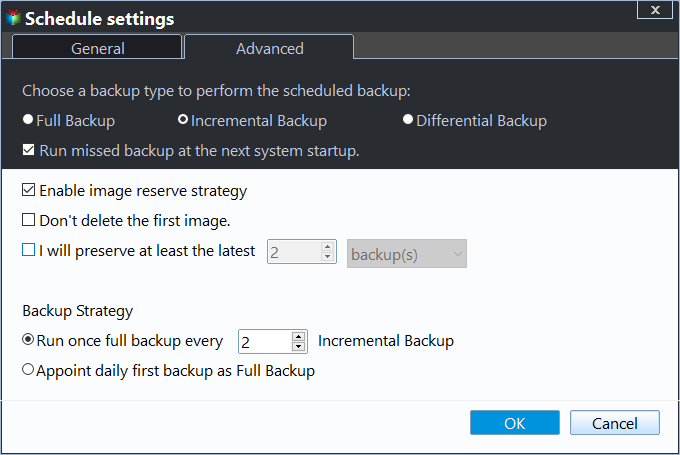
Notes:
- Regardless of the backup type chosen, whether it's a full backup, incremental or differential backup, the initial backup is always a full backup, which serves as the foundation for subsequent backups. This full backup is then followed by the creation of the specified backup type, such as incremental or differential, which builds upon the initial full backup.
- You can also set Options to configure advanced backup settings, such as encrypting, compressing, and splitting the backup image, as well as utilizing Volume Shadow Copy Service (VSS) to create an exact backup of the system. This process ensures that the backup is both secure and efficient, allowing for a reliable and complete recovery of the system in the event of a failure. You can also enable sector by sector backup, email notification, etc.
6. To automate the creation of a Windows Server 2019 multiple schedule, click the "Proceed".

After a period of time (and the time depending on the data capacity of Windows Server 2019), you have successfully backed up Server 2019. This software also supports other useful features.
- Restore: A backup image can be made bootable by restoring a system image or disk image, and it's also capable of restoring files and partitions.
- Sync: If you want to backup files without compressing them, you can use File Sync, which allows you to synchronize files between locations based on sync directions, frequency, and file security in the destination.
- Clone: This tool allows you to clone a disk, system, or partition without compression, and also makes the cloned drive (including the OS) bootable. As a result, you can directly replace a traditional HDD with an SSD in a laptop or desktop, without any additional steps.
- DiskMasterUI.exe: A professional command-line backup and restore utility that requires learning some parameters.
- ...
The End
If you're looking for a reliable alternative to Windows Server Backup, Qiling Disk Master Server is a top choice. Its user-friendly interface makes it easy for all users to understand and navigate, while its comprehensive backup capabilities support disk, system, partition, file, and cloud backup solutions. Additionally, Qiling Disk Master Server offers flexibility in creating multiple schedules and managing disk space professionally, making it a valuable tool for managing backups.
This Windows server backup tool is suitable for small to medium-sized businesses, supporting server versions from 2003 to 2022, as well as Windows 11, 10, 8.1, 8, 7, and Vista. It can be downloaded for a trial, and for centralized management and monitoring of backups across the LAN, Qiling Centralized Disk Master is recommended.
Related Articles
- Best Handy Backup Free Alternative for Windows
In this post, you will get the best Handy Backup free alternative and learn how to create disk backup automatically with it in simple clicks. - Windows Server Backup Limitations You Should Know
This guide explains Windows Server Backup Limitations You Should Know with clear steps, key checks, and practical tips. - Best Free Arq Backup Alternative - Qiling Disk Master
This guide explains Best Free Arq Backup Alternative - Qiling Disk Master with clear steps, key checks, and practical tips. - [Solved] How to Backup Laptop to External Hard Drive on Windows 10/11
In this post, we will provide a full guide on how to backup a laptop to an external hard drive on Windows 10/11. We recommend Qiling Backup to you as it is easy to use and works on both Windows 10/11. - Stepwise Guide | How to Install Windows 7 on a Hard Drive for Another Computer
This is a step-by-step guide on how to install Windows 7 on a hard drive for another computer. However, with the help of Qiling Disk Master, you can also learn how to install Windows on an external hard drive for another PC. - (Step-by-step Guide) How to Install Windows 10 on Hard Drive for Another Computer
If you're looking to install Windows 10 on a hard drive for another computer, this article will guide you through the process and recommend a tool called Qiling Disk Master to assist you.
Products
Articles & Tutorials
- Data Recovery
- Data Backup
- File Recovery
- File Backup
- File synchronize
- System Backup and Restore
- Disk and Partition Clone
- Technical articles
- Disk Master Help
- Windows Deleted File and Disk Recovery Tutorials
- Windows File and Data Recovery Tutorials
- More Windows Tutorials for Install, Security, Files, and PC Tips
- Windows Boot, Repair, and Recovery Environment Tutorials
- Windows Backup Tutorials
- Windows Restore Tutorials
- Windows Clone and Migration Tutorials
- Windows Server Backup, Recovery, and Management Tutorials
- Windows Disk, Partition, and Storage Management Tutorials