3 Ways to Backup Large Files in Windows 11, 10, 8, 7
Backup may fail for large files
When using Windows Backup and Restore or other backup software, backups may not complete successfully due to the presence of many large files, which is a common issue in today's digital age where we accumulate and store vast amounts of data.
You can use cloud storage services such as Google Drive, Dropbox, or OneDrive to backup large files, or use external hard drives or USB drives to store them, or even use a NAS (Network Attached Storage) device to centralize and backup large files.
Best ways to backup very large files
Redundant array of independent disks (RAID)
To create a RAID 1, you need a second hard drive or SSD with equal or larger capacity to mirror your primary drive, ensuring no downtime if the primary drive fails. The mirrored drive will keep running, and you'll only need to replace the failed drive.

With RAID 1, any changes made to the system drive will also be reflected in real-time on the other drive, which can reduce the performance of your SSD. However, if you can't afford any downtime and don't mind the performance hit, RAID 1 is a good option.
RAID 5 is a redundant array setup that can utilize multiple hard drives for improved performance and data protection. It requires at least three hard drives, and the more disks used, the better the performance. This setup can provide a balance between data redundancy and high-speed data access, making it a popular choice for applications that require both reliability and speed.

RAID 5 offers both redundant data protection and performance boost, as it distributes parity across all disks in the array, allowing simultaneous read and write operations from each disk, thereby increasing overall performance.
Backup to external hard drive
If RAID isn't possible, consider image backup as the next best option. Additionally, to protect against internal hard drive corruption, save at least one backup on an external storage device, preferably an external hard drive, which is suitable for backing up large files.
Windows' built-in Backup and Restore tool doesn't compress backup images, which can result in a larger image than the original data. To overcome this, you may want to consider using free third-party backup software like Qiling Disk Master Standard, which offers more options and faster performance.
- There are five backup types available: System Backup, Disk Backup, Partition Backup, File Backup and Cloud Backup.
- You can schedule automatic backups in Windows 11, 10, 8/8.1, 7, Vista, and XP.
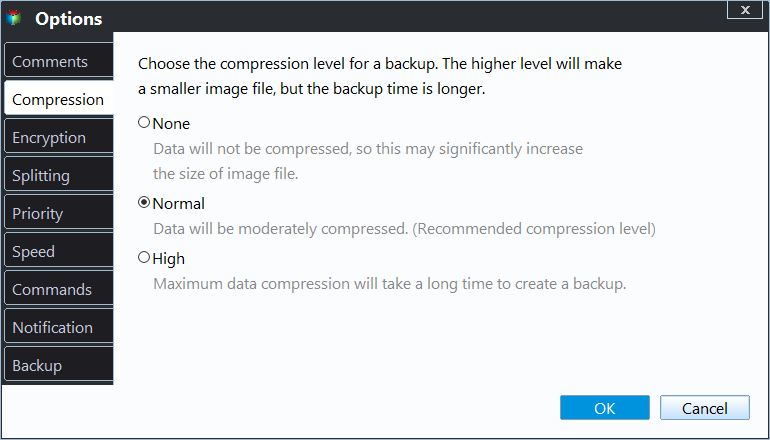
- Compressing a backup image at normal or high level, or splitting a large image file into smaller ones is allowed.
To backup files and folders with Qiling Disk Master:
1. To back up your files, connect the external hard drive properly and download, install, and open the backup tool.
2. Click "Backup" tab, choose "File Backup".

3. Select files or folders to backup, and when selecting folders, you can also set a filter to exclude files from the backup, available in Qiling Disk Master Pro or above versions.

4. You can back up your important files to an external drive or cloud storage to prevent data loss in case of a system failure or other issues. To do this, select the external drive you want to use for the backup by clicking on the arrow next to the drive name. Alternatively, you can also consider backing up large files to cloud storage for added security.
5. (Optional) Set up more for your backup.
👉 To select the image compression level, click on the "Options" button. This will allow you to choose from various compression levels based on your specific requirements.
👉 Click "Schedule Backup" to set an auto backup task.

👉 To select a backup method, click on the "Backup Scheme" option, which will allow you to choose between full, incremental, or differential backup options. Additionally, you can enable automatic backup cleanup through this feature, and some advanced features may be available in higher editions of the software.

6. After that, click "Proceed" to start the backup.
Besides image file backup, you can also use File Sync to backup large files without imaging, and this tool can also be used to make bootable media in case you cannot access Windows.
Clone the entire hard drive
Cloning a hard drive or partition can be a faster and more stable way to back up large amounts of data, as it involves copying the entire drive or partition block by block, rather than individual files. This method can save time and reduce the risk of errors that can occur when backing up files one by one.
Qiling Disk Master offers an intuitive interface, enabling users to clone a hard drive to another with minimal steps, making the process straightforward and user-friendly.
1. Open this free software.
2. Click on "Disk Clone" under "Clone" tab.
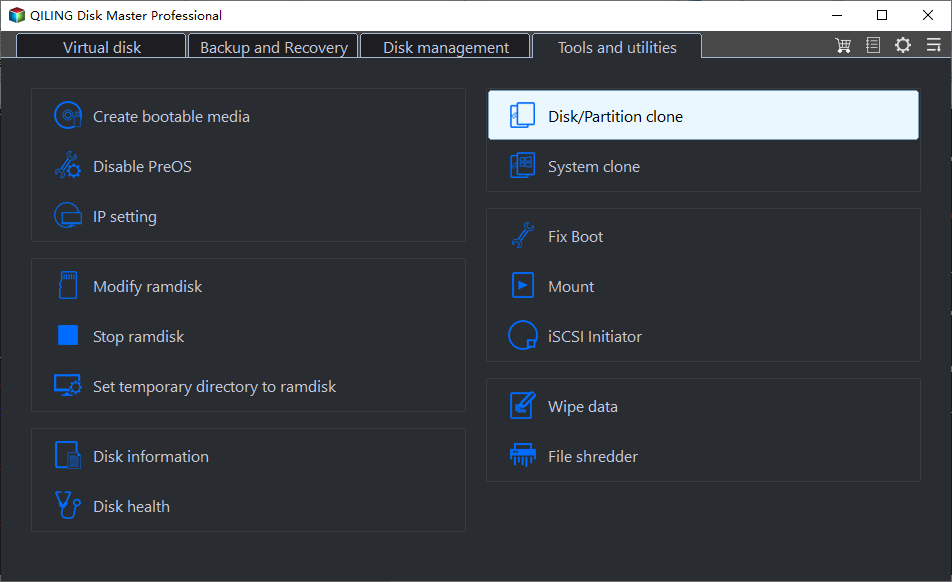
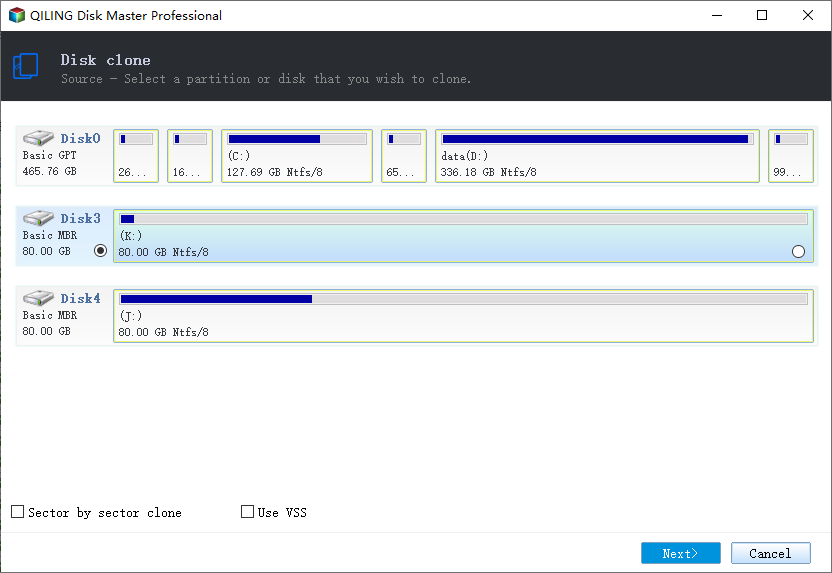
3. To proceed, select the source disk by clicking on it and then click on "Next". Next, choose the destination disk and click "Next" again.
4. Preview the disk info and click "Proceed" to start the cloning process of the hard drive.
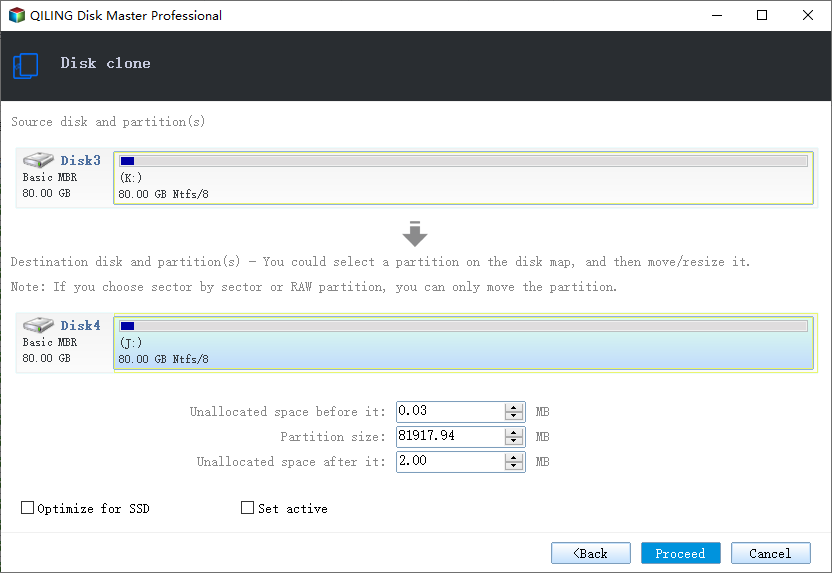
If the source drive is a system drive, the cloned hard drive will remain bootable. Qiling Disk Master offers various ways to backup large files, allowing you to choose the method that suits you best to protect your files.
Related Articles
- How to Backup Synology to Windows Server
This article will describe why and how to backup Synology to Windows Server and recommend a useful software to backup Synology. - Step-by-Step Guide for Previous Versions in Server 2012
Previous Versions in Server 2012 is a practical feature that can be used to recover files/folders to an earlier version. For more information, please read this article. - Effective Way to Recreate User Profile on Server 2012(R2)
This guide explains Effective Way to Recreate User Profile on Server 2012(R2) with clear steps, key checks, and practical tips. - Best Free Way to Backup WD My Cloud to Amazon Drive
You need to create multiple backups, not only backup WD My Cloud to Amazon Drive, but also to other clouds like OneDrive, Google Drive, Dropbox etc, so your data is always safe even if the Amazon Drive is deprecated. - Fix Google Drive not Syncing All Files (11 Solutions)
This article illustrates the reasons and 11 solutions to Google Drive not syncing all files, so you can fix it easily. Or directly sync all files with its alternative. - 6 Tested Fixes to Google Drive Not Syncing in Windows 10, 11
This page offers 6 solutions to the issue of Google Drive not syncing and provides a free alternative to Google Drive for desktop - Qiling Disk Master.
Products
Articles & Tutorials
- Data Recovery
- Data Backup
- File Recovery
- File Backup
- File synchronize
- System Backup and Restore
- Disk and Partition Clone
- Technical articles
- Disk Master Help
- Windows Deleted File and Disk Recovery Tutorials
- Windows File and Data Recovery Tutorials
- More Windows Tutorials for Install, Security, Files, and PC Tips
- Windows Boot, Repair, and Recovery Environment Tutorials
- Windows Backup Tutorials
- Windows Restore Tutorials
- Windows Clone and Migration Tutorials
- Windows Server Backup, Recovery, and Management Tutorials
- Windows Disk, Partition, and Storage Management Tutorials