7 Fixes: Windows 11 Black Screen After Update
- User case: how do I fix my black screen on Windows 11 after the update?
- What causes BSOD on Windows 11?
- How to fix black screen on Windows 11
- Solution 1: Disconnect unwanted peripherals
- Solution 2: Run Windows memory diagnostic
- Solution 3: Uninstall recent updates
- Solution 4: Update/Rollback/Disable/Uninstall device drivers
- Solution 5: Run SFC scan
- Solution 6: Scan PC for malware
- Solution 7: Perform system restore
- Best free backup software to prevent unexpected problems
- Conclusion
User case: how do I fix my black screen on Windows 11 after the update?
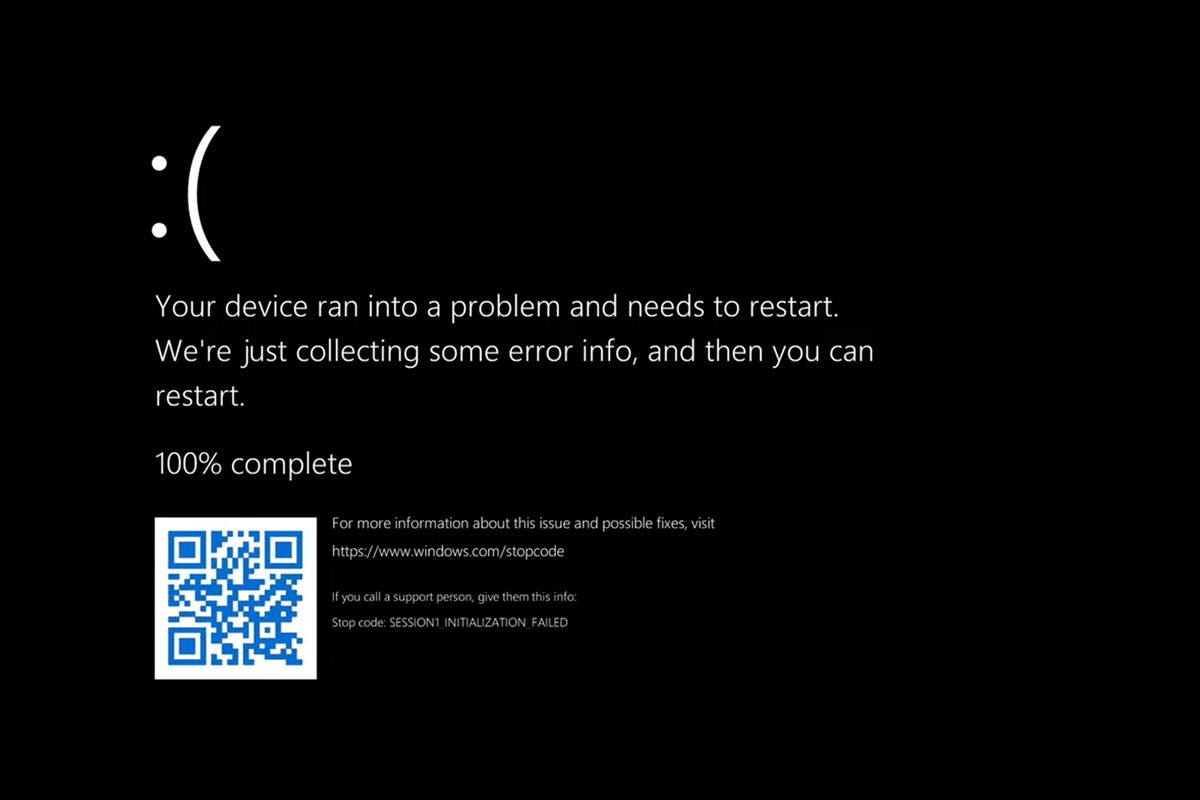
Black screen after Windows 11 update
Your Windows 11 update using the developer setting resulted in a black screen after restart, but the system is still running, indicated by sound and keyboard functionality, and only showing the motherboard's boot screen and Windows circle dots.
Microsoft has introduced a new interface in Windows 11, similar to Mac, and replaced the traditional Blue Screen of Death (BSOD) with a Black screen, which some users have experienced after updating to Windows 11, often accompanied by a cursor.
What causes BSOD on Windows 11?
The Windows 11 black screen of death can be caused by various software or hardware issues, and before attempting to fix it, it's essential to diagnose the root cause of the problem. Once the cause is identified, steps can be taken to resolve the issue and prevent future black screen occurrences.
✪ Applications incompatibility issues
✪ Memory stick incompatibility/corruption or poor contact
✪ Hardware corruption
✪ MBR or system file error
✪ Driver issues
✪ Virus or malware attack
To fix the Windows 11 black screen issue after an update, you can use the System File Checker (SFC) tool to check for corrupted system files, run a System Restore to a previous point before the update, or boot in Safe Mode to isolate the problem. These methods can help identify and resolve the issue.
How to fix black screen on Windows 11
Notes✍: To fix the issue, it's recommended to back up your computer first, and if you don't have a backup, consider using a free backup software to create one, as some solutions may cause data loss.
There are 7 solutions in total to resolve the black screen of death error. If you use the last 6 solutions, it's recommended to boot your PC in safe mode first to prevent any potential issues while troubleshooting.
Boot Windows 11 in Safe Mode:
- To enter WinRE, turn off your computer by holding the power button for 10 seconds, then reboot and repeat this process two more times, causing the Windows Logo to appear on the screen each time.
- To access the Startup Settings, click on Advanced options, then Troubleshoot, followed by Advanced options, and finally Startup Settings.
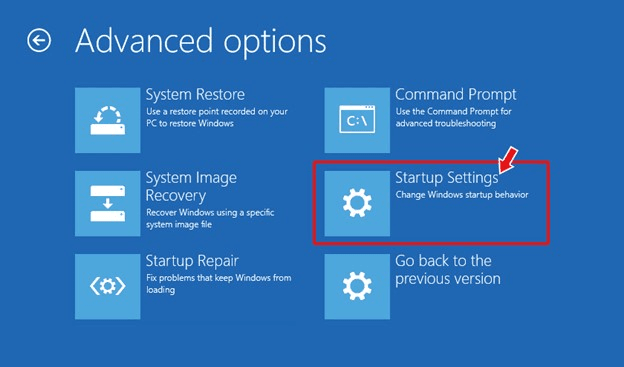
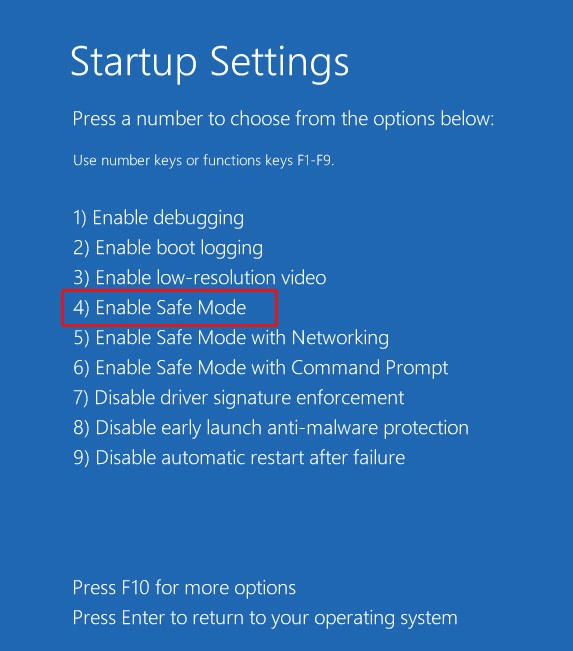
- After clicking Restart, the system will reboot. Once it's back up, press the F4 key to enter safe mode.
Solution 1: Disconnect unwanted peripherals
Computer crashes causing a black screen of death may be resolved by disconnecting peripheral devices such as external hard drives, USB devices, printers, additional displays, and phones. This is often due to hardware-related issues.
Solution 2: Run Windows memory diagnostic
Your computer's internal components, like the RAM sticks, might malfunction or get damaged, causing a Windows 11 black screen of death. You might need to run memory diagnostics to see if the RAM is the problem.
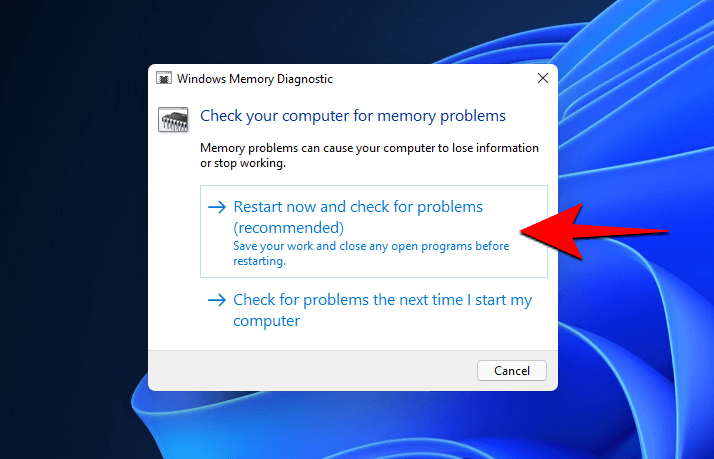
- To open the Task Scheduler, press the Windows key + R to open the RUN box, and type mdsched.exe, then press Enter.
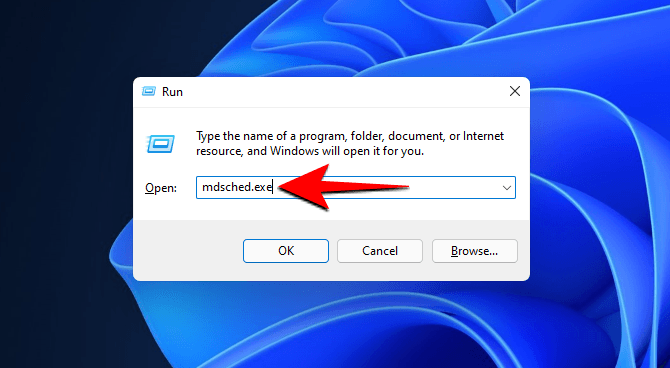
- Click on Restart now and check for problems (recommended) to resolve any issues and ensure your system is running smoothly. This will prompt you to restart your computer.
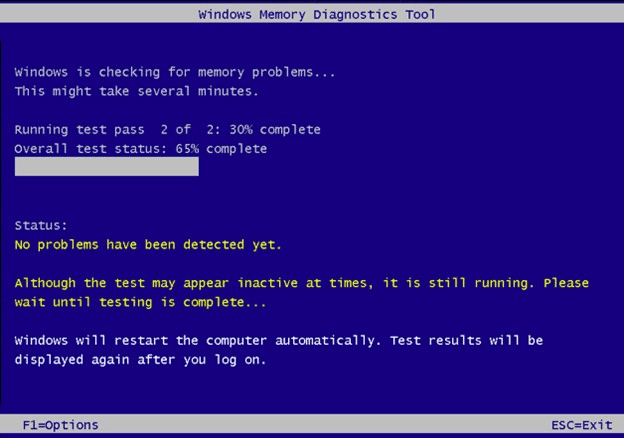
- The system will be rebooted and the test will start. You should wait until the test is finished.
- If you're experiencing issues with your computer, try running a System File Checker (SFC) test to check for corrupted system files. To do this, open Command Prompt as an administrator, type "sfc /scannow", and press Enter.
Solution 3: Uninstall recent updates
If you started experiencing BSOD crashes after a system update, you may want to roll back those updates by uninstalling recent updates to see if it resolves the issue with the black screen error.
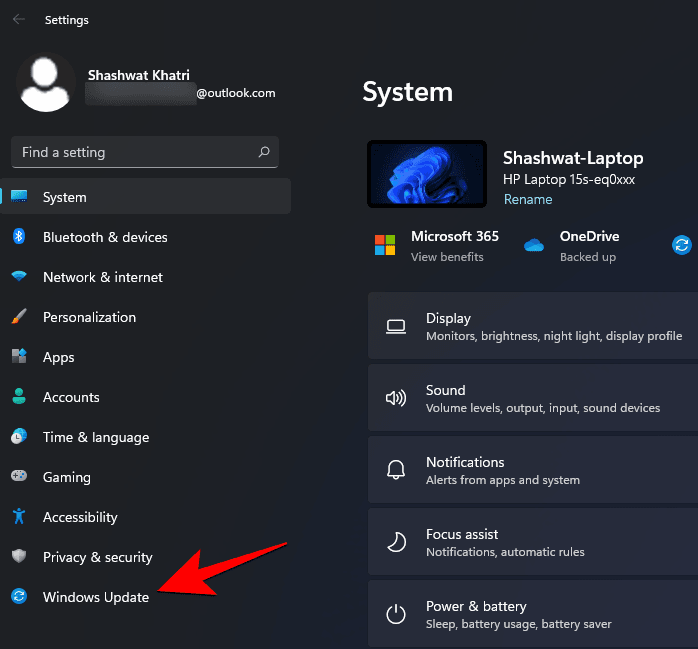
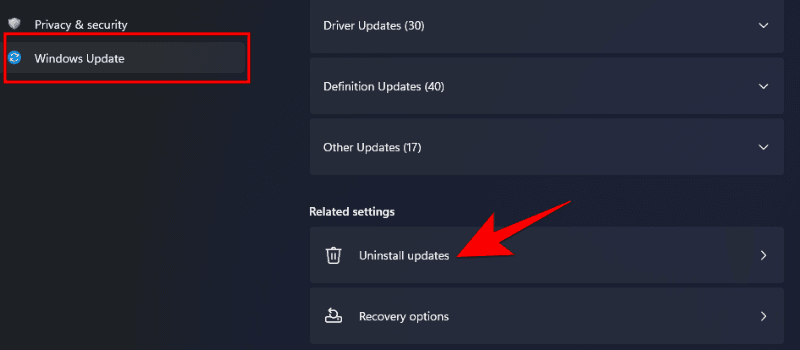
- To open Windows Update, press the Windows key + I to open the Settings app, then click on Windows Update in the left panel.
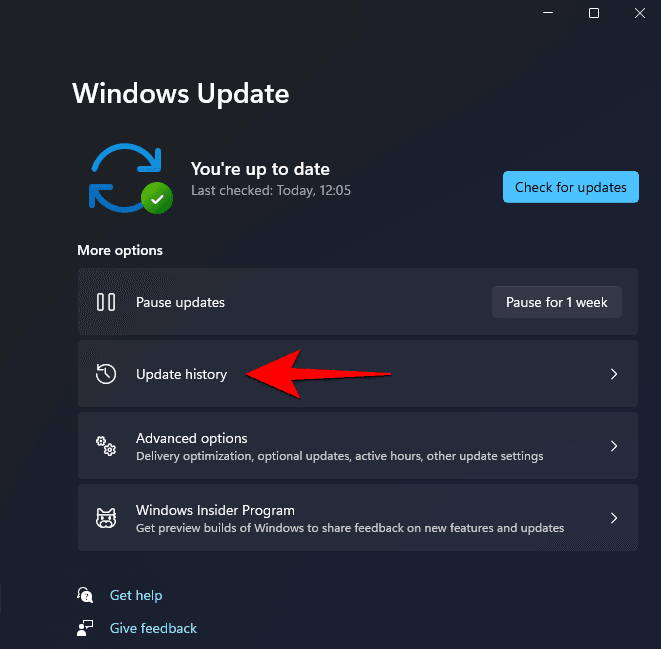
- To view the update history, click on the "Update history" option to see a list of recent updates installed on your system.
- Scroll down and click on Uninstall updates under 'Related Settings'.
- Then select the most recent updates and click on Uninstall.
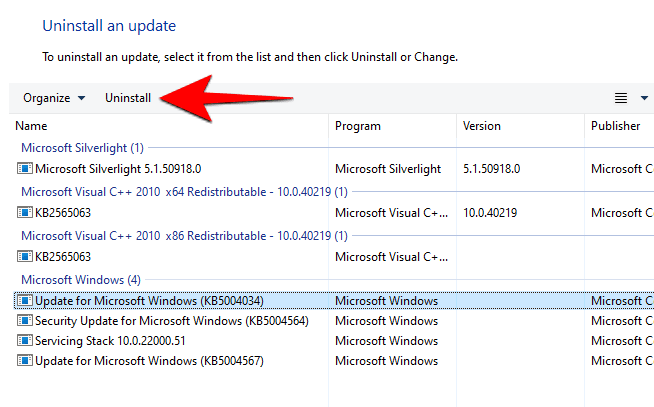
- Once you've uninstalled the problematic app, restart your system to see if the black screen issue on Windows 11 is resolved.
Solution 4: Update/Rollback/Disable/Uninstall device drivers
Updating or reinstalling outdated or incompatible drivers can resolve black screen errors, by rolling back, disabling, or uninstalling device drivers.
♦ Update device driver
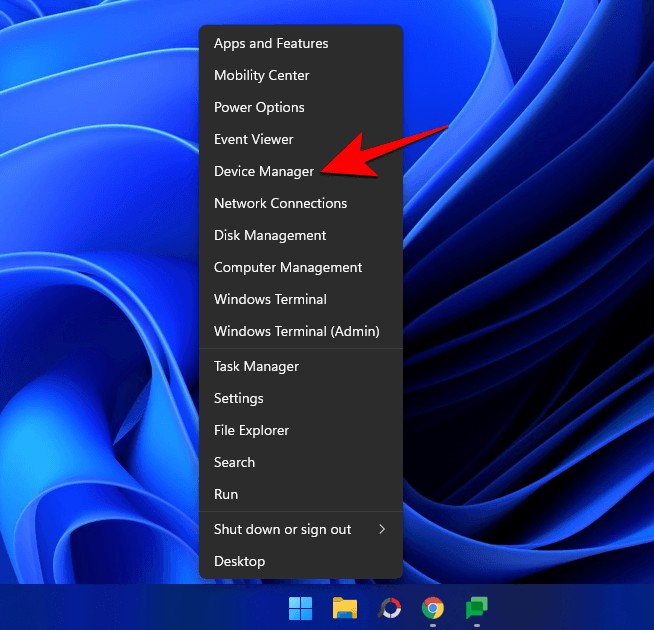
- Right-click on the Start button and select Device Manager.
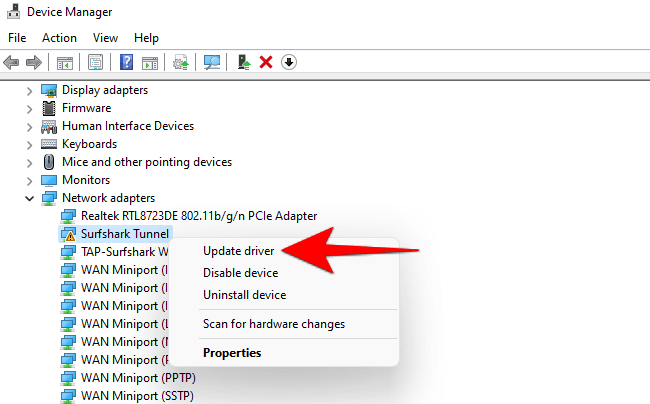
- If you see a yellow triangle icon for any entry, this indicates a potential issue with the driver, so right-click on these entries and select Update Driver to resolve the problem.
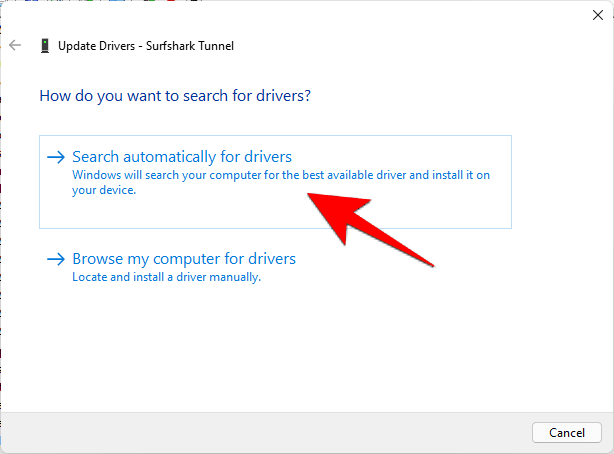
- To install the necessary updates, click on Search automatically for drivers. This will allow Windows to automatically search for and install the required drivers.
♦ Rollback device drivers
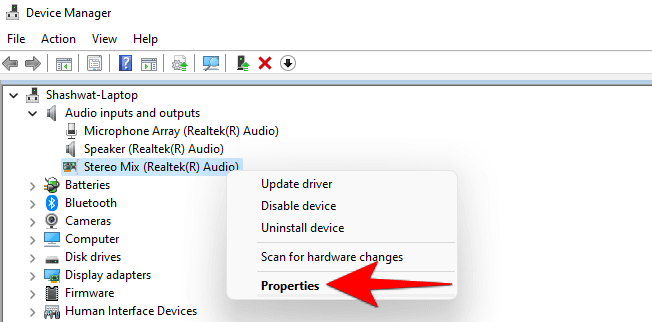
- To roll back a driver update, go to Device Manager, expand the device branch, select the device with the problematic update, right-click on it, and choose Properties.
- Right-click on the Driver and select Properties.
- Under the Driver tab, click on Roll Back Driver.
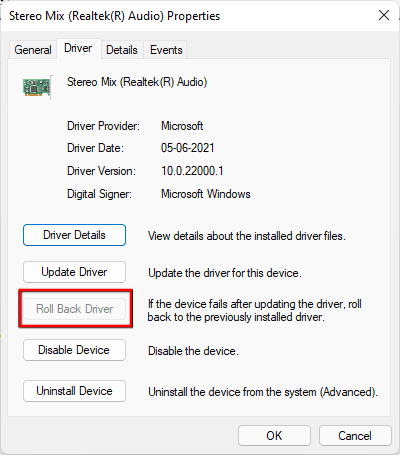
- Now, check if the error is solved.
♦ Disable/Uninstall device drivers
If you're still having a black screen issue, you may need to disable or uninstall drivers that are causing the problem. To do this, go to the driver properties, select the Driver tab, and click on Disable device or Uninstall Device, which will remove the problematic drivers and potentially resolve the issue.
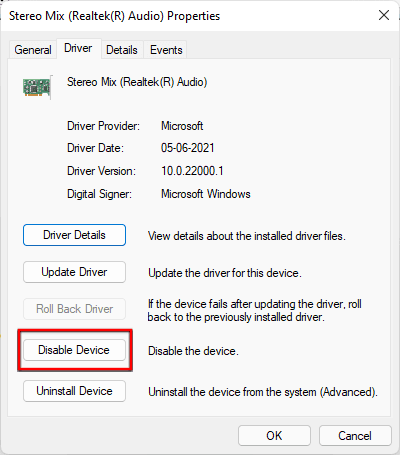
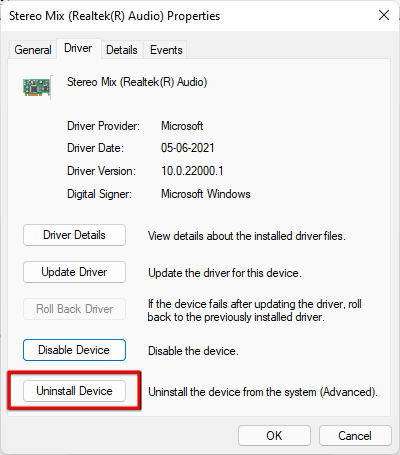
Let the process end and check if this has solved the issue.
Solution 5: Run SFC scan
Damaged system files can also cause BSOD errors, which can be checked using the SFC command tool to see if this is the problem.
- To open the command prompt, press the Windows key + R, type 'cmd', and press Enter. This will open a command line interface where you can execute commands.
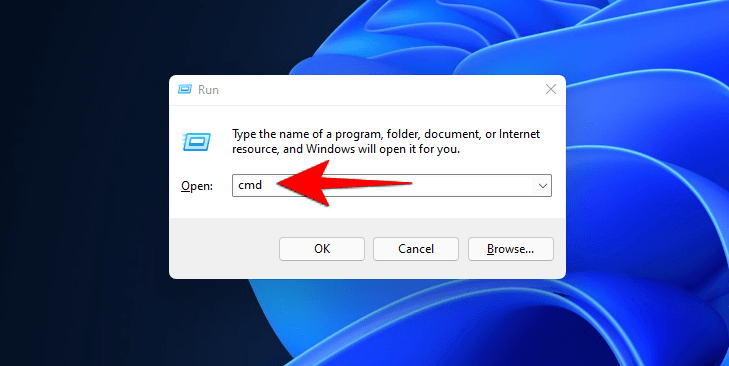
- In Command Prompt, type the following command and hit Enter:
- SFC /scannow
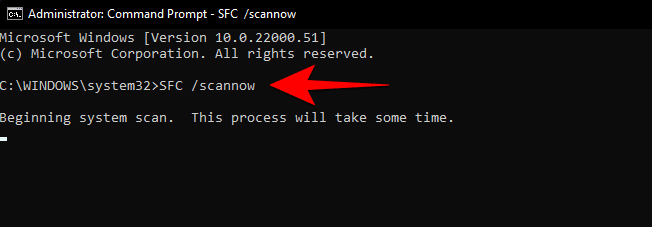
The system file checker will take some time to diagnose and repair any system file corruption. Wait for the process to finish and then check if the error has disappeared.
Solution 6: Scan PC for malware
Malware infection can damage system files, causing a Windows 11 black screen after upgrade. Regular scans can help identify and remove malicious elements that may be the source of the issue.
To run a virus scan on Windows 11, click on the Start button, type "Windows Defender" in the search bar, and click on the app to open it.
- Right-To access the Settings on your Windows computer, click on the Windows icon located in the bottom left corner of the screen.
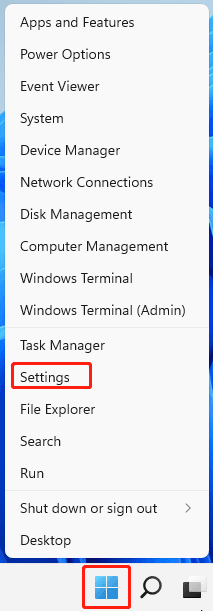
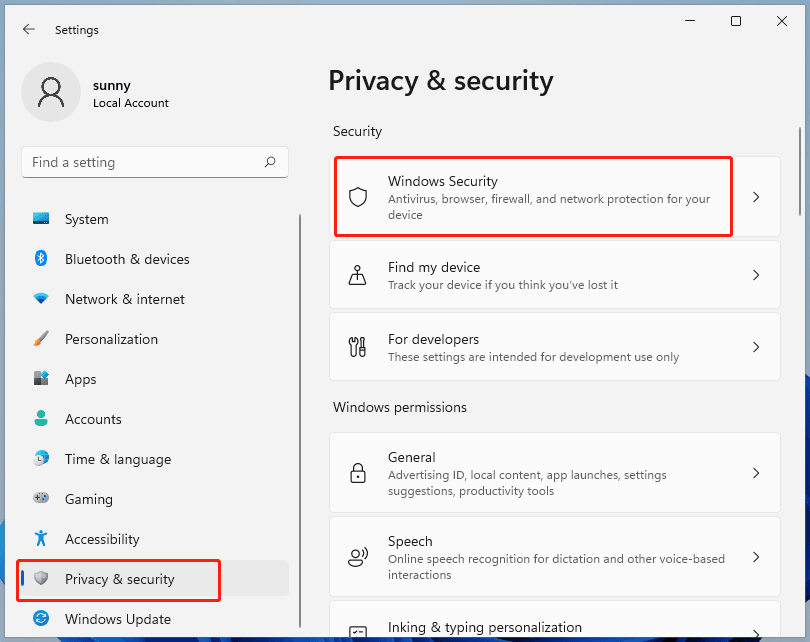
- To access the Windows Security settings, go to the Settings window, select the Privacy & security option, and then click on Windows Security.
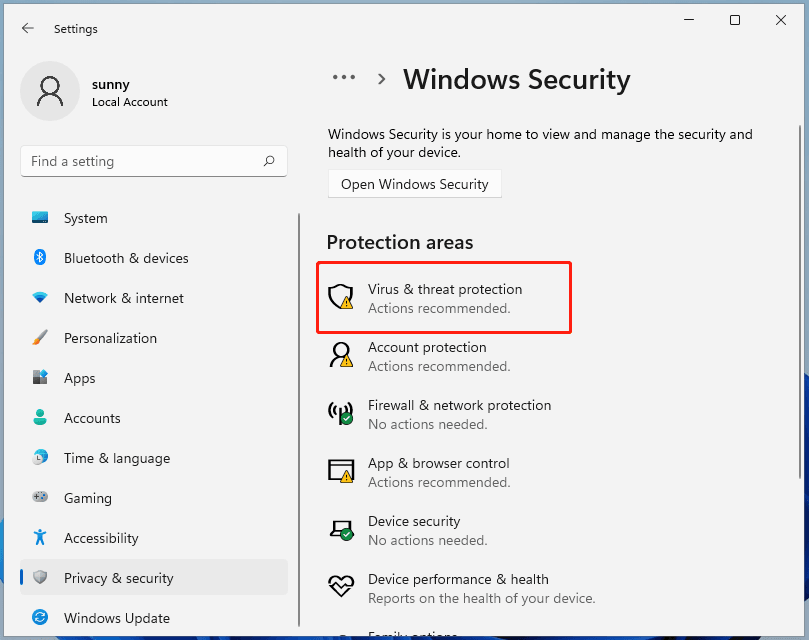
- Click on the Virus & threat protection option.
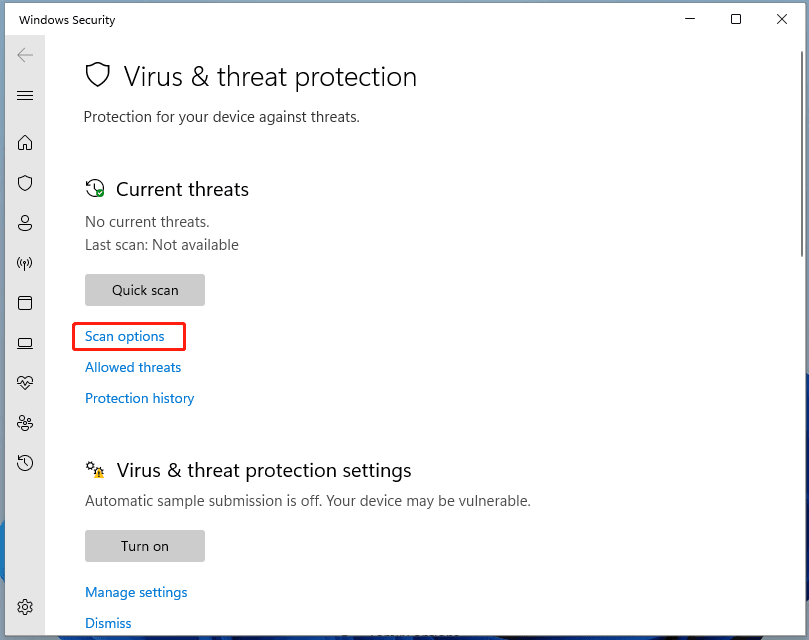
- To get more scan choices, click Scan options.
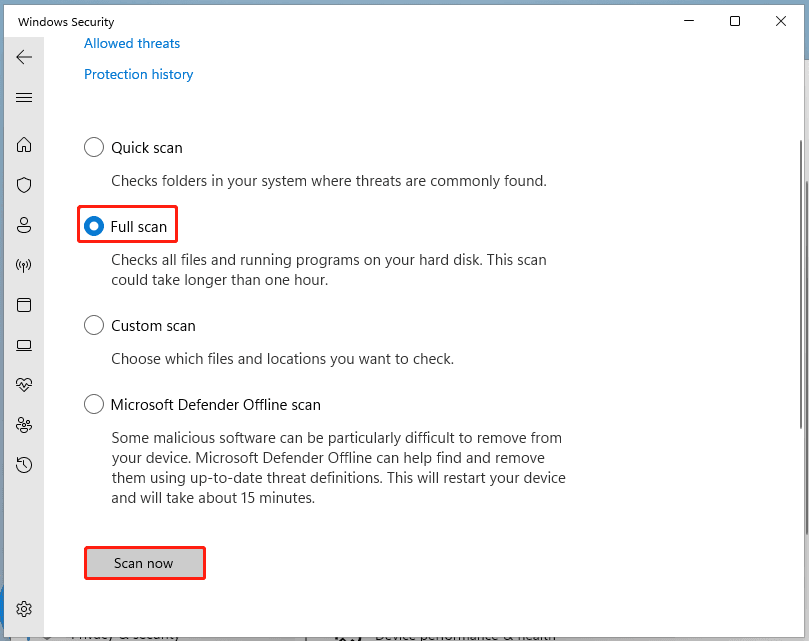
- Malwarebytes will scan your computer for threats, taking a few minutes depending on your hard drive size and file count. Review the detected threats, select and remove items listed as "Malware" or "PUP", restart your computer, and run a full scan with Malwarebytes to ensure complete removal.
Solution 7: Perform system restore
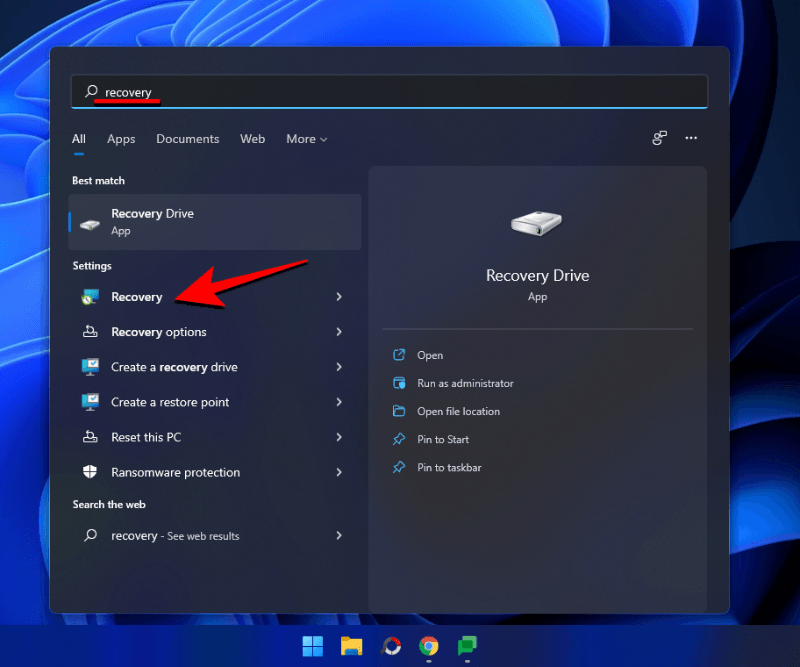
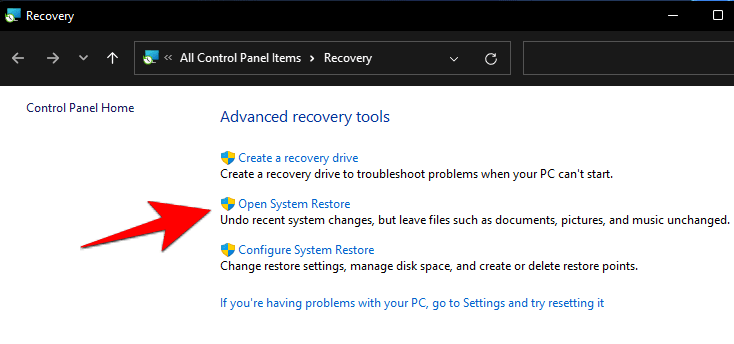
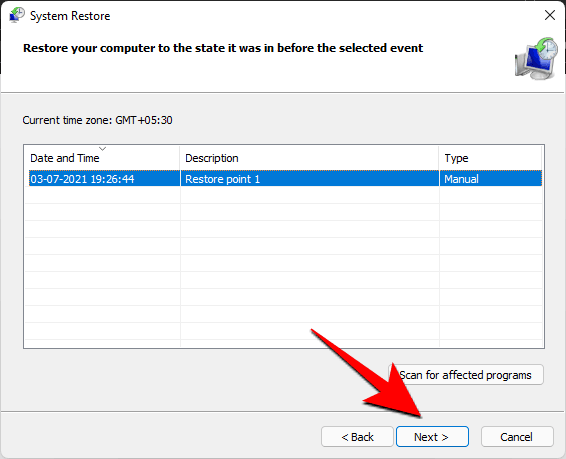
To resolve the black screen issue on Windows 11, you can restore your system to a previous state by following these steps: Go to the Start menu, type "System Restore" in the search bar, and select the "Create a restore point" option. Click on the "System Restore" button, select the most recent restore point, and click "Next." Then, choose the restore point you want to use and click "Finish".
- Press Start, type recovery and select the option shown below.
- Then click on Open System Restore.
- In the pop-up window, click on Next.
- Then select a restore point and click Next.
- Now click on Finish to confirm your restore point.
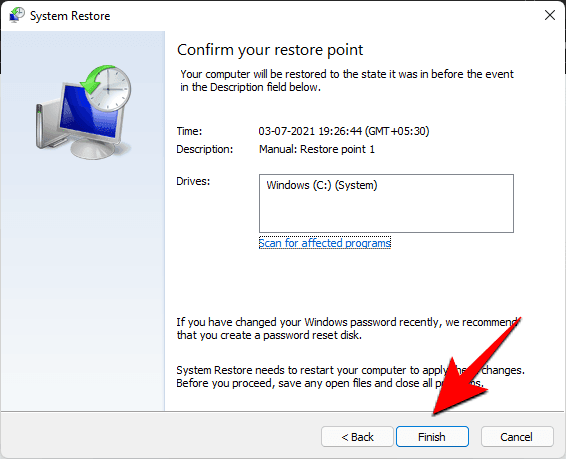
Your computer will now restart and restore your PC to its best working condition.
Best free backup software to prevent unexpected problems
The solutions discussed earlier may result in data loss, such as System Restore, which brings your device to a default or selected restore point, affecting applications, programs, system files, and potentially leading to data loss.
To prevent data loss due to a Windows 11 black screen after an update or other vulnerabilities, install the latest security patches, such as the November 2022 Patch Tuesday updates, and back up your computer in advance with a full-featured free backup software like Qiling Disk Master Standard.
Qiling Disk Master allows you to backup and restore files, systems, disks, and partitions to various destinations, including internal/external hard drives, cloud drives, network locations, or NAS devices, and also enables creating bootable media to recover data from a crashed or unbootable Windows system.
Create a backup of your computer
If you're experiencing a black screen issue, you can restore your computer to a working state by using a backup created with software like Qiling Disk Master. This software allows you to easily back up your computer, and then you can use the backup to recover from the black screen problem and get back to using your computer.
Step 1. Launch Qiling Disk Master, click Backup on the left panel, and select Disk Backup.

Step 2. To initiate a backup, click on the "+" Disks button to select the source disk from which you want to backup data.

Step 3. Choose a destination place where you plan to store your backup image, ideally an external disk for added security, such as a USB drive or an external hard drive connected to your computer or a cloud storage service like Google Drive or Dropbox.

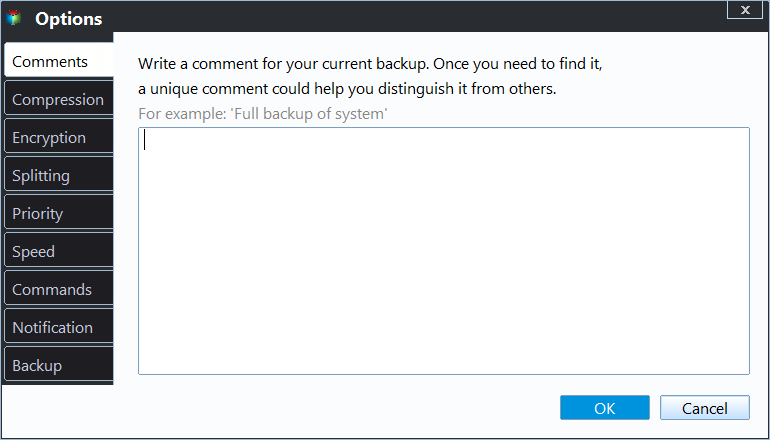
Step 4. This program offers a flexible and customizable interface, allowing users to click on "Options", "Schedule", or "Scheme" in the left corner to access the specific features they need, providing a tailored experience.
✧ Options: To make it easier to identify this task among others, you can add comments to the task. This will also allow you to receive email notifications and turn on encryption for backups.
✧ The schedule feature enables automatic data backup on a regular basis, enhancing data security. Users can choose from various frequency options, such as daily, weekly, or monthly, to tailor their backup schedule to their needs.

✧ Scheme: 4 different backup schemes are supported, allowing for disk space to be freed up by deleting old backups while keeping the latest versions, available on Qiling Disk Master Professional.

Step 5. After finishing all the settings, click Proceed.

♦ What if none of the above solutions resolve Windows 11 BSOD error
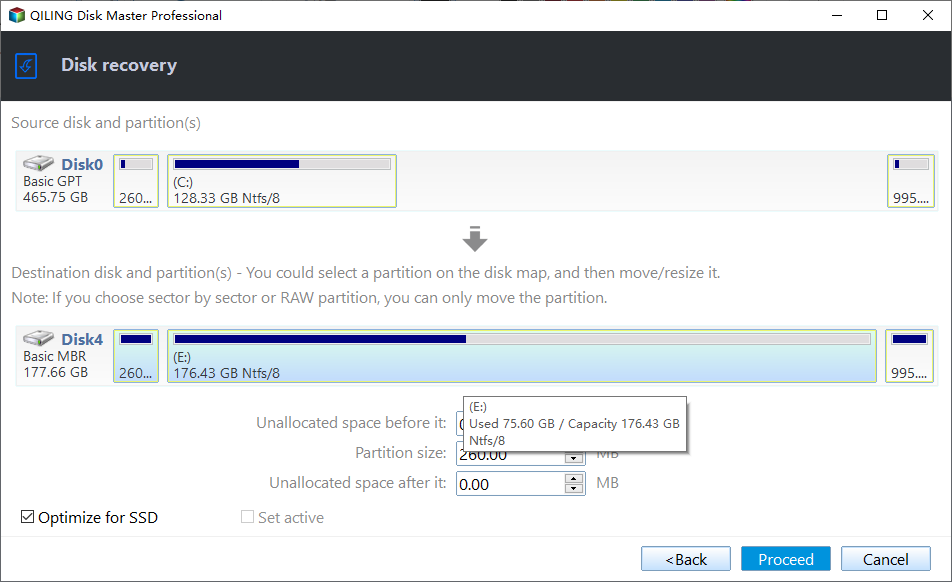
If the black screen of Windows 11 persists, you can create a system image backup from a working Windows 11 computer and then restore it to your computer using Qiling Disk Master, which can resolve the issue.
Note✍: To restore a system image, select the "Universal Restore" feature if the image was created on a different hardware configuration, which is typically available in higher editions of the software.
Conclusion
Some Windows 11 users may experience a black screen error after updating, but using Qiling Disk Master to back up their computer in advance can help avoid this issue and allow them to restore their computer to a working state if anything goes wrong.
If you're having trouble with resetting Windows 11, this software can help provide a solution to the error, serving as a reliable alternative to resolve the issue.
Related Articles
- Fixed: Windows 10/11 Reset Stuck at 1% , 34%, 64%, 99%
You will learn 6 solutions to Windows 10 reset stuck at 1%, 44%, 64%, 74%, 99%, and one preventive measure to avoid data loss. - Solved|"Cleaning up. Do Not Turn off Your Computer."
This guide explains Solved|"Cleaning up. Do Not Turn off Your Computer." with clear steps, key checks, and practical tips. - How to Repair Windows Server 2008 R2 using Command Prompt?
Learn how to Repair Windows Server 2008 R2 using Command Prompt with clear steps, key checks, and practical tips. - Partition Recovery Software for Windows Server: Restore Deleted/Lost Partition Effortlessly
If you have deleted partition by accident in Windows Server 2008, 2012 (R2), 2016, 2019, 2022, you can restore the lost partition and the data via recovery partition software. - How to Increase System Reserved Partition Windows 7/8/10?
When you try upgrading operating system, you might fail for there is not enough space on system reserved partition. So here we list the best method to help extend System Reserved partition in Windows 11/10/8/7 easily and securely. - How to Make Bootable CD/DVD for Windows 7 Using CMD?
Learn how to Make Bootable CD/DVD for Windows 7 Using CMD with clear steps, key checks, and practical tips.
Products
Articles & Tutorials
- Data Recovery
- Data Backup
- File Recovery
- File Backup
- File synchronize
- System Backup and Restore
- Disk and Partition Clone
- Technical articles
- Disk Master Help
- Windows Deleted File and Disk Recovery Tutorials
- Windows File and Data Recovery Tutorials
- More Windows Tutorials for Install, Security, Files, and PC Tips
- Windows Boot, Repair, and Recovery Environment Tutorials
- Windows Backup Tutorials
- Windows Restore Tutorials
- Windows Clone and Migration Tutorials
- Windows Server Backup, Recovery, and Management Tutorials
- Windows Disk, Partition, and Storage Management Tutorials