Professional Partition Recovery Software for Windows Server
My partition is deleted!
"My machine is running Windows Server 2008 and has two hard drives: one solid-state drive and one external hard disk drive. The HDD is allocated with three partitions: E, F, G. I intend to delete partition F but removed partition G somehow. It becomes an unallocated space and I can't access it from File Explorer anymore. There are some files that I don't want to lose saved on Partition G. How can I recover the deleted partition and data on it in Windows Server 2008? Any advice?"
Great partition recovery software for Windows Server
If you've lost or deleted a partition in Windows Server 2008, 2012, 2016, or 2019, and it hasn't been formatted or overwritten, you can use a partition recovery tool to recover it. I recommend using Qiling Disk Master Server, which can help you recover deleted or lost partitions, or Qiling Disk Master Unlimited, which allows you to manage partitions and disks for unlimited PCs within a company.
This software offers a modern and concise graphic interface, allowing you to recover deleted or lost partitions on an external hard drive with ease. It can also retrieve files saved on the partition. Additionally, it's helpful when your computer becomes unbootable due to a mistakenly deleted boot partition, as it enables you to create Windows Server bootable media to boot the machine and recover the deleted boot partition.
Detailed steps on recovering deleted partition on Windows Server
To restore lost or deleted partitions in Windows Server 2008 (R2)/2012 (R2)/2016/2019/2022, you can utilize the Qiling Disk Master Server software, which provides a comprehensive solution for partition recovery. This software allows you to recover lost partitions, restore deleted data, and even recover data from corrupted or damaged hard drives.
Step 1. Install and run Qiling Disk Master Server. In the main console, you can see that the unallocated space occurs due to partition deletion. To recover the partition, click the "Recover" button in the top toolbar and select Partition Recovery from the menu.

Step 2. Choose the hard drive from which you want to recover the deleted or lost partition, and then click "Proceed" (in this case, select disk 2).
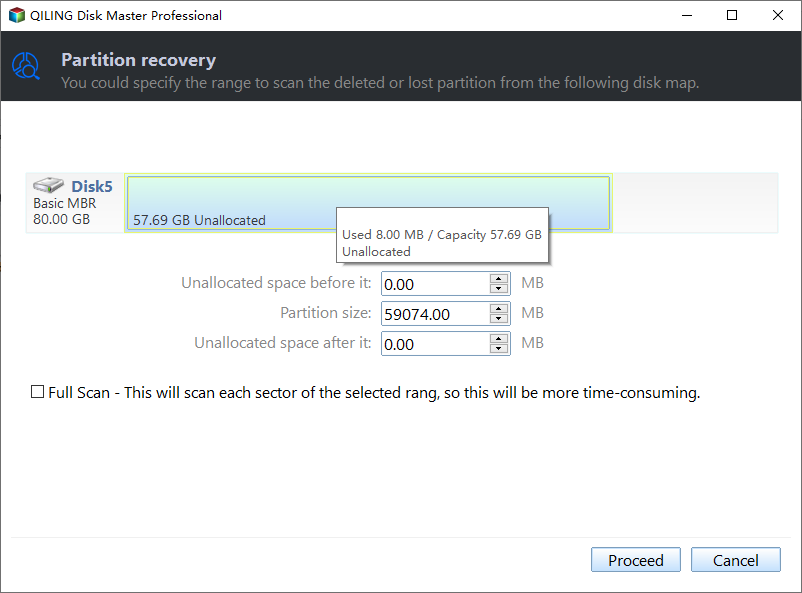
▪ Fast search: quickly scan the first sector of each partition on the selected disk to find the deleted or lost partition, which is recommended.
▪ Full search: more in-depth search. Run a full-depth search on the selected disk, scanning every sector of each partition. This option is more time-consuming, but can be used if the first option fails.
Step 3. If the deleted or lost partitions are found, they will be listed, select the desired partition and click "Recover".
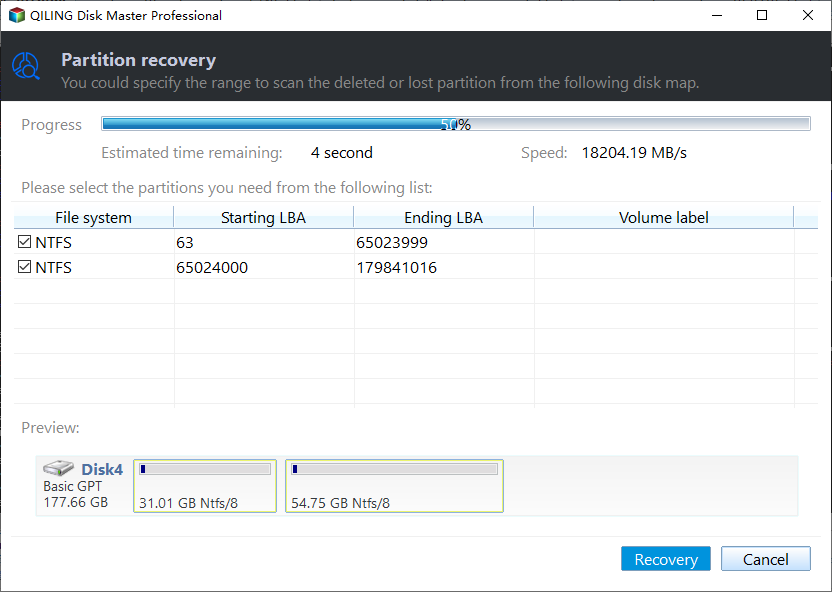
Step 4. After recovering the partitions, a message will pop up saying "Congratulations! The partitions have been recovered…". To complete the process, click "Finish" and you will see that the deleted partition is successfully restored.
✍ Notes:
✔ You can select multiple partitions by checking the box next to each partition you want to choose.
✔ This feature allows for the recovery of lost partitions from a selected disk, including any files that may be present in the recovered partition. However, if the partition contains files, it is recommended to use data recovery software for recovering files from a formatted or corrupted partition.
✔ Qiling Disk Master Server can perform various operations, including converting dynamic disks to basic, migrating operating systems to SSD/HDD, resizing partitions without data loss, and more.
Do not lose your partition again!
Partition recovery software for Windows Server can be a lifesaver when a deleted or lost partition needs to be retrieved. To prevent such losses in the future, it's essential to understand what can cause partitions to go missing on Windows Server and take steps to avoid these situations.
▪ You have made improper operations like deleting partition accidentally.
▪ The partition table of the partition is corrupted, possibly due to a virus attack or another issue.
▪ Your partition loses volume label, drive letter, or partition name.
If the partition is missing from Windows Server File Explorer due to drive letter loss, you don't need to use partition recovery software. Instead, you can enter Disk Management to assign a drive letter to it directly.
1. To add a drive letter to a disappearing partition in Windows, press Windows + R simultaneously, input "diskmgmt.msc" and hit Enter. In Disk Management, locate the partition, right-click it and choose Change Drive Letter and Path. Select Add and add a drive letter to the partition.
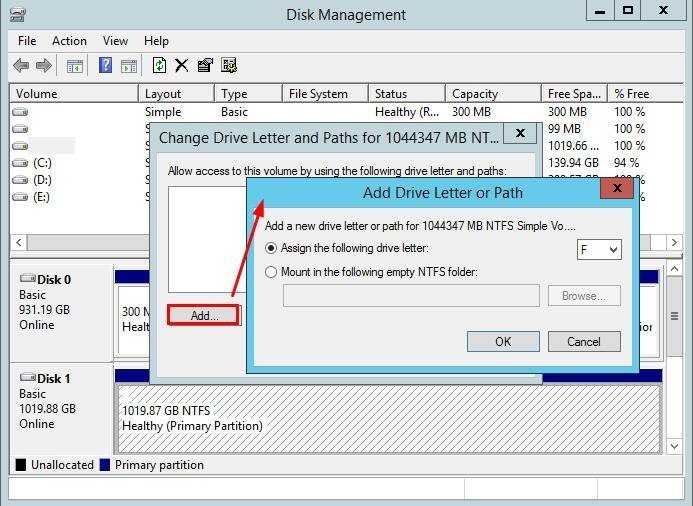
After running the command, you can see the missing partition in File Explorer.
Related Articles
- Top Two Ways to Recover Lost Partition in Windows 10
This guide explains Top Two Ways to Recover Lost Partition in Windows 10 with clear steps, key checks, and practical tips. - Accidentally Deleted Boot Partition in Windows 10 – How to Recover?
Recover an accidentally deleted boot partition in Windows 10 with practical partition recovery steps and boot repair methods to make the system bootable again. - How to Enable Windows 11 Automatic Defrag?
To automatically defrag Windows 11 hard drives and boost your PC - Automatic USB Backup Portable for Windows 10
This guide explains Automatic USB Backup Portable for Windows 10 with clear steps, key checks, and practical tips. - Best Free Windows 7 Image Backup Recovery Software – Qiling Disk Master
This guide explains Best Free Windows 7 Image Backup Recovery Software – Qiling Disk Master with clear steps, key checks, and practical tips. - Free MBR to GPT Converter in Windows 10/8/7|Freeware Download
In this post, we will share you with 3 free MBR to GPT converters. Two are Windows built-in tools and the third is a piece of software, which can convert MBR to GPT without losing data for free in Windows 11,10, 8, 7.
Products
Articles & Tutorials
- Data Recovery
- Data Backup
- File Recovery
- File Backup
- File synchronize
- System Backup and Restore
- Disk and Partition Clone
- Technical articles
- Disk Master Help
- Windows Deleted File and Disk Recovery Tutorials
- Windows File and Data Recovery Tutorials
- More Windows Tutorials for Install, Security, Files, and PC Tips
- Windows Boot, Repair, and Recovery Environment Tutorials
- Windows Backup Tutorials
- Windows Restore Tutorials
- Windows Clone and Migration Tutorials
- Windows Server Backup, Recovery, and Management Tutorials
- Windows Disk, Partition, and Storage Management Tutorials