Accidentally Deleted Boot Partition in Windows 10 – How to Recover
What is boot partition in Windows 11/10/8/7?
In Windows, a boot partition is a primary partition that holds the bootloader and guides the boot files to start the installed system.
In Windows, there are two common boot partitions: the EFI system partition and the system reserved partition. These partitions can only be viewed using tools like Disk Management, and are not typically visible in the file system.
✦ EFI system partition (ESP)
The UEFI partition, also known as the ESP (EFI System Partition), is a partition on a hard drive or solid-state drive that contains the bootloader and device driver files used by the firmware at boot time.
✦ System reserved partition
The hidden partition on a BIOS-based computer, consisting of two parts: the Boot Manager (BootMGR) and Boot Configuration Data (BCD), which contains startup files used for BitLocker drive encryption.
Can you delete the boot partition in Windows 11/10/8/7?
Both the EFI system partition and system reserved partition contain boot files that are used by firmware at Windows startup time. If you accidentally delete the boot partition in Windows 10 or the boot files become missing or corrupted, you may receive errors like "System Reserved Partition Missing" or "EFI Partition Missing", resulting in an unbootable computer.
Don't delete the boot partition on your computer, as it contains essential files and drivers that help your computer boot up and run properly. This partition is usually marked as 'System Reserved' or 'Boot' and is necessary for the operating system to function correctly.
Accidentally deleted boot partition in Windows – How to recover
If you accidentally delete the Windows boot partition, don't worry, you can recover it. The boot partition is crucial for your system's functionality, but sometimes it gets deleted by mistake. Fortunately, there are three methods to recover a deleted boot partition in Windows 11/10/8/7: .
▶ Method 1. Restore deleted boot partition in Windows with third-party software
You can use partition recovery software Qiling Disk Master Professional to recover a deleted Windows partition as long as you don't make any further operations on the boot partition after deletion. This software can also recover lost partitions in Windows (all editions).
Qiling Disk Master is a versatile partition manager that allows users to perform various tasks such as resizing system partitions, moving unallocated space, extending NTFS system drives without rebooting, and removing write protection from hard drives, among other things.
You can download the free Demo version first and follow the steps below.
✍ Section 1. Make a bootable disk in another working computer
To fix a computer that won't boot due to a deleted system partition, create a bootable disk on a working Windows computer, then use the disk to boot the non-booting computer and access its Recovery Environment. From there, you can restore the system partition and get the computer up and running again.
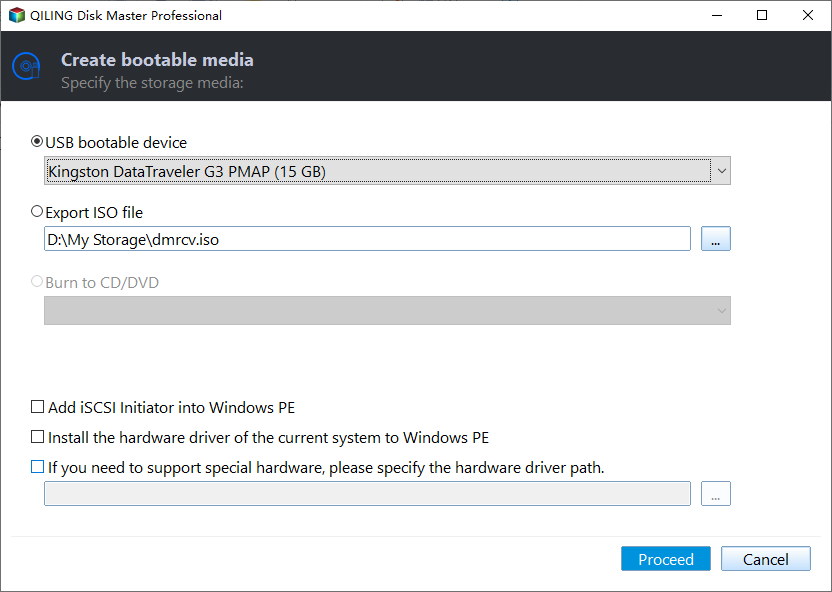
Step 1. Connect an empty USB drive to a working Windows computer and install Qiling Disk Master Professional on it. Launch the software and click "Tools" on the upper toolbar, followed by "Make Bootable Media" and then "Next" on the next screen.

Step 2. To start the pending operation, select the "USB Boot Device" option in the window and click "Proceed".
✍ Section 2. Recover deleted Windows partition in WinPE mode
After successfully creating a bootable USB drive with Qiling Disk Master Professional pre-installed, insert it into the Windows computer that cannot boot due to a deleted system partition. restart the computer and repeatedly press F1, F2, F12, or other function keys to enter the BIOS settings, then change the boot order to boot from the destination bootable drive.
When you log in, you will see the Qiling Disk Master Professional is running. Then do as below:
Step 1. To recover the deleted boot partition, access the Disk management feature, select the disk that contains the deleted partition, and click on the "Partition Recovery" option from the main interface.

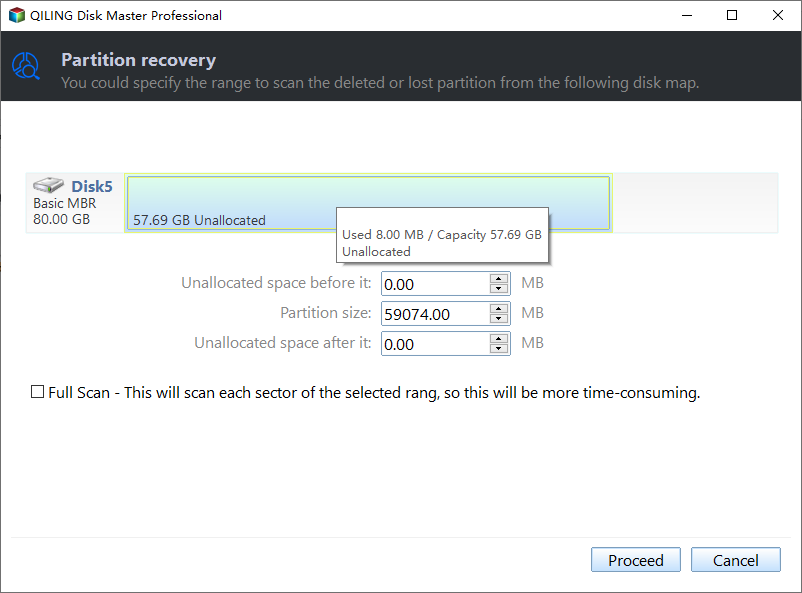
Step 2. Select the range of the disk that contains the deleted boot partition and click "Proceed" to scan the partitions.
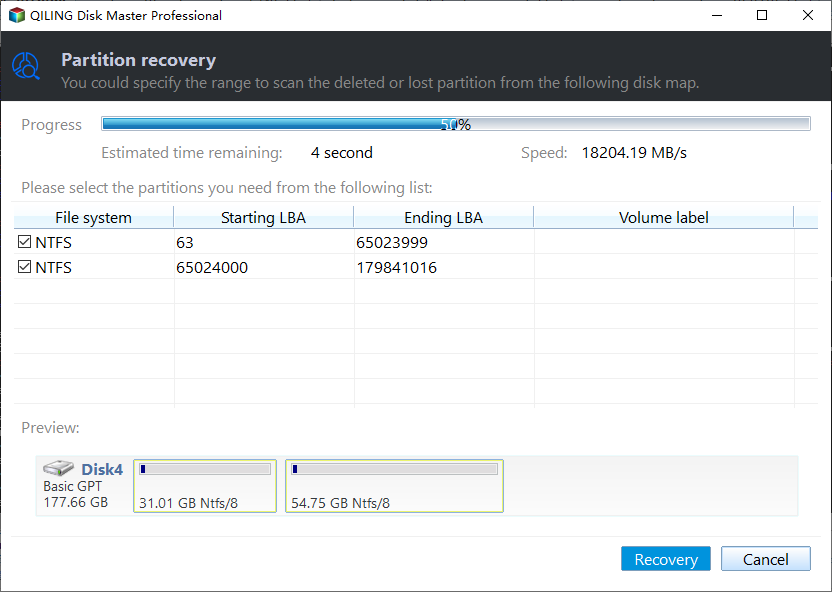
Step 3. Select the deleted boot partition from the list and click "Recovery". For added security, click "Explore files in the selected partition" to confirm the files before proceeding with the recovery.
▶ Method 2. Recover deleted boot partition using CMD
To recover deleted EFI system partition and system reserved partition, you'll need to follow a separate process for each. Before recovering, download the media creation tool from Microsoft and create an installation disk for your computer, following the provided instructions and details. This will allow you to recover the deleted partitions separately.
✍ Part 1. Recover accidentally deleted EFI system partition in Windows 10
Step 1. Insert the installation disk into your computer and boot from it.
Step 2. On the first screen, press "Shift + F10" to summon the Command Prompt.
Step 3. Type the following commands and hit "Enter" after each one.
• diskpart
• list disk
• select disk n The deleted EFI System partition is stored on a disk referred to as the "n" disk. This partition is responsible for booting the operating system and contains essential files for the boot process. When the partition is deleted, the system's ability to boot is disrupted, and the operating system may not be able to load properly.
• list partition
• create partition efi
• format quick fs=fat32
• list partition

Then, type "exit" to exit diskpart. In the CMD, please type:
• bcdboot C:\windows /s Y: Windows OS installed volume letter is C and EFI partition letter is Y.

Step 4. Remove the installation drive and restart your computer
✍ Part 2. Recover accidentally deleted system reserved partition in Windows 10
Step 1. Boot from the installation drive and summon the command prompt using "Shift + F10".
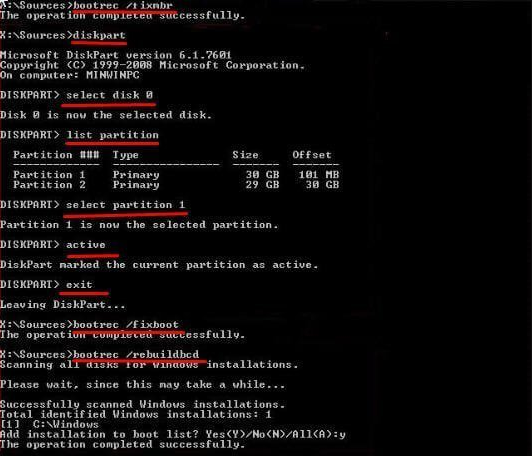
Step 2. Type the following commands in the command prompt and hit "Enter".
• bootrec /fixmbr
• diskpart
• select disk 0
• list partition
• select partition n (n is the Windows OS partition)
• active
• exit (exit diskpart)
• bootrec /fixboot
• bootrec /rebuildbcd
And then, you can boot from the repaired drive.
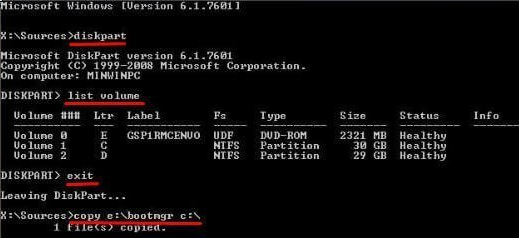
If you receive an error message like BootMGR is missing, you can resolve the issue by copying the BootMGR file from the Windows installation drive to the Windows OS partition root directory. To do this, type the following commands in order and hit Enter: `bcdboot C:\Windows /s C: /f UEFI` followed by `bootrec /fixboot` and finally `bootrec /scanos`. These commands will help you fix the BootMGR error and ensure your system can boot properly.
• diskpart
• list volume (find and remember the volume letter of DVD-ROM)
• exit (exit diskpart)
• copy e:\bootmgr C:\ (n: refers to the volume letter of DVD-ROM)
▶ Method 3. Reinstalling Windows 10
If you created a Windows 10 recovery disk, you can use it to recover your computer or reinstall Windows 10 from a USB drive if you have an installation drive.
To reinstall your computer, you need to connect a USB flash drive, set your computer's BIOS to prioritize booting from the USB drive, restart your computer, and press a key to initiate the boot process from the USB drive.
Reinstall your computer with detailed steps.
Step 1. Wait for Windows 10 installation files to load.
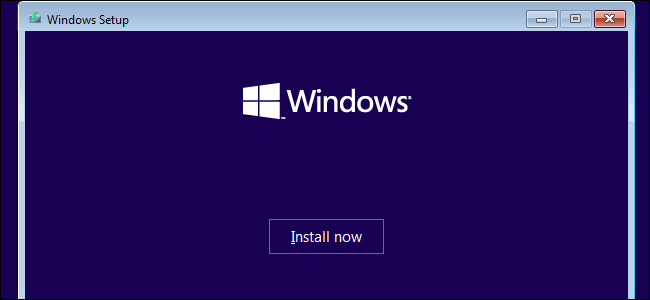
Step 2. Set up language and other preferences, then click "Next" and "Install now".
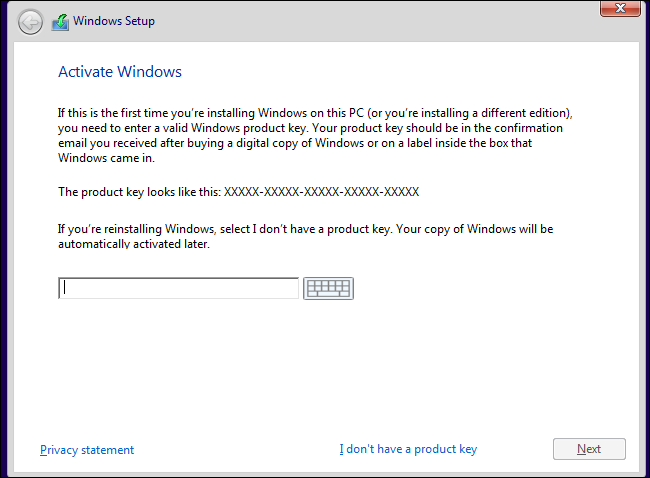
Step 3. Click "I don't have a product key" and "Next". The product key will reactivate itself after reinstallation if it was activated on your computer.
Step 4. Select the operating system and click "Next".
Step 5. Accept the license terms and click "Next".
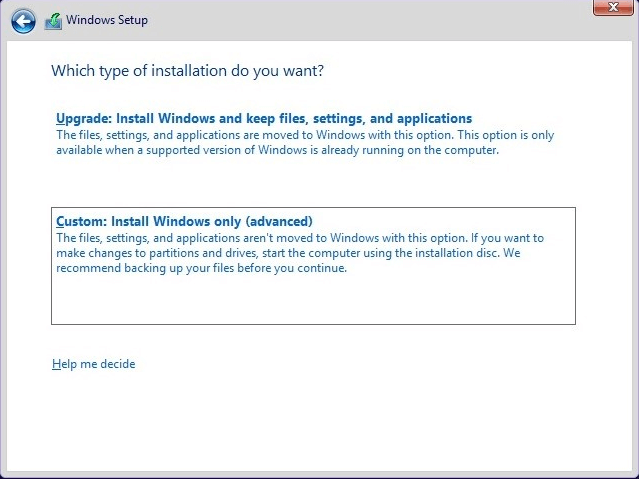
Step 6. Select Windows 10 installation type: Custom.
Step 7. Click Drive Options and you will see some options (eg: Delete, Format, Extend) at the bottom.
Step 8. Right-click the system partition and the operating systems-related partition, then click "Delete".
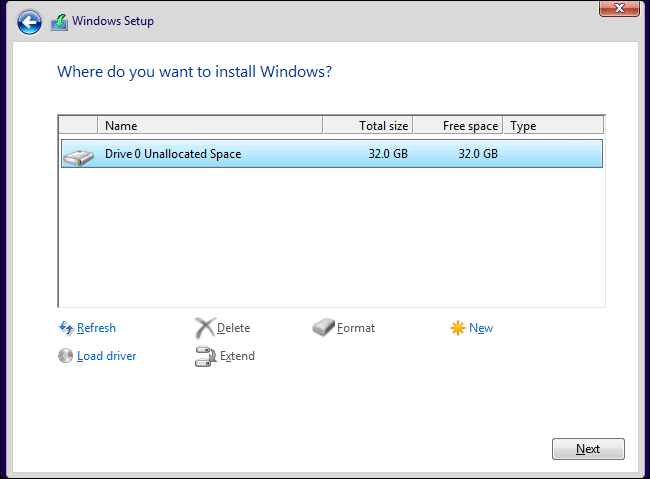
Step 9. Select the unallocated space and click "Next" to proceed with the Windows installation.
Wrapping things up
To recover an accidentally deleted boot partition in Windows 10, use Qiling Disk Master, a user-friendly partition recovery software that can help even a beginner recover the lost partition.
Using CMD to recover deleted Windows partitions can be a useful option, but it can be complicated to operate. Alternatively, reinstalling Windows 10 from a USB drive can be a viable choice, but it requires reinstalling all apps and may result in lost files.
Related Articles
- Solved: No EFI Partition Was Found
This guide explains Solved: No EFI Partition Was Found with clear steps, key checks, and practical tips. - Partition Is Deleted accidentally in Windows PC? Recover it Effortlessly
When your partition is deleted accidentally in Windows 10, 8, 7, you can use the Qiling Disk Master Professional. It can recover deleted data partition and system partition easily. - Missing EFI Partition in Windows 10 – Solved
This guide explains Missing EFI Partition in Windows 10 – Solved with clear steps, key checks, and practical tips. - Accidentally Deleted Boot Partition in Windows 10 – How to Recover?
Recover an accidentally deleted boot partition in Windows 10 with practical partition recovery steps and boot repair methods to make the system bootable again.
Products
Articles & Tutorials
- Data Recovery
- Data Backup
- File Recovery
- File Backup
- File synchronize
- System Backup and Restore
- Disk and Partition Clone
- Technical articles
- Disk Master Help
- Windows Deleted File and Disk Recovery Tutorials
- Windows File and Data Recovery Tutorials
- More Windows Tutorials for Install, Security, Files, and PC Tips
- Windows Boot, Repair, and Recovery Environment Tutorials
- Windows Backup Tutorials
- Windows Restore Tutorials
- Windows Clone and Migration Tutorials
- Windows Server Backup, Recovery, and Management Tutorials
- Windows Disk, Partition, and Storage Management Tutorials