Missing EFI Partition in Windows 10 – Solved
Scenario
My EFI partition is missing in Windows 10 computer, I want to get it back. However, I tried several ways online but still failed. Can someone show detailed steps to fix this issue? Thanks a lot.
EFI partition overview
The EFI system partition, also known as the ESP, is a partition on a data storage device used by computers with Unified Extensible Firmware Interface (UEFI) firmware. It loads files from the ESP to start operating systems and utilities when the computer is booted.
If the EFI partition is missing or damaged on a GPT system disk, Windows will fail to boot.

How to fix the missing EFI partition in Windows 10?
When you accidentally delete the EFI partition or it's missing, you can try to recover it using a partition recovery tool or recreate it in Windows 10 using diskpart.
Method 1. Recover EFI partition with Qiling Disk Master
Qiling Disk Master Professional is a great partition recovery software that can easily recover deleted or lost partitions in Windows 11/10/8/8.1/7/XP/Visa and Server systems.
Step 1. Install Qiling Disk Master and open the tool. If your computer won't boot, you'll need to create a bootable disk using Qiling Disk Master on a running computer and then boot your computer from that disk.
Step 2. To recover a disk with no EFI partition in Qiling Disk Master, click on "Disk management" and then "Partition Recovery" on the main interface. Select the disk without an EFI partition and proceed by clicking "Next".

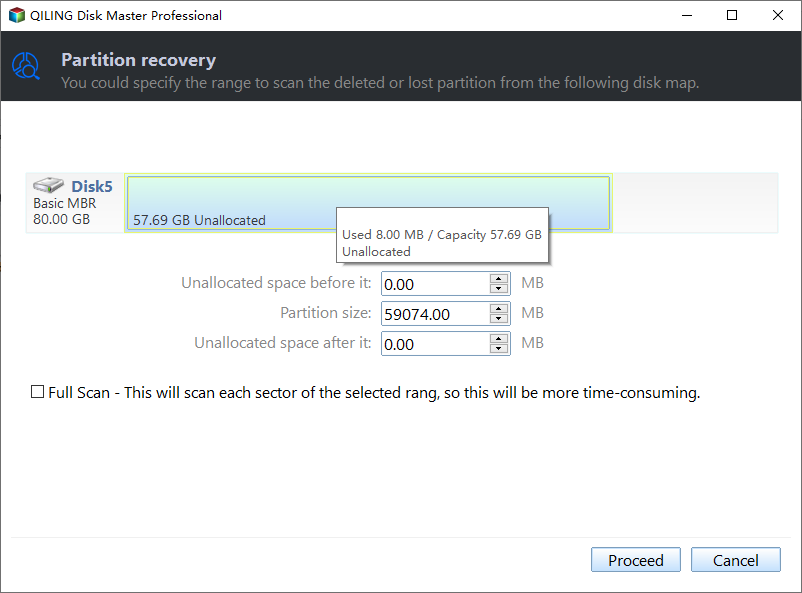
Step 3. At the next page, select a search rang and click Proceed.
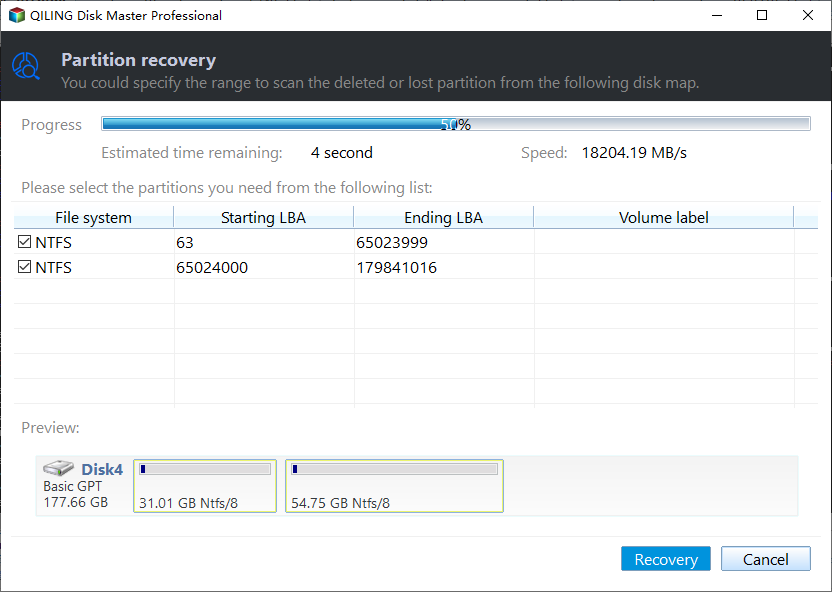
Step 4. Select the deleted boot partition and click Recovery. For security, click Explore files to confirm the files in the selected partition.
Method 2. Recreate EFI partition
If you can't recover the EFI partition, you'll need to create a new EFI partition and install an EFI boot loader to make your hard drive bootable.
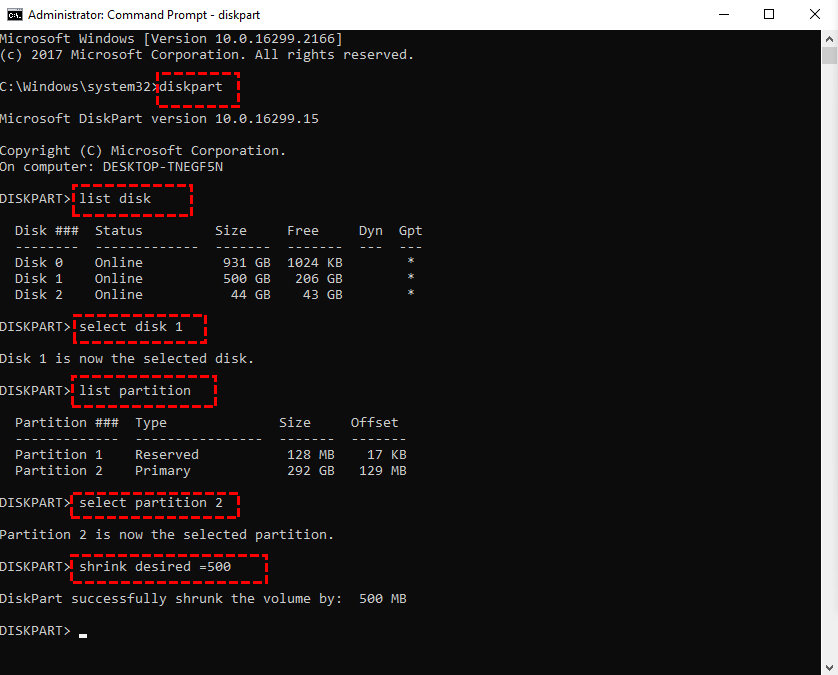
Step 1. To boot your computer from a Windows installation disc or recovery disk, press the Shift+F10 key combination in the setup to enter the command prompt window.
Step 2. To shrink a partition and create unallocated space, you can use the `resize2fs` and `e2fsck` commands in Linux. First, run `resize2fs /dev/sdX1` (replace `/dev/sdX1` with the actual device name of the partition you want to shrink) to resize the file system.
•Diskpart
•List disk
•Select disk X, and then click on the "New" button to create a new partition. In the "New Simple Volume Wizard", select the "EFI System Partition" option and follow the wizard to complete the partition creation.
•List partition
•To select partition N for shrinking, you can use the following command: `resize2fs /dev/sdXN` (assuming the partition is located on a device named `/dev/sdXN`).
•Shrink desired=500 (shrink the partition by 500MB)
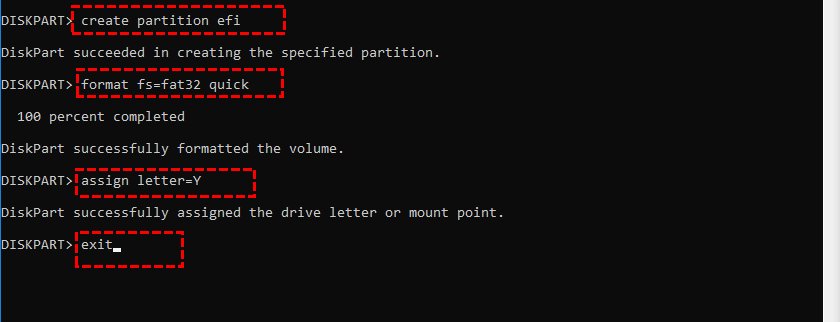
Step 3. Then you can create an EFI partition using unallocated space with the command below:
• create partition efi
• format fs=fat32 quick
• assign letter=Y• exit (exit diskpart.exe)
Step 4. To install the boot loader and other applications needed, use the commands `sudo grub-install /dev/sda1` and `sudo grub-install /dev/sda2`, followed by `sudo update-grub` and `sudo apt-get install -y grub-pc grub-pc-bin grub-efi grub-efi-bin grub-emu grub-emu-bin grub-core-img grub-core-img-bin grub2-emu grub2-emu-bin grub2-core-img grub2-core-img-bin grub2-core grub2-core-bin grub2-tools grub2-tools-bin grub2-tools-extra grub2-tools-extra-bin grub2-tools-common grub2-tools-common-bin grub2-tools-common grub2-tools-common-bin grub2-tools-common grub2-tools-common-bin grub2-tools-common grub2-tools-common-bin grub2-tools-common grub2-tools-common-bin grub2-tools-common grub2-tools-common-bin grub2-tools-common grub2-tools-common-bin grub2-tools-common grub2-tools-common-bin grub2-tools-common grub2-tools-common-bin grub2-tools-common grub2-tools-common-bin grub2-tools-common grub2-tools-common-bin grub2-tools-common grub2-tools-common-bin grub2-tools-common grub2-tools-common-bin grub2-tools-common grub2-tools-common-bin grub2-tools-common grub2-tools-common-bin grub2-tools-common grub2-tools-common-bin grub2-tools-common grub2-tools-common-bin grub2-tools-common grub2-tools-common-bin grub2-tools-common grub2-tools-common-bin grub2-tools-common grub2-tools-common-bin grub2-tools-common grub2-tools-common-bin grub2-tools-common grub2-tools-common-bin grub2-tools-common grub2-tools-common-bin grub2-tools-common grub2-tools-common-bin grub2-tools-common grub2-tools-common-bin grub2-tools-common grub2-tools-common-bin grub2-tools-common grub2-tools-common-bin grub2-tools-common grub2-tools-common-bin grub2-tools-common grub2-tools-common-bin grub2-tools-common grub2-tools-common-bin grub2-tools-common grub2-tools-common-bin grub2-tools-common grub2-tools-common-bin grub2-tools-common grub2-tools-common-bin grub2-tools-common grub2-tools-common-bin grub2-tools-common grub2-tools-common-bin grub2-tools-common grub2-tools-common-bin grub2-tools-common grub2-tools-common-bin grub2-tools-common grub2-tools-common-bin grub2-tools-common grub2-tools-common-bin grub2-tools-common grub2-tools-common-bin grub2-tools-common grub2-tools-common-bin grub2-tools-common grub2-tools-common-bin grub
• bcdboot C:\windows /s Y:

Step 5. Reboot your computer to see if it is fixed.
Conclusion
If your Windows 10 computer fails to boot due to a missing EFI partition, you can either recover the EFI partition using Qiling Disk Master or recreate it using diskpart. After resolving the issue, it's recommended to create a system backup to ensure you can restore your computer to a previous good state in case of future problems. Additionally, you can also attempt to recover any lost data.
Related Articles
- Solved: No EFI Partition Was Found
This guide explains Solved: No EFI Partition Was Found with clear steps, key checks, and practical tips. - Partition Is Deleted Accidently in Windows PC? Recover it Effortlessly
When your partition is deleted accidentally in Windows 10, 8, 7, you can use the Qiling Disk Master Professional. It can recover deleted data partition and system partition easily. - Missing EFI Partition in Windows 10 – Solved
This guide explains Missing EFI Partition in Windows 10 – Solved with clear steps, key checks, and practical tips. - Accidentally Deleted Boot Partition in Windows 10 – How to Recover?
Recover an accidentally deleted boot partition in Windows 10 with practical partition recovery steps and boot repair methods to make the system bootable again. - Effective Hard Disk Unallocated Repair Methods for Windows 10/8/7 Are Here!
This guide explains Effective Hard Disk Unallocated Repair Methods for Windows 10/8/7 Are Here! with clear steps, key checks, and practical tips.
Products
Articles & Tutorials
- Data Recovery
- Data Backup
- File Recovery
- File Backup
- File synchronize
- System Backup and Restore
- Disk and Partition Clone
- Technical articles
- Disk Master Help
- Windows Deleted File and Disk Recovery Tutorials
- Windows File and Data Recovery Tutorials
- More Windows Tutorials for Install, Security, Files, and PC Tips
- Windows Boot, Repair, and Recovery Environment Tutorials
- Windows Backup Tutorials
- Windows Restore Tutorials
- Windows Clone and Migration Tutorials
- Windows Server Backup, Recovery, and Management Tutorials
- Windows Disk, Partition, and Storage Management Tutorials