Solved: No EFI Partition Was Found
Error! No EFI partition was found!
"My computer is Windows 10 and I encountered a big problem this morning. I was ready to format and install software on my desktop but I got an error message saying that no EFI system partition was found. I'm puzzled. I don’t understand much about what I should do. Can I recover the EFI system? Any advice will be appreciated!"
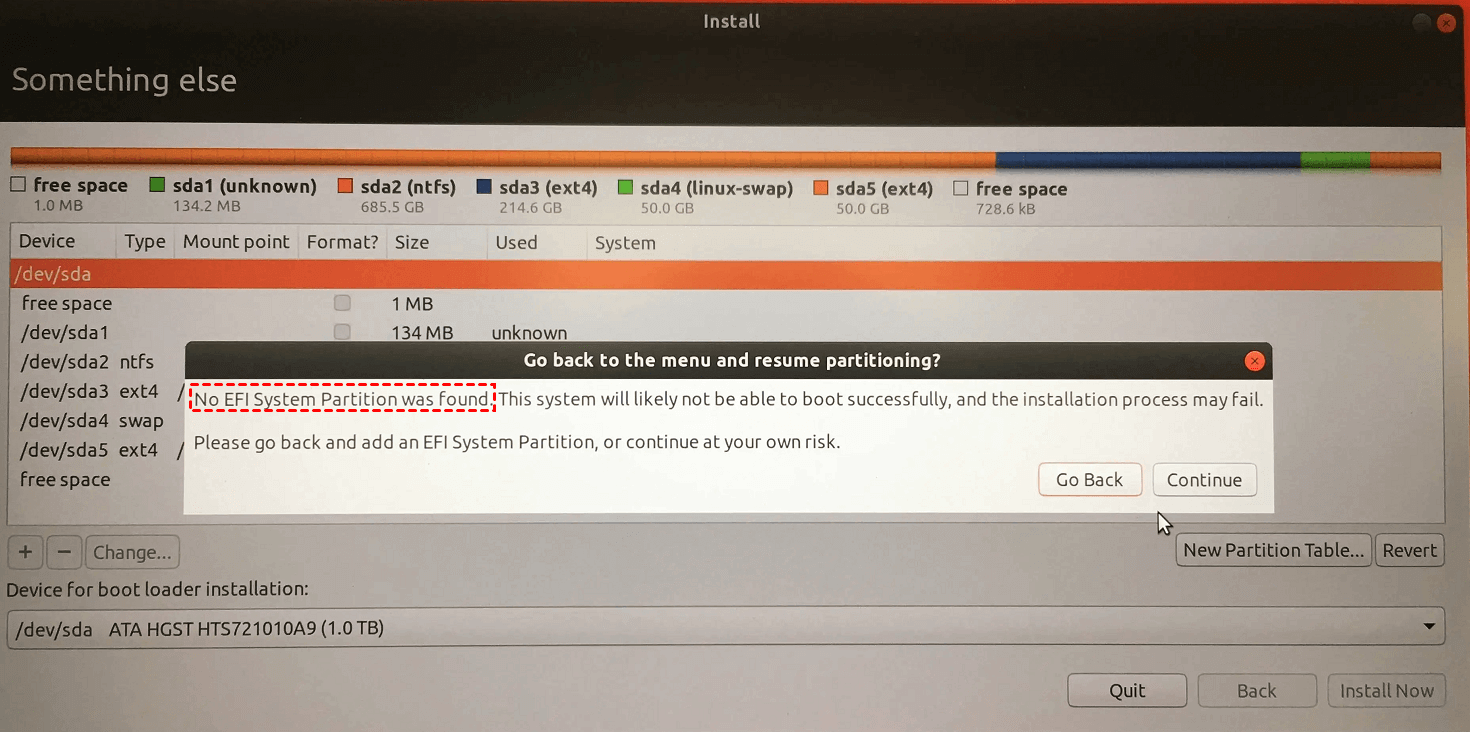
If you're a computer newbie, you might overlook the significance of the EFI system partition, which can lead to the described error. The likely reason is that you accidentally deleted the EFI partition at some point while using your computer.
What will happen if there is no EFI partition?
To figure out the consequences if there is no EFI partition, let's have a fundamental understanding of the two following questions.
What is EFI partition?
The EFI system partition (ESP) is a small, FAT32-formatted partition, typically around 100MB, that stores essential files and utilities necessary for booting a Windows operating system on a UEFI firmware-based system. When a PC is booted, the hardware and firmware are initialized first, then the firmware triggers the files and utilities on the ESP, ultimately leading to the successful launch of the Windows OS.
Is EFI partition necessary?
The EFI partition is a crucial part of the Windows operating system, and it's necessary for a successful boot. It's not visible in File Explorer due to its protected status, but can be accessed through Disk Management to ensure its integrity and prevent accidental deletion.
In one word, without EFI partition, you fail to boot your Windows. But in the circumstance where you still delete it by mistake, what can you do?
How to solve the "No EFI Partition Was Found" error?
If the error "no EFI partition was found Windows 10" occurs on your computer, you won't be able to boot into Windows. The EFI partition stores important files and utilities, so deleting it accidentally can result in data loss. To recover it, you can try the following two detailed tutorials, which may help you resolve the issue.
Method 1. Recover EFI partition in Windows 11/10/8/7
The EFI partition is protected by Windows, making it inaccessible through File Explorer or Disk Management. To recover the EFI partition, we recommend using a third-party partition manager called Qiling Disk Master Professional, which can help you access and recover the partition in Windows 11/10/8/7 and XP.
To resolve the "no EFI partition found" problem, you can download the demo version of a software tool to see how it can be used to fix the issue.
Step 1. Install and open Qiling Disk Master Professional. If unable to boot the PC, create bootable media in a running computer and boot the problematic PC from it.

Step 2. At the main interface of the software, select "Partition Recovery" from the "Disk management" tab page.

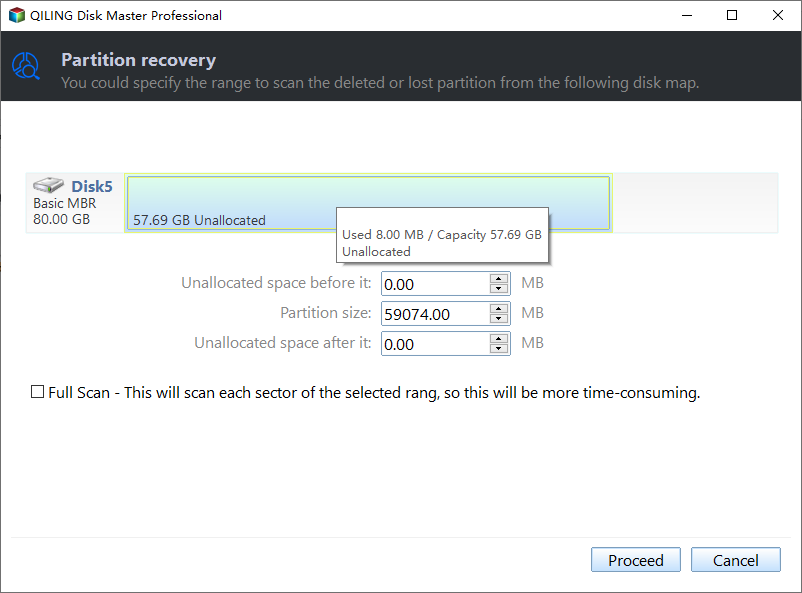
Step 3. The user needs to select the disk that does not have an EFI partition, then click on "Proceed".
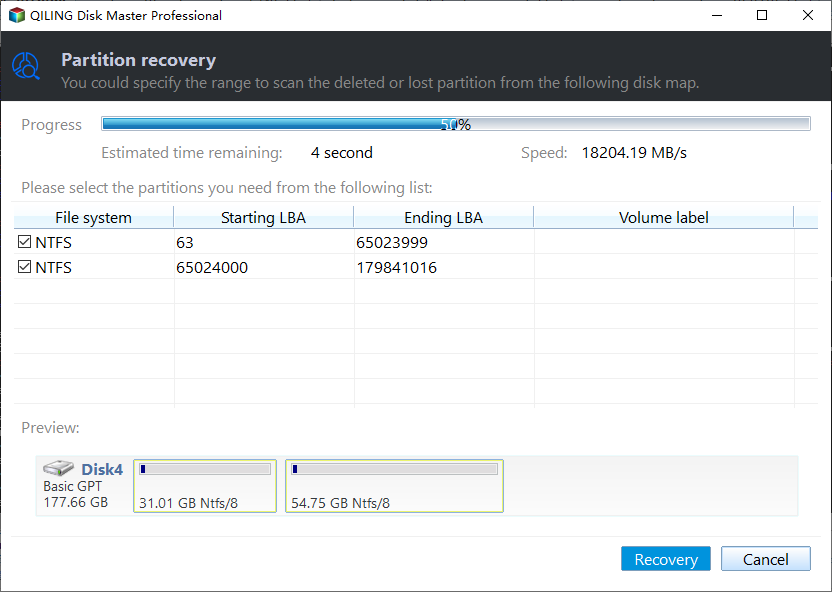
Step 4. Select the missing EFI system partition in the following list that appears and hit "Recovery".
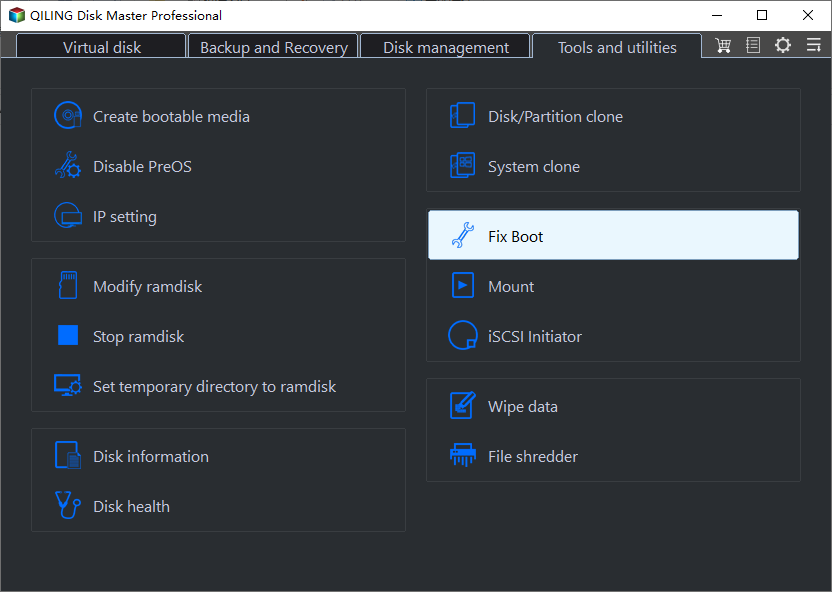
Method 2. Recreate EFI partition with "Fix boot" feature in the Disk master if the system is existed
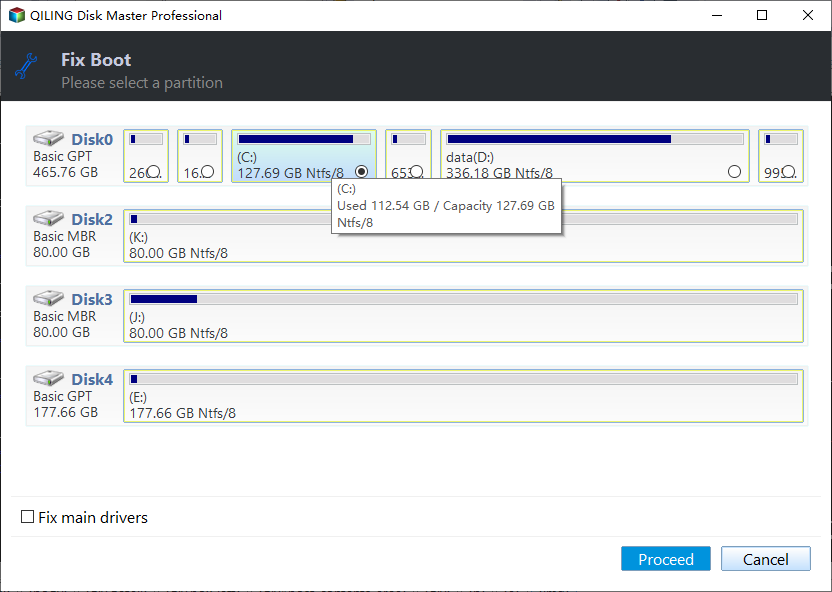
Method 3. Recreate EFI partition in Windows 11/10/8/7
To solve the "no EFI partition was found" issue, you can recreate the EFI partition by creating a new partition and then installing an EFI boot loader, making the hard drive bootable. This can be done by following these steps:
1. To boot your computer from a Windows installation disc or recovery disk, start the computer and immediately insert the installation or recovery disc. The computer should automatically boot from the disc. If it doesn't, you may need to enter the BIOS settings and set the disc drive as the first boot device.
2. To free up unallocated space, run the commands below to shrink a partition. This will allow you to reclaim some of the space currently occupied by the partition and make it available for use by other files or programs.
♦Diskpart
♦List disk
♦Select disk X (X refers to the disk number of the disk that needs an EFI partition)
♦List partition
♦The command to select partition N is: `parted /dev/sdb set 1 start 1` (assuming the partition number is 1 and the disk is /dev/sdb) If you want to select a different partition, replace 1 with the number of the partition you want to work with. Note: parted must be run as root.
♦Shrink desired=500 (shrink the partition by 500MB)
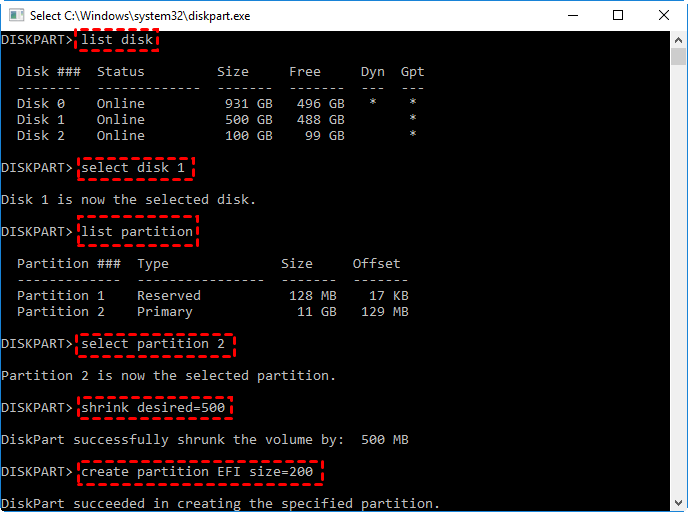
3. To create an EFI partition using unallocated space, you can use the command `parted /dev/sda mkpart` followed by the partition type and size, such as `EFI System` and `512M`. This will create a new partition with the specified type and size, which can then be formatted as an EFI partition using the `mkfs.
♦create partition EFI size=200
♦format quick fs=fat32 label="System"
♦create partition msr size = 128
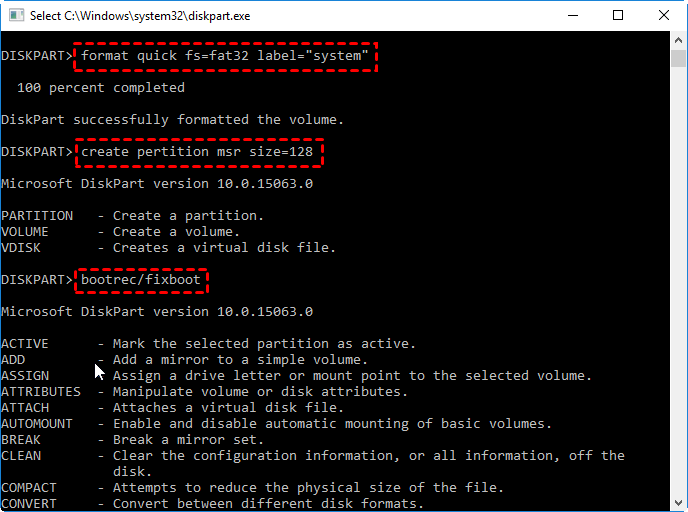
4. After the EFI partition has been created successfully, use the commands below to install bootloader and other essential applications.
♦bootrec /fixboot
♦bcdboot c:\Windows /s b: /f all
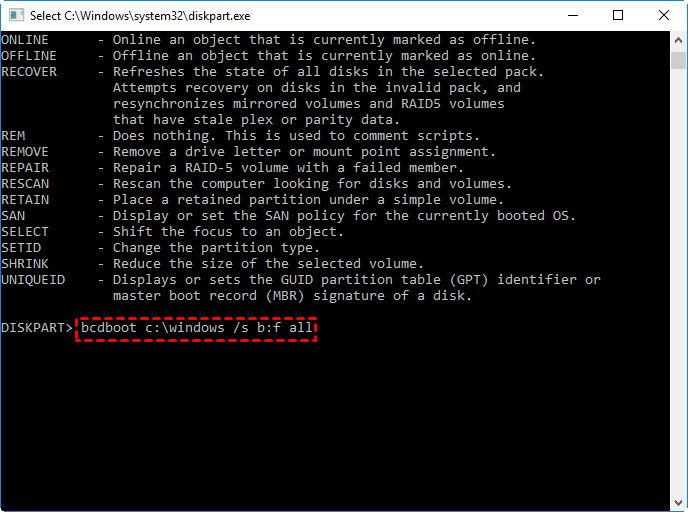
5. Reboot your computer to see if the "no EFI system partition was found" error is resolved.
- ★Note:
- For those unfamiliar with computers, recreating an EFI partition via Diskpart can be daunting, but a more convenient option is using Qiling Disk Master Professional to recover the EFI system partition without data loss, even for a computer novice.
Conclusion
If you encounter the "No EFI partition was found" error, you may be able to identify the cause and understand the consequences of not having an EFI partition. Fortunately, you can recover or recreate the EFI partition using software like Qiling Disk Master or diskpart. To prevent this issue from happening again, it's recommended to back up your system, such as by cloning your OS to another drive, or if you're running a Server system, consider upgrading to the Server Edition. This will ensure your system is properly configured and protected.
Related Articles
- Solved: No EFI Partition Was Found
Fix the No EFI Partition Was Found error by checking the boot disk, repairing the EFI partition, or recreating the boot files safely. - Partition Is Deleted Accidently in Windows PC? Recover it Effortlessly
When your partition is deleted accidentally in Windows 10, 8, 7, you can use the Qiling Disk Master Professional. It can recover deleted data partition and system partition easily. - Missing EFI Partition in Windows 10 – Solved
Recover or recreate a missing EFI partition in Windows 10 so the system can boot normally again. - Ways to Initialize Disk Windows 10 and Common Disk Initialization Errors
This article shows you how to initialize disk in Windows 10, as well as tells how to fix some common disk initialization errors. - Effective Hard Disk Unallocated Repair Methods for Windows 10/8/7 Are Here!
Repair an unallocated hard disk in Windows 10/8/7 with disk checks, partition recovery options, and data-safe repair methods.
Products
Articles & Tutorials
- Data Recovery
- Data Backup
- File Recovery
- File Backup
- File synchronize
- System Backup and Restore
- Disk and Partition Clone
- Technical articles
- Disk Master Help
- Windows Deleted File and Disk Recovery Tutorials
- Windows File and Data Recovery Tutorials
- More Windows Tutorials for Install, Security, Files, and PC Tips
- Windows Boot, Repair, and Recovery Environment Tutorials
- Windows Backup Tutorials
- Windows Restore Tutorials
- Windows Clone and Migration Tutorials
- Windows Server Backup, Recovery, and Management Tutorials
- Windows Disk, Partition, and Storage Management Tutorials