10 Tips for SSD Optimization in Windows 7 - Part 1
Tips: Since Windows 10, Windows 8.1, or Windows 8 is an adaptation of Windows 7, this guide also applies for SSD optimization for Windows 10, Windows 8.1, and Windows 8. Additional tips about SSD optimization and partition management can be found elsewhere.
1. Make Sure Your System is Running in AHCI Mode
To optimize SSD performance, ensure your system is running in AHCI mode, which can be done by entering the BIOS setup and changing the SATA controller mode to AHCI. This is typically necessary for Windows 7 or 8 PCs.
Tips: The common way to enter the BIOS is by pressing the Delete key or F2 key when the computer is booting up.
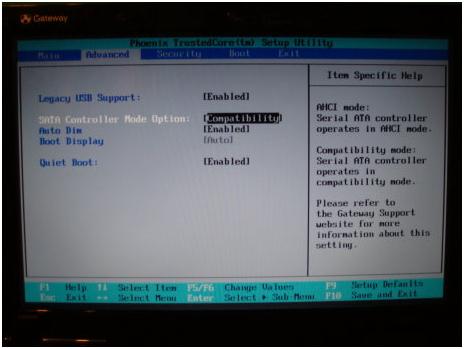
If you change the mode from IDE to AHCI in BIOS, the system may fail to boot up. If this happens, revert back to the original mode. If you've installed an operating system and then check the BIOS to see if AHCI is enabled, don't make any changes as it may result in a Blue Screen of Death (BSOD). However, if AHCI is not enabled, you can enable it in Windows instead.
After entering into Windows, please follow the way below to enable AHCI mode, which won't make your computer unbootable.
- Use Win+R shortcut to open the Run dialog box.
- Input "regedit" and hit Enter key to open Registry Editor.
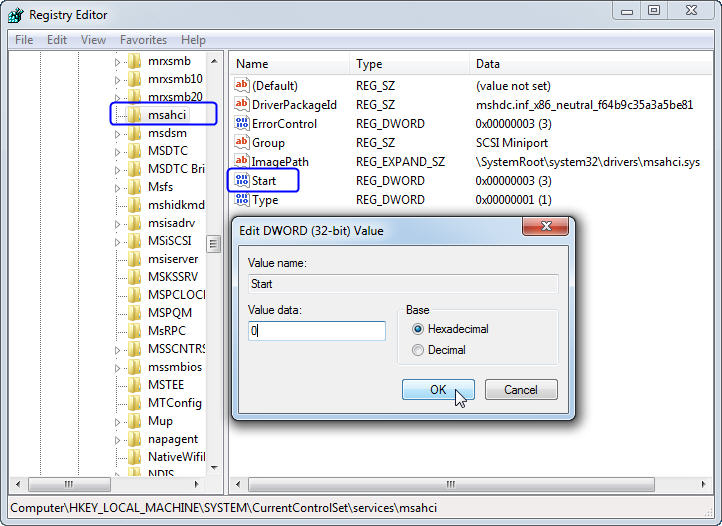
- Navigate to the location "HKEY_LOCAL_MACHINE\SYSTEM\CurrentControlSet\Services\msahci".
- Set the Start value to "0" (0 means AHCI enabled).
2. Verify If TRIM Is Enabled or Not
TRIM technology was introduced by SSD manufacturers to speed up data writing by automatically wiping data marked for deletion, reducing the time it takes for SSDs to clean the data before writing new data. To verify if TRIM is enabled, you can follow the method provided.
- Open Command Line Prompt.
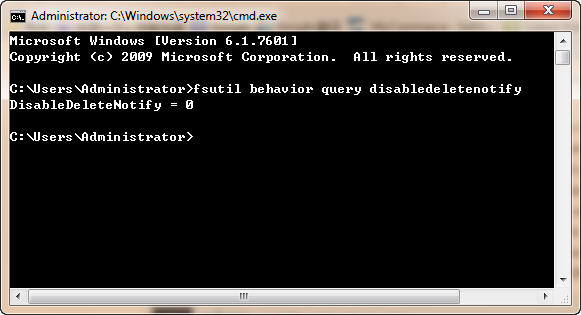
- Input "fsutil behavior query DisableDeleteNotify".
- If the result is 0, it means TRIM is enabled, while a result of 1 indicates TRIM is disabled.
3. Check Whether SSD Partition Is Aligned or Not
Partition alignment is a concept specific to SSDs, where every partition's starting location must be a multiple of 2048, which enhances writing and reading speeds. Tools like AS SSD Benchmark or Qiling Disk Master Pro can be used to check if SSD partitions are aligned.
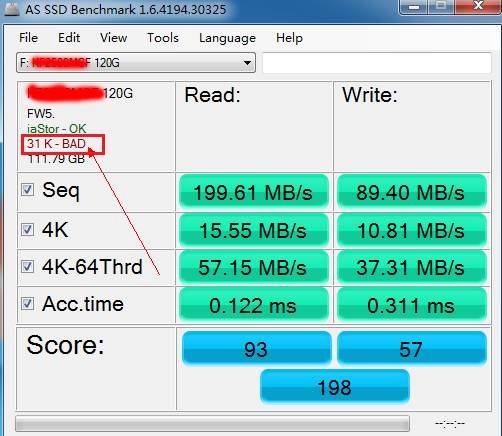
To align the partition of your SSD, you can use a tool like AS SSD Benchmark's alignment feature or a partition manager like Qiling Disk Master. Here's a brief guide:
Qiling Disk Master Pro is an all-in-one partition manager that supports various Windows operating systems, allowing users to check and align SSD partitions, resize partitions, migrate OS to SSD, clone HDD to SSD, and more.
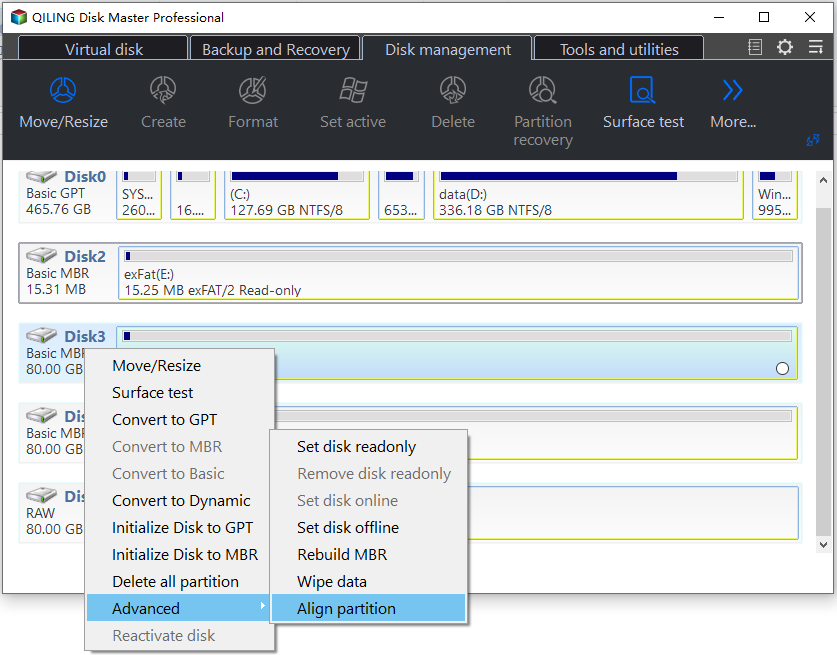
Step 1: To check or align a partition in Qiling Disk Master Pro, you can download the demo version, install and launch the software, and then right-click the partition you want to check or align. From the drop-down menu, select "Advanced" and then "Partition Alignment".
Step 2: The pop-up window allows you to set the partition alignment to a specific value.
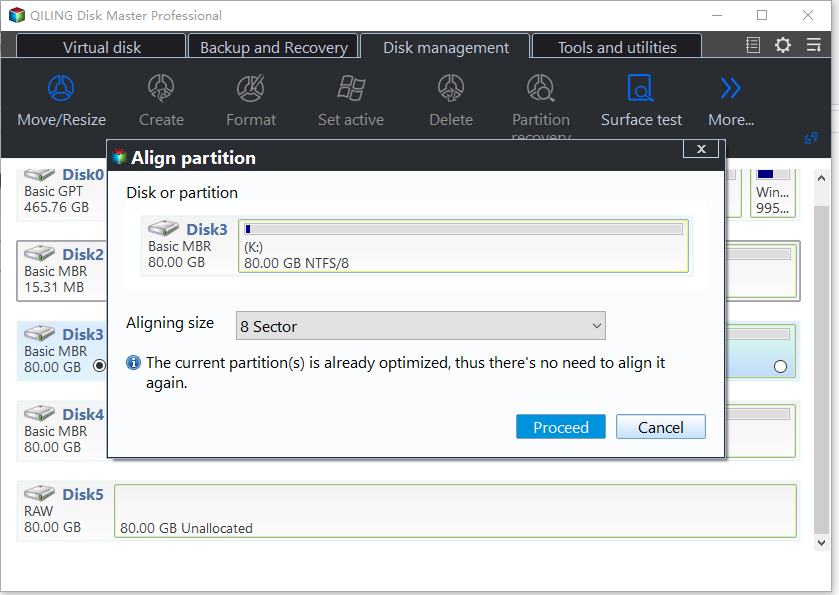
Step 3: Click "Proceed" to save changes.
Related Articles
- [6 Ways] How to Free up Space on Windows 11
Learn how to Free up Space on Windows 11 with clear steps, key checks, and practical tips. - [Stepwise] How to Burn Windows 11 ISO to USB?
If you're unsure about how to burn a Windows 11 ISO to a USB drive, this post provides a detailed tutorial to guide you through the process. - [2 Ways] How to Move Apps in Windows 11 Without Losing Data
Learn how to Move Apps in Windows 11 Without Losing Data with clear steps, key checks, and practical tips. - How to Move Windows 11 to Another Drive without Data Loss?
Learn how to Move Windows 11 to Another Drive without Data Loss with clear steps, key checks, and practical tips. - Best Free Crucial SSD Clone Software for Crucial SSD Clone
Acronis True Image for Crucial is a free Crucial SSD clone software, but it is always not working. To clone all series of Crucial SSDs or other branded SSDs, Qiling Disk Master will be a better choice. - Two Ways to Create Data Backup Using CMD in Windows 10/8/7
This guide explains Two Ways to Create Data Backup Using CMD in Windows 10/8/7 with clear steps, key checks, and practical tips.
Products
Articles & Tutorials
- Data Recovery
- Data Backup
- File Recovery
- File Backup
- File synchronize
- System Backup and Restore
- Disk and Partition Clone
- Technical articles
- Disk Master Help
- Windows Deleted File and Disk Recovery Tutorials
- Windows File and Data Recovery Tutorials
- More Windows Tutorials for Install, Security, Files, and PC Tips
- Windows Boot, Repair, and Recovery Environment Tutorials
- Windows Backup Tutorials
- Windows Restore Tutorials
- Windows Clone and Migration Tutorials
- Windows Server Backup, Recovery, and Management Tutorials
- Windows Disk, Partition, and Storage Management Tutorials