How to Move Windows 11 to Another Drive without Data Loss?
Why move Windows 11 to another drive?
Windows 11 has come for a while and people literally enjoy it for its new features and powerful functions like the new more Mac-like interface, integrated Android apps, and Microsoft Teams integration. Proud to say, I was also one of those pioneers who installed it once the trial was released. The OS has been working well so far without any glitches or bugs.
Many Windows 11 users are seeking to move their operating system to another drive, likely due to one of three main reasons. They may need to replace their hard drive, perhaps due to issues with the existing one, or they might want to upgrade to a faster or larger storage drive, which can improve system performance. Whatever the reason, moving the OS to another drive can be a complex process, which is why users are seeking guidance on how to do it successfully.
They plan to move their operating system from the current hard drive to a new solid-state drive (SSD) to take advantage of its improved performance and stability.
The current boot drive is full, causing the PC to become slow and sluggish, prompting the need to move Windows 11 to a new drive with sufficient storage space.
3) They want to create a backup of their operating system so they can easily recover it if their system crashes.
How to move Windows 11 to another drive securely?
To move Windows 11 to another drive, you'll need a third-party tool since Windows 11 doesn't have a built-in disk cloner. I recommend using Qiling Disk Master Professional, which allows you to move Windows 11 to another drive in just a few clicks, as long as the destination disk is not smaller than the used space of the source disk. This all-in-one tool also supports other disk management features, including app mover, schedule defrag, and SSD secure erase.
Preparations before the Windows 11 migration
Before migrating to Windows 11, certain preparations are necessary to ensure a smooth transition.
Initialize the new HDD/SSD by starting an initialization process in Disk Management, right-clicking on the new drive, and selecting "Initialize Disk", then setting it as GPT or MBR.
2) Check storage space. Ensure there's enough space on the destination drive, especially when cloning from an HDD to an SSD as they are often smaller.
Prepare the right cable for your laptop. If it has only one hard drive slot, use a SATA to USB cable to connect the new hard drive to the laptop during the Windows 11 OS migration.
After all the preparation is done, you can now download the demo of Qiling to experience its impressive features firsthand.
Note: If you're planning to migrate Windows 11 from an MBR drive to a GPT drive or vice versa, you'll need to check if your motherboard supports UEFI boot mode or Legacy boot mode, as this will affect the migration process.
Option 1. Move the entire Windows 11 hard drive to another drive
To transfer Windows 11 to a new SSD or HDD, you can use the built-in Windows feature called "Transfer to Another Drive" or use a third-party cloning software like Qiling Disk Master. This will help you move all your files, apps, and programs to the new drive, including the operating system itself. Simply connect the new drive, go to the Settings app, and follow the prompts to initiate the transfer process.
Step 1. Install and launch Qiling Disk Master Professional. In the top pane, click "Tools" > "Clone Partition" as shown in the screenshot.

Step 2. In the next window, there are options for disk clone, but we don't choose the "Sector-by-Sector Clone" option.
Clone only used space to another disk and allow to adjust the size of partitions, making the cloning process quicker and more flexible.
Sector-The command "Clone all sectors to another disk, whether used or not" can be rewritten as "Clone all sectors to another disk, including unused ones."

Step 3. The disk where Windows 11 is currently installed should be selected as the source disk.
Step 4. Select the new SSD/HDD as the destination disk, and if it's an SSD, also tick the option to optimize its performance.

Step 5. Now, you can change partition sizes on the destination disk or simply leave it as is.

Step 6. After returning to the home interface, click "Proceed" to initiate the OS migration process.

Option 2. Move only Windows 11-related partitions to another drive
Besides cloning the entire Windows 11 hard drive, you can also move only Windows 11-related partitions to another drive for a faster process.
Step 1. Launch Qiling Disk Master Professional and click on "Migrate OS" under the "Clone" tab from the top side.

Step 2. Select a piece of unallocated space on the destination disk and proceed to the next step. If there's no unallocated space left, you must select the option to delete all partitions on the disk to migrate the system.

Step 3. In the popup window, you can either resize the system partition to make more space available or leave it as is, depending on your specific needs and preferences.

Step 4. Hit "Proceed" to commit the operation.
Step 5. Read the note on how to boot OS from the target disk and hit "Yes".

How to boot Windows 11 from the new drive?
After migrating to Windows 11, if you uninstall the old drive, your PC will automatically boot from the new SSD/HDD. To keep the old drive as a data drive, you need to change the boot order in BIOS to boot from the destination drive normally.
1. When the Windows logo appears during startup, press F1, F2, F3, F5, or Esc repeatedly to enter the BIOS setup, allowing you to make changes and configure settings.
2. Go to the "Boot" tab and select "Change boot order" to set the new SSD/HDD as the boot drive.
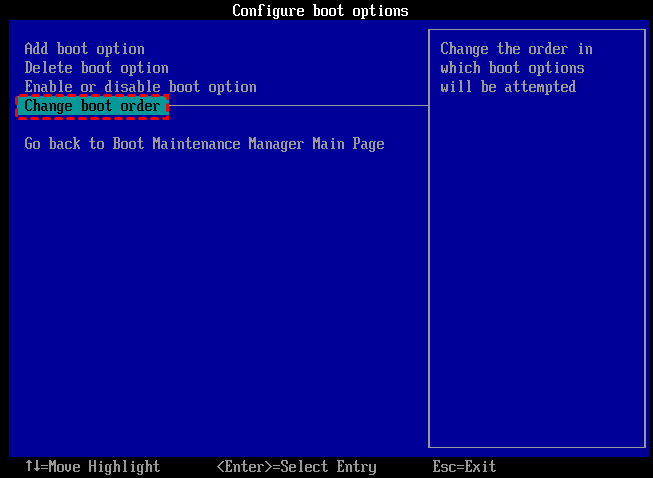
3. Hit "F10" to save the changes.
Conclusion
Many people who want to replace their hard drives are concerned about how to move Windows 11 to another drive. To address this issue, a powerful and versatile third-party utility called Qiling Disk Master Professional can be used to transfer Windows 11 with ease, ensuring no data loss and a normal boot from the new drive. The Server edition of Qiling can also be used to move Windows Server systems.
FAQs
Can you migrate Windows 11 to another drive?
Built-You cannot use built-in tools in Windows 11 to migrate the operating system to a new disk. Instead, you may need to use third-party software like Qiling Disk Master to perform this task efficiently.
Should I install Windows 11 on an external SSD?
Upgrading to a high-speed SSD is recommended for optimal Windows 11 performance. The process of migrating Windows 11 to a new drive is straightforward, and you can install various applications on the new drive.
Can I move Windows 11 to another drive that already has one Windows OS?
You can install two Windows systems on one hard drive by creating separate partitions for each. To switch between them, adjust the boot device in your BIOS settings to select which Windows OS to boot into.
Related Articles
- [2 Ways] How to Move Apps in Windows 11 Without Losing Data
Learn how to Move Apps in Windows 11 Without Losing Data with clear steps, key checks, and practical tips. - QILING Affiliate Program
Join the QILING affiliate program, promote QILING software, and earn commissions from qualified sales through your website, blog, or review channel. - Deep Data Recovery
Deep Data Recovery software can help you completely recover deleted/lost files from PC, HDD, SSD, external hard disk, SD card, USB drive, and more. - QILING Fast Cache Standard
QILING Fast Cache can improve overall system performance and the life of hard disk. Free download the Fast Cache software to speed up your computer now! - How to Refresh Windows 11 without Losing Programs (3 Ways)
To refresh Windows 11 without losing programs, you can learn 3 easy ways from this article and the best way to prevent data loss. Please read on. - How to Resize/Move Partition Windows 11 without losing data?
To resize or move a partition in Windows 11 without losing data, you can use a versatile disk manager to help you achieve this easily.
Products
Articles & Tutorials
- Data Recovery
- Data Backup
- File Recovery
- File Backup
- File synchronize
- System Backup and Restore
- Disk and Partition Clone
- Technical articles
- Disk Master Help
- Windows Deleted File and Disk Recovery Tutorials
- Windows File and Data Recovery Tutorials
- More Windows Tutorials for Install, Security, Files, and PC Tips
- Windows Boot, Repair, and Recovery Environment Tutorials
- Windows Backup Tutorials
- Windows Restore Tutorials
- Windows Clone and Migration Tutorials
- Windows Server Backup, Recovery, and Management Tutorials
- Windows Disk, Partition, and Storage Management Tutorials