[6 Ways] How to Free up Space on Windows 11
- Scenario
- Why need to free up space on Windows 11?
- Solved: Free up space on Windows 11
- │Run Disk Cleanup
- │Delete hibernate file
- │Enable Storage Sense to free up disk space
- │Uninstall unneeded Applications
- │Free up space on Windows 11 with App Mover
- │Free up the hard drive by wiping it completely
- Further tips: Allocate free space from one drive to another
- Conclusion
Scenario
How can I free up space on Windows 11?
I just noticed that I only have 3GB left on my C drive, but I don't know why there is so little space left here. I don't think I downloaded a lot of files. What is taking up so much space in my computer? Can someone tell me how to free up space on Windows 11 to keep my computer running smoothly?
Why need to free up space on Windows 11?
Many users are unaware of why their computers are running out of space, and they also don't know how to free up space. The C drive can become full due to various conditions, including a large number of installed programs, temporary files, and system logs taking up too much space, as well as a lack of disk space management. This can lead to a range of issues, from slow computer performance to system crashes.
✦ There are viruses and malware on your computer that will keep generating files.
✦ You've saved large files to the C: drive, such as files in the default download folder, which is located on the C: drive.
✦ Pages files, temporary files, and other files can also occupy space on your system partition, consuming storage space that could be used for other purposes.
When Windows 11's C drive runs low on free space, it may display a warning and slow down system and application performance, potentially causing system crashes. To resolve this issue, it is essential to free up space on the C drive.
Solved: Free up space on Windows 11
To free up disk space on Windows 11, consider trying various methods depending on your situation. If you're dealing with a full Recycle Bin, emptying it can help.
│Run Disk Cleanup
Disk Cleanup is a maintenance utility within Microsoft that scans and displays the amount of storage space used by files on your hard drive, allowing you to delete files that cannot be deleted in Windows File Explorer.
Step 1. Right-click on the C drive and select "Properties", then click on "Disk Cleanup" in the popped window.
Step 2. Select the target files and click "OK" in the Disk Cleanup window.
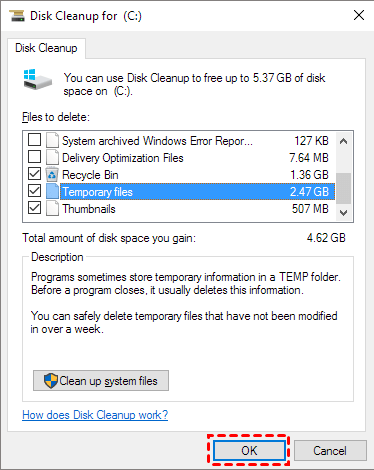
Note: If you don't want to select files one by one, you can click "Clean up System Files" to directly delete previous Windows installations, system restore points, the Recycle Bin, and other system files.
│Delete hibernate file
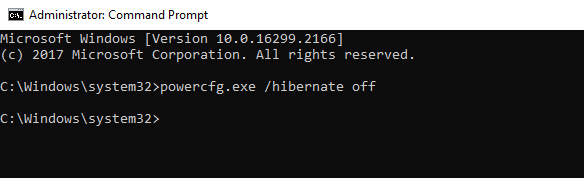
Hibernate is a Windows function that saves computer memory to a hard disk, making startup quicker. However, it reserves about half of the RAM space for hibernation files, consuming disk space. To free up disk space on Windows 11 without harming your computer, you can disable hibernation using the following steps.
Step 1. To run the Command Prompt as an administrator, go to the Start menu, type "cmd" and right-click the Command Prompt, then select Run as administrator.
Step 2. Type "powercfg.exe / hibernate off" and press Enter.
│Enable Storage Sense to free up disk space
Storage Sense is an upgraded disk cleanup function on Windows 11, which can automatically free up space on SSD or HDD by deleting temporary files, system logs, and other unnecessary data.
Step 1. To access the System and Storage settings, go to the Start menu and click on Settings, followed by System, and then Storage, clicking on each option one by one.
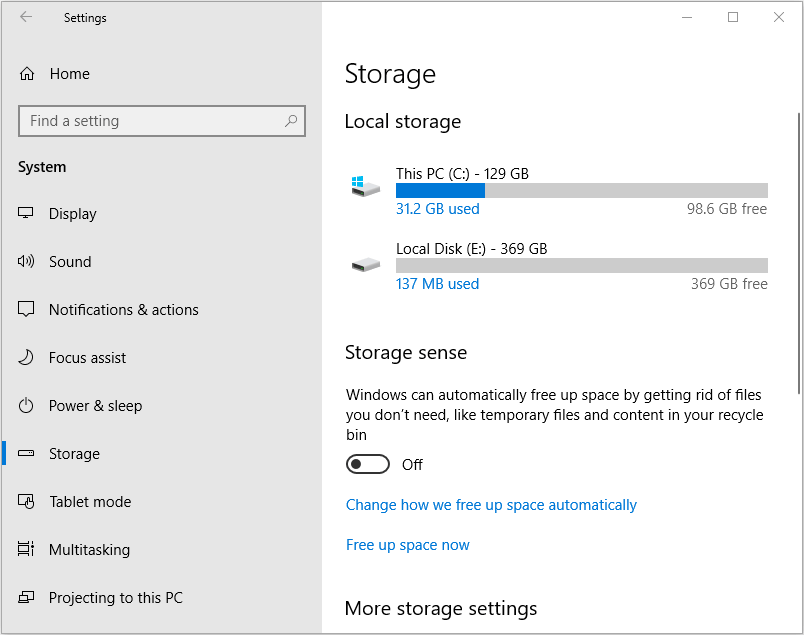
Step 2. Storage Sense is a feature in Windows 11 that helps you free up space on your device by automatically deleting unnecessary files and data. To turn it on, go to Settings > System > Storage > Storage Sense. Toggle the switch to turn it on.
Step 3. To free up space on your computer, click on a disk and select the unneeded files to delete them, thus freeing up the space.

│Uninstall unneeded Applications
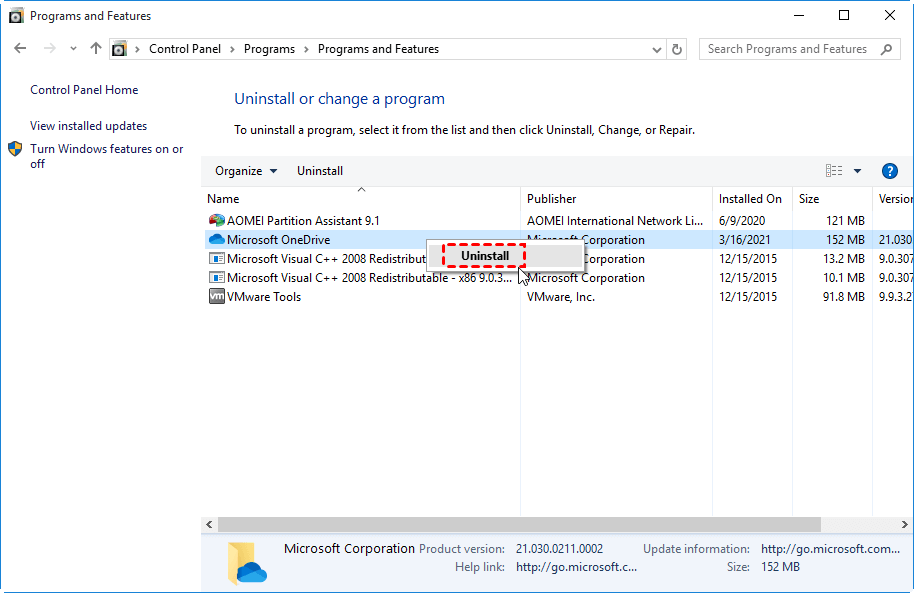
You can uninstall rarely used applications that take up a lot of disk space when you're running low on space.
Step 1. Press "Window+ R", then type "control" and hit "Enter".
Step 2. Click "Uninstall a Program" in the Control Panel dialogue.
Step 3. Right-click the listed applications you don't need and click "Uninstall".
│Free up space on Windows 11 with App Mover
If you're concerned about losing important data due to a wrong operation and need to free up space on Windows 11, consider using Qiling Disk Master Professional. This all-in-one disk partition management tool features an App Mover function that enables you to move installed programs and folders to other drives, freeing up space.
You can download the demo version to see how to free up space on Windows 11.
Tip: If you want to clean up large files in your computer, you can directly use "Delete Large Files".
│Free up the hard drive by wiping it completely
To free up disk space on Windows 11 using the Wipe Partition feature, you can create a new hard drive without old data by completely removing all data from the partition, making it unrecoverable. To do this, follow the steps:
Warning:
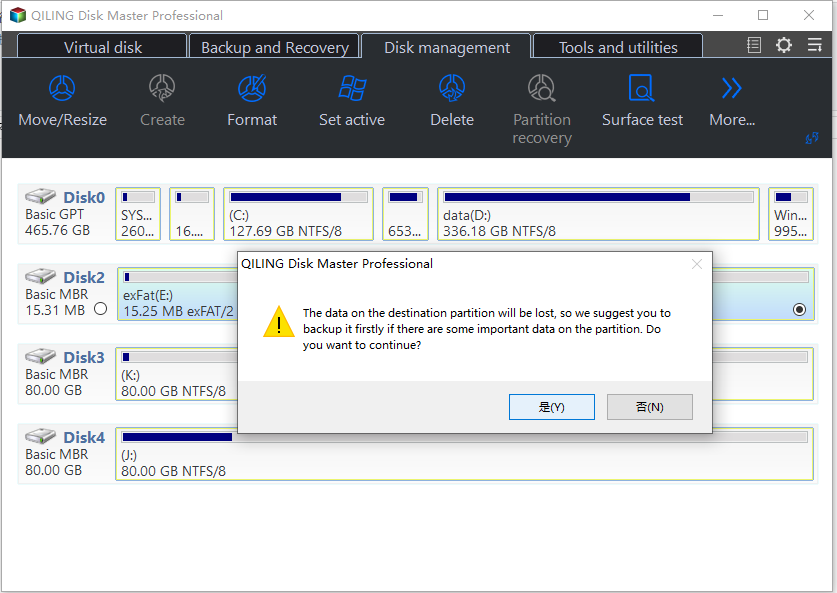
✎ Please backup your important data before erasing it, as once erased, it cannot be retrieved.
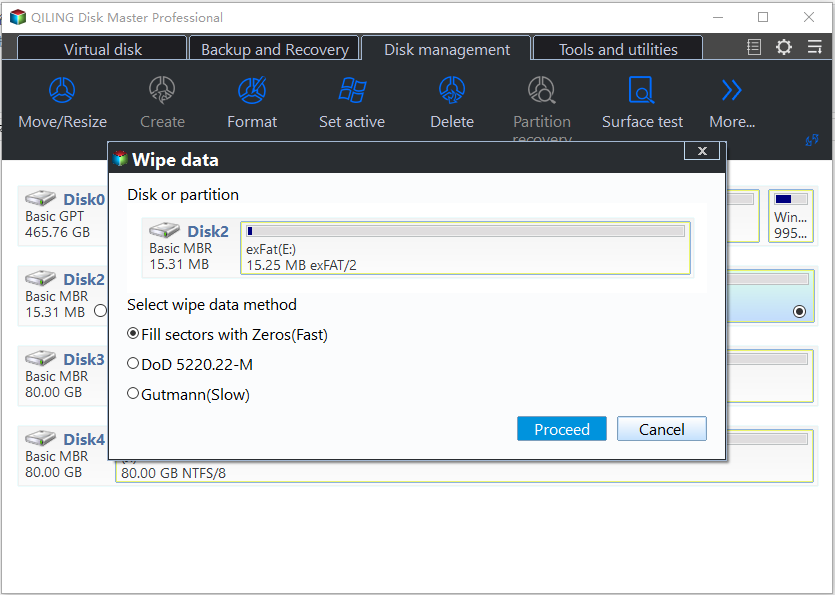
✎ You can choose to fill sectors with random data, follow the DoD 5220.22-M method, or fill sectors with zero to wipe the hard drive.
Step 1. Select the target disk, then click on the "Wipe Hard Drive" option in the right toolbar.
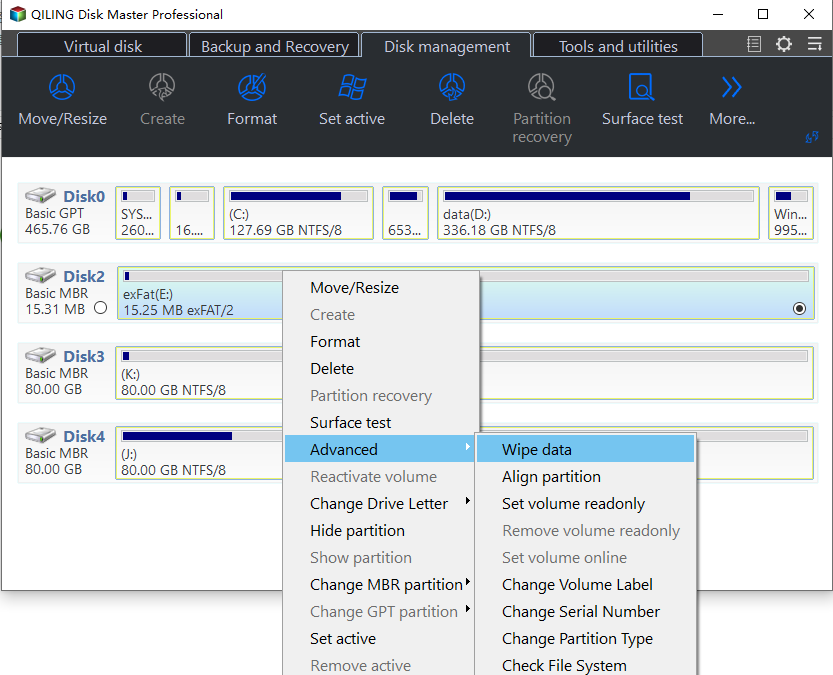
Step 2. Select "Gutmann" options.
Step 3. Click "Proceed" in the top toolbar to commit your operation.
Note: Due to the different storage methods of HDD and SSD, wiping a hard drive can have a negative impact on the life of an SSD. Therefore, if you want to erase your SSD permanently, you can try using the SSD Secure Erase feature instead.
Further tips: Allocate free space from one drive to another
If the C drive is almost full on Windows 11, but you don't want to delete data or change the location of data, you can also try to allocate free space to expand the C drive without losing data. This method allows you to increase the size of the C drive without deleting any files.
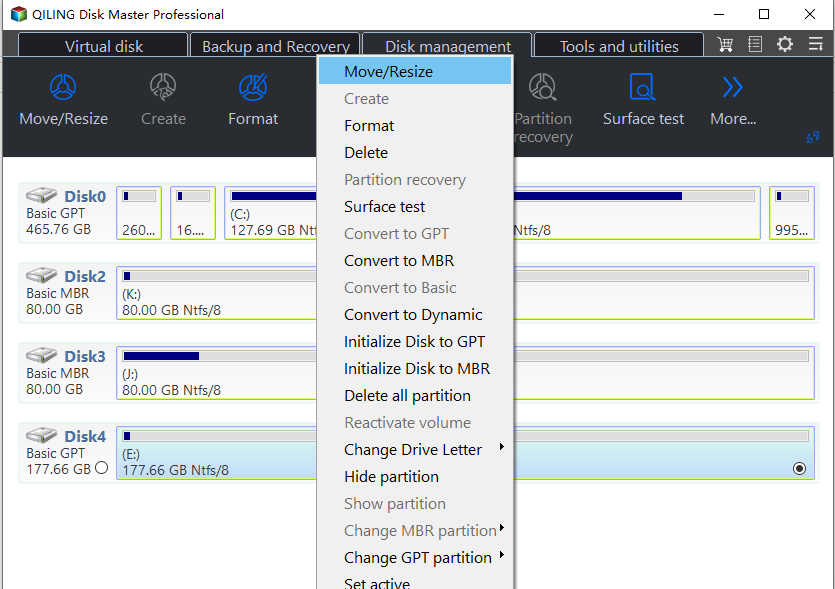
Step 1. Right-click the partition you want to allocate free space from and select "Allocate Free Space".
Step 2. 1024
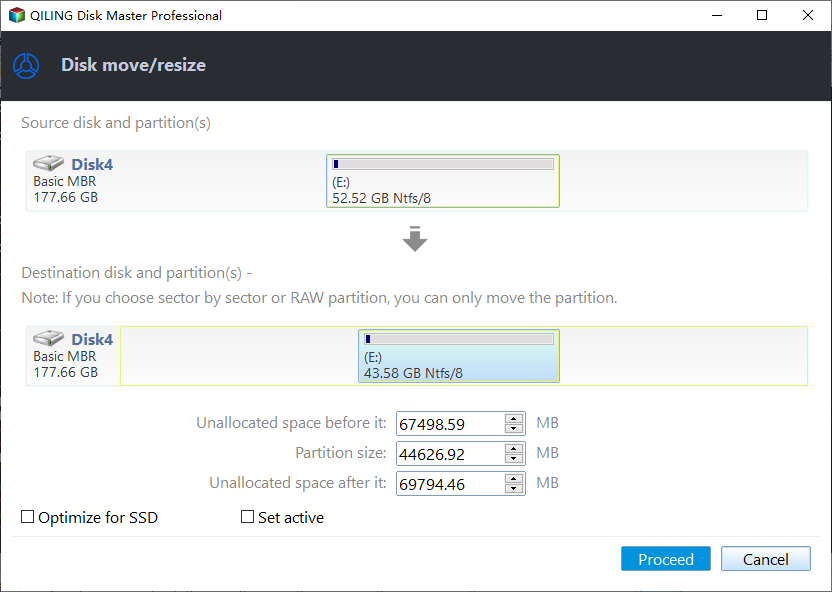
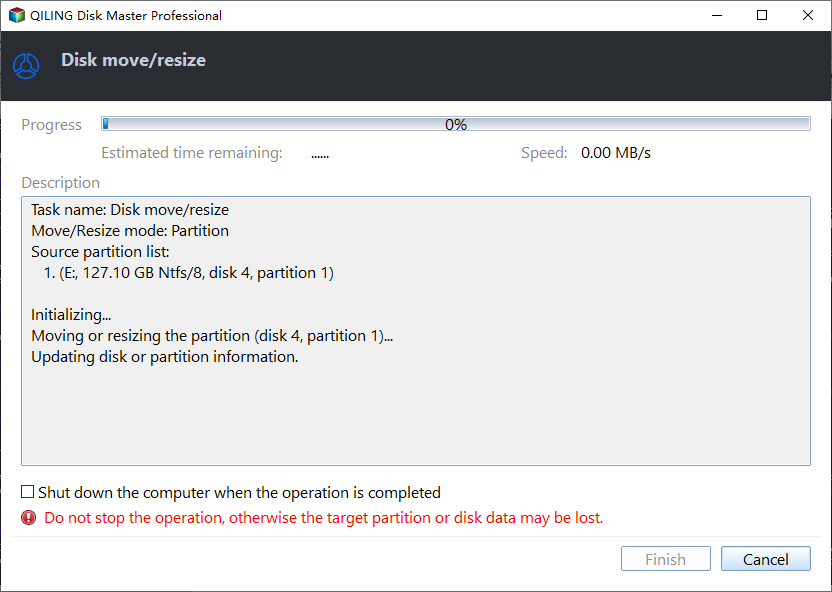
Step3. Click "Apply" and "proceed" to complete this operation.
Conclusion
If you're struggling to free up space on your Windows 10 device, the reasons and methods are outlined in the above tutorial. However, using Windows tools may have limitations and impact your user experience. For a safer and more effective solution, consider using Qiling Disk Master Professional Edition, which can help you free up space without losing data. Alternatively, if you're looking to boost your Windows 11 performance, migrating your OS to an SSD can also be a helpful option.
If you want to wipe the data on Windows server and enjoy other advanced features, please turn to Qiling Disk Master Server.
Related Articles
- Stepwise Guide to Free up Disk Space in Window 10
This post tells four effective ways to free up disk space, especially for C drive on Windows 10. - Solved: My C Drive Is Full Without Reason in Windows 11, 10, 8, 7
Sometimes, you may find your C drive is full without reason. Here we will explain this issue and share 7 effective methods to help resolve it in Windows 11,10,8, 7. - Backup Data to NAS Devices with Best Free Software
Qiling Disk Master is a free software that allows you to backup and restore data from a network-attached storage (NAS) drive to a Windows computer. - Create Command Line Backup with Qiling Disk Master
Qiling Disk Master allows you to create a system or disk partition image backup from command line interface or a batch (.BAT) file with the DiskMasterUI.exe utility. - [Stepwise] How to Burn Windows 11 ISO to USB?
If you're unsure about how to burn a Windows 11 ISO to a USB drive, this post provides a detailed tutorial to guide you through the process. - How to Free Up Space on Windows 11 Easily and Safely (3 Ways)
This article describes why free up space on Windows 11 and 3 easy and safe approaches to achieve the goal, including the easiest one. Please read on.
Products
Articles & Tutorials
- Data Recovery
- Data Backup
- File Recovery
- File Backup
- File synchronize
- System Backup and Restore
- Disk and Partition Clone
- Technical articles
- Disk Master Help
- Windows Deleted File and Disk Recovery Tutorials
- Windows File and Data Recovery Tutorials
- More Windows Tutorials for Install, Security, Files, and PC Tips
- Windows Boot, Repair, and Recovery Environment Tutorials
- Windows Backup Tutorials
- Windows Restore Tutorials
- Windows Clone and Migration Tutorials
- Windows Server Backup, Recovery, and Management Tutorials
- Windows Disk, Partition, and Storage Management Tutorials