Stepwise Guide to Free up Disk Space in Window 10
- Why free up disk space in Windows 10?
- What takes up space on my hard drive in Windows 10?
- How to free up disk space in Windows 10 [4 ways]
- Way 1. Run Disk Cleanup to free up disk space
- Way 2. Launch Storage Sense to reclaim disk space
- Way 3. Uninstall unessential applications to free up space
- Way 4. Reset your Windows 10 PC to factory setting
- An easier solution for space shortage in Windows 10
Why free up disk space in Windows 10?
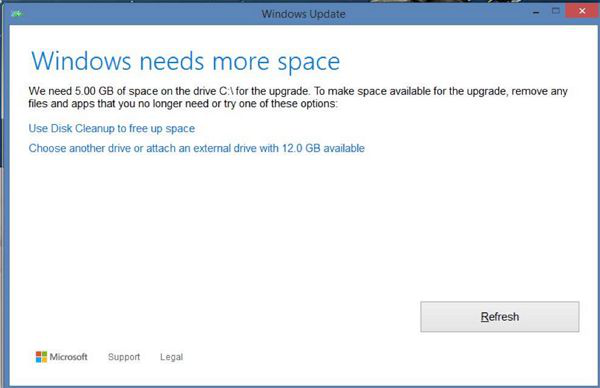
Windows 10 is widely used, and updating to the latest version is common. However, when updating, you may encounter a message saying "Windows need more space" due to insufficient disk space, which can prevent the update from proceeding.
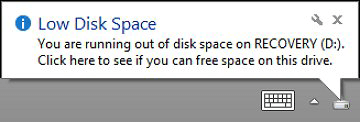
As you save more data on your Windows 10 hard drive, you may encounter a Low Disk Space warning and experience slow system and application performance.
If you're experiencing issues with Windows 10 due to disk space shortage or low system response speed, it's time to take action to free up disk space. This can be achieved by removing temporary files, uninstalling unused applications, deleting unnecessary files, and upgrading to a larger storage drive if necessary.
What takes up space on my hard drive in Windows 10?
To reclaim free space on Windows 10, it's essential to understand what's taking up disk space on your system hard drive. This includes backup files, system restore points, paging files, temporary files, and even previous Windows installations or download files that may have gone unnoticed.
How to free up disk space in Windows 10 [4 ways]
To free up disk space, you can employ one or more methods based on your demand.
Way 1. Run Disk Cleanup to free up disk space
In Windows 11, 10, 8, 7, you can use the built-in Disk Cleanup tool to delete unwanted files and folders. This tool allows you to clear downloaded program files, Recycle Bin, temporary files, and previous Windows installation(s), freeing up space on your disk. To use it, follow the steps to clear files and folders.
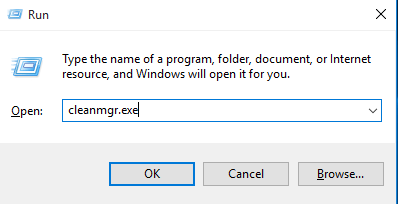
Step 1. Press Windows + R simultaneously to open the Run window, then input "cleanmgr.exe" and click OK to open Disk Cleanup.
Step 2. Choose the drive you want to clean, such as the C drive, and then click "OK" to proceed.
Step 3. It may take several minutes to calculate how much space you can free, after which you'll be able to enter the window where you can select the items you want to delete.
Notes:
▪ To free up disk space, you can delete the old Windows folder by clicking on "Clean up system files" in the Disk Cleanup tool, but be aware that you won't be able to downgrade to a previous version of Windows after doing so.
▪ To avoid deleting necessary files, you can click on the "View Files" button to confirm what the files are, before proceeding with deletion.
Way 2. Launch Storage Sense to reclaim disk space
If your Windows version is after Windows 10 1703, you can use Storage Sense to automatically free up space on your SSD or HDD. To do this, you can follow these steps: [insert steps].
Step 1. Click the Start icon, then navigate to Settings > System > Storage.
Step 2. You can see that Storage Sense is Off by default, so toggle the button to On.
Step 3. Now, you can see the storage condition of your C drive in Windows 10. Clicking on an item lists files that can be removed immediately.
Step 4. Check the files you don't need anymore and click Delete Files.
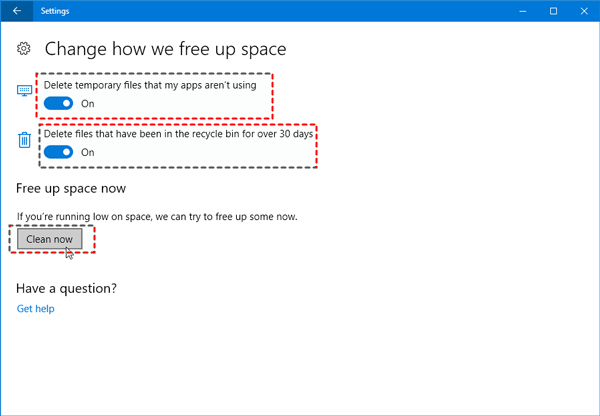
Tip: You can click "Change how we free up space" to configure Storage Sense, which has two options for freeing up space in the Settings window. You can also click "Clean Now" to free up space immediately.
Way 3. Uninstall unessential applications to free up space
When you're running low on disk space, consider uninstalling any seldom-used apps that are taking up valuable space. Follow these steps to remove them.
Step 1. Press the Windows key + R at the same time, input "control," and hit Enter. This will open the Control Panel.
Step 2. In Control Panel dialogue, click Uninstall a Program under Programs.
Step 3. To uninstall an app, first, go to the list of installed apps, then right-click on the one you want to remove and select the "Uninstall" option. This will remove the selected app from your device.
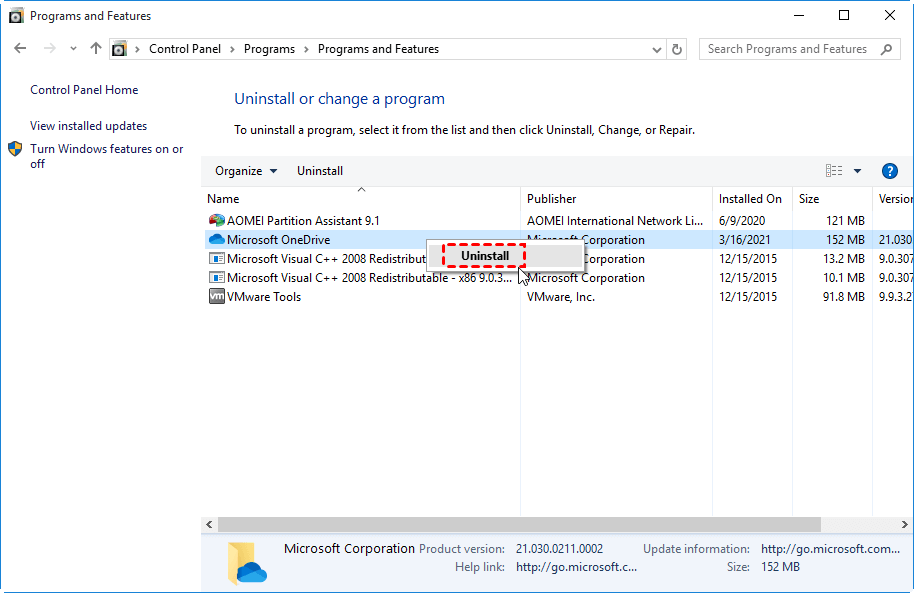
Note: For some applications, clicking "Uninstall" doesn't work, so instead click "Change" and then you'll be able to find the "Uninstall" option.
Way 4. Reset your Windows 10 PC to factory setting
If you don't want to spend effort looking out what to delete/uninstall, you could consider resetting your Windows 10 PC to factory settings.
Warning: After this operation, you will lose the apps that didn't come with this PC and your personal settings (and personal files).
Step 1. Go to Start> Settings > Update and security > Recovery.
Step 2. Click Get started under Reset this PC.
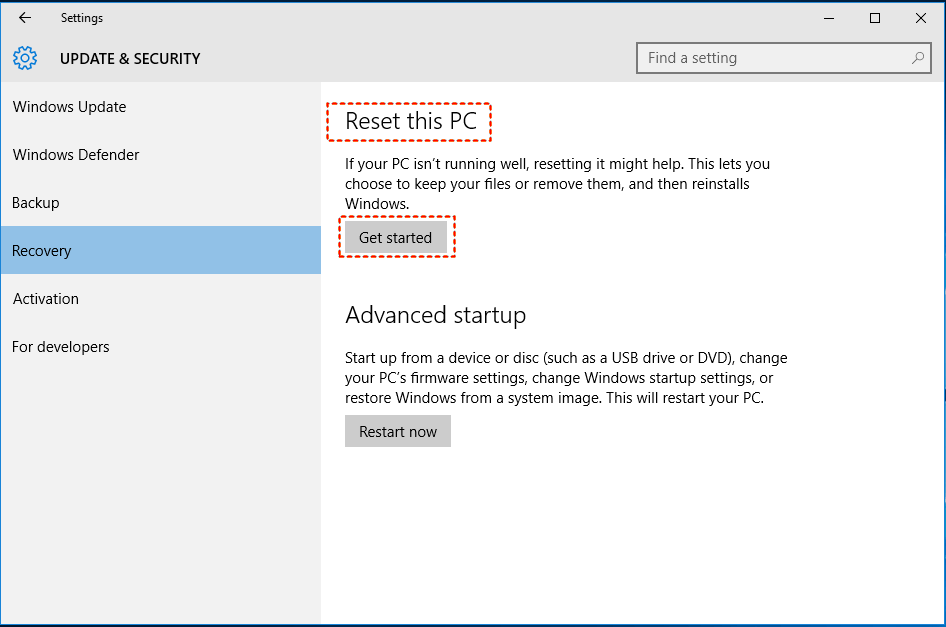
Step 3. You're given two options to reset your PC: "Keep my files" and "Remove everything". The first option resets PC settings to default and uninstalls apps, but keeps your personal files. The second option also resets settings and uninstalls apps, but also deletes all your personal files.
Step 4. After selecting the items to remove, you will receive a prompt about what will be deleted from your hard drive. Confirm your selection and click Next.
Step 5. Confirm the pop-up message and click Reset to start the operation.
Step 6. The operation will take 30 minutes to several hours to complete.
An easier solution for space shortage in Windows 10
You can choose to extend C drive in Windows 10 if you encounter a lack of space issue, but if there is no contiguous unallocated space behind your system C drive, you'll need to delete the partition behind it to make room for extension.
To increase the capacity of partition C, it's recommended to use a free partition manager like Qiling Disk Master Standard, which allows you to resize/move and merge partitions effortlessly.
The software can be used to move the C drive to make unallocated space contiguous behind it, and then extend the C drive. This process involves using the software to select the C drive and the unallocated space as the source and target, respectively, and then executing the move operation.
Step 1. Install and fire up it. In the main interface, right-click the partition between the unallocated space and C drive and choose Resize/Move Partition.
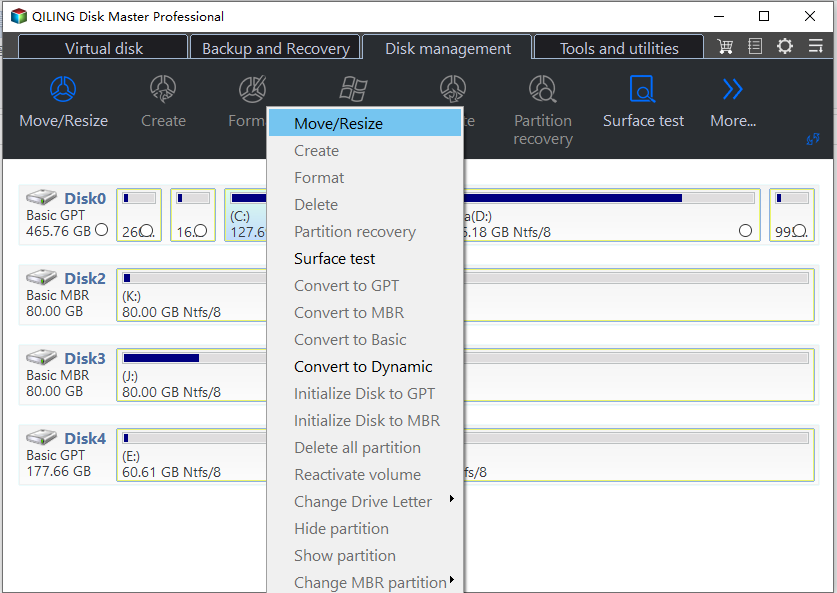
Step 2. Drag the whole partition D to right.
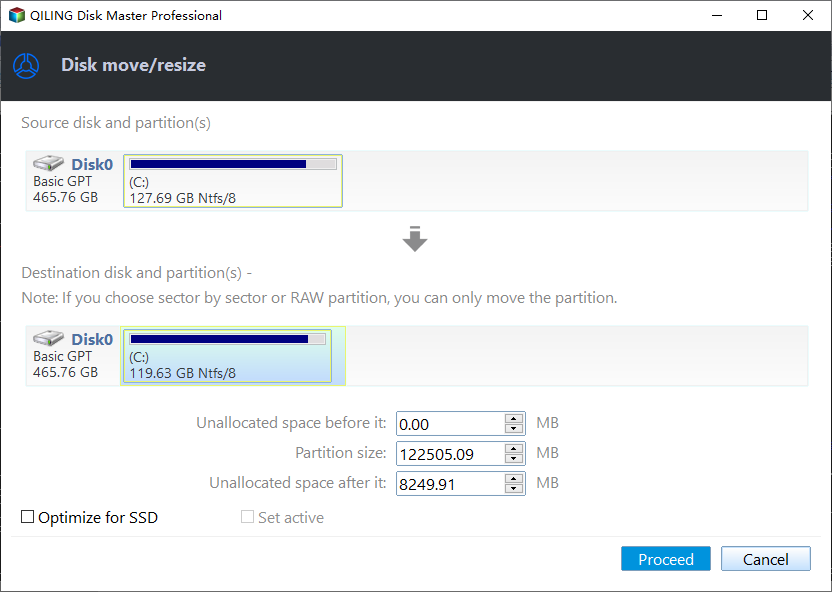
Step 3. After moving D drive, the unallocated space will be placed directly behind the C drive, creating a contiguous block of free space.
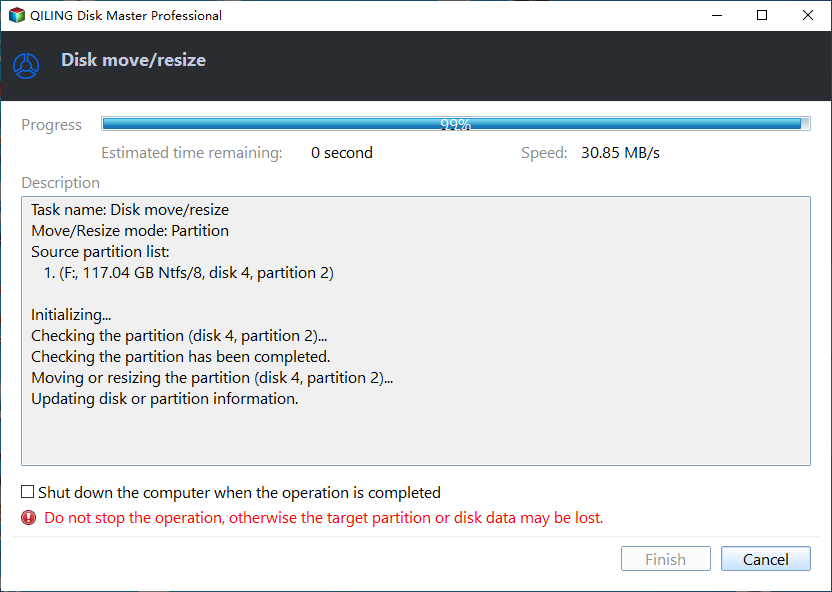
Step 4. To confirm the changes, click the "Proceed" button.
✍ Notes:
► For more advanced features, such as quick partition, partition alignment, SSD Secure Erase, etc., you can upgrade to PA Pro.
► If your Windows 10 disk is too small, you can't just free up space or extend the C drive. A better solution is to replace it with a larger disk and clone your current OS and data to the new one, which is a more efficient way to upgrade without reinstalling your OS and apps.
► You can also use this tool to resize BitLocker partition.
Related Articles
- Solved: Lenovo Laptop Running Slow Windows 10
If your Lenovo laptop running slow, you need to read this article for why Lenovo laptop running slow on Windows 11/10/8/7 and how to speed up Lenovo laptop. - Effectively Fix "We Couldn't Update the System Reserved Partition" Error
This guide explains Effectively Fix "We Couldn't Update the System Reserved Partition" Error with clear steps, key checks, and practical tips. - Quick Fixed: Mark Partition as Active Greyed out on Windows 10/8/7
This guide explains Quick Fixed: Mark Partition as Active Greyed out on Windows 10/8/7 with clear steps, key checks, and practical tips. - Fixed: Master Boot Record of This Hard Drive Is Damaged
If your C drive is full, you can free up disk space by cleaning temporary files, uninstalling unused programs, and using disk cleanup tools available in Windows 10. - Best Strategy of Using SSD for OS and HDD for Storage in Windows 10, 8, 7
This guide explains Best Strategy of Using SSD for OS and HDD for Storage in Windows 10, 8, 7 with clear steps, key checks, and practical tips. - How to Fix VSS Writer Waiting for Completion in Windows Server
If you're experiencing the 'VSS waiting for completion' error on Windows Server 2008, 2012, or 2016, you can find solutions in this article to resolve the issue.
Products
Articles & Tutorials
- Data Recovery
- Data Backup
- File Recovery
- File Backup
- File synchronize
- System Backup and Restore
- Disk and Partition Clone
- Technical articles
- Disk Master Help
- Windows Deleted File and Disk Recovery Tutorials
- Windows File and Data Recovery Tutorials
- More Windows Tutorials for Install, Security, Files, and PC Tips
- Windows Boot, Repair, and Recovery Environment Tutorials
- Windows Backup Tutorials
- Windows Restore Tutorials
- Windows Clone and Migration Tutorials
- Windows Server Backup, Recovery, and Management Tutorials
- Windows Disk, Partition, and Storage Management Tutorials