Fixed: Master Boot Record of This Hard Drive Is Damaged
Error: Master Boot Record of this hard drive is damaged
Some users experience the error "Master Boot Record of this hard drive is damaged" after startup, preventing normal Windows boot-up. This issue commonly affects internal system hard drives, often accompanied by errors like "Operating System not found", "Missing Operating System", "Invalid partition table", and "Non-system disk or disk error".
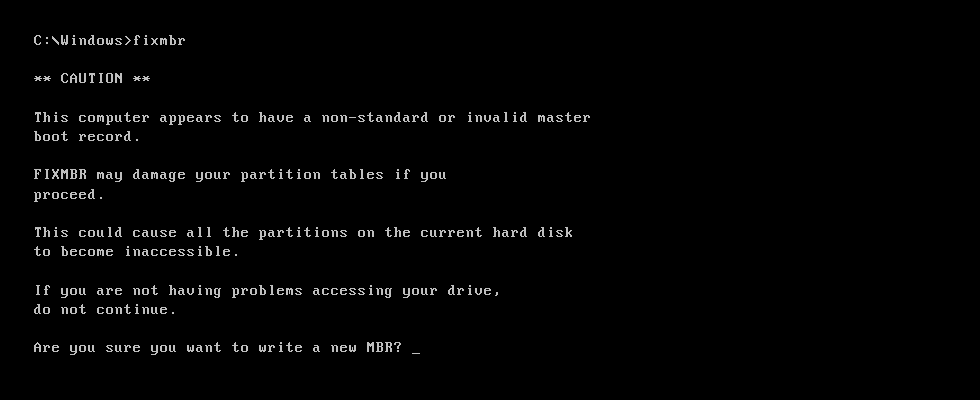
The Master Boot Record (MBR) is a crucial part of a hard drive that contains the boot loader and other essential data. If the MBR is damaged, you may encounter errors like "Master Boot Record of this hard drive is damaged." To repair a damaged MBR, you can use the built-in command-line tool "bootrec" in Windows or the "dd" command in macOS. You can also use a third-party tool like Qiling Disk Master or MiniTool Partition Wizard to fix the issue. Additionally, you can try running a disk check or a system file checker to identify and repair any corrupted system files.
About Master Boot Record of hard drive
The Master Boot Record (MBR), along with Boot Configuration Data (BCD), is created when the first partition is created on a hard drive and contains the Partition Table and boot code, playing a crucial role in the startup system. If the MBR gets damaged, the operating system will not load.
The Master Boot Record (MBR) can be damaged due to improper shutdown, malware attacks, or virus infections, which can overwrite the MBR and render the system unbootable. This requires immediate attention to fix the damaged MBR.
3 Methods to Fix "Master Boot Record of this hard drive is damaged"
If your Windows system is experiencing issues due to a corrupted Master Boot Record (MBR), there are different solutions depending on the specific conditions. Three methods can be used to fix MBR corruption, and they can be applied with or without external media. Let's take a closer look at these solutions.
- Method 1. Fix MBR without external media
- Method 2. Fix MBR with System Repair Disc
- Method 3. Rebuild MBR via a free partition manager
Method 1. Fix MBR without external media
If you're running Windows 10 with the latest updates, you can try fixing the Master Boot Record (MBR) without needing external media like a USB drive or CD/DVD disc. This method is available in the latest versions of Windows 10, so if you're running the newest version, you can try this approach.
When you first boot up a Windows 10 PC, it should recognize that there is a problem and enter "automatic repair" mode. If it doesn't, go to Troubleshoot > Advanced options, where you'll find two options: Startup Repair and System Restore. Try running Startup Repair first, which may automatically fix the issue. If that doesn't work, try System Restore to restore your PC to a previous point when it was working properly. If neither of these options work, you may need to reinstall Windows.
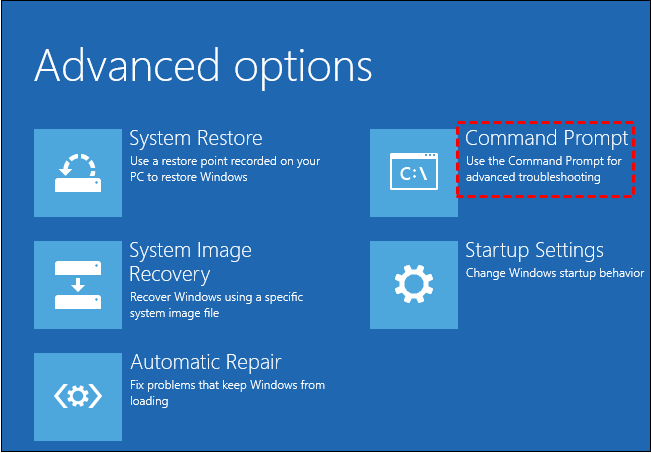
Startup Repair: This process will fix problems that keep Windows from loading automatically. It's a relatively straightforward process, but may take some time to complete.
Command Prompt: To fix a Windows system with a corrupted MBR, follow these steps: In Command Prompt, type "bootrec.exe /fixmbr" and press Enter. This command will rebuild the Master Boot Record, resolving the issue. Once the operation is complete, reboot the computer to apply the changes. This method is faster than other fixes and should resolve the problem.
Tip: If you don't see the "Automatic Repair" picture, reboot or reset your computer several times until you see it.
Method 2. Fix MBR with System Repair Disc
If your Windows 10 edition can't fix the error itself, you can use external tools, a System Repair Disc, a Windows Installation Disc, or a Recovery USB drive to fix the damaged Master Boot Record (MBR). For example, if you need to fix the MBR with a USB drive, you can follow the steps to create a Recovery USB drive, boot from it, and then run the built-in System File Checker (SFC) tool or the Command Prompt to scan and fix the damaged MBR. This should resolve the issue and allow your computer to boot normally.
1. To boot from a USB stick, start by booting from the original disk. If the system boots from the original disk, you may need to change the boot priority in the BIOS to the USB drive. This will allow the system to recognize and run the operating system installed on the USB stick.
2. After logging into the drive, go to Troubleshoot > Advanced options > Command Prompt, type bootrec.exe /fixmbr and hit Enter.
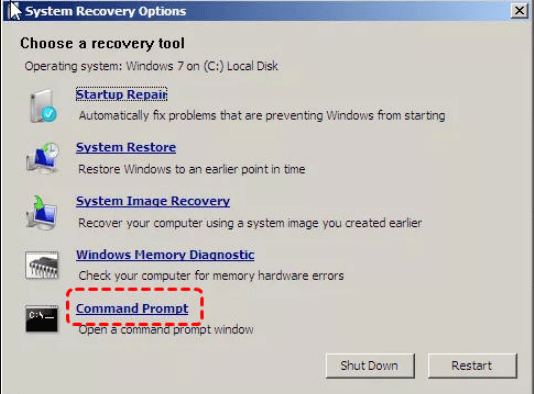
To resolve the issue, insert the Windows 7 installation disc, navigate to the Repair your computer option, select Next, and proceed to System Recovery Options. From the Command Prompt, enter the same code and press Enter. This process will help resolve the problem.
If the error persists, you can try running some additional repair commands to thoroughly fix the MBR. Run the following three commands, each followed by an Enter, to see if that resolves the issue. These commands can help ensure that your MBR is properly set up and functioning correctly.
• bootrec.exe /fixboot
• bootrec.exe /scanos
• bootrec.exe /rebuildbcd
Restart your computer after it completes.
Command line operations can be involved, whether with or without external media. However, for common users, this can be a bit complicated. If the system cannot self-repair and there's no recovery drive or system repair disc available, a "Plan B" is always an option.
Method 3. Rebuild MBR via a free partition manager
Qiling Disk Master Standard is a top-notch free partition manager that can help fix issues with a damaged Master Boot Record. Its clean interface and lack of bundled adware make it a reliable tool, and it's free to download for a try.
Tip: This software allows you to create a bootable USB drive or CD/DVD with the software already installed, but it requires you to install it on another functioning PC first.
1. To create a bootable USB drive or CD/DVD using Qiling Disk Master, simply insert the desired media into a work PC and launch the Qiling Disk Master software. Then, follow the on-screen wizard to complete the process, which will guide you through the necessary steps to create the bootable media.

2. Boot your computer with the created device and adjust the boot order in BIOS if necessary, after which you'll see Qiling Disk Master Standard start right after login.
3. To repair a disk, right-click on the disk you want to repair and select the option to rebuild the Master Boot Record (MBR).
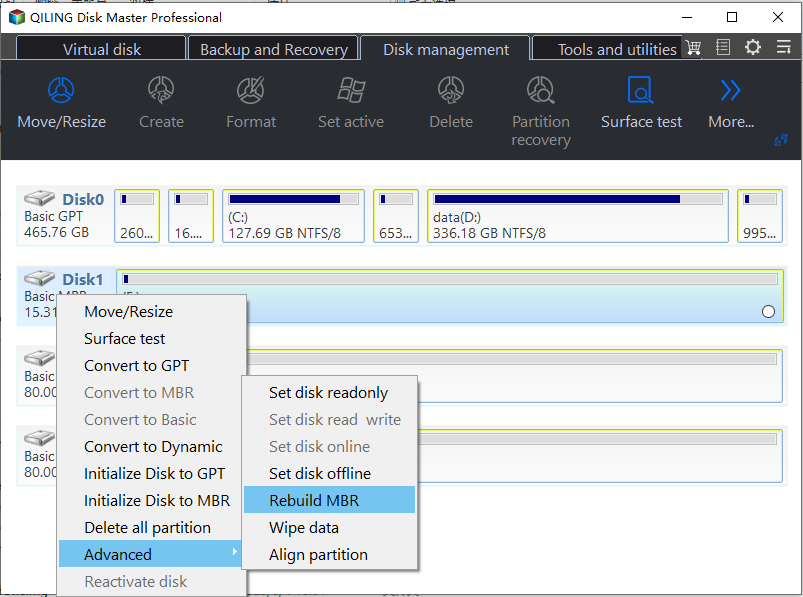
4. Select the type of Master Boot Record (MBR) for your Windows in the pop-up window.
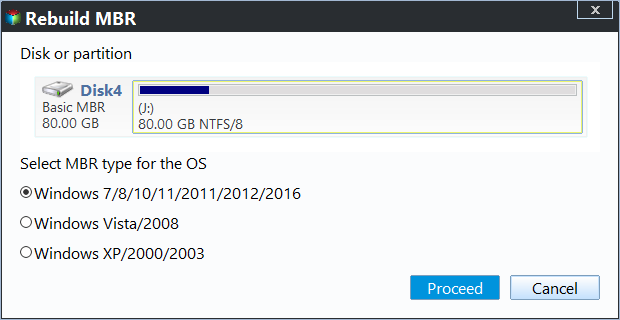
5. After completing the pending operations, click Proceed on the toolbar to commit them. Then, shut down your computer. Once it's off, remove the USB drive and restart your computer from its original disk.
Summary
Fixing the "Master Boot Record of this hard drive is damaged" issue is relatively straightforward as long as you follow the methods carefully. You can take advantage of the resources you have to choose the most convenient approach.
Qiling Disk Master Standard can check hard drives for errors, including bad sectors on partitions and a surface test for the disk. For more advanced features, such as command line partitioning, migrating OS from MBR to GPT, and converting MBR and GPT without deleting partitions, an upgrade to Qiling Disk Master Professional is required.
Related Articles
- Safest Way to Convert MBR to GPT/GPT to MBR without Data Loss in Windows 10
This guide explains Safest Way to Convert MBR to GPT/GPT to MBR without Data Loss in Windows 10 with clear steps, practical tips, and safer ways to complete the related Windows, disk, backup, or recovery task. - How to Clone GPT Disk to MBR in Windows Successfully? (Within Six Steps)
If you have the need to clone GPT disk to MBR, don't miss this post that tells how to clone GPT to MBR without reinstalling Windows and the installed apps. - 3 Ways to Defrag Hard Disk on Window 7 PC
Learn to defrag hard disk in Windows 7 in 3 ways with two Windows tools and a free defrag tool. - How to Delete EFI System Partition in Windows 10,8,7?|Freeware
Learn how to How to Delete EFI System Partition in Windows 10,8,7?|Freeware. This guide explains the causes, steps, and practical tips for delete efi system partition, remove efi system partition, delete efi system partition windows 10 on Windows with Qiling Disk Master. - How to Fix MBR2GPT Error in MBR to GPT Conversion in Windows 10?
If you faced "MBR2GPT error" when convert MBR to GPT, try alternative Qiling Disk Master, which can make disk conversion between MBR and GPT easily and safely. - How Do I Merge Extended Partition to Primary Partition Simply and Quickly?
If you want to merge extended partition to primary partition and find no way, you can get an easy way to merge two or more partitions without data loss in this article.
Products
Articles & Tutorials
- Data Recovery
- Data Backup
- File Recovery
- File Backup
- File synchronize
- System Backup and Restore
- Disk and Partition Clone
- Technical articles
- Disk Master Help
- Windows Deleted File and Disk Recovery Tutorials
- Windows File and Data Recovery Tutorials
- More Windows Tutorials for Install, Security, Files, and PC Tips
- Windows Boot, Repair, and Recovery Environment Tutorials
- Windows Backup Tutorials
- Windows Restore Tutorials
- Windows Clone and Migration Tutorials
- Windows Server Backup, Recovery, and Management Tutorials
- Windows Disk, Partition, and Storage Management Tutorials