Operating System Not Found Windows 10-How to Fix It?
Scenario: Operating system not found
You installed Windows 10 on your Acer computer, it worked fine, then you reset it from settings and accidentally shut it down while it was deleting files. Now it says "Operating system wasn't found". Don't worry, this is a common issue. Try restarting your computer and see if it boots normally. If not, you can try booting from the Windows 10 installation media you used to install Windows in the first place. If you don't have the installation media, you can create a new one using a USB drive or CD/DVD. If none of these steps work, you may need to contact Acer support for further assistance.
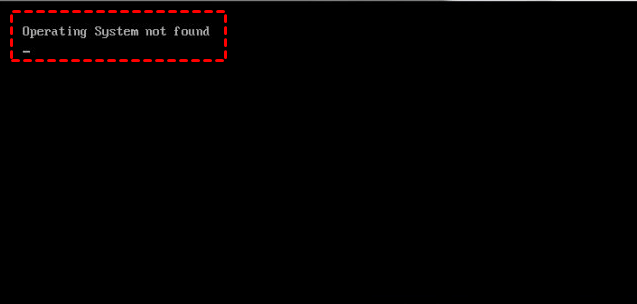
Why is the computer saying no operating system found?
If you're experiencing the "operating system not found" or "missing operating system" error on your Windows 10/11 computer, especially on HP, Sony, Acer, or Lenovo devices, it can prevent successful booting. Before attempting to fix this issue, it's essential to understand why the message occurs.
• The system hard disk is damaged.
• The BIOS may not detect the Windows 10/11 installation hard drive or disk due to various reasons such as incorrect BIOS settings, outdated BIOS version, or a faulty hard drive. To resolve this issue, you can try updating the BIOS to the latest version, resetting the BIOS to its default settings, or checking the hard drive for any issues.
• Windows 10/11 no longer boots from the system partition, instead, it boots from the ESP (EFI System Partition). The system partition is used for storing system files, but the boot files are now stored on the ESP.
• The MBR (Master Boot Record) of Windows 11/10 is corrupted.
4 Methods to fix “Operating System not found” in Windows 10/11
Here are 4 methods to help you fix the "no operating system found" problem in Windows 11,10, 8, and 7: you can try booting in safe mode, checking the boot order in BIOS settings, using a Windows installation media, or running a System File Checker scan to repair corrupted system files.
- Method 1. Test hard disk problems
- Method 2. Check the BIOS Settings
- Method 3. Active Windows partition
- Method 4. Rebuild damaged MBR
Method 1. Test hard disk problems
You can test the hard drive for problems by following these steps: first, you can check the hard drive for any signs of physical damage or wear and tear, such as scratches or dents. Next, you can run a diagnostic test on the hard drive to see if it's functioning properly. This can usually be done through the computer's BIOS settings or by running a built-in diagnostic tool.
1. Turn off the computer and wait for 5 seconds.
2. Press the Power button to start the computer and repeatedly press the F10 key while it is booting to enter the BIOS Setup menu.
3. In the BIOS settings, navigate to the "Primary Hard Drive Self Test" option, which can be found below "Diagnostics" or "Tools", depending on the BIOS.
4. Run a self-test on the primary hard drive by selecting the option and pressing Enter. This will initiate a diagnostic test to check the drive's functionality and identify any potential issues.
The Hard Drive Self Test performs a "Quick Test" and a "Comprehensive Test" in sequence, displaying a status bar and estimated completion time for each test.
>>If all tests are passed, the hard drive is not damaged.
>>If the test failed, If your external hard drive or computer is still under warranty, you should contact the manufacturer for a replacement. This will ensure you get a new device that is functional and meets the manufacturer's standards.
Method 2. Check the BIOS Settings
If Windows 11/10 can't recognize the system hard disk, it'll show the "Operating System not found" error, halting the startup process. To troubleshoot, check the BIOS settings to see if the hard disk is detected, and then assess if the hard disk is damaged.
1. Press the F10/F12 key while turning on the Windows 11/10 computer and release it when the BIOS SETUP UTILITY screen appears.
2. Check the Primary IDE Master, Primary IDE Slave, Secondary IDE Master, and Secondary IDE Slave to see if the hard disk is detected.
If the BIOS doesn't detect the hard disk, you can change the setting from "None/Not Detected" to "Auto" to see if it resolves the issue.
If you're experiencing issues with your computer, try restarting it to see if that resolves the problem. If the issue persists, you may want to explore other troubleshooting options or consider replacing the device if necessary.
Method 3.Active Windows partition
When the partition on which Windows is installed is disabled, you may get a "Operating System not found" error on Windows 11/10. This can be resolved by reactivating the Windows partition.
1. To repair your Windows machine, start by turning it on and booting from a Windows installation media. Once the installation media is loaded, select the "Install now" option, and then click on "Repair your computer".
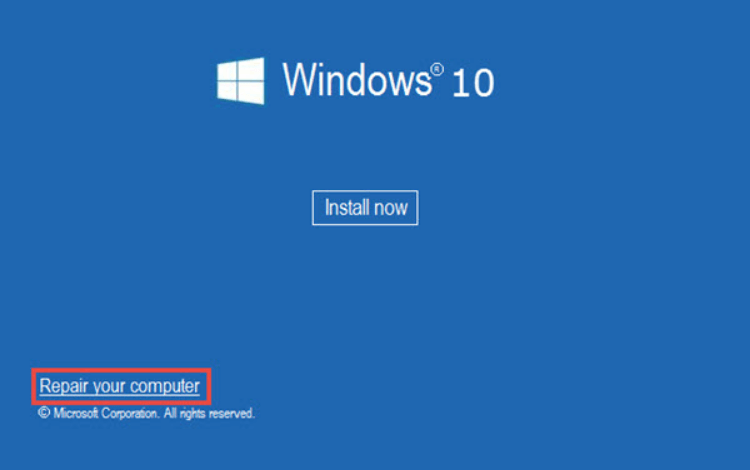
2. Click on "Troubleshoot" > "Advanced Options" > "Command Prompt".
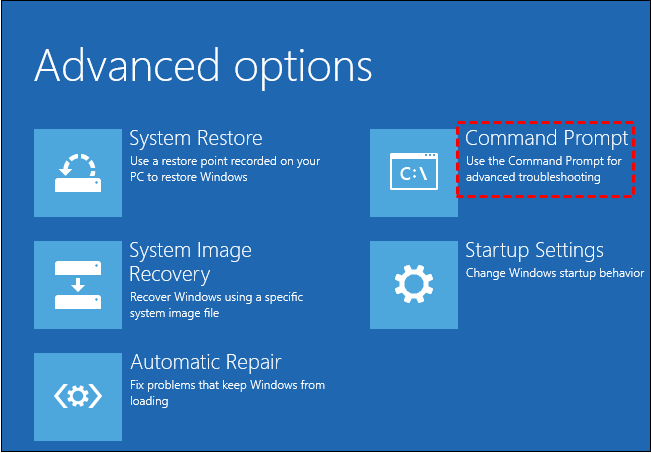
3. In the Command Prompt window, type the following commands and press "Enter" after each one:
• diskpart
• list disk: List of disks attached to the machine will be shown, find the system disk.
• select disk [number]: replace [number] with the system disk number.
• list volume: it will show you all partitions on your selected disk.
• select volume [number]: replace [number] with the system partition number.
• active
When the process is done successfully, restart your machine to verify that the operating system has been installed correctly.
Method 4. Rebuild damaged MBR
If none of the above methods work, it might be the damaged MBR that causes the "Operating System is not found" error in Windows 11/10. Thus, you need to repair it. For this task, you can run the following commands in the Command Prompt window (launch it as you do in Method 3):
• bootrec.exe /fixmbr
• bootrec.exe /fixboot
• bootrec.exe /rebuildbcd
If you don't have the Windows installation media to access the Command Prompt, you can use the Qiling Disk Master Professional to create a Windows PE bootable media and rebuild the damaged MBR easily. This tool allows you to access the Command Prompt and perform various operations on your computer. With Qiling Disk Master Professional, you can create a bootable media and use it to rebuild the MBR, which can help resolve issues with your computer's boot process. The specific steps for using this tool are listed, making it a useful alternative to having the Windows installation media.
Step 1. Connect a blank USB drive to a Windows computer that can boot normally. From this PC, download, install, and launch Qiling Disk Master Professional.
Step 2. Click "Tools" > "Make Bootable Media" on the upper interface, a window pops up, click "Next".

Step 3. In the next window, choose "USB boot device", then press "Proceed".
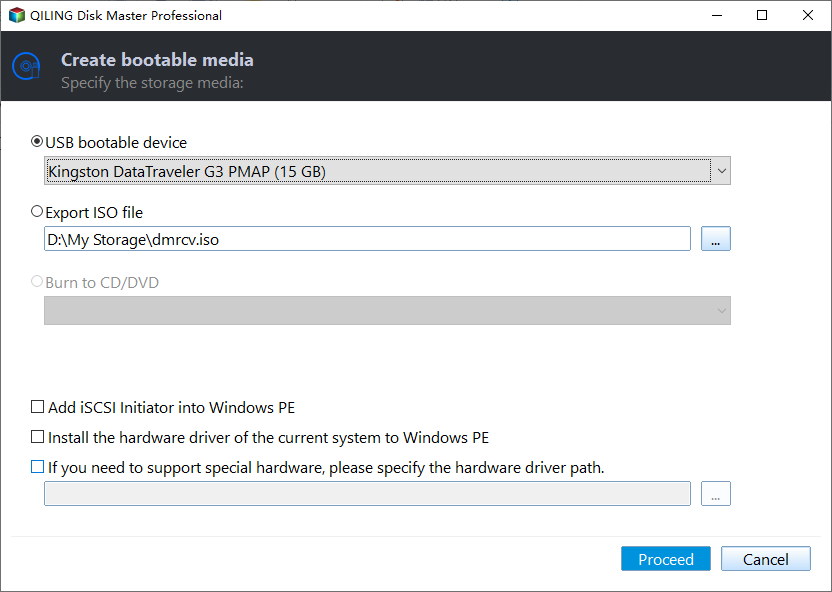
Step 4. Click "Finish" when the operation is done.
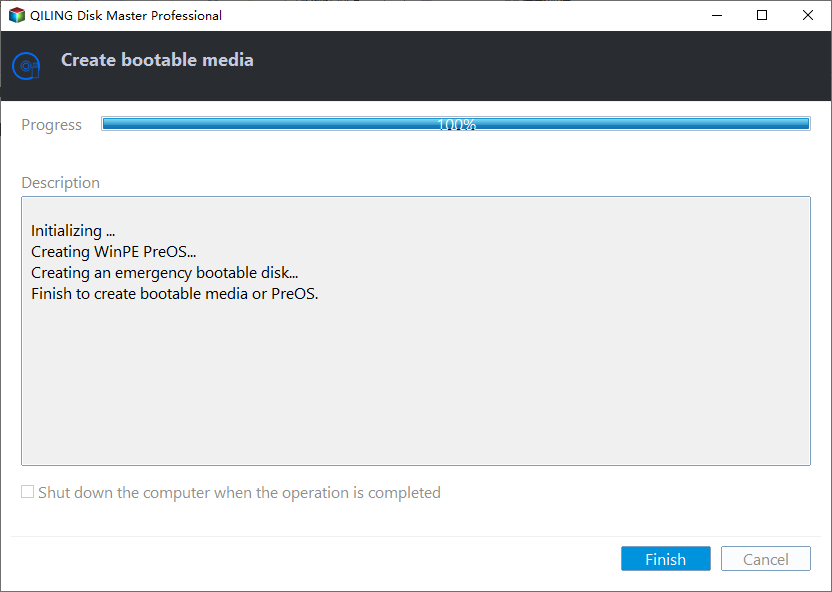
Step 5. Create a WinPE bootable USB, boot your Windows from it, and the Qiling Disk Master Professional Demo software will run automatically once you log in.
Step 6. Right-click the system disk and choose "Fix Boot".
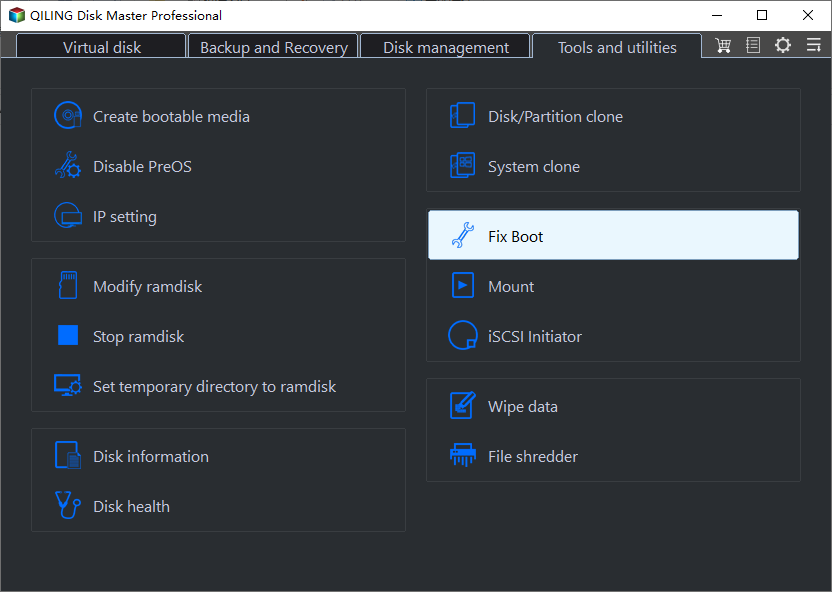
Step 7. Choose the proper MBR type for your current OS.
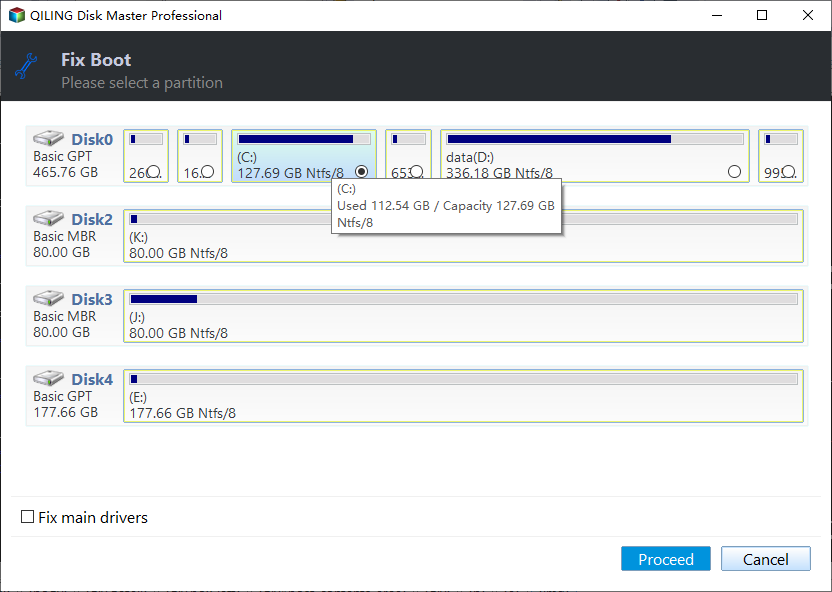
Step 8. Click on "Proceed" to commit the pending operation.
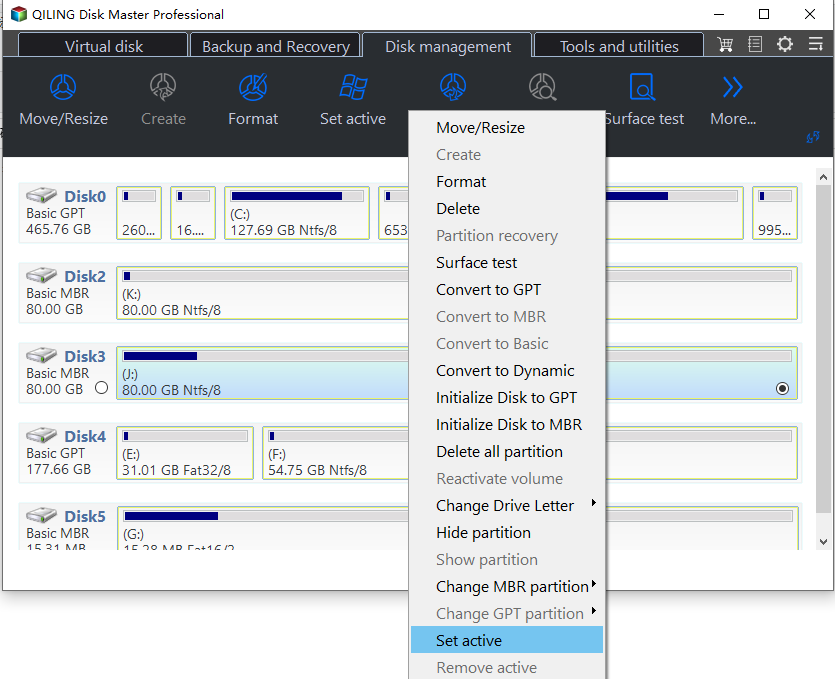
After using the software, the damaged MBR will be rebuilt, and you can also use it to activate the Windows partition. To do this, right-click the boot partition and select "Advanced" > "Set Active Partition".
Summary
The solutions to the "Operating System not found" error in Windows 11/10 include using the Qiling Disk Master Professional, which offers easier methods and additional functions such as disk cloning, partition cloning, wiping the hard drive, migrating OS to SSD, and more advanced features like converting MBR and GPT without deleting partitions, secure erasing SSD, aligning partitions, quick partitioning, splitting partitions, and others.
Related Articles
- Create Alienware System Recovery Disk/USB
Learn how to create an Alienware system recovery disk or USB drive with Windows tools and Qiling solutions, including fixes for common recovery drive creation errors. - How to Create Gateway System Recovery Disk?
If you are looking for a way to create Gateway recovery disk in Windows 11/10/8/7, read this article patiently. - Fixed: File:\EFI\Microsoft\Boot\BCD Error in Windows 7/8/10
This guide explains Fixed: File:\EFI\Microsoft\Boot\BCD Error in Windows 7/8/10 with clear steps, key checks, and practical tips. - Fix System Repair Disc Could not be Created in Windows 11, 10, 8, 7
How to fix system repair disc could not be created problem in Windows 11,10, 8, 7. Read this guide to get the solution. - How to Make Windows 11 Boot from USB (Top 2 Ways + 1 Tip)
In this article, you are capable of booting from USB on Windows 11 securely with the presented top 2 ways. And you can make a bootable USB to avoid errors with the best backup software introduced below. - 5 Easy Ways to Access Windows 11 Recovery Environment
You will learn 5 ways to access Windows 11 recovery environment and how to use recovery tools in the Windows recovery environment. Grab the steps below!
Products
Articles & Tutorials
- Data Recovery
- Data Backup
- File Recovery
- File Backup
- File synchronize
- System Backup and Restore
- Disk and Partition Clone
- Technical articles
- Disk Master Help
- Windows Deleted File and Disk Recovery Tutorials
- Windows File and Data Recovery Tutorials
- More Windows Tutorials for Install, Security, Files, and PC Tips
- Windows Boot, Repair, and Recovery Environment Tutorials
- Windows Backup Tutorials
- Windows Restore Tutorials
- Windows Clone and Migration Tutorials
- Windows Server Backup, Recovery, and Management Tutorials
- Windows Disk, Partition, and Storage Management Tutorials