5 Easy Ways to Access Windows 11 Recovery Environment
What is Windows 11 Recovery Environment?
Windows 11 recovery environment is a smaller operating system based on WinPE, installed on a separate partition immediately after the system partition (C: drive), containing tools for troubleshooting, recovery, and diagnosis.
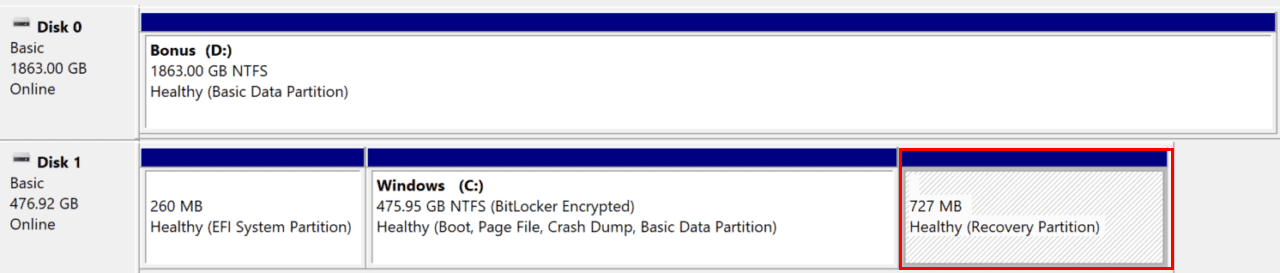
Compared to previous WinRE, Windows 11 has made improvements, specifically in the following areas.
- Run most tools in the recovery environment without requring administrator account and password. The encrypted files in the recovery environment can only be accessed after they have been decrypted.
- Turn on Ease of Access feature in the recovery environment. In a previous version, the narrator feature was not allowed to be turned on if the narrator feature was enabled before launching Advanced startup.
If you're having issues with your Windows 11 PC and want to troubleshoot or reset it, you can access the recovery environment to use built-in recovery tools. This article provides information on how to access the recovery environment and use its tools to resolve problems with your PC.
How to Access Windows 11 Recovery Environment Easily
Here are the 5 methods to access Windows Recovery Environment (WinRE) in one paragraph:
Video Tutorial:
Method 1: Use Advanced Startup
If your computer is still bootable, you can use the Advanced Startup feature within Windows to troubleshoot the issue.
To open Windows Settings, press the Win + I key. Then, go to System > Recovery, scroll down to Recovery options, and select Advanced startup > Restart now.
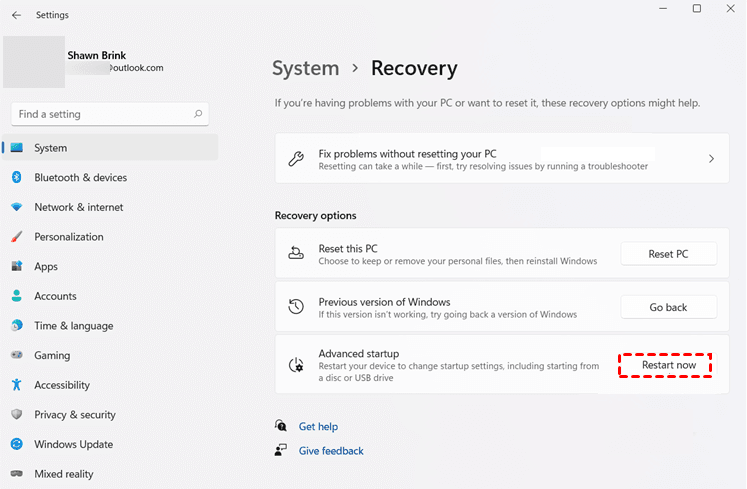
Before restarting, it will ask you to save your work. If you have already saved your work, click "Restart Now" to access the recovery environment in Windows 11.
Method 2: Use Shift + Restart key
You can still access the Windows 11 recovery environment by pressing Shift + Restart, a feature that is not exclusive to the Advanced Startup feature. This method can be accessed in various ways.
#1: From Start Menu. To restart your computer, go to Start, press the Power button, hold down the Shift key, and select Restart.
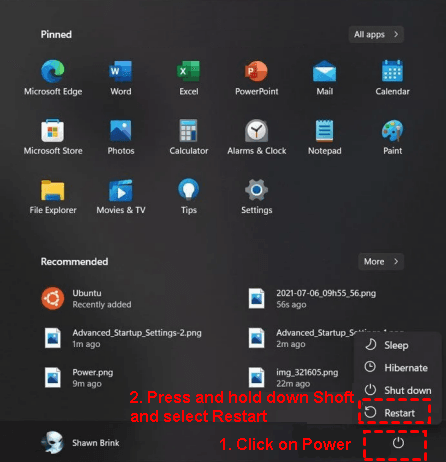
#2: From the Context Menu of Start. To restart your computer, right-click the Start menu, select Shut down or log off, and while holding down the Shift key, choose Restart.
#3: Use Ctrl + Alt + Del key. To restart your computer, press Ctrl + Alt + Del, then select the Power button, and while holding down the Shift key, select Restart.
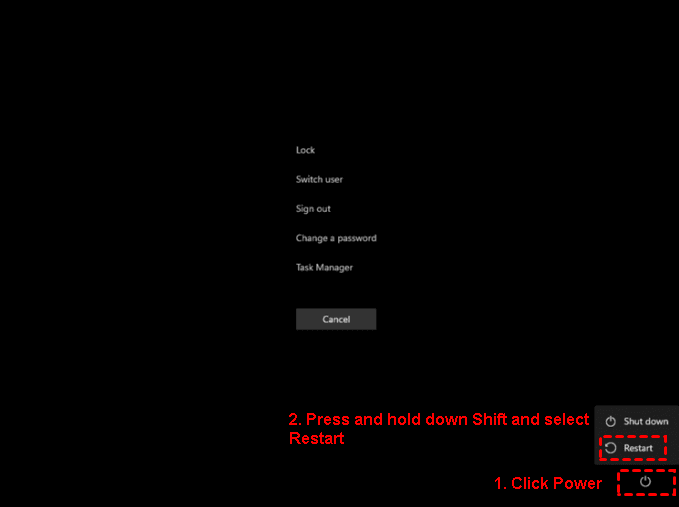
#4: At the Login stage. Press the Power button, hold the Shift key, and select Restart.
Method 3: Use Command Prompt to Access Windows Recovery Environment
You can access Windows WinRE from within Windows using the Command Prompt. There are two ways to do this: using the shutdown and reagent commands.
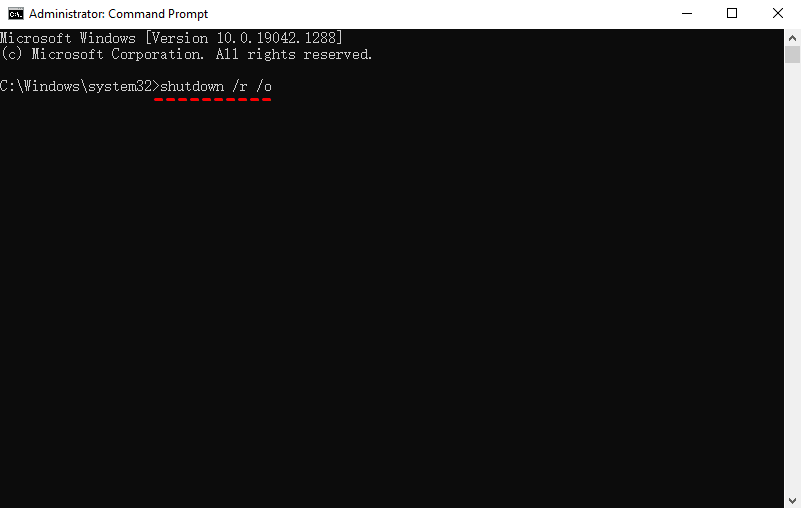
#1: Use Shutdown Command. To restart your computer, type "shutdown /r /o" in the search box and select "Run as administrator".
Notes:
- The /r parameters is to restart your computer.
- The /o parameter is used to go to the menu of additional boot options.
#2 Use reagent command. To boot to the ReagentC recovery environment, open a command prompt window, type `reagentc /boot /recovery` and hit Enter, then restart your computer.
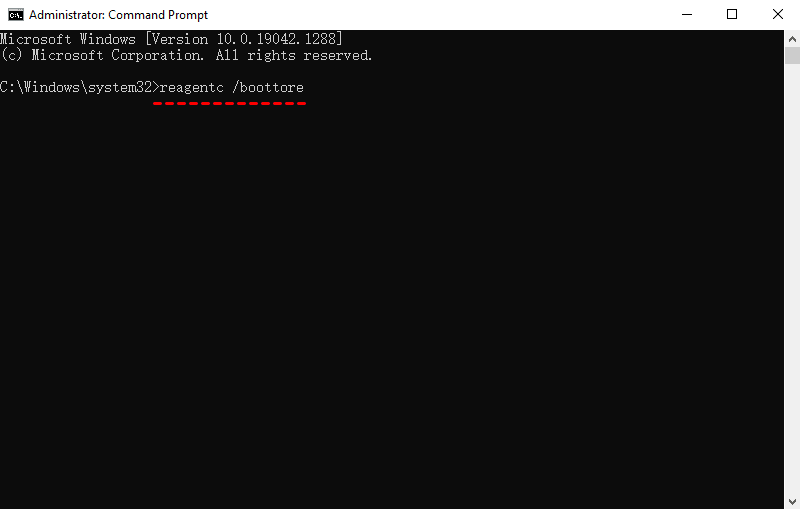
The /bootre parameter enables your computer to boot from the Windows recovery environment at the next system startup.
Method 4: Use Recovery Disk
To access the Windows 11 recovery environment, you can either use the installation media provided with your computer or create a recovery disk using the installation ISO files or the Recovery Drive feature.
Here take Windows 11 installation media as an example.
Connect the installation disc to Windows 11 computer To resolve the issue, restart your computer, access the BIOS settings by pressing F2 or ESC, set the disk as the first boot option, save the changes, and then reboot again. If prompted, press any key to continue. This should allow the system to recognize the disk and boot from it.
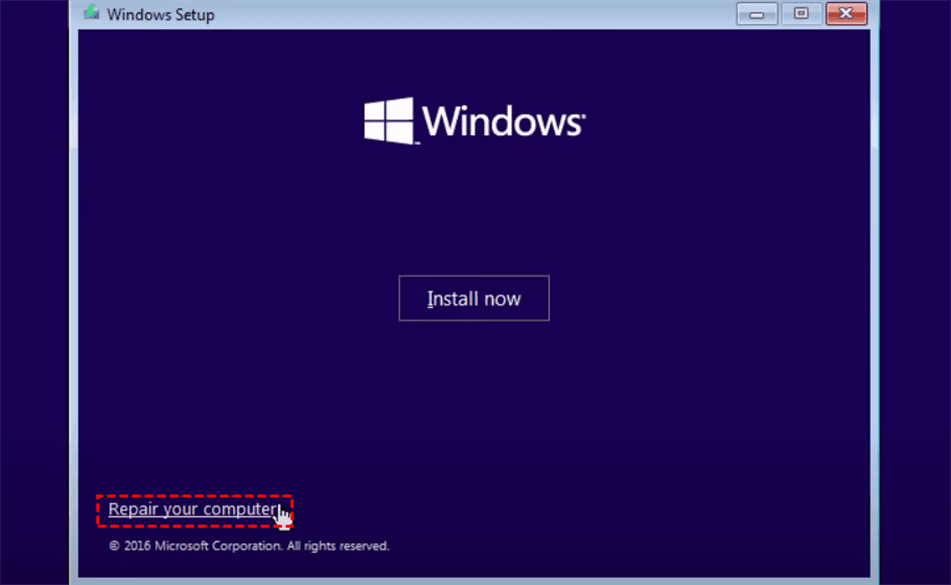
In the Windows Setup page, select the language, time format, and keyboard input method. Click "Next" and then select "Repair your computer".
Method 5: Use Hard Reboot
If your computer is unbootable but you don't have a bootable disk, you can try a hard reboot to access the Windows Recovery Environment on startup. This allows you to troubleshoot and potentially fix the issue without needing a separate bootable disk.
To perform a hard reset on your computer, press the Power button to shut it down completely, then press the Power button again to turn it back on. This process should be repeated 2-3 times for a full reset.
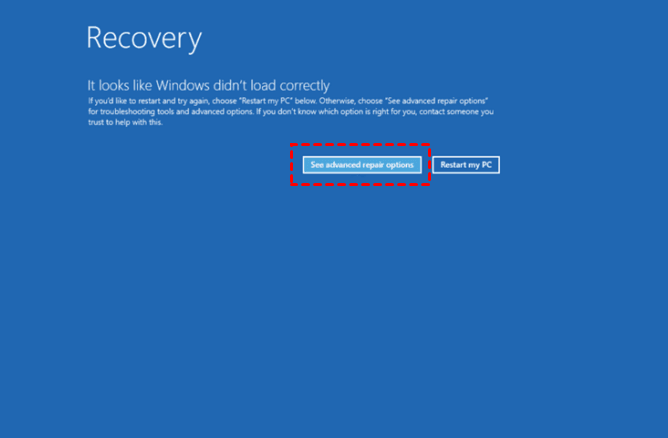
After turning on your computer, you may see the Windows logo screen, followed by a "Please wait, or Diagnosing your PC" message. After loading, click "See advanced repair options" in the Recovery window. If you see the Automatic Repair window, click "Advanced options" instead.
How to run Windows 11 Recovery Environment
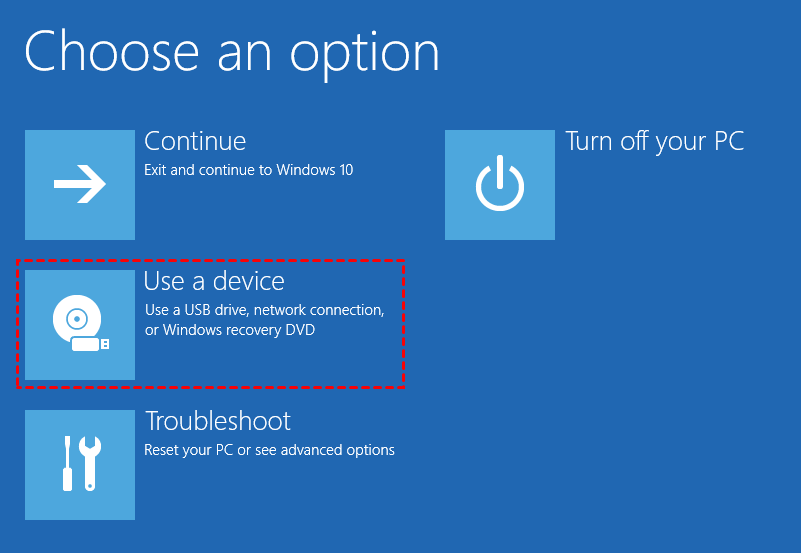
After accessing Windows 11 recovery environment, you may see 4 recovery environment options in the following. Select one of them depending on the operation you want to perform.
- The Continue option allows you to exit the recovery environment.
- The "Use a device" option allows you to boot Windows 10 using a USB drive, network connection, or Windows recovery drive.
- The Troubleshoot option is the most commonly used and allows for resetting the PC or utilizing other advanced features like Startup Repair, System Restore, and Command Prompt.
- The option to turn off your PC completely is called "Turn off your PC".
To reset or repair your computer, try the following option in the recovery environment.
If you want to completely wipe your hard drive and reinstall Windows 11 using an installation disc, or if you're unable to access the boot menu to change the boot priority for a boot USB, select the "Use a device" option. This will allow you to reinstall Windows 11 from the installation disc. Alternatively, you can also select this option if you're unable to access the boot menu to change the boot priority for the boot USB.
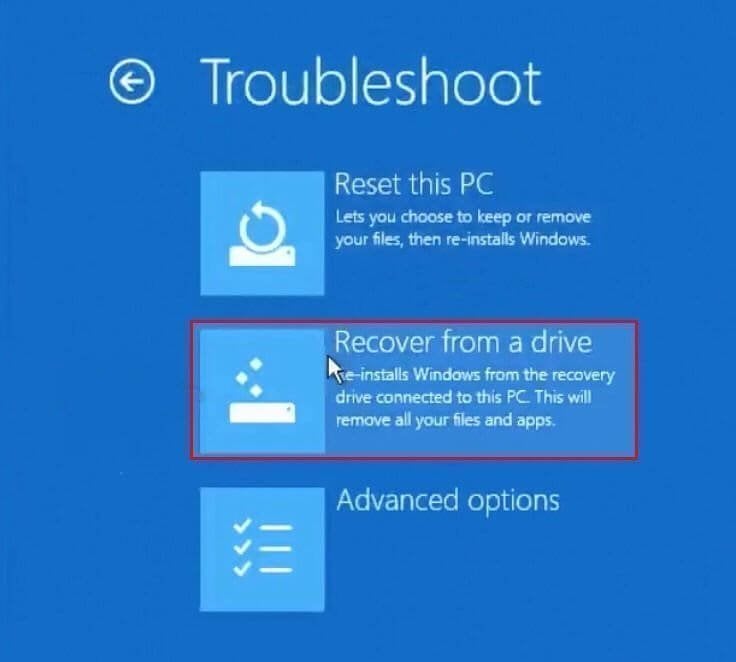
Click Troubleshoot, you will see Reset this PC, Recovery from a drive or Advanced options.
- To reset Windows 11 PC and keep your files, try the Reset this PC feature.
- To completely delete system partition and data on it, you can try using the built-in Disk Cleanup tool, or third-party software like CCleaner, Qiling Disk Master, or even formatting the drive in the Disk Management console, but be aware that this will erase all data and settings, so make sure to back up anything important first.Recover from a drive feature.
- To restore Windows 11 to a previous date, go to the Settings app, select Update & Security, click Recovery, and then Open System Restore.
- To restore Windows 11 from System Image Recovery, click Advanced options and System Image Recovery.
Easier way to get to Windows 11 Recovery Environment
If you're experiencing issues with the Windows 11 recovery environment, it might be due to a disabled WinRE, a corrupted Winre.wim file, or a broken installation disk. You can try to resolve the issue or create a Windows 11 recovery environment using a third-party tool like Qiling Disk Master Professional.
The recovery environment can be added to the boot menu, eliminating the need for a separate device to store boot files. This allows for direct selection of the recovery environment every time the computer is started, without the need to set boot priority first. Additionally, the option to create a Windows 11 bootable USB or CD/DVD is available, providing a means to troubleshoot other computers or recover the current one in case of complete failure.
This software offers a range of backup and restore features, allowing users to enjoy a seamless experience regardless of whether they choose to back up their data locally or to the cloud. Downloading the software will provide an opportunity to try out these features firsthand.
This version only works for Windows 11/10/8/7/XP/Vista. For server users, try Qiling Disk Master Server instead.
Step 1. Install Disk Master Professional and select Tools > Recovery Environment.
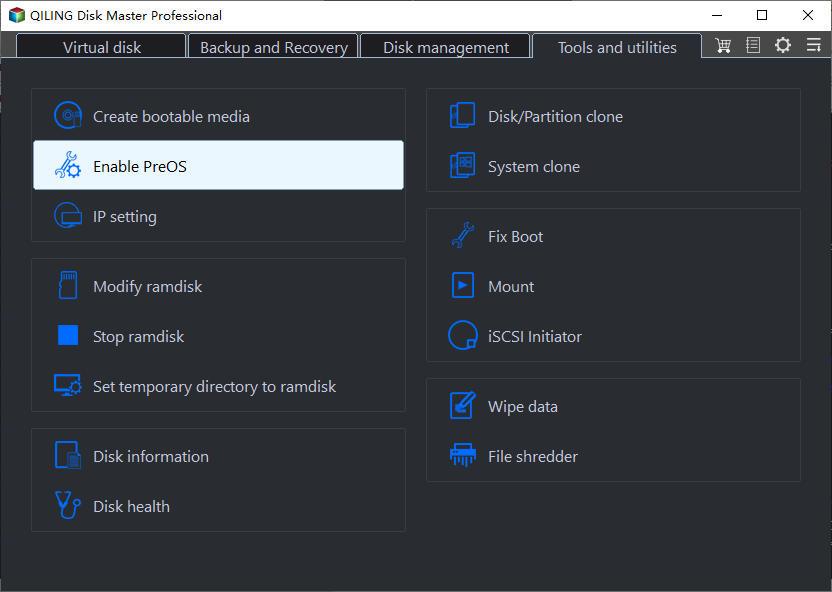
Step 2. In the Recovery Environment Settings page, enable the boot option of Qiling Disk Master recovery environment and click Next.
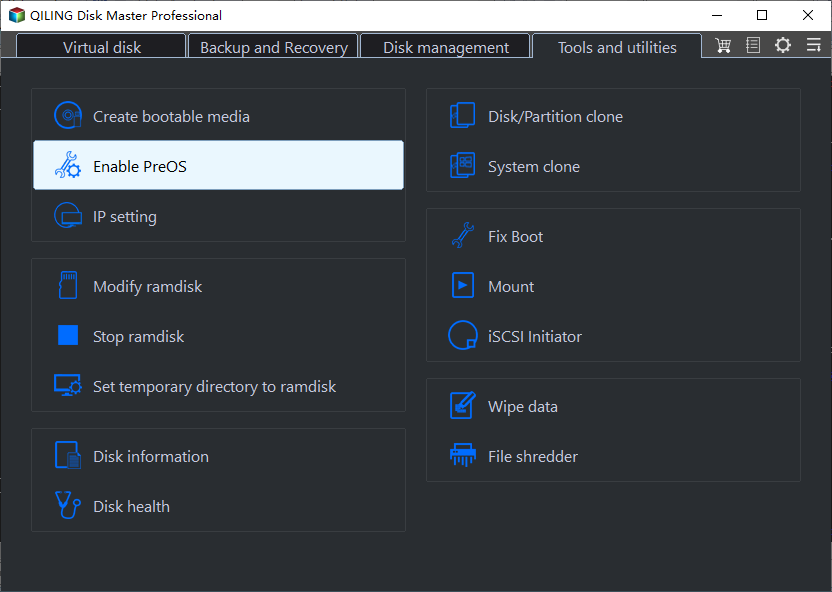
Step 3. Then, tt will immediately create the bootable environment.
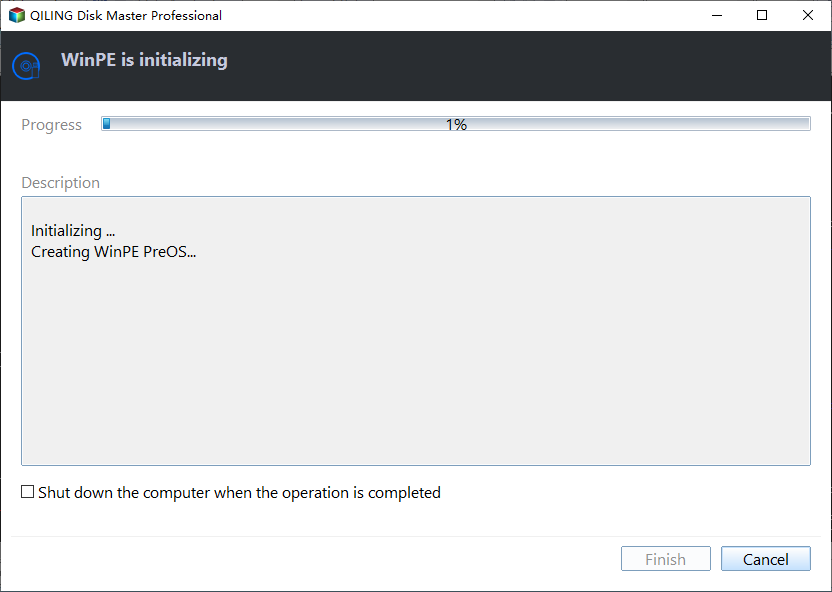
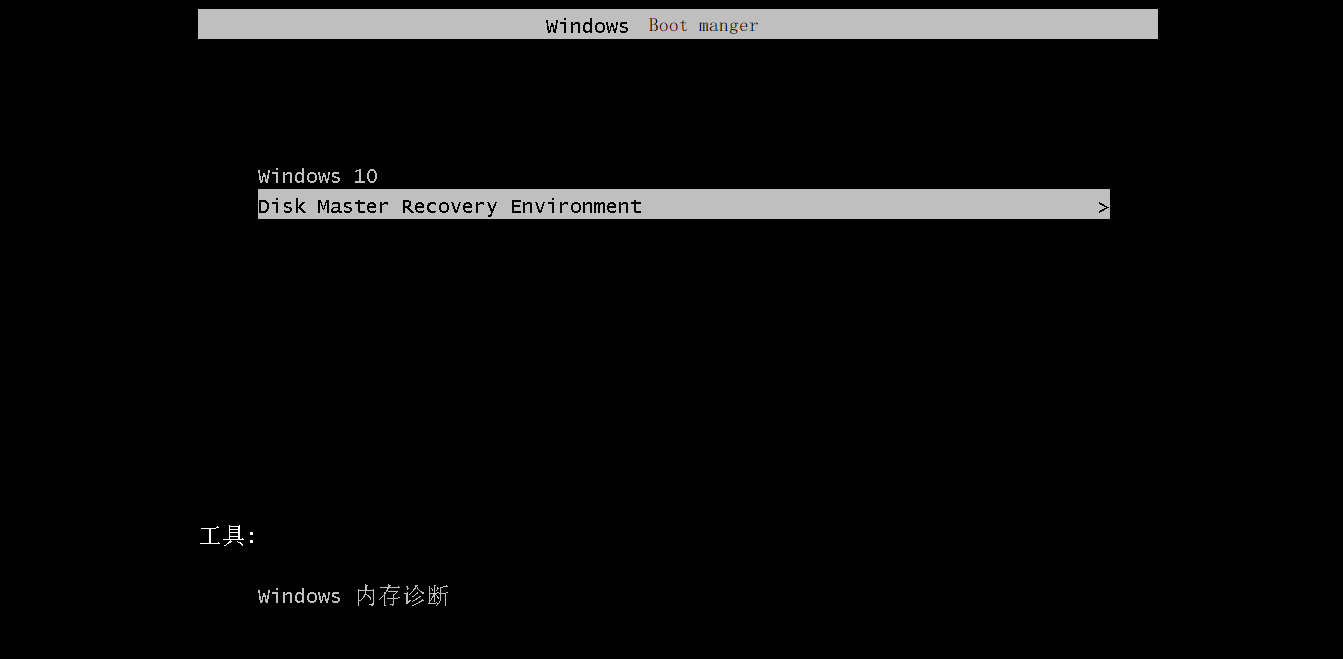
Step 4. Wait until the recovery environment is created completely, then restart your computer and check if the Windows 11 recovery environment is enabled successfully, which should display the "Enter into Qiling Disk Master" option.
Notes:
- The recovery environment created by Qiling Disk Master is kept under the path C:\Qiling Recovery.
- The tool currently has limitations, as it does not support dynamic systems and is not compatible with systems prior to Windows 7.
- It's recommended to update the recovery environment after this software is automatically updated or registered, or when the recovery environment is missing.
In Windows 11, creating a recovery environment allows you to restore a system image to a new hard drive or another computer in case of a disaster. To do this, you should first create a system image backup of Windows 11 when it is working properly. This backup serves as a safeguard against data loss and can be used to recover your system to a previous state.
To use System Backup in Qiling Disk Master, you can schedule the backup task to run automatically on a daily, weekly, monthly basis or when an event triggers, such as a specific date or USB plug-in. This feature allows for convenient and regular backups of your system.
To avoid backup disk full issues, consider implementing features like incremental or differential backup, automatic backup cleanup, and varying compression levels (normal or high) and intelligent sector backup from the start.

Creating a system image backup with all the suggested features ensures that you always have the latest backups, including all changes to the system partition. This minimizes the risk of data loss in a disaster to some extent.
For system recovery, if you execute this task on a computer with different hardware, please remember to check if the "Universal Restore" feature is enabled.
If you want to deploy a system image to multiple computers at once, you can use image deployment software, which is available in the technician or techplus edition of the software.

Summary
If you're familiar with accessing and running Windows 11 recovery environment, you may already know the process. However, if the recovery environment is missing or you're looking for a simpler way, you can try enabling it using Qiling Disk Master. This alternative method can provide an easier way to repair or recover your computer.
With this tool, you can directly access the recovery environment at system startup and restore your system to a new hard drive without needing a separate device to store boot files or setting boot priority first. If you want to restore your system to another computer, you can prepare a USB or CD/DVD and create a bootable media with it.
For computers with different hardware, ensure the Universal Restore feature is enabled. If restoring to multiple computers, consider using image deployment software, which is typically available in the technician or techplus edition of the software.
Related Articles
- This PC Can’t Run Windows 11 | How to Fix or Bypass it
Many users receive "This PC can't run Windows 11" when they try to install it, or check if their computer is compatible. - How to Return/Roll Back Windows 11 to Windows 10 (4 Ways)
Learn how to Return/Roll Back Windows 11 to Windows 10 (4 Ways) with clear steps, key checks, and practical tips. - Fixed: Windows 11 Go Back to Windows 10 Not Working
This guide explains Fixed: Windows 11 Go Back to Windows 10 Not Working with clear steps, key checks, and practical tips. - How to Reinstall Windows 10/11 Without Losing Data (3 Ways)
Sometimes, you may need to reinstall Windows 10/11 to solve system issues. This guide will show you how to reinstall Windows 10/11 without losing data step by step. - How to Fix a Problem Occurred While Creating the Recovery Drive
Learn how to Fix a Problem Occurred While Creating the Recovery Drive with clear steps, key checks, and practical tips. - C Drive Is RAW-How to Fix It Efficiently?
This guide explains C Drive Is RAW-How to Fix It Efficiently with clear steps, key checks, and practical tips.
Products
Articles & Tutorials
- Data Recovery
- Data Backup
- File Recovery
- File Backup
- File synchronize
- System Backup and Restore
- Disk and Partition Clone
- Technical articles
- Disk Master Help
- Windows Deleted File and Disk Recovery Tutorials
- Windows File and Data Recovery Tutorials
- More Windows Tutorials for Install, Security, Files, and PC Tips
- Windows Boot, Repair, and Recovery Environment Tutorials
- Windows Backup Tutorials
- Windows Restore Tutorials
- Windows Clone and Migration Tutorials
- Windows Server Backup, Recovery, and Management Tutorials
- Windows Disk, Partition, and Storage Management Tutorials