How to Free Up Space on Windows 11 Easily and Safely (3 Ways)
Why Free Up Space on Windows 11?
Many Windows 10 users who upgraded to Windows 11 have reported insufficient free space on their computer disk, which may lead to issues with installing future Windows updates and potentially affecting PC performance.
The lack of space on Windows 11 is due to the operating system keeping a copy of system files from the previous Windows installation, allowing for a roll back to the previous version if needed. However, if you've upgraded without issues and want to free up space, there are 3 easy ways to do so.
How to Free Up Space on Windows 11
This article will guide you through three methods to free up space on your PC, including using Disk Cleanup, Windows 11 storage features, and free third-party software. Each method is accompanied by a detailed graphic tutorial. By following these steps, you can efficiently reclaim space on your computer.
Method 1. Free Up Space on Windows 11 by Disk Cleanup
When Windows 11 runs low on disk space, Disk Cleanup can remove temporary files, cached data, and other unnecessary items. Follow these steps to free up space safely.
Step 1. To run Disk Cleanup, type "disk cleanup" in the Windows search box and open the Disk Cleanup app, which should be pre-installed on your system.
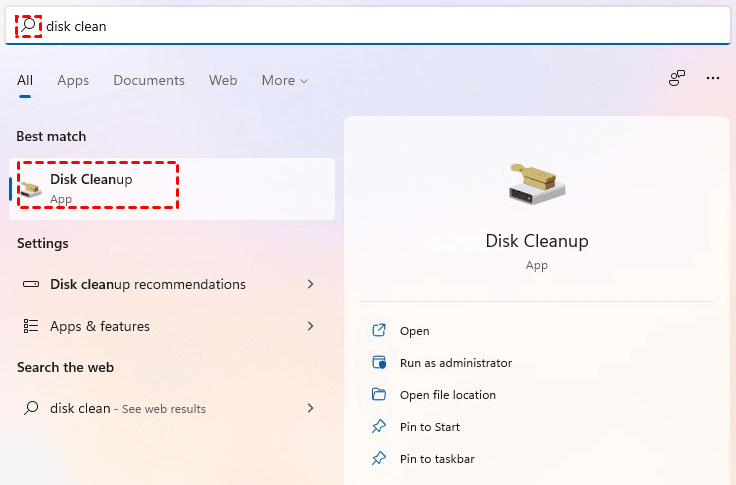
Step 2. To begin cleaning a drive, select the drive you need to clean. If it's your first time running the program, it's recommended to start with Drive C: or the main disk.
Step 3. Windows will show a list of different types of eligible items. The Disk Cleanup tool will pre-select items that it believes are safe to delete.
Step 4. Select other item types that you wish to delete, and notice how the total amount of disk space you can gain changes as you select or deselect items.
Step 5. Click OK and wait for the cleanup tool to load. This will automatically delete some files, freeing up drive space.
Note: If you want to scan your system files for deletable files, click "Clean up system files" on the window shown in step 5.
Method 2. Free Up Space on Windows 11 by Storage Setting
To free up space on Windows 11, you can use the cleanup feature in Windows 11's storage settings. This can be done by following a few simple steps.
Step 1. First, open Windows 11 Settings and click System > Storage.
Step 2. Scroll down to the Storage management section and click Cleanup recommendations. You will be redirected to the Cleanup recommendations page.
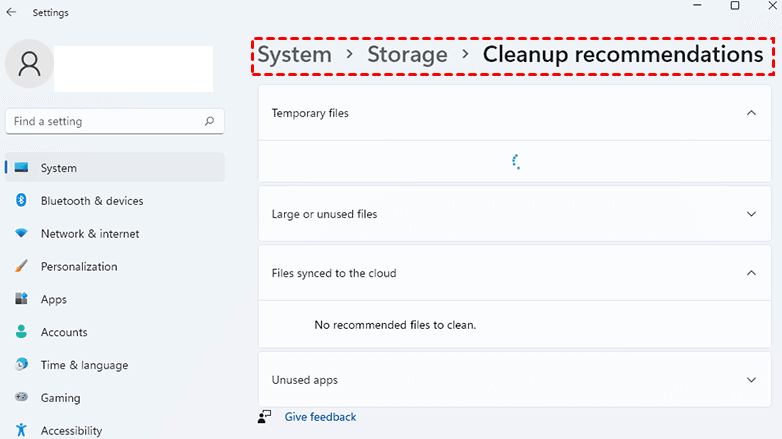
Step 3. Wait for Windows to scan the system for excess files. It will then categorize them under four sections: Temporary files, Large or unused files, Files synced to the cloud, and Unused apps.
Step 4. Select the files to be cleaned, being careful not to accidentally include important file groups, and proceed with caution. The system will delete all selected files.
Step 5. Select Clean up for each section after you choose the files or file groups to be deleted.
Method 3. Free Up Space on Windows 11 by Third-party Backup Software (Easiest)
You can also free up disk space in Windows 11 by using the free file backup software Qiling Disk Master Standard to back up files to external disks or the cloud, which can help prevent data loss and make it easier to free up disk space.
To take backup files to an external disk, you'll need to download and install a freeware, such as Qiling Disk Master Server, which also supports Windows Server users. Once installed, you can follow the operation steps to complete the backup process.
Step 1. Connect the external disk and make sure it can be detected by your computer.
Step 2. Open Qiling Disk Master Standard and click Backup > File Backup.

Step 3. Click Files or Folders to select the files or folders you want to backup to external disk.

Step 4. Choose the external hard drive as the backup destination.

Step 5. Confirm all your operations and click Proceed to free up space on Windows 11.

Notes:
- Options: The software enables you to set up email notifications, compress or split backup files, and include comments.
- Schedule Backup: You can set different backup frequencies, including Daily, Weekly, Monthly, Event trigger, and USB plug in, with the last two features available in the professional version.
- Backup Scheme:Backup Scheme You can choose from various backup methods, and upgrading to Qiling Disk Master Professional unlocks the differential backup method, making it easy to restore scheduled backups. Additionally, the professional version allows you to enable automatic backup cleanup, which helps save disk space.
Summary
Users may experience low disk space after upgrading to Windows 11 due to saved installation files from the old system. Additionally, not regularly cleaning up unneeded files and applications, and temporary file and picture buildup, can also cause low disk space.
To free up space on Windows 11, the article suggests using Qiling Disk Master Standard, a free backup software that allows you to back up files to an external disk or cloud without losing data, effectively freeing up disk space. This software supports various backup methods and Windows operating systems, and you can also schedule backups to ensure data security by regularly backing up your files.
This software provides various backup functions, including system backup, disk backup, and partition backup, to meet different backup needs. It also allows for restoring backups and using the clone function, making it a helpful tool for managing backups and data recovery.
Related Articles
- 3 Ways to Safely Delete Windows 11 Windows.old Folder
This guide explains 3 Ways to Safely Delete Windows 11 Windows.old Folder with clear steps, key checks, and practical tips. - Complete Guide: Windows 11 Free Upgrade from Windows 10
Microsoft plans to release Windows 11 to the general public on October 5. Many users want to know how to perform Windows 11 free upgrade from Windows 10. You can find the answer and have a comprehensive understanding of Windows 11 in this article. - How to Clone Hard Drive in Windows 10 64/32 Bit?
You may want to clone Windows 10 64 bit hard drive for data protection or hard drive upgrade. No matter which is your case, Qiling Disk Master enables you to clone hard drive easily while ensuring secure boot. - Stepwise Guide to Free up Disk Space in Window 10
Free up disk space by removing unnecessary files, managing storage, and adjusting partitions when the system drive becomes crowded. - How to Move Hard Drive to New Computer in Windows 11
If you want to find a way to move hard drive to new computer in Windows 11, this article can help you a lot. You can find a professional migration tool that can help you transfer data and OS on hard drive to new computer without losing secure boot. - Three Ways to Safely Move Programs to Another Drive on Windows 11
When the C drive is full and makes your PC run slow, moving programs to another drive on Windows 11 can be a good idea. Here, we'll share the process to do it via Settings, Steam Mover and a third-party software.
Products
Articles & Tutorials
- Data Recovery
- Data Backup
- File Recovery
- File Backup
- File synchronize
- System Backup and Restore
- Disk and Partition Clone
- Technical articles
- Disk Master Help
- Windows Deleted File and Disk Recovery Tutorials
- Windows File and Data Recovery Tutorials
- More Windows Tutorials for Install, Security, Files, and PC Tips
- Windows Boot, Repair, and Recovery Environment Tutorials
- Windows Backup Tutorials
- Windows Restore Tutorials
- Windows Clone and Migration Tutorials
- Windows Server Backup, Recovery, and Management Tutorials
- Windows Disk, Partition, and Storage Management Tutorials