Stepwise Guide to Run PC Health Check for Windows 11 Upgrade
What is the PC Health Check app?
The PC Health Check app provides up-to-date information on your Windows device's health, allowing you to troubleshoot performance issues and improve your device's performance. It comprises six key parts.
- Check Windows 11 eligibility: PC Health Check allows you to check if your device meets the Windows 11 minimum system requirements and offers info on what you can do if your device doesn't meet the requirements if you're currently running Windows 10.
- Backup & sync: Sign in with your Microsoft account to sync your preferences and backup your photos and files to OneDrive.
- Windows Update: PC Health Check will show you if your device is up to date or needs attention. Regular Windows updates help keep your device running smoothly and securely.
- Battery capacity: The app provides battery health information for devices older than 3 years, and for devices with one or two batteries, it also offers a comparison of their current performance to their original capacity.
- Storage capacity: Check how much storage space is being used on your device's main drive, along with the percentage of fullness.
- Startup time: The startup time for your device can be obtained, along with information on what factors affect these times. To review and modify startup apps, select "Manage your startup programs".
👉 To use the PC Health Check app for a Windows 11 upgrade, simply search for "PC Health Check" in the Start menu, download and install the app, then run it to check if your PC meets the minimum system requirements for Windows 11. The app will scan your device and provide a report on any compatibility issues, allowing you to address them before proceeding with the upgrade.
👉 How to upgrade to Windows 11 after compatibility checking
👉 Bonus tip: backup computer before upgrading to Windows 11🔥
How to use the PC Health Check app for Windows 11 upgrade
If you're curious about the PC Health Check app, you might be wondering how to use it to check your Windows 11 compatibility. To do so, simply follow the guidance below:
- Search for "PC Health Check" on the taskbar and select it from the result list.
Tip: If your PC doesn't have the PC Health Check app, you can download it from this link. [link to PC Health Check download](https://www.
- To begin the process of checking your PC for Windows 11 compatibility, click the "Check now" button in the "Introducing Windows 11" section. This will initiate a system analysis to determine if your device meets the requirements for Windows 11.
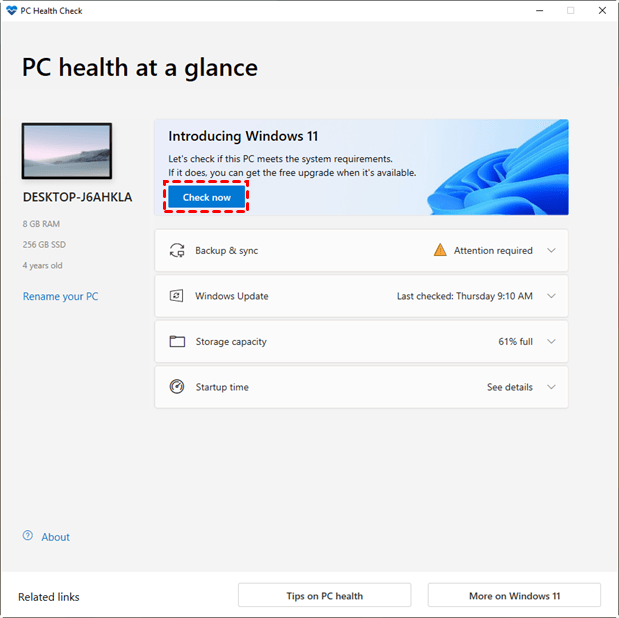
- Once the check is completed, you will receive a success or fail message.
How to upgrade to Windows 11 after compatibility checking
After running the Windows 11 compatibility checker, the next step is to upgrade your device to Windows 11. This process involves two main situations: one where your device is already compatible with Windows 11, and another where it needs to be upgraded to meet the system requirements. In the first scenario, the upgrade process can proceed smoothly, while in the second, additional steps may be required to ensure compatibility.
If your PC meets Windows 11 requirements
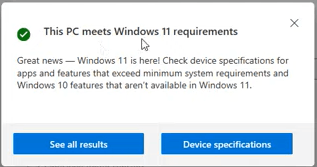
- Click Start > Settings > Update & Security.
- In the "Upgrade to Windows 11 is ready" banner, click "Download and Install".
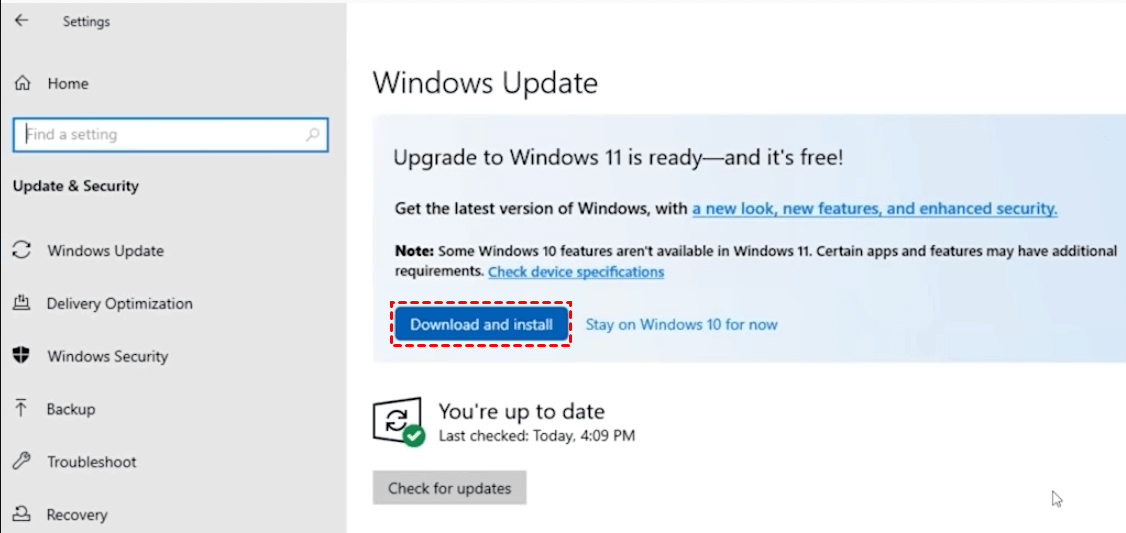
Tip: If you don't see the banner, click the Check for updates button.
- Accept the license agreement for Windows Update, which may take some time to download and install.
- When prompted, restart your computer. After restarting, you will be in Windows 11.
If your PC doesn't meet Windows 11 requirements
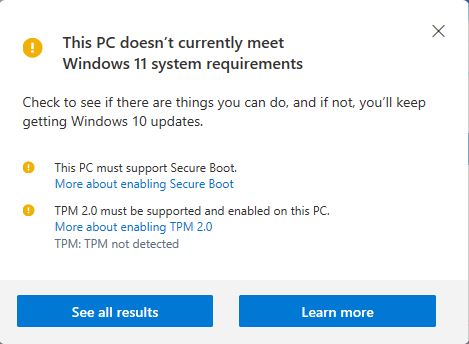
You can force an upgrade to Windows 11 on your PC, even if it's not eligible, by using a Windows 11 bootable USB. To do this, you'll need a USB drive with at least 8GB of space, which will be completely wiped, so make sure to remove any important files from it.
- To download Windows 11, go to the Microsoft official website and download the media creation tool. Follow the wizard to create a Windows 11 bootable USB.
- Boot your PC from the USB flash drive. This will lead you to the Windows Setup window, where you can select your language and other preferences, then click Next.
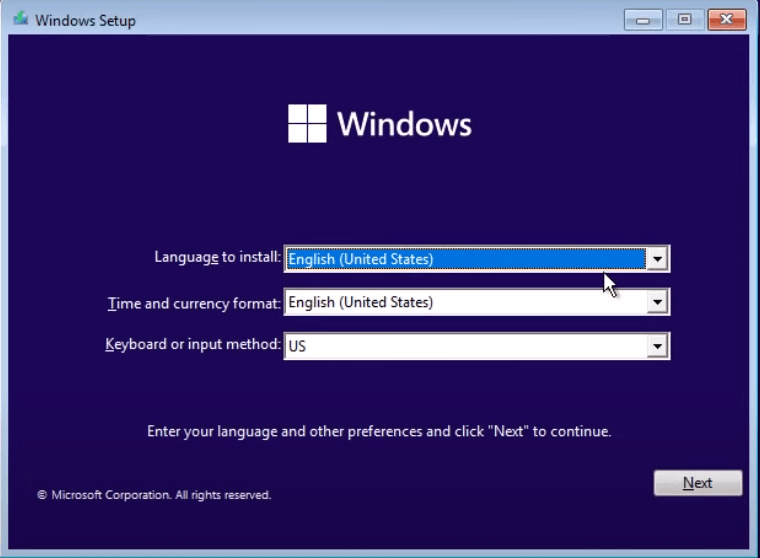
- To install Windows 11, first, go to the Microsoft website and download the Media Creation Tool. Then, run the tool and select the correct language, architecture, and edition of Windows 11.
Bonus tip: backup computer before upgrading to Windows 11
It's recommended to back up your computer before upgrading to Windows 11 to avoid data loss in case of update errors, allowing you to restore your computer from the backup image if needed.
To backup your computer efficiently, consider using Qiling Disk Master Standard, a reliable and free backup software that can help you protect your data.
- It offers multiple backup types, including System/Disk/Partition/File/Cloud Backup.
- It supports various backup devices, including NAS, USB stick, network share and cloud storage.
- You can set up automatic backups to run daily, weekly, or monthly, and they are incremental by default, saving disk space.
- All versions of Windows, including Windows 11, 10, 8.1, 8, 7, Vista, and XP, are supported.
Download this wonderful backup freeware now. To create a system image or backup your entire computer, click Backup > System Backup or Backup > Disk Backup.

Summary
To upgrade to Windows 11, you can run PC Health Check to see if your PC meets the minimum requirements, and if not, find a way to upgrade anyway. Before doing so, create a backup with Qiling Disk Master to ensure no data loss during the process. This tool can also help with Samsung Data Migration in Windows 11, and trying out its higher editions might be beneficial. Go for Qiling Disk Master right now!
Related Articles
- This PC Can't Run Windows 11 | How to Fix or Bypass it
Many users receive "This PC can't run Windows 11" when they try to install it, or check if their computer is compatible. - Windows 11 Check for Compatibility - 2 Tools Included
This guide explains Windows 11 Check for Compatibility - 2 Tools Included with clear steps, key checks, and practical tips. - QILING Disk Master Technician
QILING Disk Master Technician is a complete toolkit to simplify partition manager and migrate OS and data backup software for IT administrator and technicians. - QILING Safe Disk Standard
QILING Safe Disk keeps your confidential data in a strongly encrypted form on your disk and provides you with transparent access to it from any application. - [Clear Guide] How to Create Windows 11 Boot USB
This article will share 2 methods on how to create Windows 11 boot USB. Also you can learn to boot from the Windows 11 bootable USB. - How to Easily Disable Bitlocker Encryption in Windows 11 (8 Ways)
You can learn what is Bitlocker encryption and how to disable Bitlocker encryption in Windows 11 as well as a better way to password your file. Please read on. -
Run Windows 11 on Any PC
Review compatibility and safer test options before running Windows 11 on mixed hardware.
Products
Articles & Tutorials
- Data Recovery
- Data Backup
- File Recovery
- File Backup
- File synchronize
- System Backup and Restore
- Disk and Partition Clone
- Technical articles
- Disk Master Help
- Windows Deleted File and Disk Recovery Tutorials
- Windows File and Data Recovery Tutorials
- More Windows Tutorials for Install, Security, Files, and PC Tips
- Windows Boot, Repair, and Recovery Environment Tutorials
- Windows Backup Tutorials
- Windows Restore Tutorials
- Windows Clone and Migration Tutorials
- Windows Server Backup, Recovery, and Management Tutorials
- Windows Disk, Partition, and Storage Management Tutorials