Windows 11 Check for Compatibility - 2 Tools Included
Windows 11 was released on October 5, 2021, featuring a simpler interface with rounded corners and a centered Start menu and taskbar, along with options for personalizing widgets and direct user access to the taskbar. It also includes better support for virtual desktops and the ability to run Android apps.
If you want to check if your computer is ready to receive Windows 11 updates, you've come to the right place. Windows 11 is the first major operating system update from Microsoft in six years, and there were questions raised around compatibility when it was released in 2021. Now, we're trying to figure out if our computers will be at the level needed to qualify for the upgrade to Windows 11.
If you want to check Windows 11 compatibility directly using the easiest and least complicated method, please check this method directly!
👉Way 2. Use Powerful Third-Party Software
Key Windows 11 Hardware Requirements
To check if your computer meets the minimum system requirements for Windows 11, you can visit the Microsoft website and use their PC Health Check tool. This tool will scan your computer and provide a report on whether it meets the requirements or not.
|
Spec |
Requirement |
|
Processor |
1 gigahertz (GHz) or faster with two or more cores on a compatible 64-bit processor or system on a chip (SoC). |
|
RAM |
4 gigabytes (GB) or greater. |
|
Storage |
64 GB or more of available storage is required to install Windows 11. |
|
Graphics card |
Compatible with DirectX 12 or later, with a WDDM 2.0 driver. |
|
System firmware |
UEFI, Secure Boot capable. |
|
TPM |
Trusted Platform Module (TPM) version 2.0. |
|
Display |
The device has a high definition display of 720p resolution, a screen size of 9 inches or larger, and 8 bits per color channel. |
|
Internet connection |
Internet connectivity is required to perform updates and access some features. |
To determine if your computer is compatible with Windows 11, you can perform a compatibility check in two ways. Once you know what you need, let's take a look at how to perform the check.
How to Perform Windows 11 Check for Compatibility
After determining the minimum system requirements to upgrade to Windows 11, you'll need to check if your PC is eligible for the update. Windows 10 will eventually be phased out in 2025, so while you don't have to rush, you'll need to make the transition sooner or later.
To run a Windows 11 compatibility check, you can use either Microsoft's PC Health Check tool or the third-party software Qiling Disk Master. The PC Health Check tool, provided by Microsoft, is a straightforward way to determine if your device meets the system requirements for Windows 11. On the other hand, Qiling Disk Master is a more comprehensive tool that can also check for other issues on your device, such as disk errors and malware. Both tools can be used to ensure that your device is compatible with Windows 11 and to identify any potential problems that need to be addressed.
Way 1. Use Microsoft's PC Health Check
Microsoft offers a PC Health Check tool that assesses a PC's eligibility to run Windows 11, providing reasons for ineligibility and additional support resources if needed.
- To fix the issue, download Microsoft's PC Health Check, open the file and install it on your computer, and ensure the box is checked to open PC Health Check after installation. Click Finish to complete the process.
✨Note: If you didn't check the box to open PC Health Check during installation, you can search for it in the Windows search box and open it.
- Open this software and click "Check Now" under the "Introducing Windows 11" section at the top.
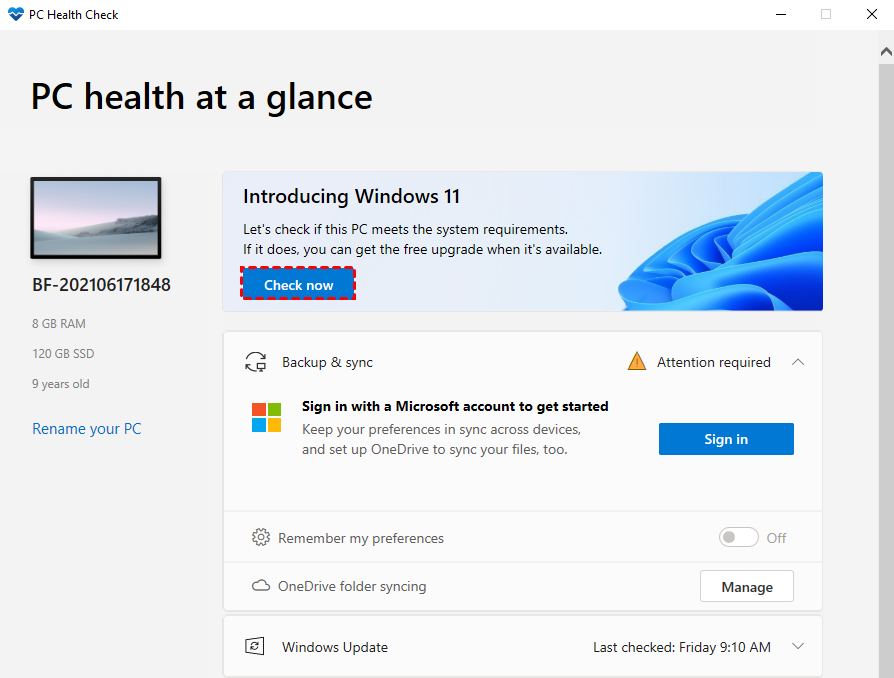
If your machine is not compatible with Windows 11, you'll get a message saying "This PC can't run Windows 11" due to various reasons, which can be resolved by following the methods outlined in this article to make your PC meet the Windows 11 eligibility.
Next, I will introduce you to another, simpler method. Let's see how to use this professional Windows 11 requirements checker.
Way 2. Use Powerful Third-Party Software
To check Windows 11 compatibility, you can use the second method, which involves using an all-in-one backup software, specifically Qiling Disk Master, to perform the check. This software has a user-friendly interface and offers additional features that can be beneficial during the upgrade process.
The Windows 11 Update Checker feature allows you to quickly check if your PC meets the update requirements, providing a complete compatibility result and suggesting fixes for any issues.
To check if your Windows 10 PC is compatible with Windows 11, you can use a free software that performs a compatibility check. This software will assess your PC's hardware and software specifications to determine if it meets the minimum requirements for Windows 11.
- Click the download button below to install this freeware on your computer and launch it.
- To find the Windows 11 Update Checker, click on the "Tool" tab on the left side of the software, then select "Windows 11 Update Checker" on the right side.
- Click on the Windows Update button in the Start menu, and then click on the Check for updates button to check the Windows 11 compatibility on your computer. Alternatively, you can click on the related articles below to learn more about Windows 11.
If your computer meets all the hardware requirements for Windows 11, you can upgrade directly. If not, you can click "Fix it" to get help with the issues that need to be addressed.
Bonus Tip: Back Up Important Data via Qiling Disk Master
Before upgrading to Windows 11, back up your important files and system settings. A current backup helps you recover data quickly if the upgrade fails, rolls back, or causes unexpected issues.
The third-The Qiling Disk Master software allows for easy creation of various types of backups, including file, system, partition, and disk backups, and supports storing backups in different locations such as external hard drives, USB drives, SD cards, network locations, cloud services, and NAS.
To protect your computer's data before upgrading, select File Backup and follow the prompts to complete the backup task, allowing you to choose other backup methods as needed.

🎈Tip: I recommend creating a bootable media in case anything unexpected happens during the upgrade process that prevents you from booting properly.
Final Words
You can check if your PC is compatible with Windows 11 using two methods. While Microsoft's PC Health Check software can do this, it's limited in function. Qiling Disk Master, on the other hand, not only checks for Windows 11 compatibility but also offers additional useful features.
This software offers additional features such as Clone, Sync, Restore, and others. It can aid in upgrading Windows 11 hard drives by facilitating system or data migration, minimizing the risk of boot problems or data loss.
Related Articles
- How to Solve Windows 11 Installation Has Failed
Learn how to Solve Windows 11 Installation Has Failed with clear steps, key checks, and practical tips. - Top 2 Ways to Fix Cannot Install or Upgrade to Windows 11
You will know the reasons you cannot install or upgrade to Windows 11 and how to fix it. You can also learn how to solve the system unbootable after installation failed. Please read on. - Check Windows 11 System Requirements: Compatible or Not
You will learn Windows 11 minimum system requirements in detail and how to check if it's compatible. - WD My Cloud Dropbox Sync | Two Ways
Here are two ways to perform WD My Cloud Dropbox Sync, one is manually and the other is automatic. Check out the following and find out. - What Is WannaCry Ransomware Attacks 2017?
WannaCry Ransomware attack 2017 causes huge losses, not only money, but also important data. You definitely don't want to experience this or similar error again, learn more and take precautions. - How to Decrypt and Recover Ransomware Encrypted Files
If your computer is infected with ransomware WannaCry, don't cry or pay the ransom because you can recover ransomware encrypted files easily and quickly.
Products
Articles & Tutorials
- Data Recovery
- Data Backup
- File Recovery
- File Backup
- File synchronize
- System Backup and Restore
- Disk and Partition Clone
- Technical articles
- Disk Master Help
- Windows Deleted File and Disk Recovery Tutorials
- Windows File and Data Recovery Tutorials
- More Windows Tutorials for Install, Security, Files, and PC Tips
- Windows Boot, Repair, and Recovery Environment Tutorials
- Windows Backup Tutorials
- Windows Restore Tutorials
- Windows Clone and Migration Tutorials
- Windows Server Backup, Recovery, and Management Tutorials
- Windows Disk, Partition, and Storage Management Tutorials