Check Windows 11 System Requirements: Compatible or Not
📖 Quick Navigation:
- System requirements for Windows 11
- Why need to meet Windows 11 update minimum system requirements?
- How to check if your computer is compatible
- Details and solutions about minimum system requirements for Windows 11
- How to bypass system requirements for Windows 11
- Conclusion
System requirements for Windows 11
Microsoft released Windows 11 on October 5, 2021, and stated that users need to meet the minimum system requirements before upgrading from Windows 10.
- CPU: 1 gigahertz (GHz) or faster with two or more cores on a compatible 64-bit processor or system on a chip (SoC), specifically requiring eighth-generation core and above for Intel, Ryzen 2 and above for AMD, and Snapdragon 7c and above for Qualcomm.
- Memory: 4gigabytes (GB) or greater.
- Storage: 64GB and greater available storage is required to install Windows 11.
- System firmware: UEFI, Secure Boot capable.
- TPM: Trusted Platform Module (TPM) version 2.0.
- Graphic card: Compatible with DirectX 12 or later, and a WDDM 2.0 driver.
- Display: A high definition (720p) display, typically found on a 9“ or greater monitor, uses 8 bits per color channel, resulting in a total of 24 bits for the entire image. This allows for a wide range of colors and a detailed, high-quality visual representation.
- Internet connectivity/MSA: Windows 11 requires an internet connection to perform updates and use certain features, including device setup with a Microsoft Account for the Home edition.
Why need to meet Windows 11 update minimum system requirements?
Windows 11 has stricter system requirements than its predecessor, aiming to improve security. These requirements include higher CPU standards, stricter system firmware, and the addition of Trusted Platform Module (TPM) requirements, which were not necessary in previous systems, including Windows 10. This is to ensure a more secure operating system.
Stability
Microsoft's test data shows that forcing Windows 11 upgrades on devices that don't meet the minimum system requirements leads to a 52% increase in kernel mode crashes, but running it on compliant devices results in a 99.8% crash-free experience.
Security
Windows 11 has tightened its hardware requirements due to increased global cyber attacks, with Microsoft collecting 8.2 trillion threat intelligence worldwide.
They integrated expert advice from the UK and Canadian Cyber Security Centres and strengthened Windows 11's security default settings to better protect against growing cyber threats.
Compatibility
Microsoft has set minimum system requirements for Windows 11 to ensure devices can handle video conferencing, productivity tools, and games, improving hardware compatibility for these needs.
Microsoft has set a new benchmark with minimum system requirements, allowing users to run video conferencing, productivity tools, and gaming applications smoothly on their computers, as long as they meet the specified specs.
How to check if your computer is compatible
After understanding the reasons for meeting system requirements for Windows 11, you may wonder how to check if your device is compatible. Fortunately, there are two practical ways to do so, which will be covered in this article.
Method 1: Use PC Health Checker
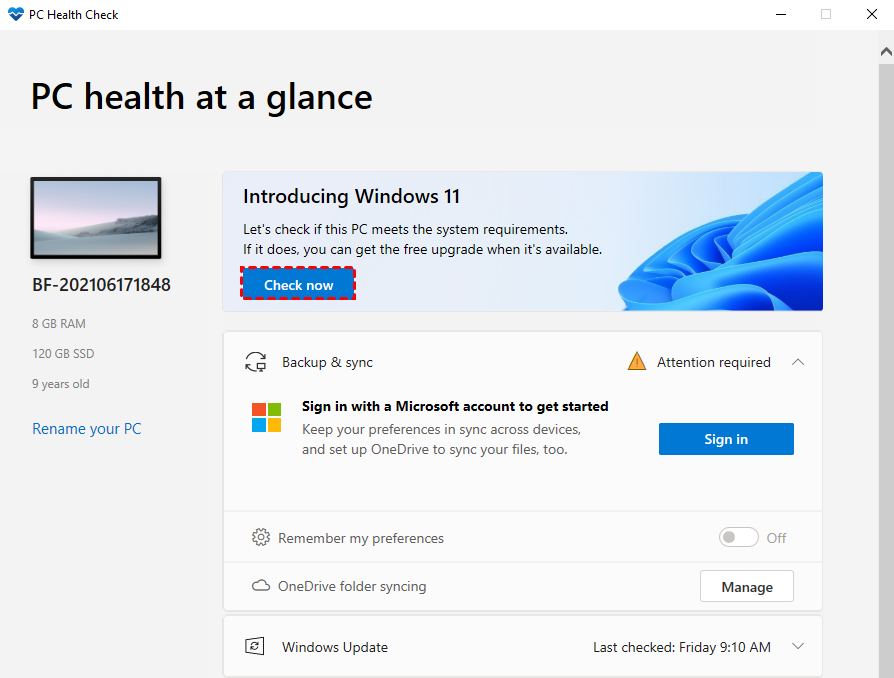
To check if your computer is compatible with Windows 11, you can use Microsoft's PC Health Checker, which can be downloaded from the official page. Once downloaded, launch the app or search for it in the search box, then click "Check now" under the "Introducing Windows 11" section.
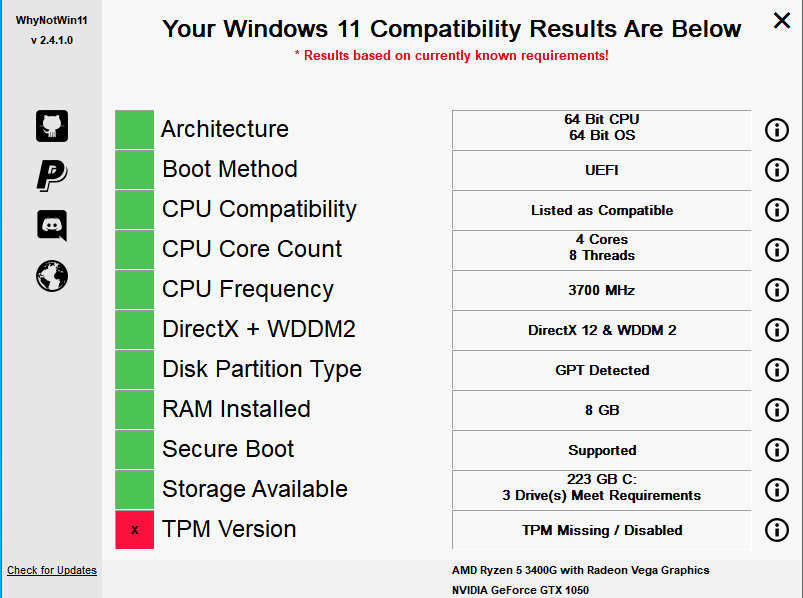
The process may take up to 24 hours to check all the hardware, and then you'll receive the compatibility result, with green boxes indicating meeting the requirements and red boxes with an "x" indicating non-compliance.
Method 1: Use 3rd-party system requirement checker
If you don't want to use PC Health Checker, you can use a third-party system requirement checker like Qiling Disk Master Standard to check if your computer meets the hardware requirements for Windows 11 and get a quick compatibility check.
Download and install the software, then launch it, go to Tools and select Windows 11 Update Checker.
To check if your Windows PC meets the system requirements for Windows 11, click the "Start Check" button, which will scan your system and display the compatibility result a few minutes later.
Tip on checking the system requirements for Windows 11 on multiple computers:
- Upgrading the standard edition to the technician or tech plus edition would be a good option.create a portable version of Qiling Disk MasterIt allows you to create a portable version that can be used on unlimited PCs or servers without installation, by saving it to a removable device.
- Connect the removable device To open Qiling Disk Master on the target computer, double-click the "Disk Master.exe" in the installation path, and then navigate to Tools to perform the necessary checks.
Details and solutions about minimum system requirements for Windows 11
To upgrade from Windows 10 to Windows 11, check if your system meets the requirements. If it does, you can proceed with the upgrade without any issues. However, if your system doesn't meet the requirements, you can check the details and update them accordingly.
1. Update CPU
To upgrade to Windows 11, you'll need a compatible CPU, specifically a CPU that's not sixth generation Intel Core or below, or a first generation AMD Ryzen. If you fall into this category, you'll need to upgrade your CPU to meet the Windows 11 requirements. Here's a brief overview of the CPU architecture, compatibility, core count, and main frequency that you'll need to consider for a targeted upgrade.
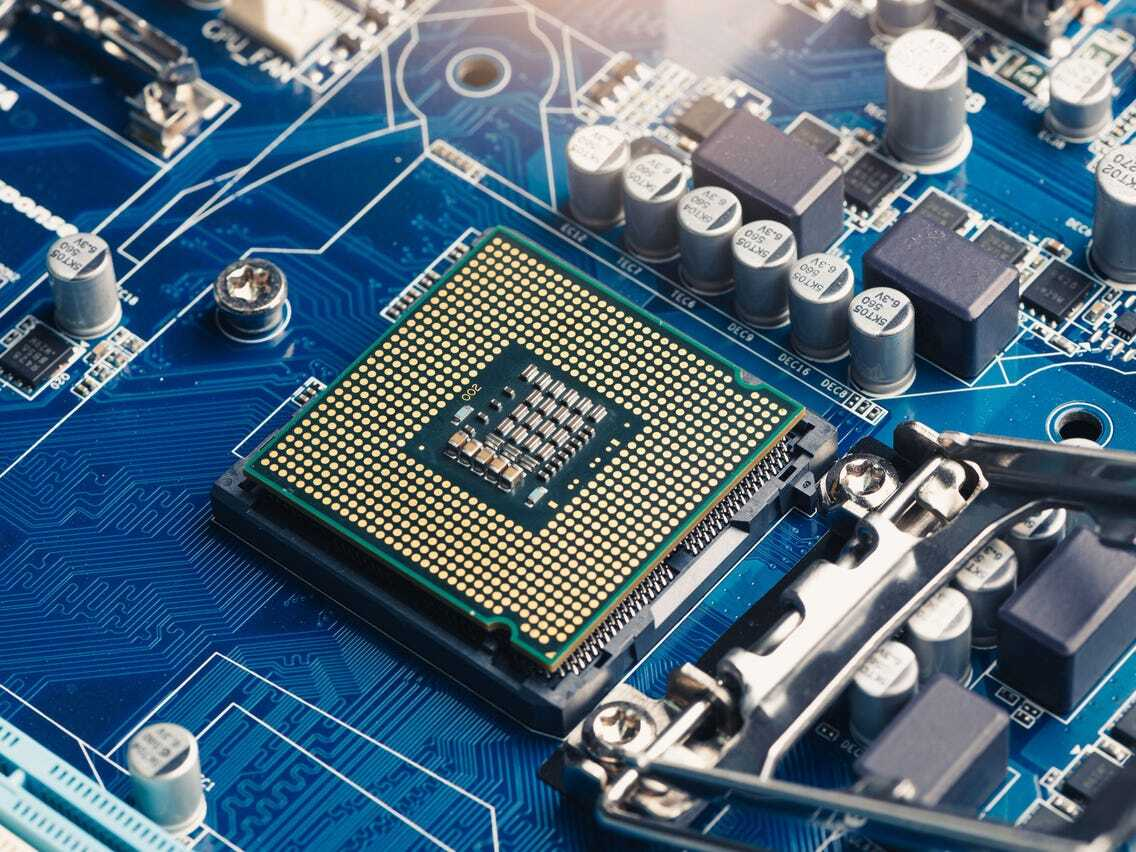
▶ CPU Architecture(CPU+OS)
The 64 bit architecture 64-bit architecture in Windows 11 means that the CPU and operating system can handle 64 bits of data at a time, referring to CPUs with 64-bit processing technology.
It is, CPU GPRs (General-The 64-bit operating system has a data width of 64 bits, which can theoretically handle 17 million terabytes of processing capacity, providing superior performance. This is made possible by the 64-bit processor, which takes full advantage of its performance to achieve the best multimedia content processing performance.
Windows 11 requires a 64-bit operating system and CPU architecture to meet the minimum system requirements. If your computer has a 32-bit OS or CPU, you'll need to either upgrade your OS or replace your CPU with a 64-bit one before installing Windows 11. This ensures that your computer meets the necessary specifications for a smooth upgrade.
▶ CPU Compatibility
Microsoft has updated the CPU compatibility list for Windows 11, which now includes a wider range of Intel and AMD processors, making it easier for more users to upgrade to the new operating system. The updated list includes several 10th and 11th Gen Intel Core processors, as well as some AMD Ryzen and Ryzen Threadripper models. This means that more users will be able to take advantage of the improved performance and security features of Windows 11.
For Intel platform, you can use the following CPU model in Windows 11:
- Intel Core X series、Xeon W series, including Intel Core 7820HQ.
- 8th generation Intel desktop and mobile processors are based on the Coffee Lake, Whiskey Lake, and Amber Lake architectures. These processors were released in 2017 and 2018 and feature improvements in performance, power efficiency, and integrated graphics.
- Intel ninth generation desktop processor(Coffee Lake Refresh).
- Intel tenth generation desktop and mobile processor(Comet Lake、Ice Lake、Amber Lake).
- Intel eleventh generation desktop and mobile processor(Tiger Lake).
For AMD platform, you can use the following CPT model in Windows 11:
- AMD Ryzen 2000 series desktop processor(Zen+、Zen).
- AMD Ryzen 3000 series desktop and mobile processor(Zen 2、Zen+).
- AMD Ryzen 4000 series desktop and mobile processor(Zen 2).
- AMD Ryzen 5000 series desktop and mobile processor(Zen 3).
Qualcomm processors use the ARM architecture, and the following models are compatible with Windows 11.
- Snapdragon 850
- Snapdragon7c
- Snapdragon8c
- Snapdragon 8cx
- Snapdragon 8cx (Second generation)
- Microsoft SQ1
- Microsoft SQ2
To upgrade to Windows 11, your computer's CPU must be compatible with the operating system. If your computer's CPU is not on the compatibility list, you will need to replace it with a CPU that is.
▶ CPU Core Count
The number of tasks a CPU can handle at the same time is determined by the number of cores, which is a fixed number on a CPU. A single-core CPU has one core, while a dual-core CPU has two cores, meaning it can handle twice the number of tasks simultaneously.
Windows 11 requires a dual-core CPU or higher to successfully upgrade, but since single-core CPUs are no longer manufactured, this requirement is effectively met by any compatible CPU, and if not, replacing the CPU is recommended.
▶ CPU Main Frequency
The speed of a computer's CPU is measured by its main frequency, which is the clock frequency that controls all computer operations, completing one step per cycle, and a higher clock frequency generally indicates a faster CPU.
Microsoft requires a 1GHz CPU frequency and above to upgrade to Windows 11, but since CPUs below 1GHz don't exist, this requirement is essentially met by any compatible CPU. If your CPU can't meet this requirement, it's recommended to replace it.
2. Update Memory
Memory, also known as internal memory or main memory, is a crucial component of a computer that temporarily stores the CPU's computing data and facilitates data exchange with external memory, such as the hard disk, acting as a bridge between the CPU and external memory and impacting the overall running speed of the computer.
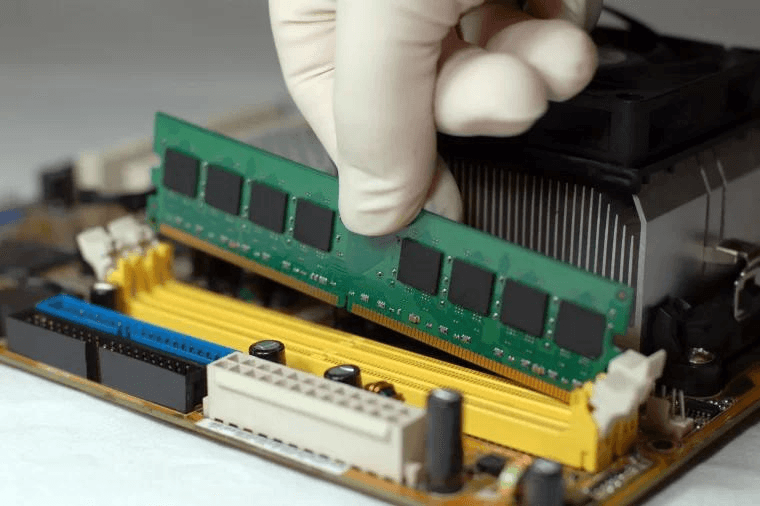
The current mainstream memory size is DDR4 8GB, which is more than the Windows 11 minimum requirement of 4GB and above. Most computers won't encounter memory bottlenecks, but older computers that don't meet the memory requirements can be upgraded with 4GB or 8GB memory sticks if their motherboard allows it.
3. Update Storage
The Windows 11 minimum requirement requires that the available disk capacity is 64GB and above, and this can be met under normal circumstances. If you want to directly upgrade from Windows 10 to Windows 11, you must ensure that the available space on your C drive is greater than 30GB.
To check the total disk size and available space in the C drive, press the "Win + E" key to open File Explorer, then navigate to This PC, and you can see the total disk size and available space in the C drive.
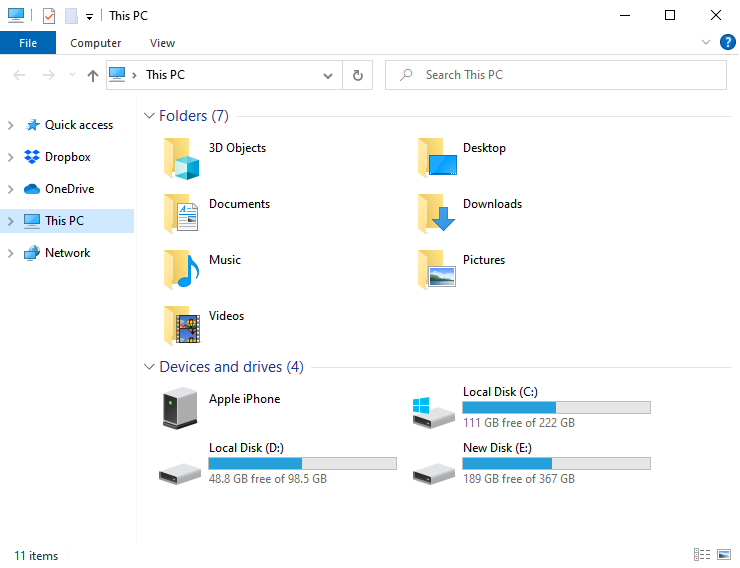
If your C drive is running low on disk space, you can use a free disk cloning software to clone your hard drive to a larger drive, thereby gaining more capacity.
4. Update System Firmware
UEFI (Unified Extensible Firmware Interface) is a standard that describes a new interface type in detail and a standard firmware interface for computers, aimed at improving software interoperability, initiating hardware, and enabling systems to boot quickly and easily, ultimately replacing the limitations of traditional BIOS.
Windows 11 requires computers to support UEFI Secure Boot, a feature that helps defend against attacks and infected software by ensuring that only trusted software can run on the system, reflecting the operating system's emphasis on security.
When installing Windows 11, you'll need to enter the BIOS setup and switch from Legacy BIOS to UEFI mode. You'll also need to convert the Master Boot Record (MBR) to a GUID Partition Table (GPT) and enable secure boot to install Windows 11 smoothly. If your computer doesn't support UEFI secure boot, you can solve this by switching the BIOS boot mode, but first, you'll need to convert the MBR to GPT.
5. Update TPM
TPM (Trusted Platform Module) is an international standard for secure cryptographic processors that use a dedicated microcontroller to process keys in the device, with the latest version being TPM 2.0 that requires a motherboard with a TPM 2.0 chip.
In Windows 11, TPM 2.0 is a mandatory requirement that must be met, and it's not recommended to bypass it due to potential stability and security issues.
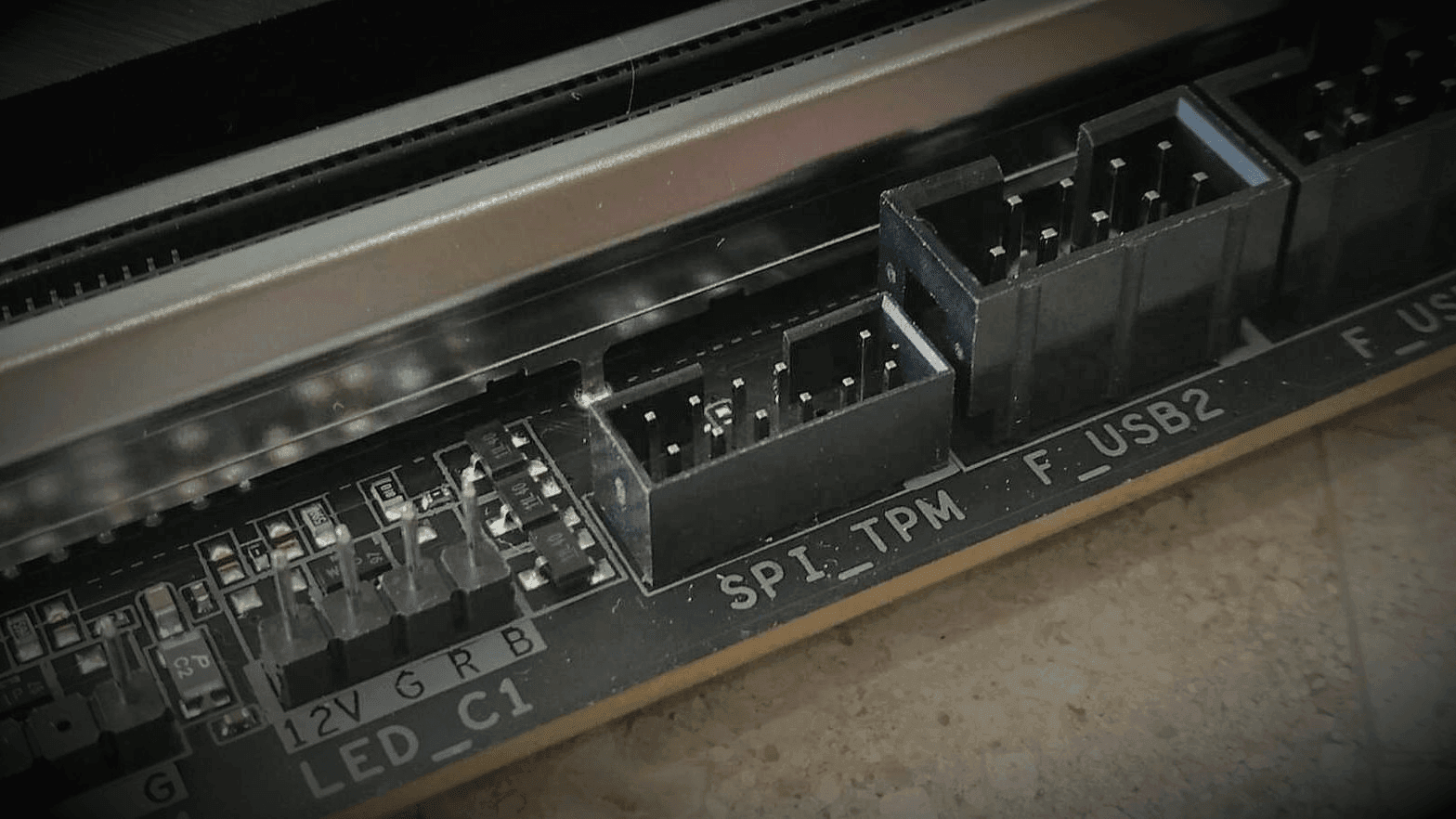
If your computer does not support TPM 2.0, it is still suggested to replace the motherboard. The top-tier motherboard brands, ASUS, GIGA, and MSI, have announced their support lists for motherboards, with each brand listing their compatible models.
- ASUS: On the Intel platform, all 100 series motherboards and above support TPM 2.0, whereas on the AMD platform, only 300 series and above motherboards have this support.
- GIGA: Intel chipsets supporting TPM 2.0 include X299, C621, C232, C236, C246, 200, 300, 400, and 500 series, while AMD chipsets that support it include TRX40, 300, 400, and 500 series.
- MSI: On Intel and AMD platforms, TPM 2.0 is supported from the 100 series and 300 series motherboards, respectively, and onwards.
6. Update Graphic Card
Microsoft's DirectX is a multimedia programming interface and API that enables developers to create high-performance, interactive applications. In the context of Windows 11 hardware requirements, DirectX 12 refers not to a specific graphics card model, but rather to a graphics card that supports the DirectX 12 API, allowing for enhanced graphics and gaming capabilities.
WDDM, The Windows Display Driver Model, also known as WDDM, is a new generation of Microsoft's graphics driver model that supports various versions of Windows, including Windows Vista, Windows 7, Windows 8, Windows 8.1, and Windows 10, with the latest version supporting DirectX 12.
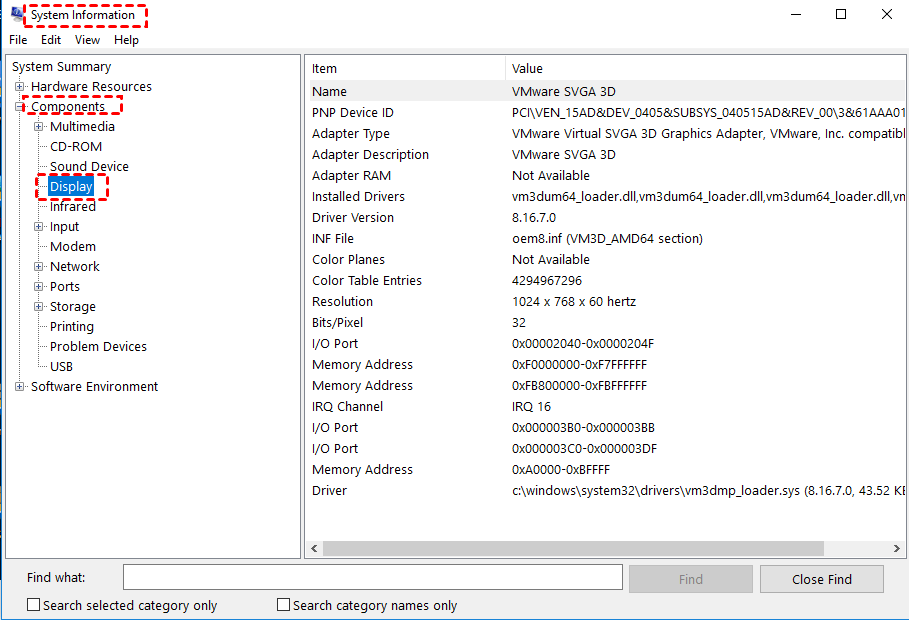
To confirm if your computer meets Windows 11 graphics card requirements, you can use the PC Health Check app or follow these instructions: check if your computer has a compatible graphics card, check the graphics card model and manufacturer, and check if the graphics card meets the recommended specifications for Windows 11.
Step 1. Press "Win + R" key to open the Run dialog box, then type "dxdiag" and click "OK".
Step 2. In the poping up window, click Yes to confirm you want to perform this task.
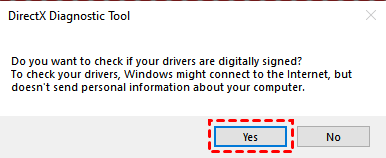
Step 3. In the DirectX Diagnostic Tool window, switch to the "Display" tab, where you can find the "Feature Levels" and "Driver Model" options. The "Feature Levels" indicates if the graphics card hardware supports DirectX 12, while the "Driver Model" shows the system's support level.

If your Windows 10 computer doesn't support DirectX 12 and WDDM 2.0, you can update your graphic card to enable support.
7. Update Display
In Windows 11, a high-definition (720p) display with a diagonal longer than 9 inches and 8 bits per color channel is required, making it a hard requirement to meet under normal circumstances. If not, the monitor should be replaced.
8. Internet Connectivity and Create Microsoft Account
Internet connectivity is simple, you just need to ensure that your computer is able to access the Internet.
To create a Microsoft account, go to the Microsoft website, click on "Create Microsoft Account," and follow the registration prompts.

How to bypass system requirements for Windows 11
Many users want to install Windows 11 or upgrade from Windows 10, but some computers don't meet the minimum specs, so they're looking for ways to bypass the requirements.
To make your computer and data safe, it's suggested to create a system image backup in Windows 10 with Qiling Disk Master Standard, which is not only a third-party system requirement checker but also free backup software to protect data continuously.

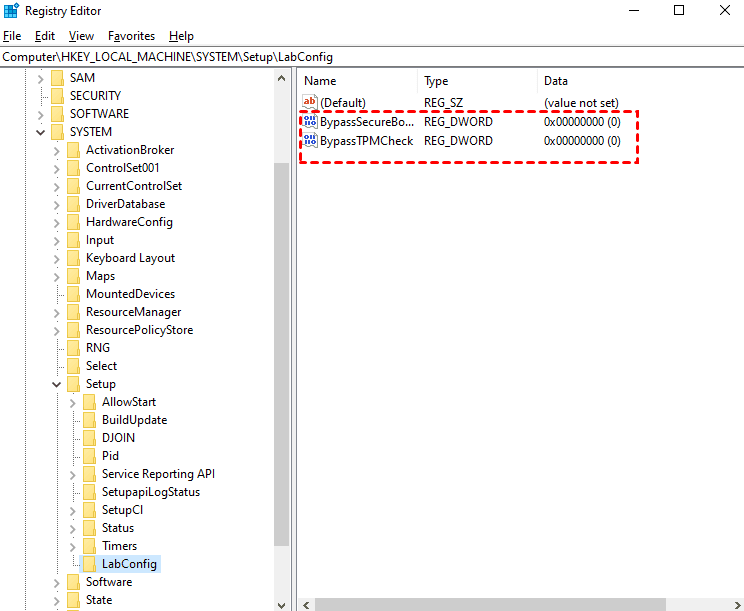
After backing up, create a new registry key called BypassTPMCheck and BypassSecureBootCheck in the Registry Editor, set their value to 1, and restart your computer to make the changes take effect.
Conclusion
While Windows 11's system requirements may seem strict, they are in place to ensure security, stability, and compatibility. It's recommended to adhere to these standards to avoid potential consequences, and attempting to bypass them to upgrade to Windows 11 may lead to serious issues.
Before upgrading to Windows 11, check if your computer is compatible using the Windows 11 system requirement checker. You can also use PC health checker or Qiling Disk Master Standard to verify compatibility. The latter software is more powerful and can also help you schedule a backup of your computer before upgrading, or assist with backing up your computer if you choose to install Windows 11 on unsupported hardware.
Related Articles
- Windows 11 Check for Compatibility - 2 Tools Included
This guide explains Windows 11 Check for Compatibility - 2 Tools Included with clear steps, key checks, and practical tips. - How to Solve Windows 11 Installation Has Failed
Learn how to Solve Windows 11 Installation Has Failed with clear steps, key checks, and practical tips. - Best Free Windows 11 Migration Tool
You will know the best Windows 11 migration tool and learn how to migrate the operating system, files or data to a new drive easily using this tool. - Need to Find Setup Information File Location in Windows 7? Fixed!
Learn how to need to Find Setup Information File Location in Windows 7 safely, including what to check before formatting, wiping, or deleting data. - Top 5 Best Free SSD Backup Software for Windows in 2022
Top 5 Best Free SSD Backup Software for Windows in 2022: this guide summarizes the key steps, practical tips, and safer options so you can finish the task clearly and avoid common mistakes. - SSD Upgrade Software Free Download Yet Still Reliable
Upgrading an SSD can be challenging, but a free SSD upgrade tool like Qiling Disk Copy can make the process easier and more efficient. You can download this software and use it to upgrade your SSD.
Products
Articles & Tutorials
- Data Recovery
- Data Backup
- File Recovery
- File Backup
- File synchronize
- System Backup and Restore
- Disk and Partition Clone
- Technical articles
- Disk Master Help
- Windows Deleted File and Disk Recovery Tutorials
- Windows File and Data Recovery Tutorials
- More Windows Tutorials for Install, Security, Files, and PC Tips
- Windows Boot, Repair, and Recovery Environment Tutorials
- Windows Backup Tutorials
- Windows Restore Tutorials
- Windows Clone and Migration Tutorials
- Windows Server Backup, Recovery, and Management Tutorials
- Windows Disk, Partition, and Storage Management Tutorials