How to Recover Ransomware Encrypted Files (4 Ways)
- Overview of Ransomware
- How to recover Ransomware encrypted files
- Method 1: Use Ransomware decrypt tool
- Method 2: Recover from shadow copies
- Method 3: Restore from the previous backup
- Method 4: Recover deleted files by Ransomeware virus via file recovery software
- Backup encrypted files for recovery time
- Summary
Overview of Ransomware
WannaCry, a notorious ransomware, infected over 200,000 PCs in 150 countries, spreading through emails, program trojans, and web pages, and causing widespread damage by encrypting and deleting files on compromised computers.
If your files have been encrypted by ransomware, you may be asked to pay the ransom, but don't do so. Instead, there are four methods you can try to recover your files, offering alternative solutions to paying the ransom.
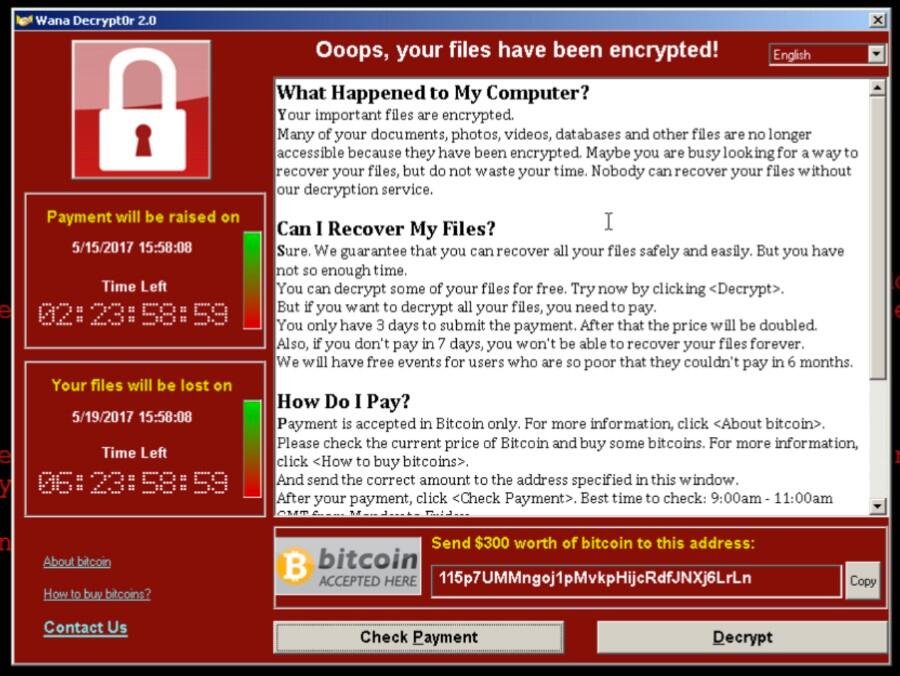
How to recover Ransomware encrypted files
When your computer is infected by Ransomware, you don't have to pay the ransom to recover your encrypted files. There are four alternative methods to help you regain access to your data.
Method 1: Use Ransomware decrypt tool
Computers infected with the WannaCry ransomware may be able to recover encrypted files without paying a ransom. This is because Windows applications store encryption and decryption keys in the computer's memory, including those used to encrypt WannaCry-locked files. As long as the memory location that saved these keys hasn't been overwritten or cleared, it is possible to extract the keys and decrypt the virus-locked files.
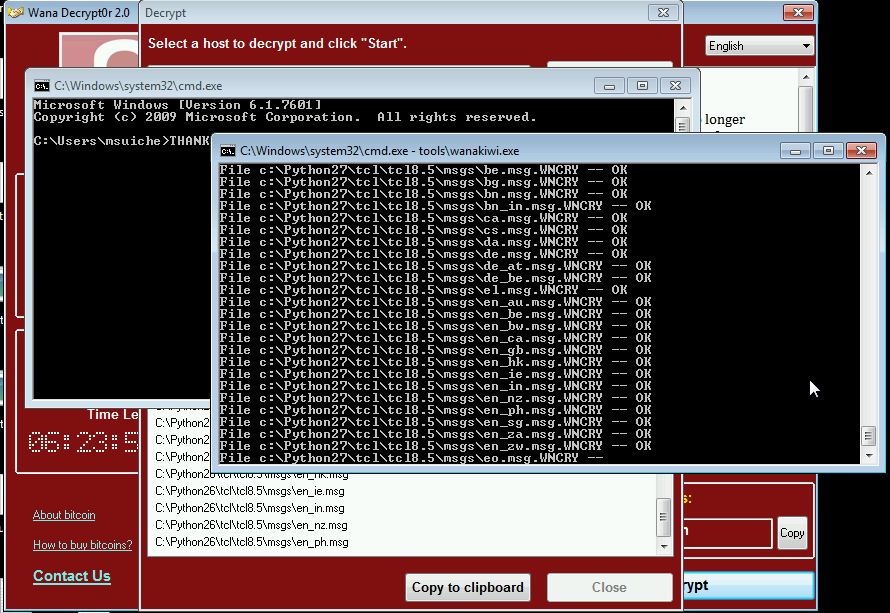
You can download the free ransomware decrypt tool called Wanakiwi, which was released in 2017, and start decrypting virus-encrypted files. It's been tested on Windows XP, 7, 2003, Vista, and Server 2008(R2).
Method 2: Recover from shadow copies
Windows has system protection enabled by default, which creates restore points before significant events. This process involves creating a volume backup with shadow copies, resulting in multiple copies that are often unnoticed. These shadow copies can be used to recover encrypted files.
1. Download and install the Shadow Explorer tool.
To recover files encrypted by ransomware:
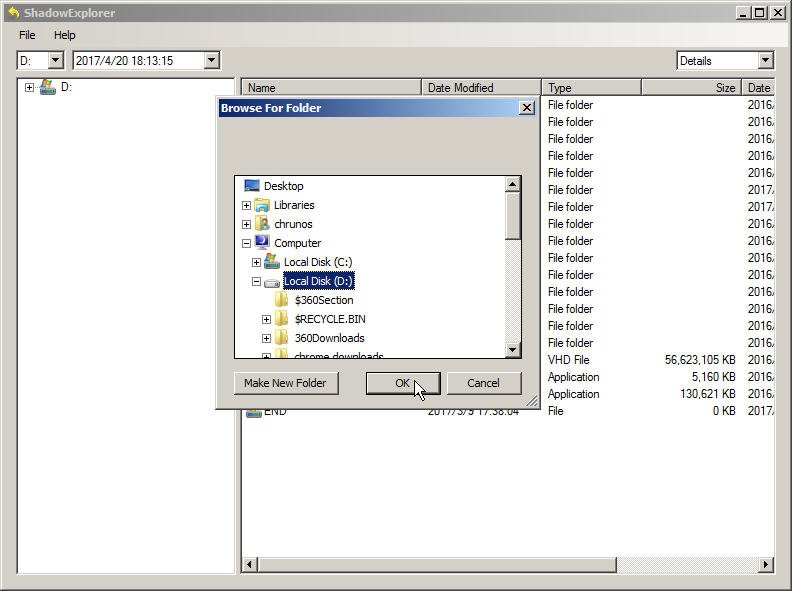
2. In the main interface of Shadow Explorer, select the volume and the date you want to restore files from. For example, choose the D: drive — you may be surprised to find dozens of shadow copies available for recovery.
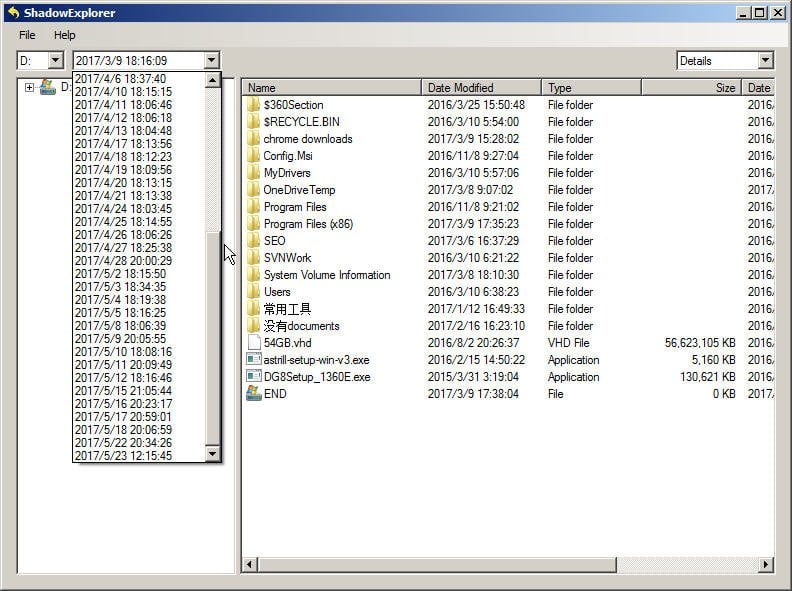
3. All files from that time period are listed. Right-click on the file you want to recover and select Export.
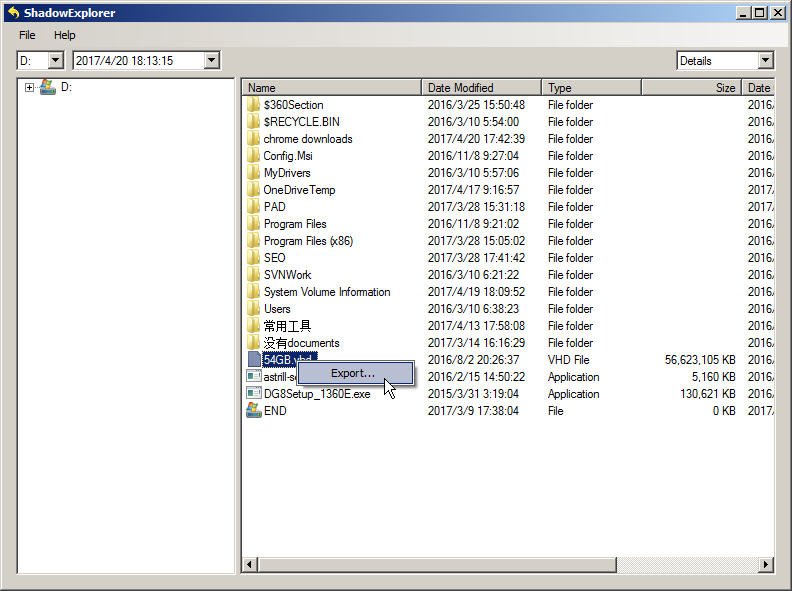
4. Select a location to save the recovered file and click OK. The file will be restored to the chosen location.
Method 3: Restore from the previous backup
Having a system backup that includes personal files can help you restore data and remove the virus, making a solid backup strategy the best defense against ransomware. Windows 10/11 even reminds users to back up their files regularly.
To recover encrypted files ransomware free:
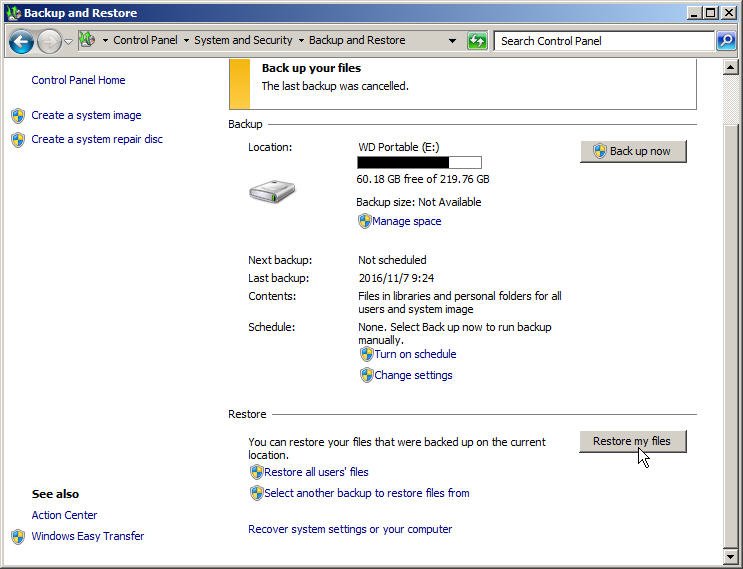
1. Navigate to Control Panel\System and Security\Backup and Restore.
2. In the Backup and Restore screen, click Restore my files and follow the wizard to restore your files.
Method 4: Recover Deleted Files from Ransomware via Data Recovery Software
If the first three methods don't work, there's still a chance to recover files from ransomware. The WannaCry virus, for example, saved the original files in RAM, deleted them, and then created encrypted versions. This means that data recovery tools can potentially recover the original files from the hard drive.
You can download a file undelete or data recovery tool like Deep Data Recovery to help you recover deleted files caused by virus attacks.
Step 1. To recover your lost data, download and install the reliable data recovery software Deep Data Recovery on your computer.
Step 2. Select the partition where you saved deleted files before and then click "Start Scan".

Step 3. The software quickly scans the partition, allowing you to view the scanning list and locate the desired file without waiting for the scan to complete.
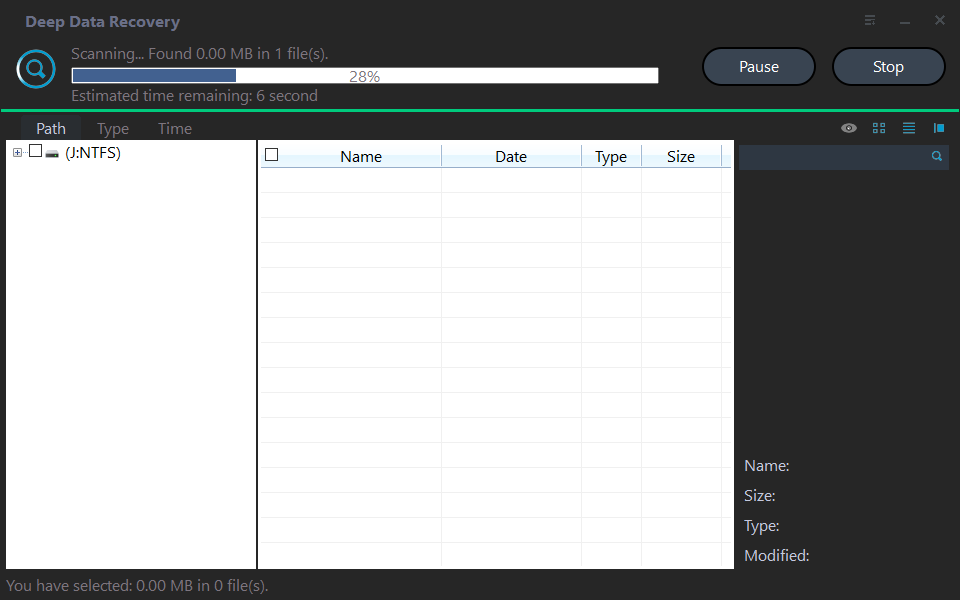
Step 4. Search the file names or filter files by size, type and date modified to quickly find the needed data, then select the files and click "Recover" to proceed.

Backup encrypted files for recovery time
To prevent ransomware from deleting your encrypted files, create a backup of your data before it's too late. If the ransomware is already present, create an offline backup by booting from a bootable media to ensure the virus is excluded from the backup, allowing you to recover your files.
If the ransomware is a concern, it's best to start backing up your valuable data immediately. You can use Windows Backup and Restore, or if you're not familiar with it, choose another simple backup tool to ensure your data is safe.
The special version of the Qiling Disk Master Standard offers a convenient backup solution with just a few clicks. You can easily create a file backup, partition backup, system backup or disk backup, making it a suitable option for your needs.
To try Qiling Disk Master, download it and have a go! For server users, you can also try Qiling Disk Master Server.
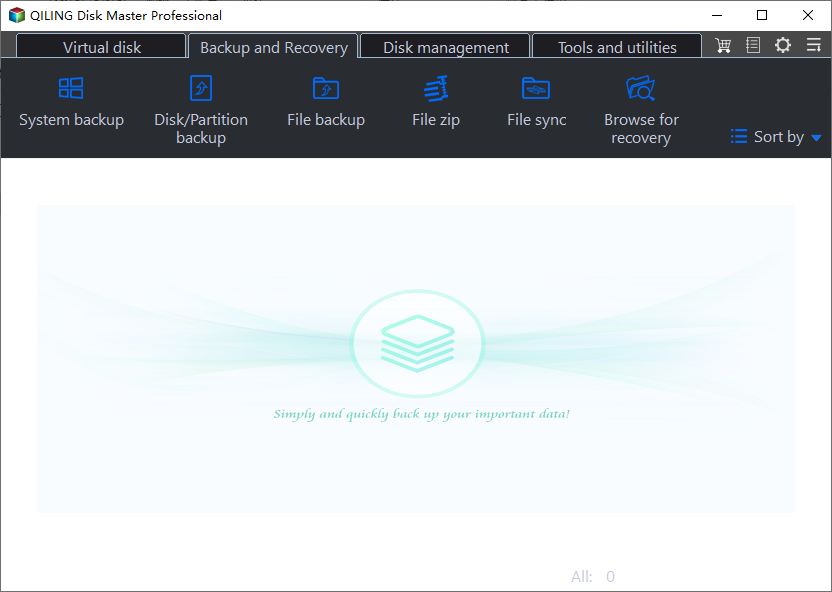
With this feature, you can specify both the backup source and target location on the same screen, allowing for easy backup of files to various destinations such as external hard drives, USB drives, network drives, cloud drives, NAS, and more.

Summary
If your files are encrypted by ransomware, don't pay the ransom immediately. Try these 4 methods first, as new decryption tools may be developed to help you recover your files.
To recover ransomware encrypted files in Windows 10 or previous systems, it's essential to backup encrypted files, partition, system, and disk. This will not only help you recover the files but also prevent data loss in case of a ransomware attack. Running a scheduled backup task is the best way to ensure continuous backup of all changes.
Related Articles
- How to Recover Files from Ransomware Attack [Full Guide 2022]
- Remove Ransomware Virus WannaCry in Windows 7 and Restore Files
- Best Ransomware Rescue Disk for Data Protection (Free)
- Sync Files to Google Drive in Windows Server 2008 or Similar Storage
This article introduces you to how to perform Google Drive sync in Windows Server 2008 in different situations. Please click on to learn more about it! - Data Backup and Drive Clone Tutorials
Browse file sync tutorials for syncing folders, drives, cloud storage, and Windows data across PCs or storage locations. - How to Move Apps from One Drive to Another on Windows 11
Moving applications from one drive to another in Windows 11 can be easily done. This post will guide you through the simplest way to relocate applications to another drive.
Products
Articles & Tutorials
- Data Recovery
- Data Backup
- File Recovery
- File Backup
- File synchronize
- System Backup and Restore
- Disk and Partition Clone
- Technical articles
- Disk Master Help
- Windows Deleted File and Disk Recovery Tutorials
- Windows File and Data Recovery Tutorials
- More Windows Tutorials for Install, Security, Files, and PC Tips
- Windows Boot, Repair, and Recovery Environment Tutorials
- Windows Backup Tutorials
- Windows Restore Tutorials
- Windows Clone and Migration Tutorials
- Windows Server Backup, Recovery, and Management Tutorials
- Windows Disk, Partition, and Storage Management Tutorials