Run Windows 11 on Any PC: Compatibility and Safer Options
Many users want to run Windows 11 on older or mixed hardware. The practical question is not only whether it can install, but whether drivers, updates, and performance will remain reliable.
Understand the problem
Windows 11 expects modern CPU features, TPM, Secure Boot, and UEFI. Unsupported installations may work for testing, but production computers need a stronger backup and rollback plan.
- Confirm the exact disk, partition, drive letter, file system, boot mode, or Windows version before changing settings.
- Back up or recover important files before formatting, deleting, resizing, converting, reinstalling, or cleaning a drive.
- For boot or installation tasks, check BIOS or UEFI mode, disk style, boot order, and device compatibility first.
Use Windows built-in tools
Choose the safest route first.
- Run PC Health Check or review Windows 11 requirements manually.
- Enable TPM, UEFI, and Secure Boot if the hardware supports them.
- Use a supported upgrade when possible.
- Use a test disk or external environment for experiments.
- Keep Windows 10 recovery media if the PC is important.
Use Qiling tools for guided steps
 Qiling Disk Master
Protect files and create bootable recovery media before testing Windows 11 on uncertain hardware.
Function. Back up important files before changing Windows or disk settings
Step 1. Connect an external drive or choose another safe destination with enough space for personal files and setup files on the PC.
Step 2. Open Qiling Disk Master and choose File Backup. This keeps a copy of important files before you change partitions, boot settings, cleanup options, or Windows installation files.

Step 3. In the tree control, select the files and folders that must be protected. Back up files before changing firmware settings, partitions, or Windows versions

Step 4. Choose another internal disk, external drive, NAS folder, or network path as the destination. Avoid saving the backup to the partition that will be changed.

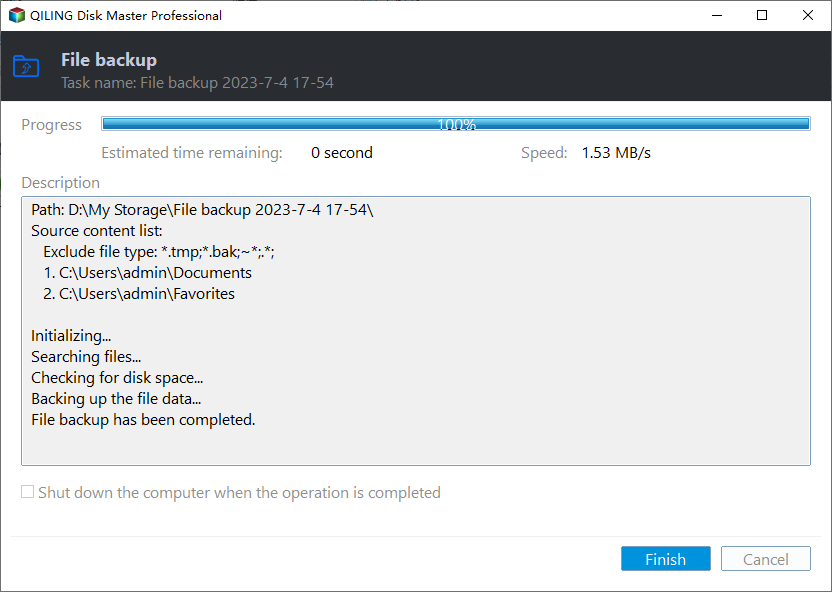
Step 5. Review the source and destination, then click Proceed. Wait until the backup completes before continuing with the repair or setup task.
Function. Create bootable media for repair or installation
Step 1. Prepare an empty USB drive and connect it to a working computer. Back up files on the USB drive first because it may be formatted.
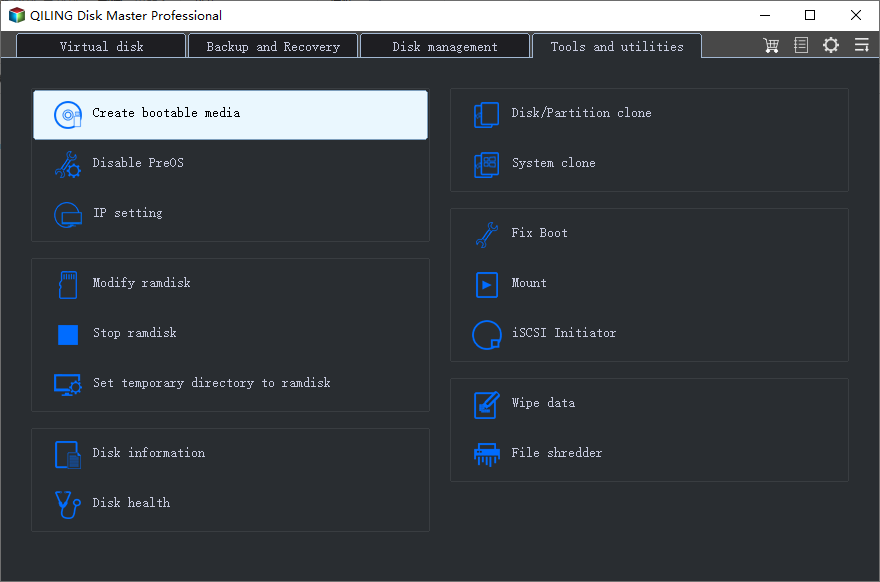
Step 2. Open Qiling Disk Master and choose Create Bootable Media. This gives you a safer environment for Windows 11 testing or rollback preparation.
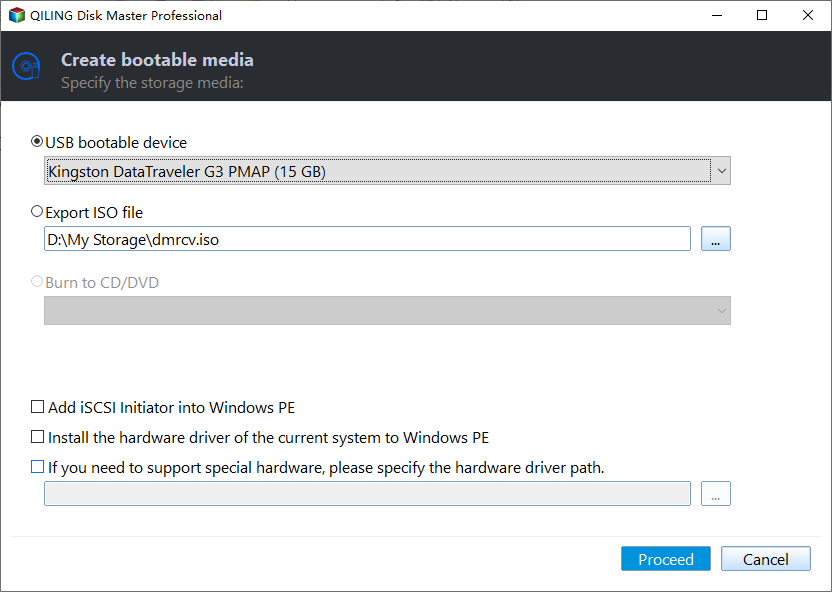
Step 3. Select the USB boot device option and choose the correct USB drive by drive letter and capacity.
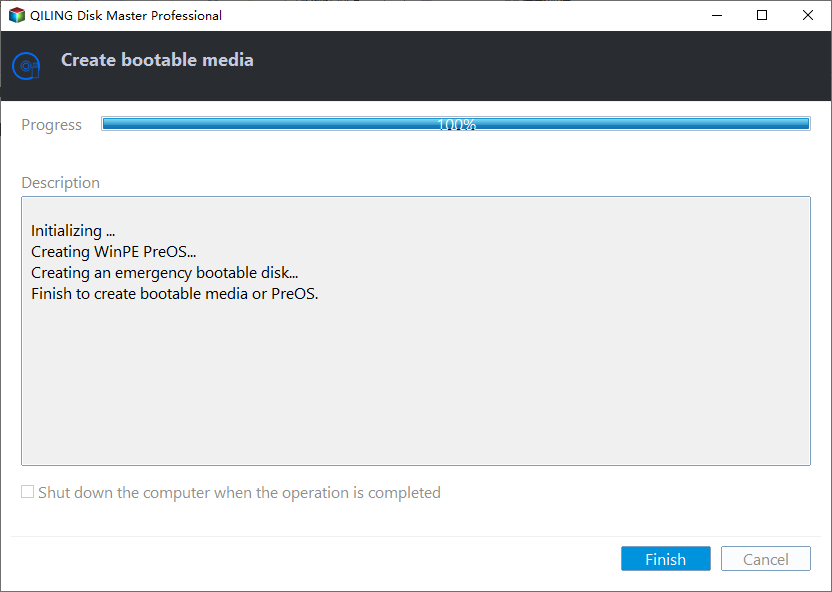
Step 4. Click Proceed and wait until the bootable media is created. Boot the target computer from it when normal Windows access is not enough.
Check the result
After setup, test startup, sleep, Wi-Fi, Bluetooth, graphics, audio, storage speed, and Windows Update before using the PC for daily work.
Related Articles
-
PC Health Windows 11
Check whether a PC is ready for Windows 11 before installing. -
Windows 11 Compatibility Check
Review compatibility requirements before upgrading or testing Windows 11.
Products
Articles & Tutorials
- Data Recovery
- Data Backup
- File Recovery
- File Backup
- File synchronize
- System Backup and Restore
- Disk and Partition Clone
- Technical articles
- Disk Master Help
- Windows Deleted File and Disk Recovery Tutorials
- Windows File and Data Recovery Tutorials
- More Windows Tutorials for Install, Security, Files, and PC Tips
- Windows Boot, Repair, and Recovery Environment Tutorials
- Windows Backup Tutorials
- Windows Restore Tutorials
- Windows Clone and Migration Tutorials
- Windows Server Backup, Recovery, and Management Tutorials
- Windows Disk, Partition, and Storage Management Tutorials